Lifetime VPS Europe
 Lifetime VPS Asia
 Lifetime WooCommerce Hosting
 Lifetime Hosting
 Lifetime Game Dedicated Servers
 Chicago, US
 Tokyo, Japan
 Singapore
 Hong Kong
 Seoul, South Korea
 Amsterdem, Netherlands
 London, UK
 Stockholm, Sweden
 Oslo, Norway
 Vienna, Austria
 Zurich, Switzerland
 Sydney, Australia
 Wordpress Hosting
 VPS Hosting
 DDOS Protection
 Submit Ticket
 Full Management
 Guides
 Videos and Podcasts
 Discover Creative Ideas
 Voxfor Autonomous AI Workers
 Voxfor Mega Menu
 Voxfor Advanced Price Management For WooCommerce
 Voxfor Secure Live Chat and AI Support
 Voxfor Multilanguage
 Voxfor AI Content Summary
 Voxfor Autopilot

Google Analytics can easily qualify as one of the most potent tools to know how your site performs and how people use it. Regardless of whether you are operating a custom PHP application, dynamic site or a server-side rendered application, it is necessary to incorporate Google Analytics to track important insights. This tutorial will show you several ways to integrate Google Analytics to your PHP application, including simple integration and complex server event tracking.
Analytics-ready PHP hosting
Track PHP website traffic on hosting built for reliability
Google Analytics helps you understand visitors, but hosting performance still shapes the experience after they arrive. Voxfor VPS gives PHP site owners dedicated resources for analytics-ready websites, dashboards, and business growth.
Understanding Google Analytics 4 (GA4)
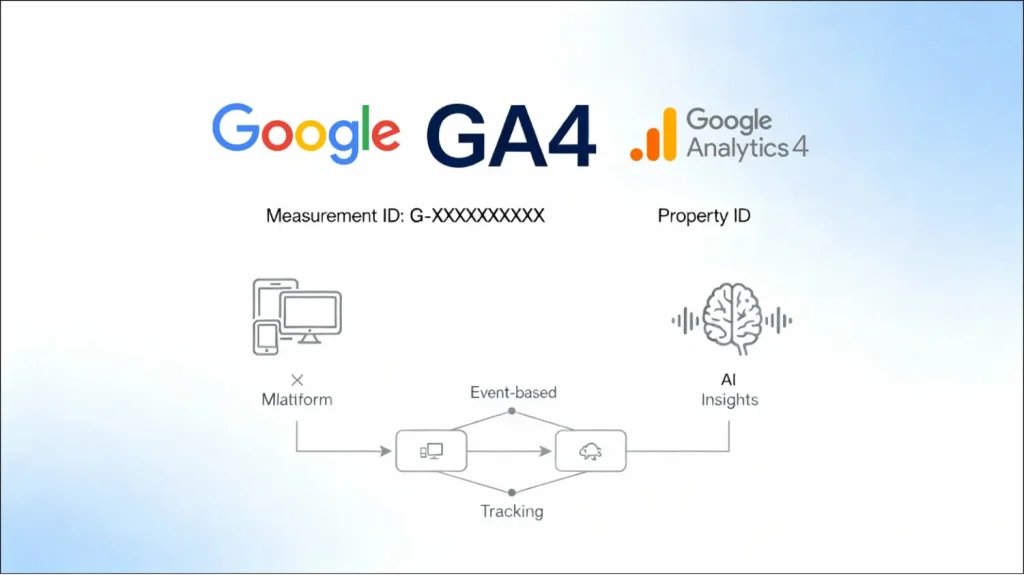
Google Analytics 4 has changed significant from Universal Analytics. Unlike its predecessor, GA4 uses an event-based tracking model rather than session-based tracking, providing more granular insights into user interactions. GA4 offers enhanced cross-platform tracking, AI-powered insights, and improved privacy compliance features.
The measurement system in GA4 revolves around two key identifiers that you need to understand:
Measurement ID – A unique identifier for your GA4 property, formatted as G-XXXXXXXXXX. This ID tells Google Analytics which property should receive your tracking data. Each web data stream within a GA4 property has its own measurement ID.
Property ID – A distinct identifier for your entire GA4 property, which can contain multiple data streams (web, iOS app, Android app, etc.). All data streams within the same property share the same property ID, but each has a unique measurement ID.
Step 1: Set Up Your Google Analytics 4 Account

Before implementing any tracking code, you need to create a Google Analytics 4 account and property.
Create a Google Analytics Account
- analytics.google.com
- and sign in with your Google account. If you don’t have a Google account, create one first.
- Click on Start measuring or Create Account if you’re new to Google Analytics.
- Enter your account name (this is your organization name, visible only to you).
- Accept the Data Processing Terms and click Next.
Create a GA4 Property
- Enter your property name (this should be your website name).
- Select your reporting time zone and currency.
- Click Next and fill in additional business information about your company size and industry.
- Specify your business objectives (e.g., learning about customers, improving marketing, measuring sales).
- Click Create.
Create a Data Stream
After creating your property, you’ll be prompted to create a data stream. Follow these steps:
- Choose Web as your platform.
- Enter your website URL (the domain where you’ll implement the tracking).
- Give your data stream a name (e.g., “Main Website” or your domain name).
- Click Create Stream.
Get Your Measurement ID
After creating your data stream:
- You’ll see your Measurement ID displayed prominently at the top right of the screen.
- Copy the entire ID (it will look like G-ABC123XYZ).
- Keep this ID safe – you’ll need it for all tracking implementations.
To find your Measurement ID anytime:
- Go to Admin (gear icon, bottom left)
- Under Property, click Data Streams
- Select your web data stream
- Your Measurement ID appears at the top right
Method 1: Add Google Analytics Tracking Code to Your PHP Website Header
The most straightforward method is to add GA tracking code to your website header file. This approach works for both custom PHP applications and standard PHP websites.
Option A: Manual Header Injection
If your PHP website has a central header file that loads on every page, add the GA4 tracking code there.
- Locate your website’s header file (typically named header.php, header.include.php, or similar)
- Find the closing </head> tag
- Just before the closing </head> tag, paste this code (replace G-XXXXXXXXXX with your actual Measurement ID):
<!-- Google tag (gtag.js) -->

<script async src="https://www.googletagmanager.com/gtag/js?id=G-XXXXXXXXXX"></script>

<script>

  window.dataLayer = window.dataLayer || [];

  function gtag(){dataLayer.push(arguments);}

  gtag('js', new Date());

  gtag('config', 'G-XXXXXXXXXX', { 'send_page_view': true });

</script>- Save your changes and verify that every page of your website loads this code.
Option B: Create a Separate Analytics Include File
For better organization and maintainability, create a dedicated analytics file:
- Create a new file named ga-tracking.php in your includes directory:
<!-- Google tag (gtag.js) -->

<script async src="https://www.googletagmanager.com/gtag/js?id=G-XXXXXXXXXX"></script>

<script>

  window.dataLayer = window.dataLayer || [];

  function gtag(){dataLayer.push(arguments);}

  gtag('js', new Date());

  gtag('config', 'G-XXXXXXXXXX', { 'send_page_view': true });

</script>- In your main header file, just before the closing </head> tag, add this line:
<?php include_once 'ga-tracking.php'; ?>This approach keeps your analytics code separate from your main header template, making it easier to manage and update.
Option C: Using PHP Functions (Advanced)
For maximum flexibility, use a PHP function that conditionally loads the tracking code:
<?php

function load_google_analytics() {

    ?>

    <!-- Google tag (gtag.js) -->

    <script async src="https://www.googletagmanager.com/gtag/js?id=G-XXXXXXXXXX"></script>

    <script>

      window.dataLayer = window.dataLayer || [];

      function gtag(){dataLayer.push(arguments);}

      gtag('js', new Date());

      gtag('config', 'G-XXXXXXXXXX', { 'send_page_view': true });

    </script>

    <?php

}

// Add the function to the wp_head hook if using WordPress

add_action('wp_head', 'load_google_analytics');

// Or call it directly in your header.php

// load_google_analytics();

?>
This method is especially useful if you want to conditionally load analytics (e.g., only in production, not in development environments) or add additional business logic.
Method 2: Implement Google Tag Manager (GTM) with PHP
Google Tag Manager is a central hub for managing all your tracking tags without needing to modify your website code repeatedly.
Set Up Google Tag Manager
- Visit
- tagmanager.google.com
- Click Create Account
- Enter your account name and container name (usually your website URL)
- Select Web as your container type
- Accept the terms and click Create
Install GTM Container Code in PHP
Google Tag Manager provides two code snippets:
First snippet – Add this in the <head> section:
<!-- Google Tag Manager -->

<script>(function(w,d,s,l,i){w[l]=w[l]||[];w[l].push({'gtm.start':

new Date().getTime(),event:'gtm.js'});var f=d.getElementsByTagName(s),

j=d.createElement(s),dl=l!='dataLayer'?'&l='+l:'';j.async=true;j.src=

'https://www.googletagmanager.com/gtm.js?id='+i+dl;f.parentNode.insertBefore(j,f);

})(window,document,'script','dataLayer','GTM-XXXXXXX');</script>

<!-- End Google Tag Manager -->

Second snippet – Add this immediately after the opening <body> tag:

xml

<!-- Google Tag Manager (noscript) -->

<noscript><iframe src="https://www.googletagmanager.com/ns.html?id=GTM-XXXXXXX"

height="0" width="0" style="display:none;visibility:hidden"></iframe></noscript>

<!-- End Google Tag Manager -->
Add GTM Code to Your PHP Files
For a custom PHP website, create a file called gtm-header.php:
<?php

// Include this file in your header before any other scripts

$gtm_id = 'GTM-XXXXXXX';

?>

<!-- Google Tag Manager -->

<script>(function(w,d,s,l,i){w[l]=w[l]||[];w[l].push({'gtm.start':

new Date().getTime(),event:'gtm.js'});var f=d.getElementsByTagName(s),

j=d.createElement(s),dl=l!='dataLayer'?'&l='+l:'';j.async=true;j.src=

'https://www.googletagmanager.com/gtm.js?id='+i+dl;f.parentNode.insertBefore(j,f);

})(window,document,'script','dataLayer','<?php echo $gtm_id; ?>');</script>

<!-- End Google Tag Manager -->
And a file called gtm-body.php for the body tag:
<?php

$gtm_id = 'GTM-XXXXXXX';

?>

<!-- Google Tag Manager (noscript) -->

<noscript><iframe src="https://www.googletagmanager.com/ns.html?id=<?php echo $gtm_id; ?>"

height="0" width="0" style="display:none;visibility:hidden"></iframe></noscript>

<!-- End Google Tag Manager -->
Then include these files in your header and body:
<?php include 'gtm-header.php'; ?>

</head>

<body>

<?php include 'gtm-body.php'; ?>
Method 3: Server-Side Event Tracking with PHP
While the above methods track client-side interactions (page views, clicks), sometimes you need to track server-side events like form submissions, purchases, or authentication attempts.
Understanding GA4 Measurement Protocol
GA4 provides a Measurement Protocol API that allows you to send events from your server directly to Google Analytics. This is valuable when you want to track events that happen on the backend.
Generate an API Secret
- In Google Analytics, go to Admin > Data Streams
- Select your web data stream
- Scroll down to Measurement Protocol API Secrets
- Click Create
- Enter a display name and click Create Secret
- Copy the API secret (you’ll use this in your PHP code)
Send Custom Events via PHP with cURL
Here’s a PHP class to send events to GA4:
<?php
class GA4Events {
    private $measurement_id;
    private $api_secret;
    private $client_id;

    public function __construct($measurement_id, $api_secret, $client_id) {
        $this->measurement_id = $measurement_id;
        $this->api_secret = $api_secret;
        $this->client_id = $client_id;
    }

    /**
     * Send a custom event to Google Analytics 4
     *
     * @param string $event_name Name of the event (e.g., 'purchase', 'form_submit')
     * @param array $event_params Event parameters (optional)
     * @return bool Success status
     */
    public function send_event($event_name, $event_params = []) {
        $url = "https://www.google-analytics.com/mp/collect?api_secret={$this->api_secret}&measurement_id={$this->measurement_id}";

        // Build the event payload
        $payload = [
            'client_id' => $this->client_id,
            'events' => [
                [
                    'name' => $event_name,
                    'params' => $event_params
                ]
            ]
        ];

        // Initialize cURL
        $ch = curl_init($url);
        curl_setopt_array($ch, [
            CURLOPT_CUSTOMREQUEST => 'POST',
            CURLOPT_POSTFIELDS => json_encode($payload),
            CURLOPT_HTTPHEADER => ['Content-Type: application/json'],
            CURLOPT_RETURNTRANSFER => true,
            CURLOPT_SSL_VERIFYPEER => true
        ]);

        // Send the request
        $response = curl_exec($ch);
        $http_status = curl_getinfo($ch, CURLINFO_HTTP_CODE);
        curl_close($ch);

        // Return success if status is 204 (No Content) or 200 (OK)
        return in_array($http_status, [200, 204]);
    }
}
?>
Usage Example: Track Form Submissions
<?php
// Initialize the GA4 event tracker
$ga4_events = new GA4Events(
    'G-XXXXXXXXXX',          // Your Measurement ID
    'your_api_secret_here',  // Your API Secret
    'client_id_value'        // Client ID (can be session ID or unique visitor ID)
);

// Example: Track a contact form submission
if ($_SERVER['REQUEST_METHOD'] === 'POST' && isset($_POST['contact_form'])) {
    // Process the form
    $name = sanitize_input($_POST['name']);
    $email = sanitize_input($_POST['email']);
    $message = sanitize_input($_POST['message']);

    // Validate and save the form data
    if (validate_email($email) && !empty($message)) {
        // Save to database or send email
        save_contact_message($name, $email, $message);

        // Send event to Google Analytics
        $ga4_events->send_event('contact_form_submission', [
            'user_name' => $name,
            'email' => $email,
            'message_length' => strlen($message),
            'form_location' => 'contact_page'
        ]);

        $success_message = "Thank you for your message!";
    }
}
?>
Track User Registrations
<?php
if ($_SERVER['REQUEST_METHOD'] === 'POST' && isset($_POST['register'])) {
    $username = sanitize_input($_POST['username']);
    $email = sanitize_input($_POST['email']);
    $password = $_POST['password'];

    // Validate and create user
    if (validate_registration_form($username, $email, $password)) {
        $user_id = create_user_account($username, $email, $password);

        // Track the sign_up event in GA4
        $ga4_events->send_event('sign_up', [
            'method' => 'email',
            'user_id' => $user_id,
            'username' => $username
        ]);

        // Redirect to confirmation page
        header('Location: /registration-confirmed');
    }
}
?>
Track E-Commerce Transactions
For e-commerce sites, tracking purchases is critical:
<?php
if ($transaction_complete) {
    $total_value = 0;
    $items = [];

    foreach ($cart_items as $item) {
        $total_value += $item['price'] * $item['quantity'];
        $items[] = [
            'item_id' => $item['product_id'],
            'item_name' => $item['product_name'],
            'affiliation' => 'Your Store Name',
            'coupon' => isset($item['coupon']) ? $item['coupon'] : '',
            'currency' => 'USD',
            'discount' => $item['discount'] ?? 0,
            'index' => count($items),
            'item_brand' => $item['brand'],
            'item_category' => $item['category'],
            'item_category2' => $item['subcategory'] ?? '',
            'item_list_id' => 'cart_list',
            'item_list_name' => 'Shopping Cart',
            'item_variant' => $item['variant'] ?? '',
            'price' => $item['price'],
            'quantity' => $item['quantity']
        ];
    }

    // Send purchase event to GA4
    $ga4_events->send_event('purchase', [
        'transaction_id' => $order_id,
        'affiliation' => 'Your Store Name',
        'value' => $total_value,
        'currency' => 'USD',
        'tax' => calculate_tax($total_value),
        'shipping' => $shipping_cost,
        'coupon' => $coupon_code ?? '',
        'items' => $items
    ]);
}
?>
Method 4: Using PHP Analytics Plugins and Libraries
WordPress Plugin Option
If you’re using WordPress, installing a Google Analytics plugin is the easiest approach:
- WordPress dashboard, go to Plugins > Add New
- Search for Google Site Kit or GA Google Analytics
- Click Install Now and then Activate
- Follow the plugin’s setup wizard to connect your GA4 account
- It will automatically adds the tracking code to your site
Popular WordPress analytics plugins include:
- Google Site Kit (official plugin by Google)
- MonsterInsights (freemium with advanced features)
- GA Google Analytics (lightweight and straightforward)
PHP Analytics Libraries
For custom PHP applications, you can use third-party libraries:
Using Composer:
composer require google/analytics-phpExample Implementation:
<?php
require 'vendor/autoload.php';

use Google\Analytics\MeasurementProtocol\Event;
use Google\Analytics\MeasurementProtocol\Client;

$client = new Client([
    'measurement_id' => 'G-XXXXXXXXXX',
    'api_secret' => 'your_api_secret'
]);

$event = new Event('purchase', [
    'transaction_id' => 'T_12345',
    'value' => 99.99,
    'currency' => 'USD'
]);

$client->send($event);
?>
Verify Your Implementation
Check Real-Time Reporting
After implementing the tracking code:
- Go to your Google Analytics GA4 property
- Navigate to Reports > Realtime
- Visit your website and interact with it
- You should see real-time data appearing in GA4
Use Google Tag Assistant
Browser extension:
- Click the extension icon on any page of your website
- The extension will verify that your GA4 tracking code is correctly installed
- It shows you all active tags and their status
Debug Events with GA DebugView
For custom events, use the DebugView feature:
- In Google Analytics, go to Admin > Debug View
- It shows real-time events being sent to GA4
- This helps verify that your custom event implementation is working
Best Practices for Google Analytics Implementation
Use a Child Theme or Separate File – Never edit parent theme files directly if using WordPress. Use child themes or hooks to add tracking code.
Always Use HTTPS – Google Analytics requires a secure connection. Ensure your website uses HTTPS before implementing tracking.
Respect User Privacy – Implement cookie consent notices and respect user preferences. GA4 automatically anonymizes IP addresses, but follows GDPR and local privacy regulations.
Test Before Production – Test all tracking implementation in a staging environment before deploying to production.
Document Your Events – Create a tracking plan document that lists all custom events, their parameters, and their purpose.
Keep Your Code Updated – Google occasionally updates the tracking code format. Check periodically for updates and apply them.
Monitor Data Quality – Regularly review your analytics data for anomalies. Verify that page view counts match actual traffic.
Use Meaningful Event Names – Follow Google naming conventions (lowercase with underscores, e.g., contact_form_submit not ContactFormSubmit).
Troubleshooting Common Issues
No Data Appearing in Google Analytics
Issue: You’ve added the tracking code, but no data appears after 24-48 hours.
Solutions:
- Verify that your Measurement ID is correct and matches your GA4 property
- Ensure the tracking code is placed in the <head> section before any other scripts
- Check that JavaScript is not disabled in your browser
- Verify that your website is publicly accessible (GA4 can’t track localhost)
- Use Google Tag Assistant to confirm the code is present
Events Not Registering
Issue: Custom events you’re sending via PHP aren’t appearing in GA4.
Solutions:
- Verify your Measurement ID and API Secret are correct.
- Ensure your client_id value is a valid UUID format
- Check that the API is not rate-limited (max 1000 events per second)
- Use error logging in your PHP code to confirm requests are being sent
- Use GA DebugView to see if events are reaching GA4
Tracking Code Conflicts
Issue: Multiple tracking codes are causing data duplication or errors.
Solutions:
- Remove duplicate Google Analytics codes from your site
- Use Google Tag Manager instead, which consolidates all tags
- Check for conflicting plugins if using WordPress
- Verify only one Measurement ID is active per property
Conclusion
Adding Google Analytics to your PHP website is straightforward, whether you choose a simple implementation or a more sophisticated approach with custom server-side event tracking. The method you select depends on your website’s complexity, your specific tracking needs, and your technical expertise.
For most PHP websites, adding the GA4 tracking code to your header file is sufficient for understanding basic user behavior, traffic sources, and page performance. For advanced use cases like e-commerce tracking, form submissions, or user authentication events, implementing server-side event tracking via the Measurement Protocol provides greater accuracy and reliability.
About the writer

Hassan Tahir wrote this article, drawing on his experience to clarify WordPress concepts and enhance developer understanding. Through his work, he aims to help both beginners and professionals refine their skills and tackle WordPress projects with greater confidence.