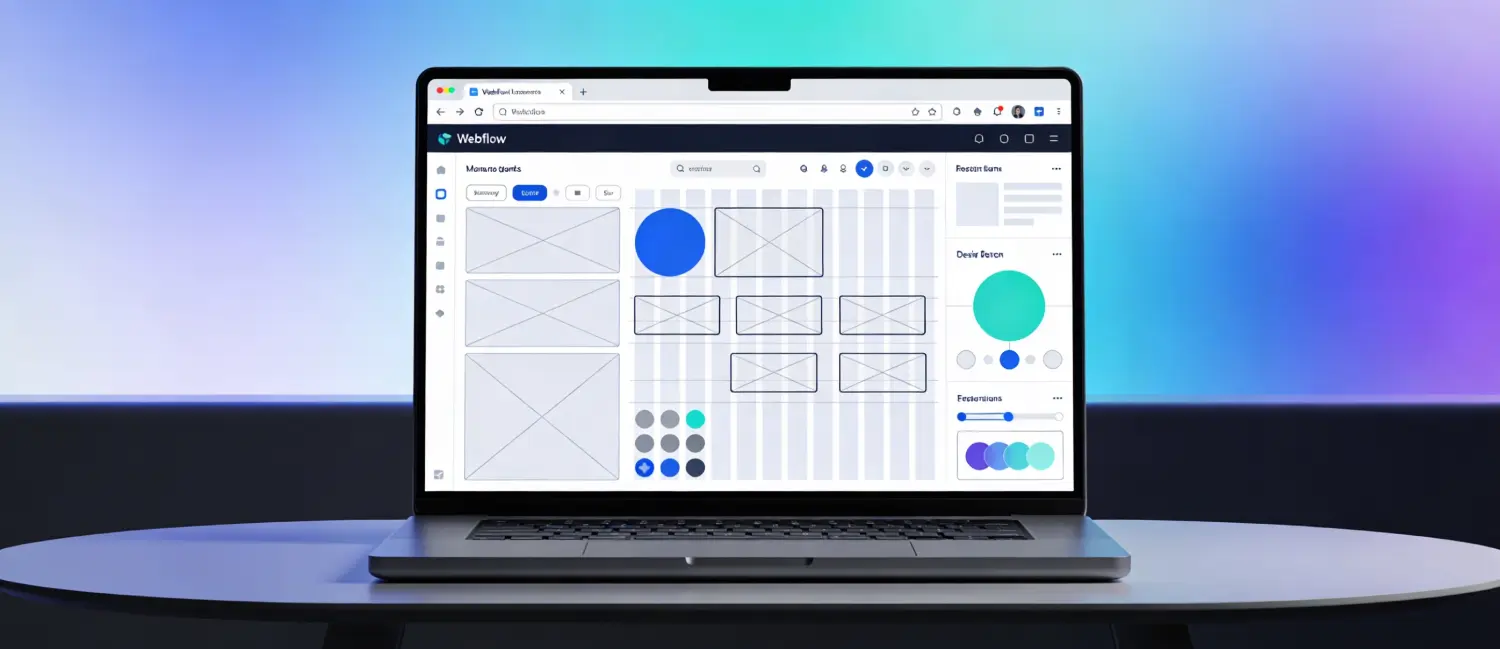
Webflow is a visual-first web development platform that lets you design, build, and launch responsive websites without having to write traditional code. Instead of locking you into rigid templates like many typical site builders, it gives you a live visual canvas where every element you adjust is directly reflected in the underlying HTML, CSS, and JavaScript. As you design, Webflow generates clean, semantic code that follows modern web standards, so the final site is production-ready and suitable for handoff to developers if needed.
Founded in 2013, Webflow aimed to bridge the gap between designers and developers. By 2026, it will have grown from a simple drag-and-drop builder into a comprehensive web experience platform that combines creative design freedom with professional-grade development tools, powering approximately 0.8% of all websites globally (up from 0.4% in 2021). Over 300,000 top companies now trust Webflow with their website experiences.
At its core, Webflow is best described as a visual coding environment, not purely a no-code tool, users who understand the basics of HTML, CSS, and JavaScript will find it extremely intuitive. Still, even complete beginners can build professional sites while learning real front-end fundamentals along the way.
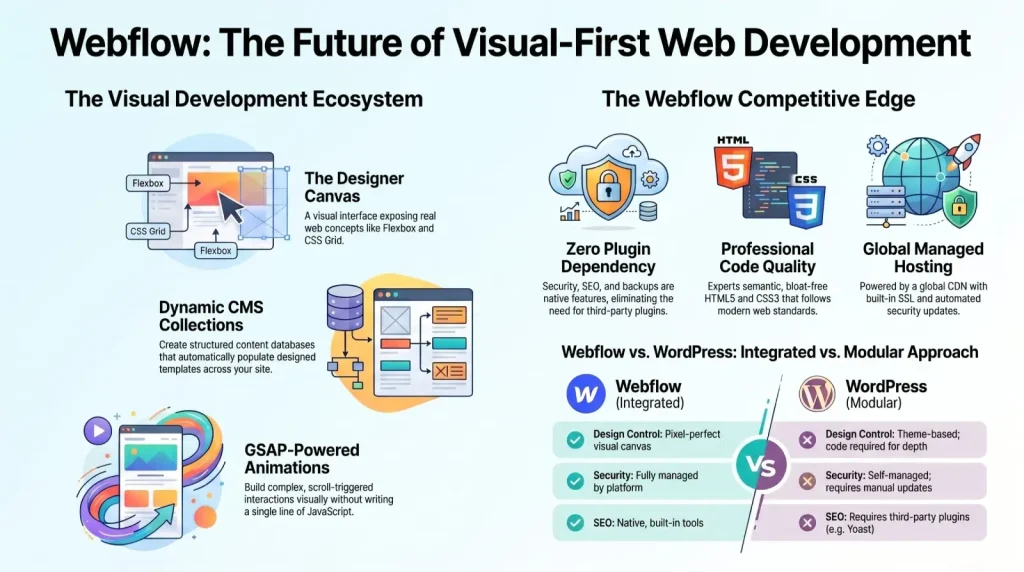
Most website builders either give you a template you can barely customize or force you to write code from scratch. Webflow occupies the space in between;t hink of it as Figma meets a front-end developer. Every design decision you make in the visual canvas translates directly into production-ready code, meaning there is no hidden markup, no bloat, and no dependency on plugins for basic functionality.
Key advantages that distinguish Webflow:
Webflow supports building almost any type of responsive website, including:
In short, Webflow can power roughly 99% of responsive websites you would want to build today, from a simple portfolio to a full-scale digital experience.
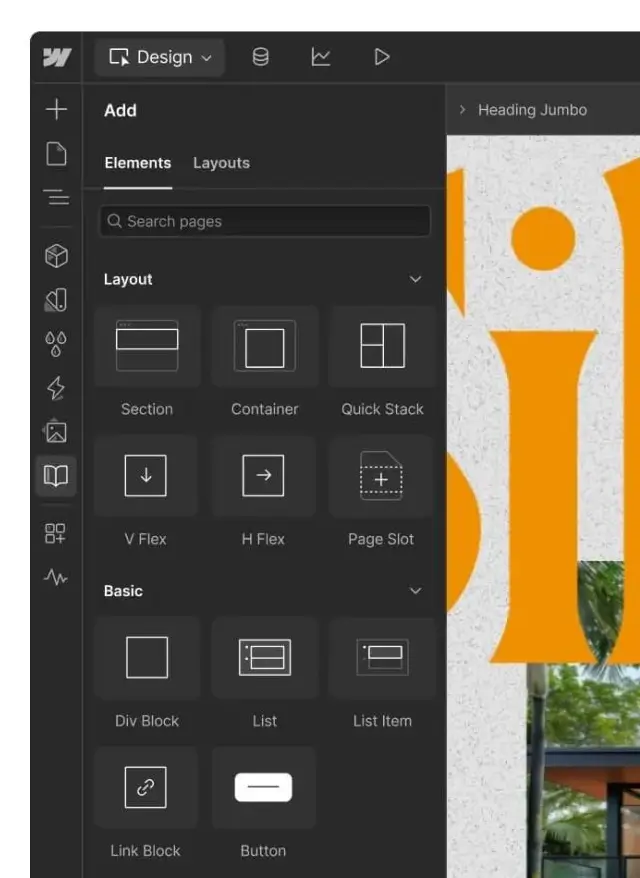
The Webflow Designer is the heart of the platform, a visual canvas where you build your website by dragging, dropping, and styling elements. Unlike basic editors, it exposes web development concepts like Flexbox, CSS Grid, and responsive breakpoints in a visual and accessible form. Every change you make in the Designer is reflected in real-time.
The Designer left panel holds Elements (your building blocks like Divs, headings, images, forms), the Navigator (a structural tree of your page), and Asset management. The right panel controls all styling, dimensions, typography, color, backgrounds, borders, and effects.
Webflow’s CMS uses a collection-based system where you create structured content types (blog posts, team members, case studies, product catalogs) and design dynamic templates that pull data automatically. A Collection is essentially a database — each Collection contains items that share the same fields, and those items render across dynamic pages using a single template design.
Key CMS capabilities include:
One of Webflow most celebrated strengths is its visual animation builder. You can create scroll-triggered animations, hover effects, page-load sequences, and complex multi-step interactions entirely without JavaScript. After acquiring GreenSock (GSAP) in late 2024, Webflow’s animation capabilities expanded significantly, with smoother and more precise motion design powered by industry-standard GSAP.
The Interactions panel lets you:
Pro tip for beginners: Start with simple opacity fades and upward movement at 200–450ms ease-in-out transitions. Over-animation is the #1 beginner mistake. Animations should guide attention, not distract from content.
Webflow includes managed hosting built on a global Content Delivery Network (CDN), so sites load quickly for visitors around the world. Its hosting tools support built-in 301 redirects to route old URLs to new ones, helping avoid 404 errors and protect your SEO performance during redesigns or migrations. You can also enable password protection at the page or folder level, add on-site search, and use separate staging and production environments to support safer development and publishing workflows
Webflow gives direct control over meta titles, descriptions, Open Graph tags, canonical URLs, auto-generated XML sitemaps, custom 301 redirects, and robots.txt files. The clean code output means fast load times and strong Core Web Vitals scores, no SEO plugin required.
Webflow now features an AI site builder that can generate multi-page sites (up to five pages) from a conversational prompt, complete with structure, styles, and animations, providing an editable draft you can immediately refine in the full Designer. This significantly lowers the barrier to entry for absolute beginners.
Webflow caters to a diverse audience
| User Type | How They Use Webflow |
| Marketing Teams | Quickly build and optimize landing pages; update CMS-driven pages without developers |
| Design Professionals | Translate pixel-perfect designs into functional sites without developer handoff |
| Business Owners | Retain full control with real-time updates; reduce dependence on developers |
| Development Teams | Automate repetitive coding tasks; focus on complex functionalities |
| Freelancers & Agencies | Manage multiple client projects from a single Workspace |
| Bloggers & Content Creators | Use the CMS to build scalable, dynamic, content-driven sites |
Visit webflow.com and click Start for free. You can sign up with your email or continue with Google. After signup, Webflow walks you through a short onboarding questionnaire asking about your role, experience level, and what you plan to build.
When creating a new project, you have three starting options:
For beginners, starting with a template is the fastest path to understanding how Webflow sites are structured. For learners who want to master the platform deeply, starting with a blank canvas is recommended.
Before building, it is essential to grasp a few foundational concepts:
The Box Model: Every element on a web page sits inside a box. Understanding how boxes nest, stack, and interact is the foundation of layout design in Webflow and in web development in general.
HTML/CSS Mental Model: Webflow translates your visual decisions into HTML (structure), CSS (styling), and JavaScript (interactions). You don’t write these languages, but understanding what they do helps you use Webflow’s controls purposefully.
Classes: In Webflow, styling is applied via CSS classes. A class stores all the styling rules for an element, and applying the same class to multiple elements keeps your site consistent and maintainable.
Flexbox and Grid: These are the two primary layout systems in Webflow, corresponding directly to CSS Flexbox and CSS Grid. Flexbox handles one-dimensional layouts (rows or columns); Grid handles two-dimensional layouts.
Inside the Designer, the workflow typically follows this sequence:
Webflow uses breakpoints to control how your site looks at different screen sizes. The breakpoints correspond to:
Always design desktop-first in Webflow, then switch to smaller breakpoints and adjust as needed. Styles set at a larger breakpoint cascade down unless specifically overridden.
If your site needs dynamic content (blog, portfolio, products), set up CMS Collections:
Open the Interactions panel (the lightning bolt icon) and follow this workflow:
Before publishing, configure SEO settings for every page:
Use Webflow staging preview (your free.webflow.io subdomain) to share the site with clients or collaborators before going live. When ready:
Webflow has two main types of plans: Site Plans (for individual websites) and Workspace Plans (for team and project management).
| Plan | Annual Price | Monthly Price | Best For |
| Starter | Free | Free | Learning and prototyping (webflow.io domain, 50 CMS items) |
| Basic | $14/mo | $18/mo | Simple sites with no CMS, custom domain |
| CMS | $23/mo | $29/mo | Blogs and content sites (2,000 CMS items) |
| Business | $39/mo | $49/mo | High-traffic sites (10,000 CMS items, site search) |
| Enterprise | Custom | Custom | Large organizations with custom requirements |
For online stores, Webflow offers dedicated e-commerce plans starting at $29/month (Standard, 500 products, 2% transaction fee) up to $212/month (Advanced, 15,000 products, no transaction fee).
Workspace plans govern team collaboration and are charged per seat:
Add-ons are also available: Localization (from $9/month for multilingual support), Analyze (from $9/month for behavior analytics), and Optimize (from $299/month for A/B testing).
Many beginners choosing Webflow are coming from WordPress or considering it as an alternative. Here is how the two platforms compare:
| Feature | Webflow | WordPress |
| Design Flexibility | Complete visual control; blank canvas approach | Theme-based; deep customization requires code or plugins |
| Ease of Use | Steeper initial learning curve; faster once learned | Familiar interface; plugin management can become complex |
| CMS | Built-in, visual, collection-based | Core blogging CMS; advanced features via plugins |
| Hosting | Fully managed, built-in CDN | Self-managed; requires a separate hosting provider |
| Security | Fully managed; no manual updates needed | Self-managed; regular plugin and core updates required |
| SEO | Native SEO tools built in; clean code output | Requires plugins like Yoast SEO |
| E-Commerce | Native e-commerce tools for small to medium stores | WooCommerce plugin: powerful but complex |
| Templates | ~6,000 templates | 13,000+ free themes; thousands more premium |
| Plugins/Apps | Smaller Marketplace; most features are native | ~60,000 plugins available |
| G2 Rating | 4.4/5 | 4.4/5 |
Bottom line: Webflow is faster for design-centric teams who want pixel-perfect control without plugin management overhead. WordPress is better for content-heavy sites, large blogging operations, and teams that rely on a vast plugin ecosystem.[28][26]
The best resources for mastering Webflow, recommended in order for beginners:
Webflow is not just a website builder, it is a platform that teaches visual front-end development as you work. The learning curve is steeper than Wix or Squarespace but significantly shallower than writing code from scratch, and the creative ceiling is dramatically higher. For designers, marketers, freelancers, and content creators who want full design control without developer dependency, Webflow represents one of the most powerful tools available in 2026.
The free Starter plan is enough to learn, prototype, and build with, no credit card required. Starting with Webflow University, then applying knowledge on a real project, is the most effective path to fluency.

Hassan Tahir wrote this article, drawing on his experience to clarify WordPress concepts and enhance developer understanding. Through his work, he aims to help both beginners and professionals refine their skills and tackle WordPress projects with greater confidence.






 Lifetime VPS Europe
 Lifetime VPS Asia
 Lifetime WooCommerce Hosting
 Lifetime Hosting
 France Lifetime Dedicated Servers
 Germany Lifetime dedicated servers
 Lifetime Game Dedicated Servers
 Chicago, US
 Tokyo, Japan
 Singapore
 Hong Kong
 Seoul, South Korea
 Amsterdem, Netherlands
 London, UK
 Stockholm, Sweden
 Oslo, Norway
 Vienna, Austria
 Zurich, Switzerland
 Sydney, Australia
 Wordpress Hosting
 VPS Hosting
 DDOS Protection
 Submit Ticket
 Full Management
 Guides
 Videos and Podcasts
 Discover Creative Ideas
 MetaAgentOS High-Ticket Support System
 Voxfor Mega Menu
 Voxfor Advanced Price Management For WooCommerce
 Voxfor Secure Live Chat and AI Support
 Voxfor Multilanguage
 Voxfor AI Content Summary


