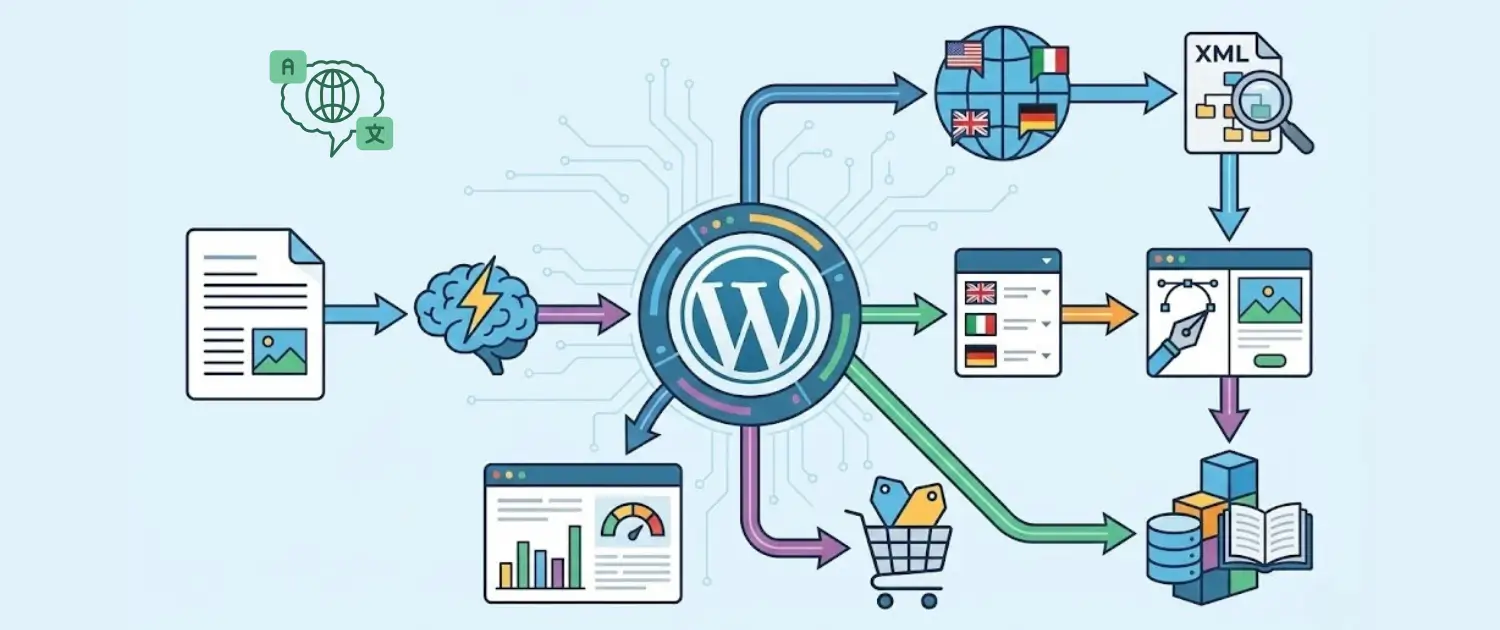
Transform Your WordPress Site Into a Global Powerhouse: Complete Guide to Voxfor Multilanguage Plugin
Last edited on December 11, 2025

This guide explains every feature of the Works for Multilingual WordPress plugin. It is written as a practical manual so any site owner, marketer, or developer can confidently set up and manage a fully multilingual website.

Download & Resources:

Introduction & What This Plugin Does

Works for Multilingual is a free, professional-grade translation plugin for WordPress that turns any site into a multilingual, SEO-optimized platform.

It uses the DeepL API to deliver highly accurate, context-aware AI translations, while still giving full manual control over every piece of content. You can translate:

  • Posts and pages
  • Menus and widgets
  • Images and alt text
  • WooCommerce products and taxonomies
  • URL slugs and internal links

It also includes:

  • SEO features (hreflang tags, multilingual sitemaps, clean URLs)
  • Translation memory
  • A visual translation editor
  • A customizable language switcher
  • Performance optimizations and detailed usage controls

Key Features at a Glance

Key capabilities of Works for Multilingual include:

  • Full-site translation coverage: Posts, pages, products, menus, widgets, theme strings, and more.
  • DeepL-powered translations: High-quality machine translation with strong context awareness.
  • SEO-ready multilingual structure: Hreflang tags, language-specific sitemaps, translated slugs.
  • Automatic internal link localization: Internal links are updated to point to the correct language version.
  • Visual translation editor: Edit translations directly on the frontend view of a page or product.
  • Translation memory: A Central place to search, review, and edit any translated sentence.
  • Glossary (terminology control): Define exact translations for special words or phrases.
  • Exclusion rules: Prevent certain texts, areas, or namespaces from being translated.
  • WooCommerce integration: Fully multilingual store with translated products, categories, and system pages.
  • Usage and API control: Per-day and per-month character limits, alerts, and consumption charts.
  • Performance optimizations: Object caching, lazy loading, and adjustable cache TTL.

Installation & Basic Requirements

Before using the plugin:

  • WordPress and PHP versions meet the plugin requirements.
  • PHP memory limit and server resources are sufficient (check Diagnostics section).

To install:

  1. Install the Works for Multilingual plugin from your WordPress dashboard or upload it manually.
  2. Activate the plugin.
  3. Locate the plugin menu in your WordPress admin (usually “Works for Multilingual” or similar).

After activation, the plugin will be ready for configuration and will display its Dashboard and Settings screens.

Dashboard Overview

Dashboard Overview

The Dashboard is your main control center. It gives a quick overview of:

  • How much content has been translated
  • Which languages are active
  • Pending translation jobs
  • Translation activity over time

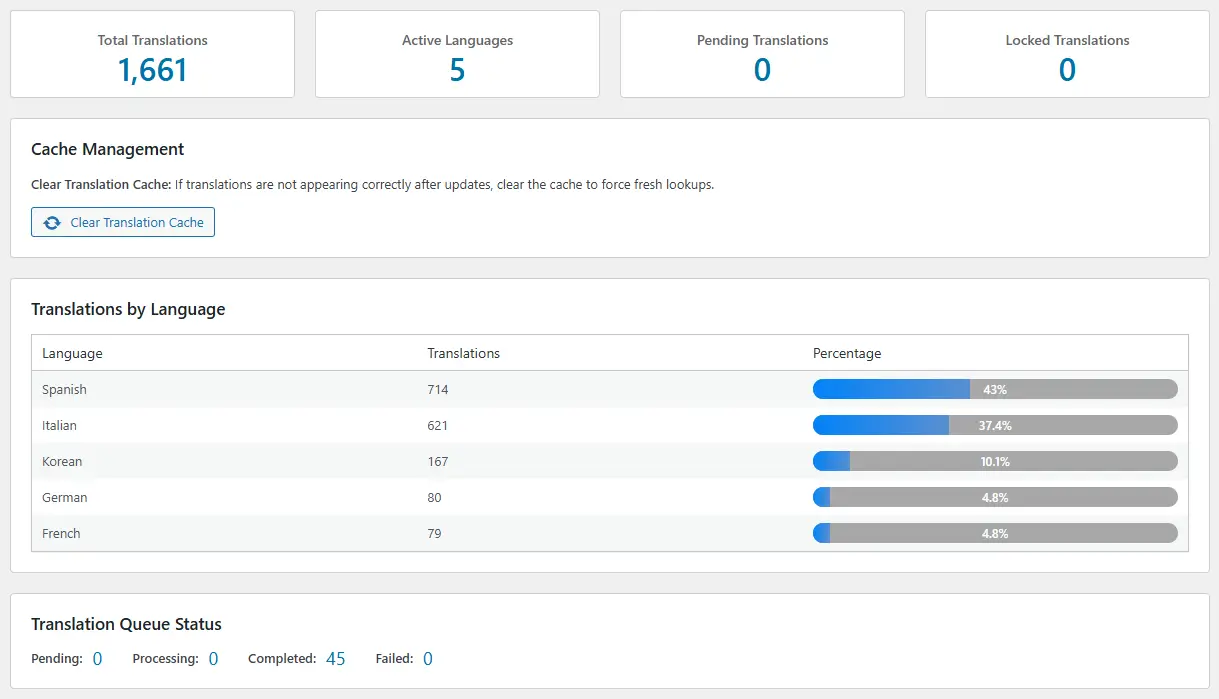
At the top, you will see four key summary boxes:

  1. Total Translation
    • Shows the total number of translated characters across all languages.
  2. Active Languages
    • Shows how many languages are currently enabled for translation.
  3. Pending Translation
    • Displays how many translation requests are waiting to be processed by DeepL.
  4. Locked Translation
    • Indicates characters or text segments that have been excluded from translation and will not be processed.

This overview lets you instantly understand your multilingual workload and status.

Cache Management on the Dashboard

cache management

Below the summary boxes, you will find Cache Management.

  • If translations are not appearing correctly after an update, or you suspect cached content is outdated, use:
    “Clear Translation Cache”
  • This forces the plugin to refresh lookup results and display the most recent translations.

This is particularly useful after:

  • Changing SEO or URL slug settings
  • Modifying language switcher behavior
  • Editing translations via translation memory or the visual editor

Translation by Language Chart

Translation by Language Chart

The dashboard also includes a visual chart that shows:

  • Translations by language
  • The number of translated characters or segments per language
  • Percentage bars for each language’s share

This helps you quickly understand:

  • Which languages are most active
  • How translation work is distributed across your multilingual site

Quick Actions & SEO Status

quick action and seo features status

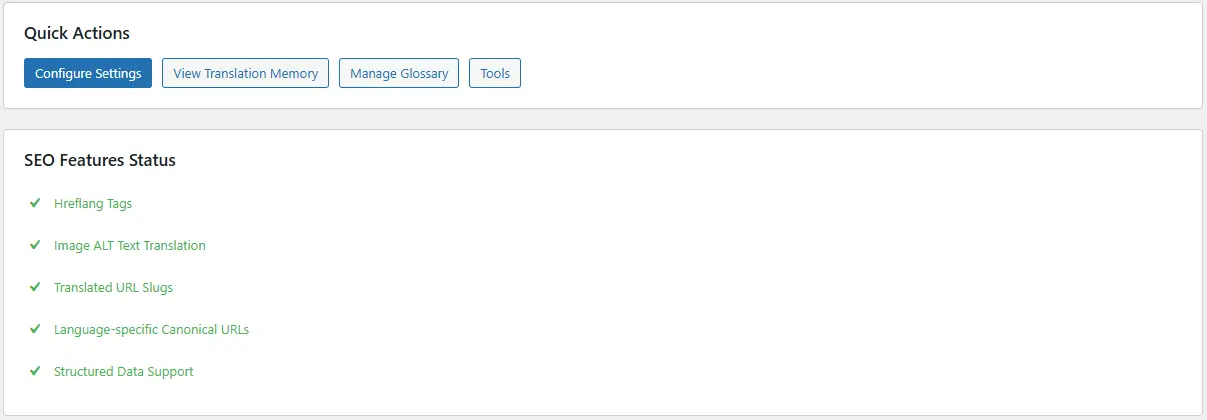
Next on the dashboard, you will see Quick Action buttons. These shortcuts take you directly to key sections:

  • Configure Settings – Opens the main settings panel.
  • Translation Memory – Opens the central translation memory.
  • Glossary – Opens the glossary rules manager.
  • Tools – Opens utility tools such as cache clearing and database optimization.

You will also see an SEO Status section showing whether:

  • Hreflang tags
  • Multilingual sitemaps
  • URL slug translation
  • Other SEO-related features

They are enabled and functioning correctly. This ensures your multilingual setup is search-engine friendly.

Translation Activity Log

At the bottom of the dashboard is Translation Activity.

  • It shows how many translations were performed per day.
  • It also includes how many words or characters were translated on each specific date.

This acts as a simple log of your translation volume over time.

API Configuration (DeepL)

DeepL API Configuration

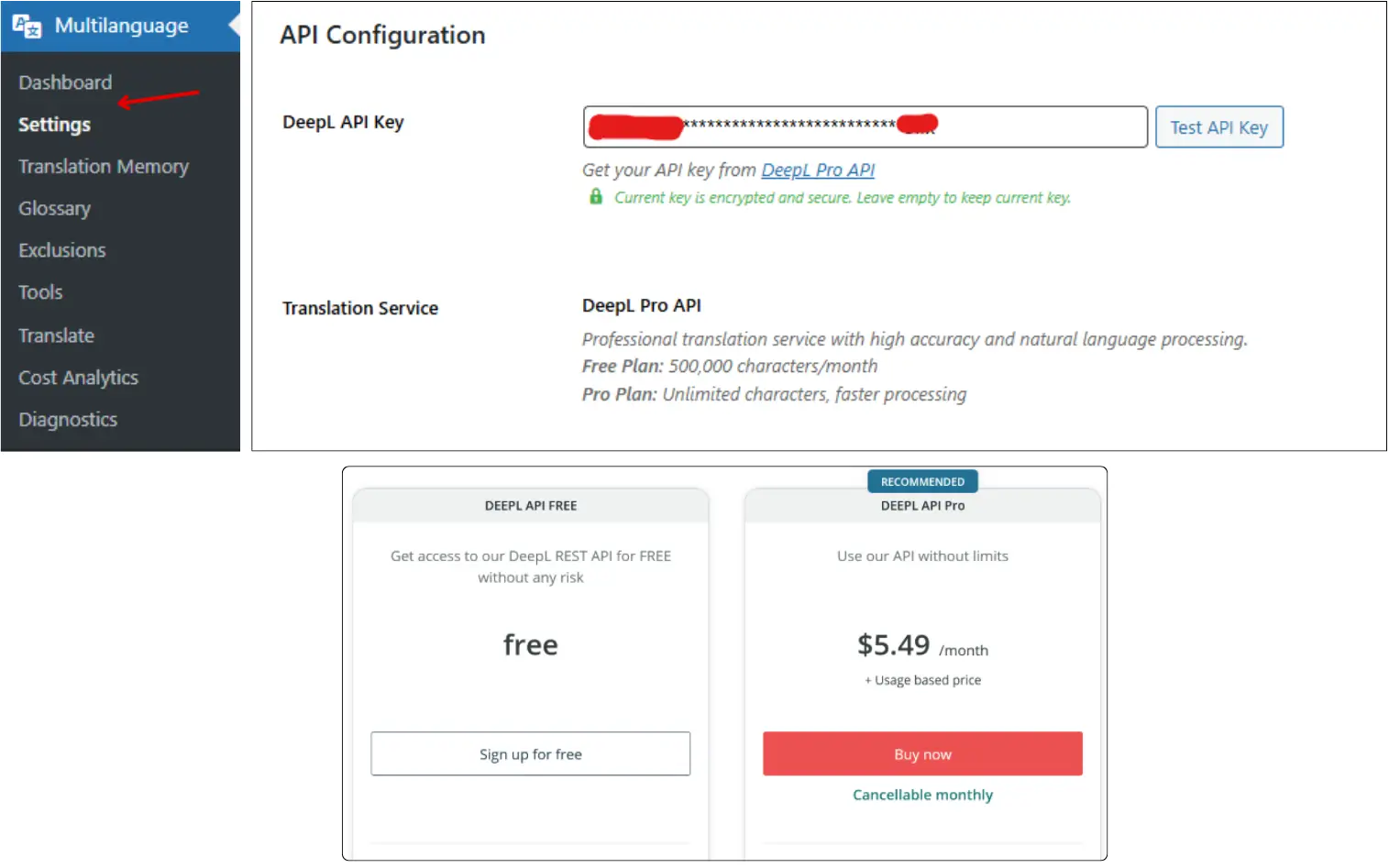
Go to the Settings section. At the top, you’ll find API Configuration.

Steps:

  1. Sign up for DeepL
    • Create a DeepL account (free or paid).
    • Obtain your API key from the DeepL dashboard.
  2. Add the API key to the plugin.
    • Enter the key into the API Key box in the plug.
  3. Test the API
    • Click “Test API”.
    • If the test is successful, the plugin confirms your usage and that the key is valid.

Important notes:

  • The key is encrypted and stored securely.
  • It is only used for translation requests.

Without a valid DeepL key, automatic translations will not run.

Language Settings

Language Settings

The Language Settings section controls your multilingual structure.

Key options:

  • Default Language
    • Represents the main website language (original content language).
  • Enabled Languages
    • Select which additional languages your site will be translated into.
    • Simply check the box for each language you want to support.
    • The plugin handles all translation logic based on your selection.

These settings define:

  • Which languages show up in your language switcher
  • Which languages can receive translated content?
  • How your multilingual URLs and sitemaps are structured

SEO Settings

Quick Actions and SEO Status

The SEO Settings are designed to help search engines correctly interpret your multilingual site.

Main options include:

  • Hreflang Tags
    • Adds language-specific hreflang tags so Google knows which language version to show to which users.
  • Image Alt Text Translation
    • Automatically translates image alt attributes, improving accessibility and SEO in each language.
  • URL Slugs
    • Enables translated URL slugs for each language.
    • Instead of one English slug for every language, each language can have localized URLs.
  • Sitemap Tags
    • Controls whether translated content is included in your website multilingual sitemap.
  • SEO Protection (Indexing Protection)
    • Prevents search engines from indexing incomplete or partially translated pages.
    • Useful while setting up or bulk-translating large parts of your site.

Correctly configuring this section is critical for multilingual SEO performance.

Language Switcher Settings

language switcher settings

The Language Switcher Settings control how visitors change languages on your site.

Key options:

  • Default Style (Dropdown)
    • A classic dropdown selector for languages.
  • Display Options
    • Show country flags.
    • Show native language names.
    • Adjust how languages appear visually.
  • Floating Switcher
    • Adds a floating language button on your site.
    • You can choose its screen position (for example: bottom-right, bottom-left, etc.).

These settings let you design an intuitive, modern way for visitors to switch between languages.

WooCommerce Integration

WooCommerce Integration

If you run a WooCommerce store, this plugin can make it fully multilingual.

The WooCommerce integration lets you translate:

  • Product titles and descriptions
  • Short descriptions
  • Product categories and tags
  • Attributes and variations
  • Shop-related pages like Cart, Checkout, My Account, etc.

Key benefits:

  • Translated content is preserved when switching languages.
  • The visitor shopping cart is kept while they change language.
  • Shoppers experience a consistent multilingual storefront from product pages to checkout.

API Management: Status, Limits & Alerts

API Management Status

The API Management section gives precise control over DeepL usage.

  • API Status
    • When enabled, translations are processed normally.
    • If you want to pause all translations (for example, to avoid over-usage), you can disable this to stop new DeepL requests.
  • Daily and Monthly Credit Limits
    • Set the maximum number of characters allowed per day or month.
    • Set a limit of 0 to disable limits (unlimited usage, dependent on your DeepL plan).
    • Essential if using a free DeepL plan or managing strict API costs.
  • Usage Alerts
    • Enable alerts at 80% of the daily or monthly quota.
    • Gives time to pause translation or upgrade your DeepL plan before overages occur.

This section helps control costs and avoid sudden API overuse.

Usage Charts & Consumption Monitoring

At the bottom of the API management area, you will see Usage Charts.

These display:

  • Daily translated characters
  • Monthly translated characters
  • A visual bar showing what percentage of your set limits has been used

This makes it easy to:

  • Monitor how much translation work is happening
  • Plan when to increase limits or upgrade DeepL plans.
  • Detect unusual spikes in translation activity.

Performance Settings

Performance Settings

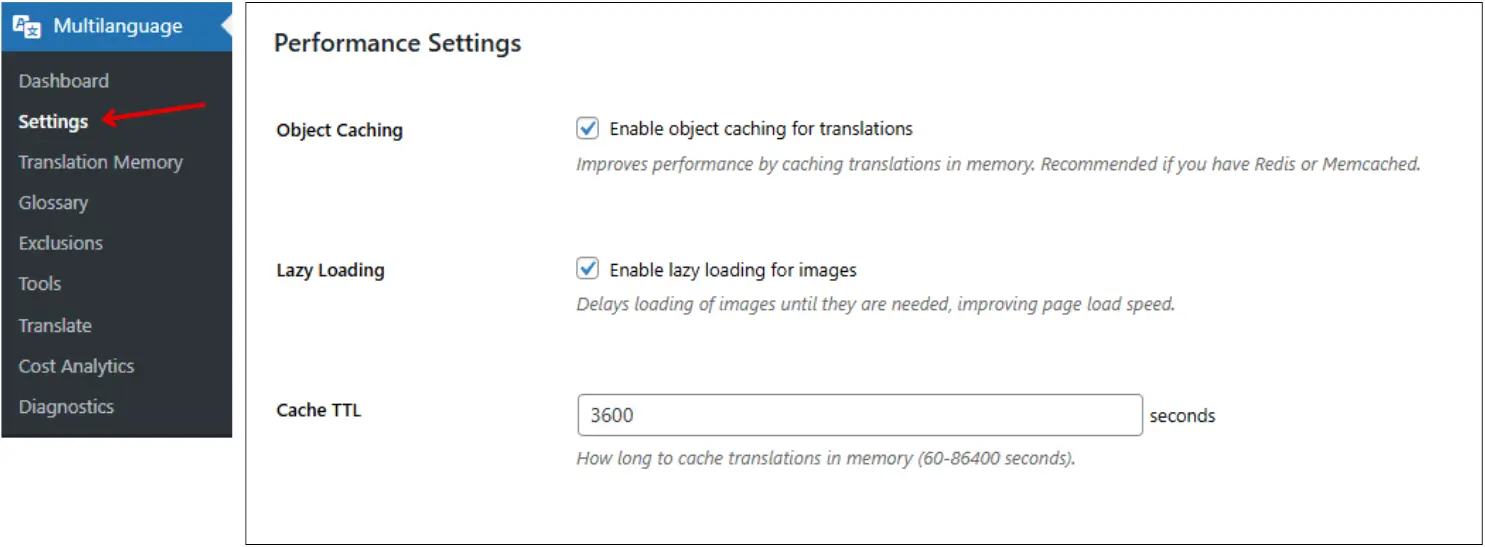
The Performance Settings are designed to keep your multilingual site fast and efficient.

Options include:

  • Object Caching
    • Translations are remembered in memory when this is on, eliminating the time of re-lookup.
    • Recommended when your server supports Redis or Memcached.
  • Lazy Loading for Images
    • Delays image loading until they are actually needed on screen.
    • Especially helpful on pages that exist in multiple languages.
  • Cache TTL (Time to Live)
    • Defines how long translations are cached in memory, measured in seconds.
    • Can be set from 60 seconds up to 24 hours, depending on your server and update frequency.

After configuring, always click Save Changes.

Translation Modes Overview

The plugin offers three main translation modes:

  1. Comprehensive Translation
  2. Individual Content Translation
  3. URL Localization

All the modes have their purpose to use, e.g., to translate the whole site or to translate the page-by-page and to have control.

Comprehensive Translation (Full-Site)

Comprehensive Site Translation

Comprehensive Translation scans your entire website and translates:

  • Theme strings
  • WooCommerce elements
  • Elementor/Gutenberg content
  • Menus and widgets
  • Other registered content types

Usage:

  1. Open the Translation section.
  2. Choose Comprehensive Translation.
  3. Select target languages.
  4. Click Start Comprehensive Translation.

Notes:

  • This is the fastest way to translate a full site.
  • It will burn a greater number of API credits, since each element is worked with the others.

Ideal for:

  • New multilingual setups
  • Full retranslation after major content changes

Individual Content Translation (Posts, Pages, Products)

Individual Content Translation

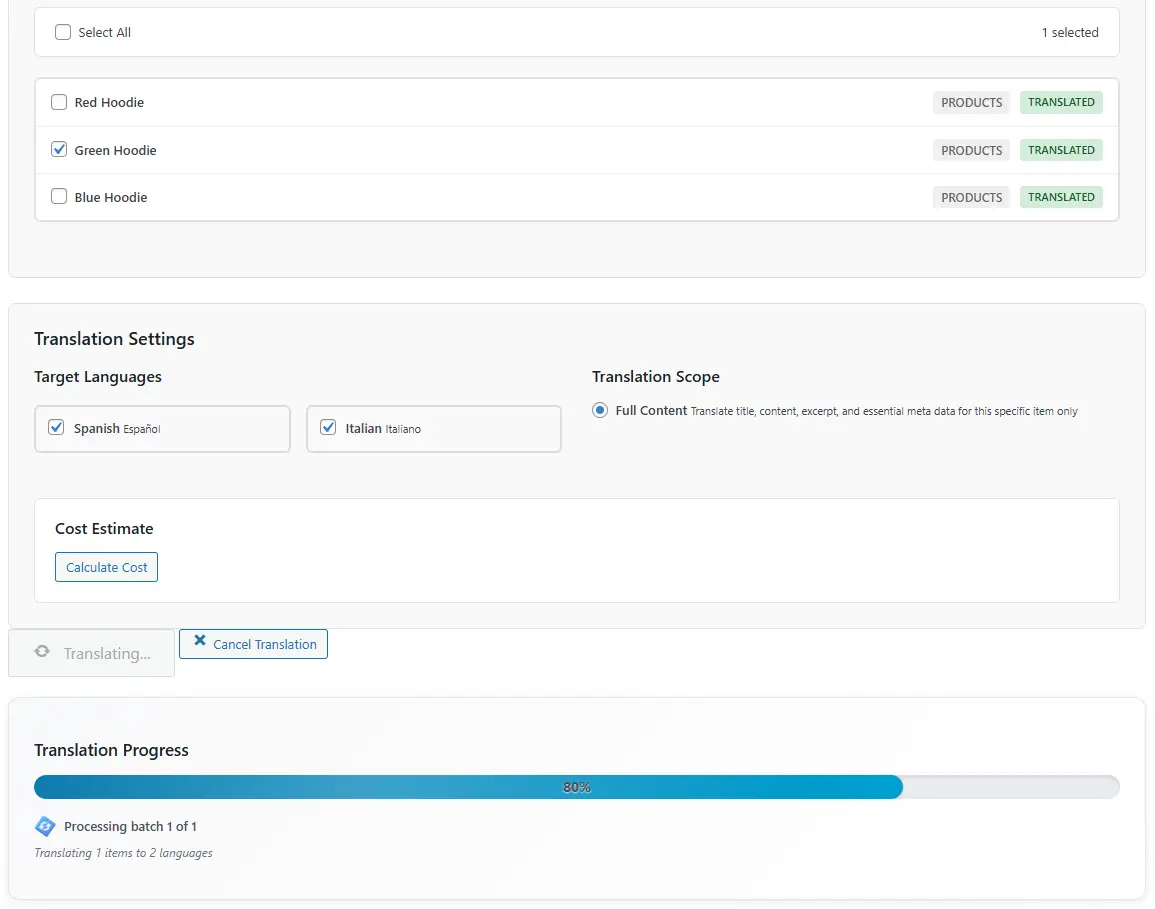
Individual Content Translation offers granular control.

You can:

  • Choose a specific content type (pages, posts, products, templates, etc.).
  • Select only certain items to translate.
  • Choose which languages to translate them into.

Example workflow:

  1. In the Translation section, choose Pages.
  2. A list of all pages is shown.
  3. Check one or more pages (e.g., “About Us”).
  4. Select target languages (e.g., Spanish).
  5. Click “Translate Selected Content.

Benefits:

  • Saves API credits by translating only what you need.
  • Ideal for priority content (home page, product pages, key articles).

Live Example: Translating Pages

Live Example translating

After sending a page for translation:

  • You will see a progress percentage while DeepL processes it.
  • When complete, the status changes from “Not translated” to “Partial” or “Translated”, depending on how many languages are covered.

You can then:

  • Visit the translated page on the frontend.
  • Switch between languages via the language switcher.
  • See that the page content and URL slug are properly translated (e.g., /es/ for Spanish).

This confirms that translations are live and functioning as expected.

Translating WooCommerce Products

For WooCommerce products:

  1. In the Translation section, select Products as the content type.
  2. A list of products appears.
  3. Select a product (e.g., “Blue Hoodie”).
  4. Choose target languages (e.g., Italian).
  5. Click “Translate Selected Content.

Once complete, you can:

  • Open the product in each language.
  • Compare the English vs translated versions side by side.
  • See that:
    • Breadcrumbs
    • Product names
    • Short and long descriptions
    • Categories
    • Tabs

Are all correctly translated into the target language.

Translating Posts & Automatic Internal Link Localization

The plugin handles a critical SEO detail: internal links.

Example scenario:

  • You have a blog post in English with internal links to pages like “About Us” or “Contact“.
  • When you translate that post into Spanish or Italian, the plugin:
    • Scans the content
    • Detects internal links
    • Replaces them with links to the correct translated versions of those pages.

Workflow:

  1. In the Translation section, choose Posts.
  2. Select a specific article.
  3. Choose languages (e.g., Spanish and Italian).
  4. Click Translate.

Results:

  • When viewing the Spanish version, internal links point to /es/….
  • When viewing the Italian version, links point to /it/….

This saves huge amounts of manual work and dramatically improves multilingual SEO and user experience.

URL Localization (Translated Slugs)

URL Localization

URL Localization is available when translated URL slugs are enabled in SEO settings.

Two methods exist:

  1. Automatic Slug Localization (via DeepL)
    • The plugin scans posts, pages, products, etc.
    • Automatically generates translated slugs for each active language.
    • One click can localize all slugs (for example: “About Us” → /sobre-nosotros/ in Spanish).
  2. Manual Slug Editing
    • Edit any page or post in the WordPress editor.
    • At the bottom, you will see per-language slug fields.
    • Manually adjust slugs for any language, then update the page.

This dual approach lets you combine AI-powered defaults with manual fine-tuning.

Translation Memory

Translation Memory settings

Translation Memory stores every translation generated by the plugin.

From this screen, you can:

  • Search for specific words, sentences, or phrases.
  • Filter by language.
  • See Original Text and Translated Text side by side.

To edit a translation:

  1. Search for the string you want to change.
  2. Click in the Translated Text field.
  3. Edit as needed.
  4. Click Save Changes.

After saving:

  • Refresh the matching translated page.
  • The updated translation will appear immediately.

This is ideal for quick corrections and ensuring consistency across multiple pages.

Visual Translation Editor

Visual Translation Editor

The Visual Translation Editor is a frontend-style translation tool.

Usage:

  1. Open a page, post, or product and click Edit in the backend.
  2. In the sidebar, you will see a section listing available translated languages.
  3. Click the language you want to edit.
  4. A live preview of the translated page opens.
  5. Click on any translated text element.
  6. A pop-up appears showing:
    • Original text
    • Current translated text

You can:

  • Edit the translated text directly in the pop-up.
  • Queue multiple edits across different text elements.
  • Once satisfied, click “Save All.

This is perfect for adjusting translations in context, visually, without hunting through raw strings.

Glossary (Terminology Control)

Glossary settings

The Glossary lets you control how specific terms are translated.

Use cases:

  • Brand names that must remain unchanged.
  • Technical terms that must always be used with a specific translation.
  • Phrases that need to be simplified or standardized in another language.

Workflow:

  1. Add the original term or phrase.
  2. Add the desired translation.
  3. Select the language the rule applies to.
  4. Set Match Type (for example, exact match).
  5. Set Priority (e.g., 100 for a strong override).
  6. Save the glossary term.

After saving and reloading a page:

  • The plugin replaces the AI-translated phrase with your custom glossary translation.
  • Deleting the glossary entry reverts the phrase back to the standard translation.

You can create multiple glossary rules for each language.

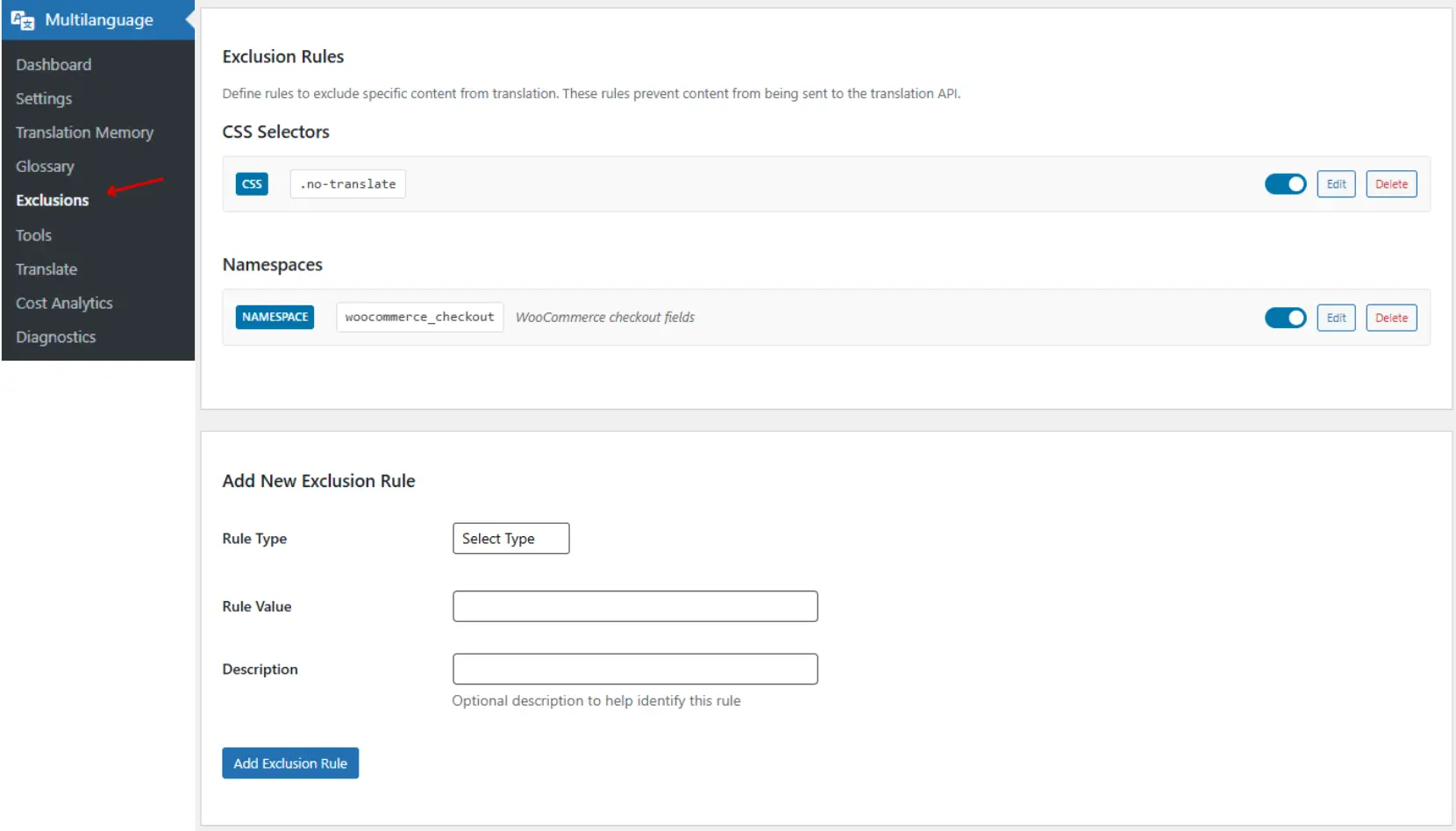
Exclusion Rules (CSS Selector & Namespace)

exclusion rules

The Exclusion Rules system prevents specific content from being translated.

There are two main methods:

CSS Selector Exclusion

  • Add a CSS class or ID in the exclusion settings (e.g., .no-translate).
  • In your content, wrap text in an element using that class:
<span class="no-translate">Testing exclusion rule</span>
  • When the page is sent for translation, the text inside that selector is not translated.

Important note:

  • You must set the exclusion rule before translating the page.
  • If a page was already translated, you may need to undo and re-run the translation.

Namespace Exclusion

  • Namespaces are predefined identifiers used by WordPress, WooCommerce, themes, and page builders.
  • Adding a namespace to the exclusion list prevents all associated content from being translated.

Examples:

  • A namespace for WooCommerce Checkout ensures that checkout fields remain untouched.
  • A namespace for titles prevents page or product titles from being translated.

The plugin documentation provides a list of supported namespaces. Combining CSS selectors and namespaces gives complete control over what is and is not translated.

Multilingual Sitemap System

Works for Multilingual includes a multilingual sitemap engine that integrates with major SEO plugins such as Rank Math and Yoast SEO.

How it works:

  • For each language, the plugin generates a separate sitemap.
  • These sitemaps include:
    • Posts
    • Pages
    • Products
    • Categories and taxonomies

Examples:

  • sitemap.xml shows the master sitemap indeYou’llu’ll see entries like:
    • Spanish sitemap index
    • Italian sitemap index

Each language sitemap can be:

  • Opened and inspected.
  • Validated using any sitemap validation tool.

Benefits:

  • Clean, structured, language-specific sitemaps.
  • Search engines can crawl and index every translated page correctly.
  • Minimal manual configuration is required.

Tools: Cache, Database, Queue, Cost Analytics & Diagnostics

multilanguage tools

The Tools section contains four essential utilities:

  1. Clear Translation Cache
    • Clears the translation cache if updated translations are not appearing.
    • Forces the plugin to reload fresh translations.
  2. Optimize Database
    • Removes old, unused translation records and trash.
    • Keeps the database lean and efficient.
  3. Process Queue & Clear Failed Items
    • If some DeepL requests are stuck or pending, Process Queue pushes them through immediately.
    • Clear Failed Items removes failed or stuck translation attempts from the queue.
  4. Cost Analytics
    • Shows live DeepL API usage data:
      • Total characters translated
      • Current remaining quota
      • Daily average usage
      • Usage history in table form
    • Helps understand and manage your translation costs.
  5. Diagnostics
    • Displays system health and server compatibility for the plugin.
    • Checks items such as:
      • PHP version
      • PHP memory limit
      • Required extensions and settings
    • Anything marked as failing should be corrected to ensure stable operation.

Best Practices & Final Checklist

The following are the best practices when using Works for Multilingual:

  • Before translating at scale
    • Configure API key, language settings, SEO settings, and exclusion rules first.
    • Decide which languages matter most for your audience.
  • Start with key pages.
    • Translate the homepage, main product pages, key blog posts, and core navigation pages first using Individual Content Translation.
  • Use Comprehensive Translation carefully.
    • Ideal for full-site rollouts, but monitor API usage and costs.
  • Fine-tune with Translation Memory & Visual Editor
    • Use Translation Memory for phrase-level fixes.
    • Use the Visual Editor for context-based adjustments on important pages.
  • Control terminology with Glossary
    • Add rules for brand names, technical jargon, and recurring phrases.
  • Protect sensitive or design-critical areas with Exclusion Rules.
    • Especially useful for complex layouts, shortcodes, or checkout forms.
  • Review SEO setup
    • Confirm hreflang is enabled.
    • Validate multilingual sitemaps.
    • Verify that slugs are correctly localized.
  • Monitor usage and performance.
    • Use API limits and alerts to avoid overages.
    • Adjust cache settings and performance options to keep the site fast.

With these steps in place, Works for Multilingual becomes a complete multilingual solution for WordPress, enabling professional-grade translations, strong SEO, and a smooth experience for visitors in every language.

About the writer

Hassan Tahir Author

Hassan Tahir wrote this article, drawing on his experience to clarify WordPress concepts and enhance developer understanding. Through his work, he aims to help both beginners and professionals refine their skills and tackle WordPress projects with greater confidence.
Leave a Reply

Your email address will not be published. Required fields are marked *

Lifetime Solutions:

VPS SSD

Lifetime Hosting

Lifetime Dedicated Servers