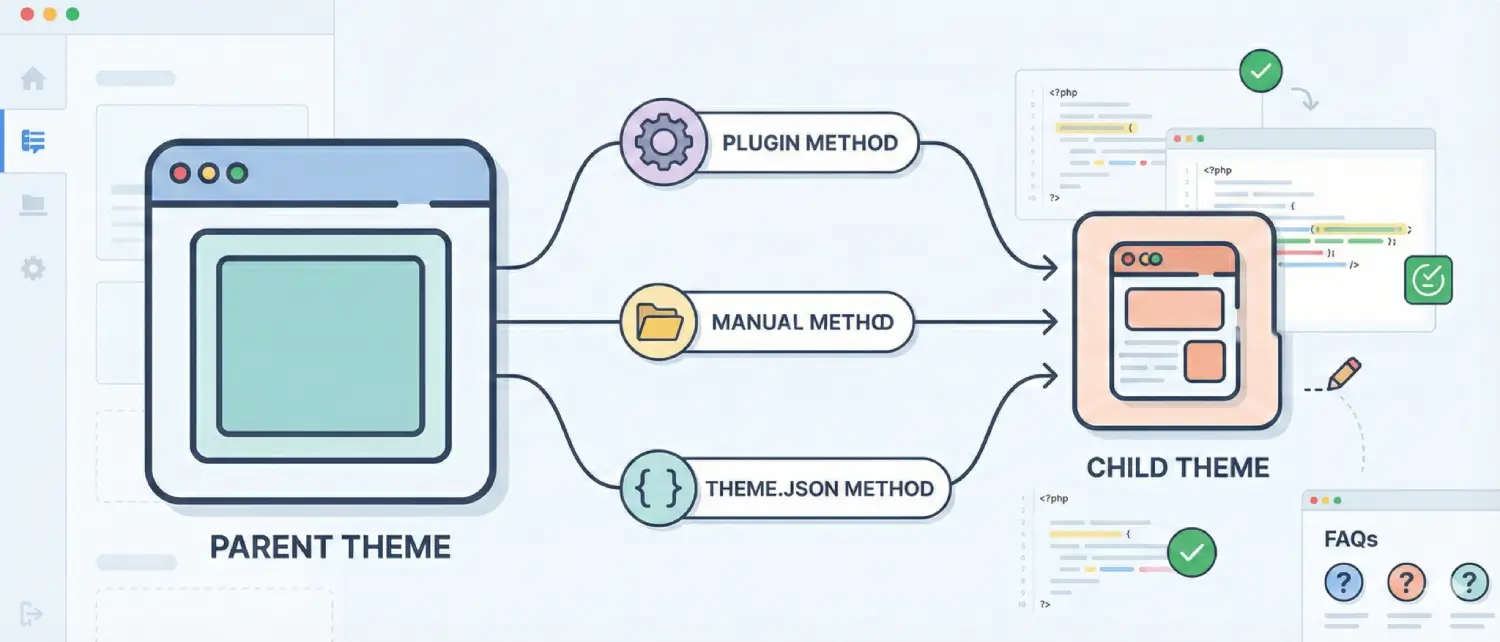
A child theme is a theme that allows a user to make changes to it safely, without those changes being lost when the parent theme is changed. This tutorial takes you through three current methods (official plugin, manual, and theme.json), with clear code examples, testing suggestions, and Frequently Asked Questions, so that you can apply a child theme with confidence.
A child theme is a lightweight theme folder that inherits templates, styles, and functionality from a parent theme while keeping your customizations separate. Use a child theme when you need to add custom CSS, alter PHP templates, or add custom functions, all without risking your changes during parent theme updates.
When to use a child theme
When it’s overkill
For small tweaks (single CSS rule or a color change), use the Customizer or the Site Editor instead.
You can pick a method based on whether your site uses a modern block theme (Site Editor) or a classic PHP-based theme:
Before editing theme files, take a full backup and test changes on a staging site. Editing functions.php or template files can break a live site with one typo; staging + backup will save you headaches.
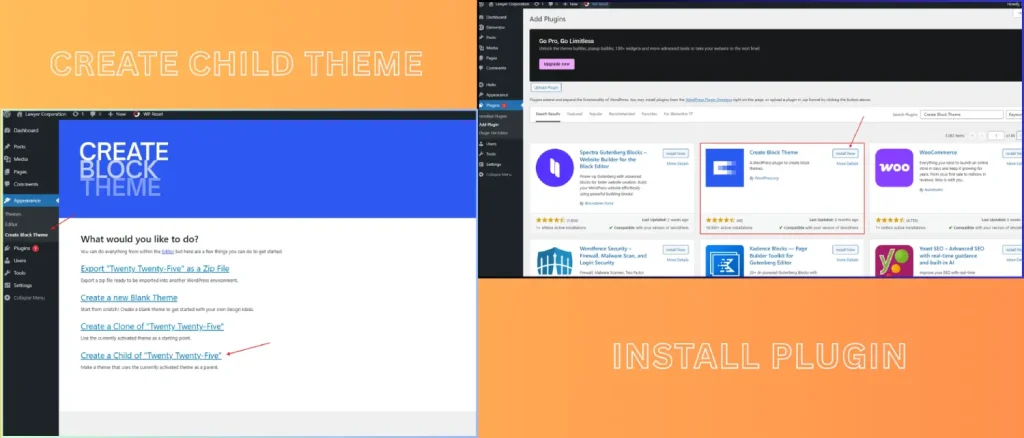
If you use a block-based theme and want a fast no-code way, the Create Block Theme plugin lets you export or create a child theme directly from the Site Editor.
Steps (high level)
Why use this: The plugin is built specifically for block themes and ensures full compatibility with the Site Editor without requiring any manual file work.
This is the traditional approach and works for any classic (PHP/template-based) theme.
Create a folder in wp-content/themes/ named something like parenttheme-child (replace parenttheme with the actual parent theme slug).
Minimum files:
parenttheme-child/
├─ style.css
├─ functions.phpCreate style.css and include the required header so WordPress recognizes the child theme:
/*
 Theme Name:   ParentTheme Child
 Theme URI:    https://example.com/
 Description:  Child theme for ParentTheme
 Author:       Your Name
 Author URI:   https://example.com/
 Template:     parenttheme
 Version:      1.0.0
 Text Domain:  parenttheme-child
*/Important: Template: must exactly match the parent theme folder name (case-sensitive).
To properly enqueue parent and child styles (modern recommended approach):
<?php
// parenttheme-child/functions.php
add_action( 'wp_enqueue_scripts', 'pt_child_enqueue_styles' );
function pt_child_enqueue_styles() {
    // Enqueue parent style
    wp_enqueue_style( 'parent-style', get_template_directory_uri() . '/style.css', array(), wp_get_theme( get_template() )->get('Version') );

    // Enqueue child style — depends on parent-style to ensure overrides load after
    wp_enqueue_style( 'child-style', get_stylesheet_directory_uri() . '/style.css', array('parent-style'), wp_get_theme( get_stylesheet() )->get('Version') );
}To override a template file, copy the parent theme template file into the child theme using the exact same folder path, then modify it. The child theme file will be loaded first by WordPress.
For block themes and modern setups, theme.json lets you change colors, typography, spacing, and other global styles with minimal CSS and better performance.
Example theme.json (child theme root):
{
  "version": 2,
  "settings": {
    "color": {
      "palette": [
        { "slug": "primary", "color": "#0d6efd", "name": "Primary" },
        { "slug": "accent", "color": "#ff6b6b", "name": "Accent" }
      ]
    },
    "typography": {
      "fontFamilies": [
        { "fontFamily": "Inter, system-ui, sans-serif", "name": "Inter" }
      ]
    }
  },
  "styles": {
    "root": {
      "color": { "text": "var(--wp--preset--color--primary)" }
    }
  }
}
Benefits: Smaller CSS payload and better compatibility with the Site Editor. Use this when your changes are mostly global style adjustments.
Creating a child theme protects your customizations and gives you full control over design and functionality. Choose the official plugin for block-based workflows, use the manual method for classic themes, or leverage theme.json for fast, modern styling. Back up and test in staging first, and you’ll be able to update parent themes without losing your work.

Hassan Tahir wrote this article, drawing on his experience to clarify WordPress concepts and enhance developer understanding. Through his work, he aims to help both beginners and professionals refine their skills and tackle WordPress projects with greater confidence.





 Lifetime VPS Europe
 Lifetime VPS Asia
 Lifetime WooCommerce Hosting
 Lifetime Hosting
 France Lifetime Dedicated Servers
 Germany Lifetime dedicated servers
 Lifetime Game Dedicated Servers
 Chicago, US
 Tokyo, Japan
 Singapore
 Hong Kong
 Seoul, South Korea
 Amsterdem, Netherlands
 London, UK
 Stockholm, Sweden
 Oslo, Norway
 Vienna, Austria
 Zurich, Switzerland
 Sydney, Australia
 Wordpress Hosting
 VPS Hosting
 DDOS Protection
 Submit Ticket
 Full Management
 Guides
 Videos and Podcasts
 Discover Creative Ideas
 MetaAgentOS High-Ticket Support System
 Voxfor Mega Menu
 Voxfor Advanced Price Management For WooCommerce
 Voxfor Secure Live Chat and AI Support
 Voxfor Multilanguage
 Voxfor AI Content Summary


