
Editing the .bash_profile file in Linux is a key step toward personalizing your shell environment. Whether you are a seasoned administrator managing multiple servers or a new user wanting to streamline your workflow, mastering .bash_profile can significantly improve your daily command-line experience. This file in your home directory allows you to set environment variables, create aliases, customize your command prompt, and automate scripts when you log in to a Bash shell.
This comprehensive resource gives you every essential insight about .bash_profile in Linux. We will discuss its purpose and how it differs from other startup files like .bashrc, common customizations, troubleshooting methods, and advanced techniques that can make your work more efficient and enjoyable. By the end of this article, you will be ready to edit and manage your .bash_profile with confidence.
The shell program allows you to interact with the operating system through commands entered in a text-based interface. Although different shells exist—such as Zsh, Fish, and tcsh—Bash (short for Bourne Again SHell) remains one of the most popular choices on Linux systems. When you log in to your computer or open a terminal, the shell initializes your environment by reading configuration files.
Because Bash is so standard, many Linux distributions rely on it as the default shell. Bash starts by reading one or more initialization files, which determine prompt appearance, the search path for commands (PATH), and custom environment variables. Understanding which files are read and when they are read is essential to mastering .bash_profile.
.bash_profile is a special file that is executed whenever you start a login shell. A login shell is typically invoked when you:
Because .bash_profile is specifically designed to load configurations on login, it is an ideal place to put commands that you only want to run once per session. This could include initializing environment variables, adding paths to your PATH, running particular scripts, or displaying welcome messages.
A few important things to note:
Many Linux distributions do not ship with a .bash_profile by default; instead, they might rely on .bashrc or .profile. You can create one if you do not have a .bash_profile in your home directory.
It is not uncommon to see the following lines in .bash_profile:
if [ -f ~/.bashrc ]; then
  source ~/.bashrc
fi
This way, when you log in, your .bashrc is automatically loaded. This practice ensures that settings inside .bashrc (like aliases) are also applied during login sessions.
Customizing .bash_profile can dramatically streamline your day-to-day tasks. Here are some common reasons:
Editing .bash_profile is an easy way to make your command line sessions more efficient. Once you learn how to tailor it to your needs, it may become one of your most-used files.
Because .bash_profile is a hidden file located in your home directory, you can list all hidden files with:
ls -a ~
Look for .bash_profile in the output. If you do not see it, you can create one:
cd ~
touch .bash_profile
If the file is missing, the ‘touch’ command will create a new empty file. After that, you can begin editing it with your favorite Text editor.
You have many options for editing .bash_profile:
Choose the editor you are most comfortable with. Nano is a good place to start for new users, as it displays key commands positioned at the bottom of your display for convenient reference.
Although it can seem daunting if you are new to Linux, editing .bash_profile is straightforward. Below is a general process using nano as an example:
Open your home directory:
cd ~
nano .bash_profile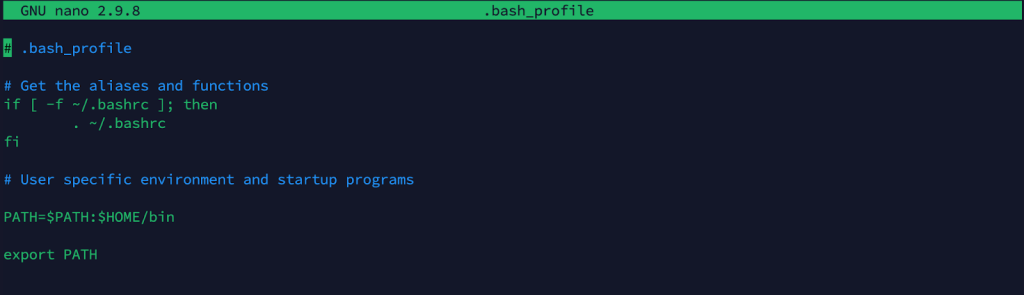
You can add environment variables, update your PATH, create aliases, or run scripts within the file. For instance:
export JAVA_HOME="/usr/lib/jvm/java-11-openjdk-amd64"port
PATH="$PATH:/home/username/custom/bin"alias ll='ls -la'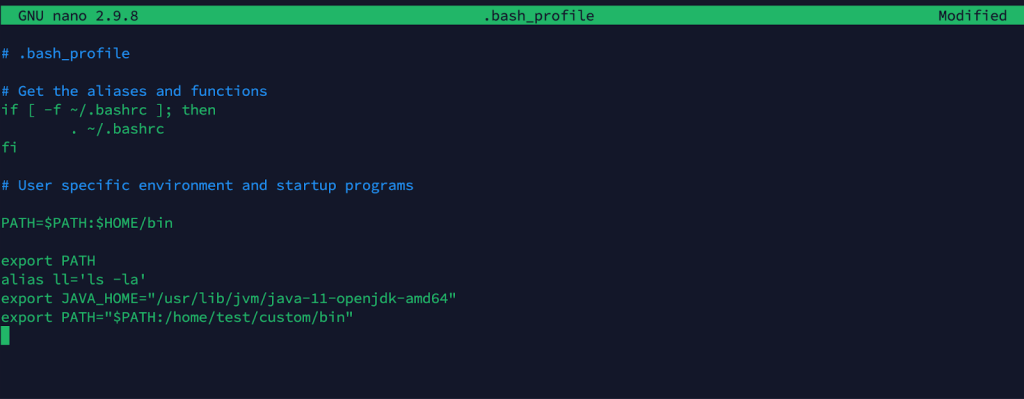
Reload .bash_profile:
You can either log out and log back in to see your changes take effect or run:
source ~/.bash_profile
Once you have successfully edited and reloaded your .bash_profile, your new settings will be available every time you log in.
Environment variables allow you to configure system or application behavior in a user-specific way. They are key-value pairs accessible to many programs. Examples include:
export JAVA_HOME="/usr/lib/jvm/java-11-openjdk-amd64"
export ANDROID_HOME="/home/username/Android/Sdk"
export PYTHONPATH="$PYTHONPATH:/home/username/python-libs"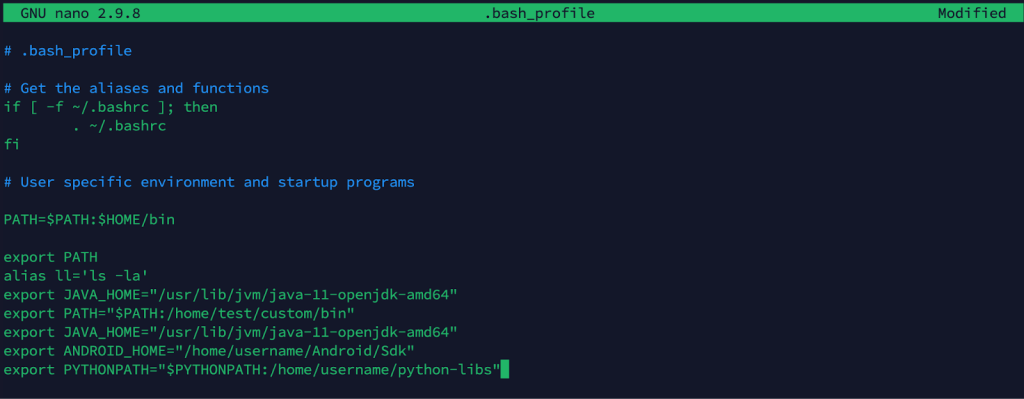
When you define an environment variable in .bash_profile, it becomes available as soon as you log in and does not need to be redefined for each session.
One of the most common reasons for editing .bash_profile is to add directories to your PATH. The PATH environment variable tells the shell which directories to search for executable files. Without it, you would have to type the full path whenever you wanted to run a program. To add a custom bin directory, do something like:
export PATH="$PATH:/home/username/mybin"
If you manage multiple language versions, like Python or Node.js, carefully editing your PATH can ensure that the correct version of a tool runs when you type its command.
Aliases let you create shortcuts for commands you run frequently. They are convenient for commands with numerous flags or arguments. For example:
alias ll='ls -lah --color=auto'
alias gs='git status'
alias ga='git add .'
alias gp='git push'
alias rm='rm -i'
These commands transform repetitive or error-prone typing into quick, memorable shortcuts. If you often type the same lengthy command, an alias can save time and reduce mistakes.
The default Bash prompt may not show all the information you want. By editing PS1, you can personalize your prompt with colors, your username, the current time, or even specialized symbols:
export PS1="\u@\h:\w\$ "
This example displays your username (\u), the hostname (\h), and your current working directory (\w). You can get more advanced by incorporating escape codes for colors, Git branch information, or other dynamic elements.
If you have scripts that you want to run as soon as you log in, you can place them in .bash_profile. For instance:
bash /home/username/scripts/cleanup.sh
bash /home/username/scripts/startup_check.sh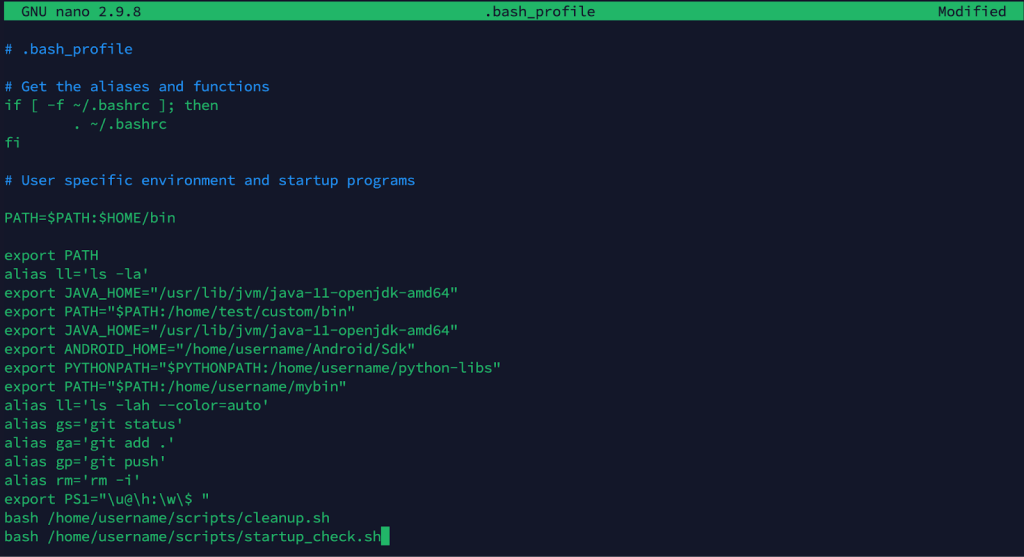
Be cautious with scripts that may take a long time or consume significant resources. Running a complex script at login could slow down your startup process.
After changing .bash_profile, you have two primary ways to see the changes:
Source the file in your current session:
source ~/.bash_profile
Or
. ~/.bash_profile
If you are rapidly iterating on your .bash_profile and want to see how changes behave, sourcing the file is the quickest approach.
Occasionally, you may encounter issues while customizing your .bash_profile. Here are some common problems and how to resolve them:
When you encounter a problem, isolate each line of `.bash_profile` to identify what might be causing the issue. Commenting out suspect lines, re-sourcing the file, and systematically reintroducing them can help pinpoint what went wrong.
Keeping your `.bash_profile organized will save you time and prevent confusion in the long run. Here are some best practices:
You can customize how .bash_profile behaves depending on the system you are on, the user, or other factors. For example:
if [ "$(hostname)" = "production_server" ]; then
  export PATH="$PATH:/opt/production/bin"
else
  export PATH="$PATH:/opt/testing/bin"
fi
Such conditions allow you to maintain a single `.bash_profile across multiple environments. When you log in to a different server, it will automatically configure the appropriate settings.
Some users prefer to keep their `.bash_profile as clean as possible. In that case, you can modularize by creating separate files for different purposes:
if [ -f ~/custom_config/aliases.sh ]; then
  source ~/custom_config/aliases.sh
fi

if [ -f ~/custom_config/functions.sh ]; then
  source ~/custom_config/functions.sh
fi
This approach makes it easier to maintain and troubleshoot each set of configurations independently. You can track each file separately in version control and quickly move configurations between machines.
Using Git to track your dotfiles, including .bash_profile, .bashrc, and other configuration files, is a powerful way to ensure consistency across multiple systems and to keep a history of changes. Here is a simple approach:
You can revert to a known good commit if something breaks, saving significant time and frustration.
Functions extend your shell scripting capabilities beyond basic aliases. They allow you to group multiple commands into a single, reusable name. For example:
function cleanup_temp() {
  echo "Cleaning temporary files..."
  rm -rf /tmp/*
  echo "Done!"
}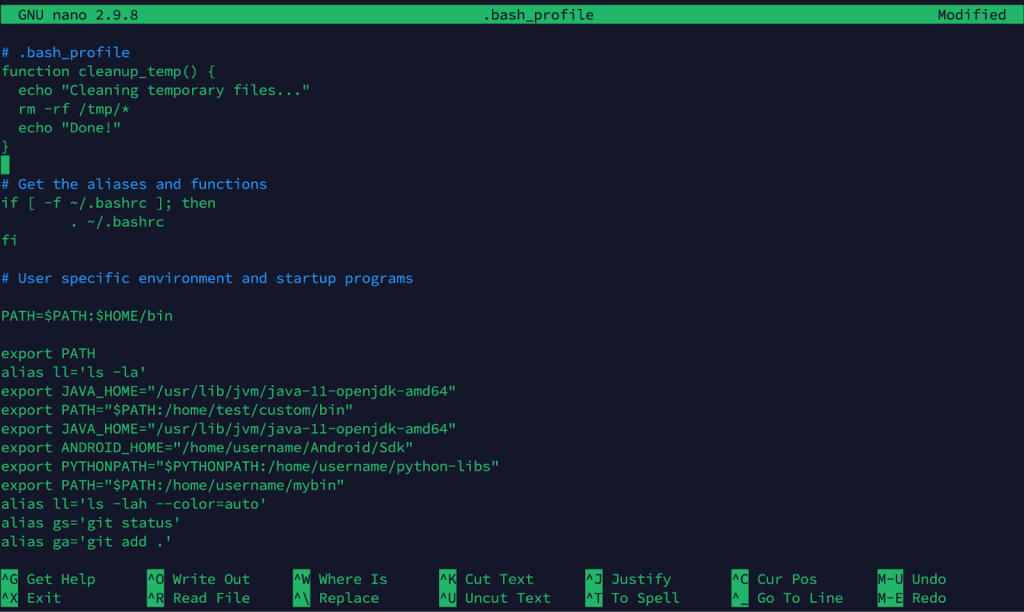
Place this function in your .bash_profile (or in a separate file you source), and you can call cleanup_temp anytime. Functions are excellent for repetitive tasks involving multiple steps and can accept arguments for greater flexibility.
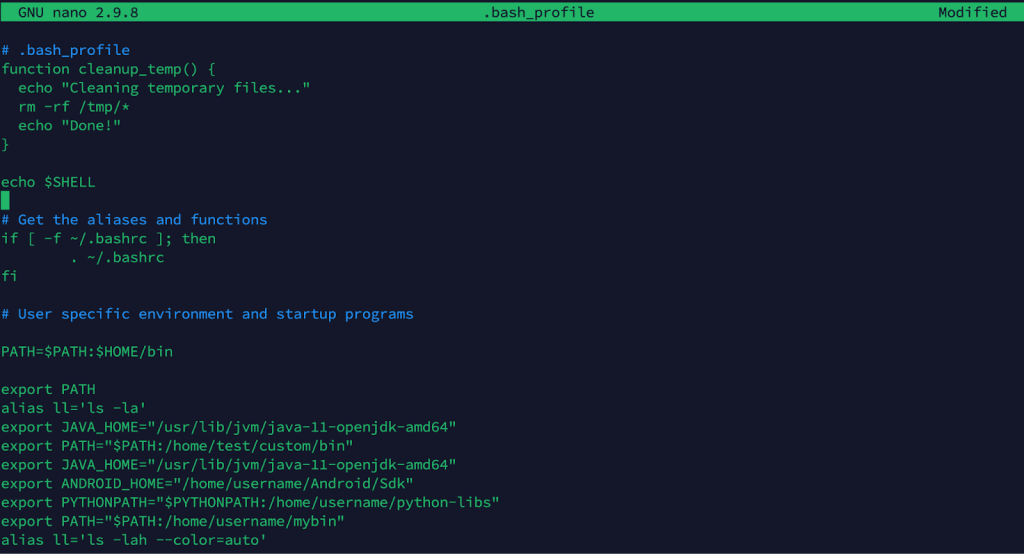
While .bash_profile is central to your login configuration, it is worth noting that Bash is not the only shell available. Modern macOS systems default to Zsh (zsh), which uses files like .zprofile and .zshrc. Likewise, some Linux distributions or special-purpose systems might encourage using shells like Dash or Fish. Always confirm which shell you are using. You can check by running:
echo $SHELLIf you see /bin/bash, you are indeed using Bash. Otherwise, explore the equivalent initialization files for your shell of choice.
It is also helpful to remember that any changes you make to .bash_profile are per-user. If you need system-wide changes—for instance, setting environment variables for all users—you must edit files like /etc/profile, /etc/bash.bashrc, or other distribution-specific global files. Exercise caution when editing these files, as errors can affect every user on the system.
Your .bash_profile is an essential part of shaping your Linux login environment. By customizing it, you can streamline repetitive tasks, define environment variables for projects, configure your command prompt for optimal clarity, and run scripts that improve your daily workflow. While it may seem intimidating initially, .bash_profile It quickly emerges as one of the most potent resources in your Linux toolkit.
Key points to remember:
By taking the time to understand .bash_profile And customizing it to meet your individual needs, you can considerably enhance your productivity and mastery of the Bash shell. Whether you are a developer juggling multiple projects, a system administrator handling various servers, or a curious user who wants more control over the command line, a well-managed .bash_profile can make all the difference. Experiment, refine, and enjoy the benefits of a finely tuned Linux environment that works exactly how you want.

Vinayak Baranwal wrote this article. Use the provided link to connect with Vinayak on LinkedIn for more insightful content or collaboration opportunities





 Lifetime VPS Europe
 Lifetime VPS Asia
 Lifetime WooCommerce Hosting
 Lifetime Hosting
 France Lifetime Dedicated Servers
 Germany Lifetime dedicated servers
 Lifetime Game Dedicated Servers
 Chicago, US
 Tokyo, Japan
 Singapore
 Hong Kong
 Seoul, South Korea
 Amsterdem, Netherlands
 London, UK
 Stockholm, Sweden
 Oslo, Norway
 Vienna, Austria
 Zurich, Switzerland
 Sydney, Australia
 Wordpress Hosting
 VPS Hosting
 DDOS Protection
 Submit Ticket
 Full Management
 Guides
 Videos and Podcasts
 Discover Creative Ideas
 MetaAgentOS High-Ticket Support System
 Voxfor Mega Menu
 Voxfor Advanced Price Management For WooCommerce
 Voxfor Secure Live Chat and AI Support
 Voxfor Multilanguage
 Voxfor AI Content Summary


