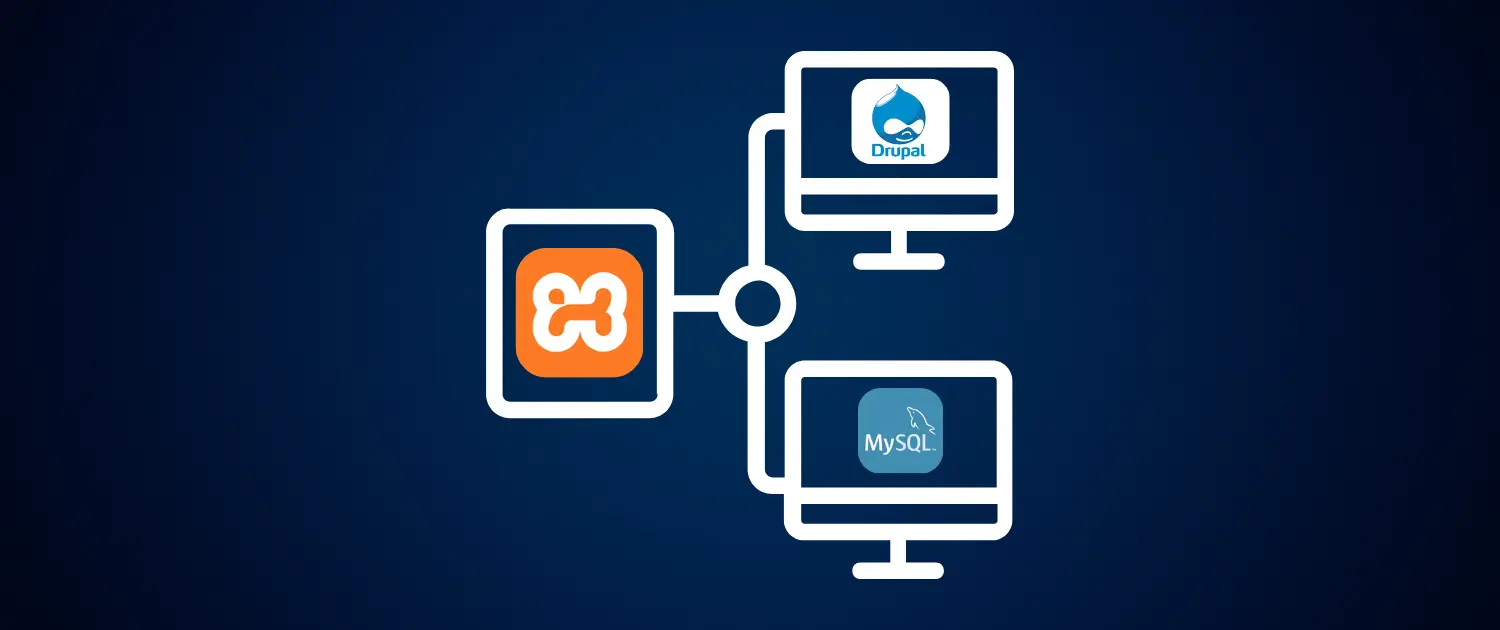
Drupal is an open-source content management system, widely used for developing complex and scalable websites. Installing Drupal on Localhost environment, such as XAMPP, is an excellent way to test, develop, or learn Drupal before deploying it live. This guide explains the complete installation process of Drupal on your local machine using XAMPP on Windows, providing detailed steps and practical guidance.
Before beginning the installation process, make sure you have the following:
XAMPP users should start the Apache and MySQL services by using their control panel.

Go to the Apache Friends website and download the latest version of XAMPP for Windows. Run the installer and follow the prompts to install it in the C:\xampp directory (the default recommended location). Once installed, open the XAMPP Control Panel and click Start for both Apache and MySQL.
If you receive a Windows firewall prompt, allow access to Apache.

Visit the official Drupal website (https://www.drupal.org/project/drupal) and download the latest recommended release of Drupal, available in either .zip or .tar.gz format. Once downloaded, extract the .zip or .tar.gz.
Rename the folder to something simple, such as ‘drupal’, and move it into your C:\xampp\htdocs\ directory. This will be your local Drupal project directory.

Open your web browser and navigate to http://localhost/phpmyadmin.
No need to create tables manually—Drupal will handle this during installation.

In your browser, navigate to http://localhost/drupal (or the URL you assigned to your folder).
Drupal’s setup wizard will appear. Follow these steps:
If everything appears green, click ‘Continue anyway’.

Enter the following database credentials:
Leave the host as localhost and keep the default table prefix unless you want to run multiple installations in a single database.
Click Save and continue.

Drupal will now install core modules and configure your site.
Once complete, fill in the basic site information:
Click Save and continue. You’ll be redirected to your new Drupal site’s homepage.
Congratulations! Drupal is now successfully installed on your local XAMPP environment.

Installing Drupal locally on XAMPP is a great way to explore and develop with this powerful CMS without the need for a live server. It gives you complete control in a test environment where you can build, break, and rebuild with no risk to production. Whether you’re a beginner learning Drupal or a seasoned developer building complex web apps, this local setup is a must-have for your workflow. Also Checkout our guide on ‘How to INSTALL PrestaShop on localhost‘
By following the steps above, you now have a fully functional Drupal installation on your Windows machine. Happy building!

Hassan Tahir wrote this article, drawing on his experience to clarify WordPress concepts and enhance developer understanding. Through his work, he aims to help both beginners and professionals refine their skills and tackle WordPress projects with greater confidence.





 Lifetime VPS Europe
 Lifetime VPS Asia
 Lifetime WooCommerce Hosting
 Lifetime Hosting
 France Lifetime Dedicated Servers
 Germany Lifetime dedicated servers
 Lifetime Game Dedicated Servers
 Chicago, US
 Tokyo, Japan
 Singapore
 Hong Kong
 Seoul, South Korea
 Amsterdem, Netherlands
 London, UK
 Stockholm, Sweden
 Oslo, Norway
 Vienna, Austria
 Zurich, Switzerland
 Sydney, Australia
 Wordpress Hosting
 VPS Hosting
 DDOS Protection
 Submit Ticket
 Full Management
 Guides
 Videos and Podcasts
 Discover Creative Ideas
 MetaAgentOS High-Ticket Support System
 Voxfor Mega Menu
 Voxfor Advanced Price Management For WooCommerce
 Voxfor Secure Live Chat and AI Support
 Voxfor Multilanguage
 Voxfor AI Content Summary


