WooCommerce HPOS (High-Performance Order Storage), which used to be called Custom Order Tables, constitutes a paradigm change in the manner WooCommerce stores and processes order data. To the store owners and developers operating under WooCommerce, it is important to know about HPOS in order to make performance optimization, compatibility, and future-proofing of your e-commerce platform. The detailed guide is all you need to know about WooCommerce HPOS in 2025.

High-Performance Order Storage is a modern database architecture solution designed specifically for e-commerce needs that replaces WooCommerce’s traditional method of storing orders as WordPress custom post types. Historically, WooCommerce stored all order data, including order details, customer information, and transaction records, in the default WordPress _posts and _postmeta tables alongside regular blog posts and other post types.
This approach created significant performance bottlenecks. As stores accumulated thousands or millions of orders, these universal tables became increasingly bloated and slow. Database queries for order-related operations required complex joins and searches through irrelevant post types, resulting in sluggish order processing, slow admin operations, and diminished customer experience during checkout.
HPOS solves these problems by implementing dedicated database tables specifically optimized for order storage and retrieval. Instead of mixing orders with posts, HPOS uses dedicated tables with structures carefully designed for e-commerce operations, resulting in dramatically faster queries and more efficient data management.
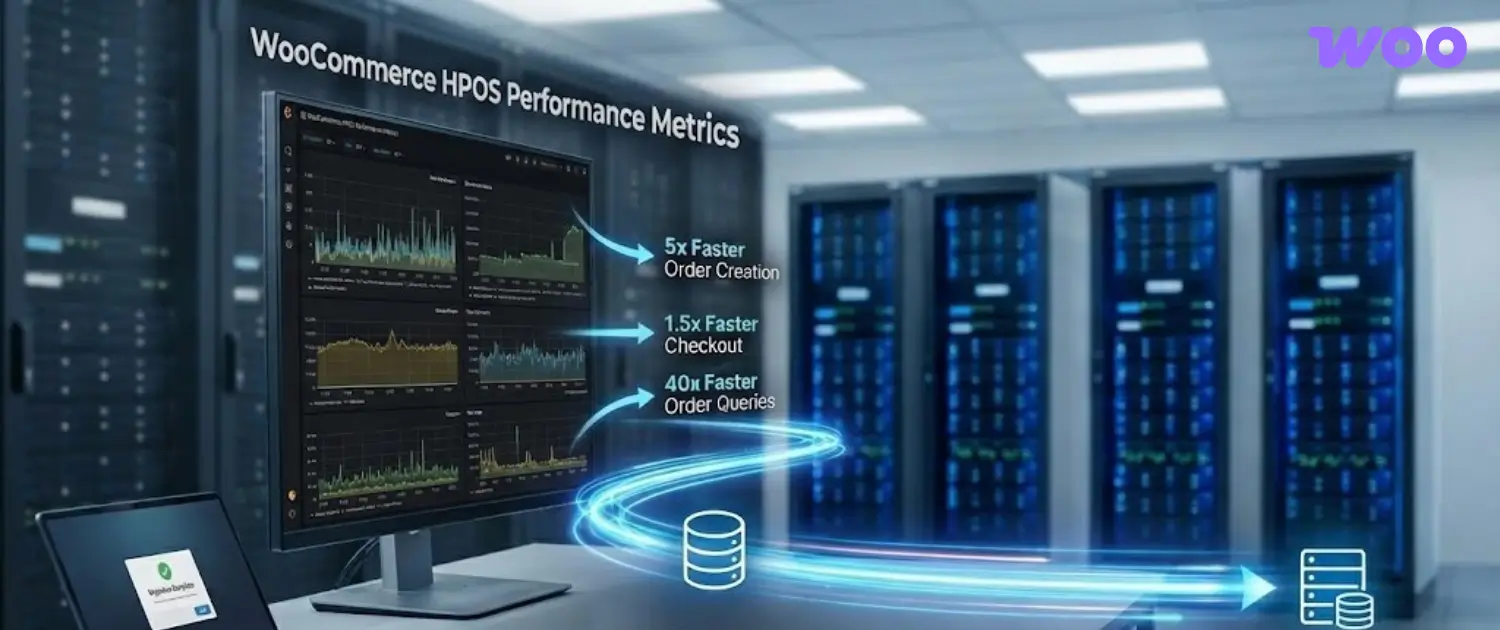
The performance gains from implementing HPOS are substantial and measurable. WooCommerce’s own testing demonstrates the real-world impact:
Order Creation experiences a 5x speed improvement, making the backend more responsive when processing new orders through both checkout and manual admin creation.
Checkout Operations become 1.5x faster, directly improving customer experience and reducing checkout abandonment rates.
Order Queries and Search see improvements of up to 40x, dramatically accelerating admin operations like order searching, filtering, and reporting.
These performance improvements directly translate to business benefits. Faster checkout processes reduce cart abandonment, quicker order processing improves customer satisfaction, and accelerated admin operations make store management more efficient. For high-volume stores, the difference is transformative—what once took minutes now completes in seconds.
Rather than storing all order data in mixed tables, HPOS distributes order information across four purpose-built tables.
The Main Order Table (_wc_orders)
This table stores core order information, including order ID, customer ID, order total, tax amount, shipping amount, discount amount, currency, payment method, and order status. Each field is specifically indexed for fast retrieval. Unlike the old system, this table contains only order-related data—no extraneous post information clutters queries.
The Order Addresses Table (_wc_order_addresses)
Billing and shipping address data are stored separately in this table. Each order can have multiple address records distinguished by address type. This separation allows queries filtering by location, country, or region to operate efficiently without involving irrelevant order data.
The Order Operational Data Table (_wc_order_operational_data)
This table keeps an internal state of orders, such as flags and metadata on the order processing state. It contains data, which includes whether download permissions are given, whether stock has been decreased, timestamps of payment status, and whether the new order notification email has been received. This working data, which is hardly present in normal SQL queries, is not stored as part of core order data to keep the tables lean.
The Order Meta Table (_wc_orders_meta)
Similar to WordPress’s _postmeta table, this table stores extension-specific data and custom fields added by themes and plugins. It uses a simple key-value structure, allowing WooCommerce and third-party developers to attach custom data to orders without requiring database schema modifications.
Understanding the rollout of HPOS helps store owners plan their migration. From WooCommerce 8.2, released in October 2023, HPOS is enabled by default for all new installations.
For existing stores that were running WooCommerce before version 8.2, HPOS is not automatically enabled; it remains an opt-in feature that store owners must manually activate. This conservative approach prevents breaking existing stores with potentially incompatible plugins or custom code.
Such a gradual rollout also allows owners of stores to test the compatibility of their plaintexts, test the migrations, and even plan their introduction more deliberately than being forced to implement the updates and potentially shut down important functions.
Migration from the old post-based storage to HPOS involves a careful synchronization process that ensures data integrity and prevents data loss.
When HPOS is enabled on an existing store, WooCommerce initiates a synchronization process that copies existing order data from the _posts and _postmeta tables into the new HPOS tables. This synchronization can be initiated through two methods:
Action Scheduler automatically syncs data in the background, allowing store operations to continue normally during migration.
WP-CLI Command allows experienced administrators to manually control the sync process using the command wp wc hpos sync.
The synchronization process is intelligent and careful—it doesn’t delete data from the original tables but instead creates duplicates in the HPOS tables. This redundancy allows store owners to roll back to the old system if serious compatibility issues arise.
Compatibility mode is a critical feature during the HPOS transition. When enabled, compatibility mode keeps order data synchronized between both the old _posts tables and the new HPOS tables. Every order creation, update, or deletion is reflected in both table systems simultaneously.
This dual-write approach ensures that plugins written for the old system continue functioning even if they haven’t been updated for HPOS. Any plugin querying the _posts table directly will find the data it expects. Simultaneously, modern HPOS-aware code reads from the faster HPOS tables, gaining performance benefits.
The drawback is a small performance overhead—dual-writing to both systems costs more resources than writing to a single optimized table. However, this temporary cost is acceptable during the transition phase to prevent store-breaking plugin incompatibilities.
Once data is fully synchronized between old and new tables, store owners can make a critical decision: which table system should WooCommerce use as the authoritative source?
HPOS as Authoritative with Compatibility Mode Enabled: This is the recommended configuration for most stores. HPOS tables become the source of truth, but synchronization continues to the old tables for plugin compatibility. All new operations write to HPOS first, then sync to _posts tables.
HPOS as Authoritative with Compatibility Mode Disabled: In highly developed stores where all the plugins are confirmed HPOS-compatible, the switch to compatibility mode can be avoided to eliminate the overhead of the dual-write and achieve the highest performance improvements. HPOS turns out to be the single source of data, where only dummy record entries are inserted in the table of WordPress systems, the table of posts.
Old Posts Tables as Authoritative: Store owners can maintain the old system as authoritative while HPOS synchronizes in the background. This provides an easy rollback path if critical issues emerge.

The process of migrating to HPOS must be well planned. These are the systematic steps to follow in order to have a smooth transition.
Before making any changes, prepare your WordPress environment thoroughly:
Before enabling HPOS, research whether your installed plugins and active theme are compatible:
In your WordPress dashboard, navigate to WooCommerce > Settings > Advanced > Features.
Enable the checkbox labeled “Enable compatibility mode (synchronizes orders to the posts table)”.
This action activates background synchronization without immediately switching WooCommerce to use HPOS tables. Once enabled, the background actions queue to begin synchronizing existing orders to the HPOS tables.
With compatibility mode enabled, test that orders still process correctly:
This testing ensures that your plugin and theme combination functions correctly with HPOS enabled in compatibility mode.
For stores with large order volumes, using the WP-CLI sync command is more efficient than relying purely on background synchronization:
Once all orders are fully synchronized and verified:
After switching to HPOS, conduct thorough testing:
Plugin compatibility is the primary concern for most store owners considering HPOS adoption. Understanding compatibility layers helps mitigate risks.
WooCommerce includes a sophisticated compatibility layer that automatically maps queries written for the old _posts table structure to work with HPOS. This means plugins written before HPOS was introduced can continue functioning even if they haven’t been updated.
However, this compatibility layer adds overhead. For maximum performance, plugins should be updated to use WooCommerce’s modern order APIs directly rather than querying the database manually.
WooCommerce provides a plugin compatibility checker in the admin interface:
Plugin developers indicate their plugin is HPOS-ready by adding a declaration in their plugin’s main file:
php

add_action('before_woocommerce_init', function(){
    if ( class_exists( '\\Automattic\\WooCommerce\\Utilities\\FeaturesUtil' ) ) {
        \\Automattic\\WooCommerce\\Utilities\\FeaturesUtil::declare_compatibility( 'custom_order_tables', __FILE__, true );
    }
});
This declaration communicates to WooCommerce that the plugin has been tested and is compatible with HPOS, allowing WooCommerce to display appropriate compatibility indicators.
To ensure plugins work optimally with HPOS, developers should:
HPOS is a system with the greatest benefits of enhanced scalability in the case of expansion of stores. Those stores whose orders reach the thousands have difficulties with the old post-based process since every inquiry has to pass through the mixed post types. HPOS removes this bottleneck by making use of special tables that are optimized to handle the functions of an order.
As stores scale to handle millions of orders, this difference becomes critical. New tables with dedicated indexes mean query performance remains consistent even as order volume grows dramatically.
HPOS implements read/write locks and transaction support that prevent race conditions and data corruption. The custom table structure makes backing up and restoring order data simpler; backups contain only order-relevant information without WordPress post clutter.
Additionally, HPOS’s separation of concerns makes it easier to identify and fix data issues. Problems affecting shipping calculations only require examining the order addresses table rather than searching through massive postmeta records.
The old system required understanding WordPress post metadata concepts to work with orders, not intuitive for developers new to WooCommerce. HPOS uses straightforward database tables with clear column names and a purpose-built structure.
This simplicity makes custom development more straightforward and allows developers to optimize queries based on table structure rather than fighting WordPress abstractions.
WooCommerce’s roadmap explicitly mentions plans to fully deprecate the old post-based order storage. Stores that have already migrated to HPOS won’t face sudden compatibility breaks when the old system is completely removed.
Additionally, HPOS enables easier implementation of future WooCommerce features that depend on optimized order storage.
During the initial synchronization phase with compatibility mode enabled, HPOS adds a small performance overhead from dual-writing to both table systems. However, this temporary cost is minimal compared to the long-term performance gains after disabling compatibility mode.
Older plugins or heavily customized code that directly queries the _posts table may experience issues. However, the compatibility layer handles most cases. Testing in a staging environment before production migration identifies problems.
If critical issues emerge after switching to HPOS, rolling back to the old post-based system is possible:
Since orders continue syncing to the _posts table during compatibility mode, your store can revert to the old system while maintaining data integrity.
However, rolling back is a one-time operation. Once you’ve disabled compatibility mode with HPOS as authoritative, you cannot switch back to posts as authoritative without recreating the sync from scratch.
If orders migrated to HPOS don’t appear in the orders list, the sync may be incomplete:
If customers aren’t recognized as verified buyers after HPOS migration, the customer purchase history function may be querying the old system:
If a plugin stops functioning correctly after enabling HPOS:
As of 2025, HPOS is stable, mature, and production-ready. WooCommerce has transitioned HPOS from an experimental feature to a fundamental architecture, with many stores successfully running on it.
Current Status: HPOS is enabled by default on all new WooCommerce installations from version 8.2 onward and represents WooCommerce’s future direction.
Plugin Ecosystem: The vast majority of major WooCommerce plugins—payment gateways, shipping extensions, inventory managers, and subscription plugins- have achieved HPOS compatibility.
Migration Trajectory: While the old post-based system continues functioning, the industry trajectory is clear: HPOS represents WooCommerce’s long-term data storage solution.
Plan Your Migration Strategically: Don’t rush the HPOS migration. Allow adequate time for testing and contingency planning. A methodical approach prevents costly downtime.
Test Thoroughly Before Production: Always test HPOS in a staging environment, make the test orders and check that all the important functionality is working correctly.
Verify Plugin Compatibility: Before migrating, audit every installed plugin and confirm HPOS compatibility. Update plugins to HPOS-compatible versions before migration.
Use WP-CLI for Large Stores: For stores with tens of thousands of orders, the WP-CLI sync command (wp wc hpos sync) is significantly more efficient than background synchronization.
Maintain Compatibility Mode Initially: Make compatibility mode on for a minimum of several weeks post-HPOS transitioning. This is a form of safety net in case of any unforeseen problems that could be encountered, and at the same time, maximizing compatibility.
Monitor Post-Migration: During the initial one week of migration, monitor your store and look at the processing of orders, the speed of checkout out and the administration functions. Problems are identified early and thus resolved promptly.
Stay Updated: Keep WooCommerce and all plugins updated. WooCommerce regularly releases improvements to HPOS functionality and plugin compatibility.
WooCommerce HPOS is a fundamental transformation of the manner in which contemporary e-commerce systems process order information. HPOS provides impressive performance improvements, 5x faster order creation, 1.5x faster checkout and 40x faster order queries by substituting the generic storage use in WordPress with post-specific tables optimized to support order business with order operations.
Whether you’re running a small store just starting with WooCommerce or a large enterprise operation, HPOS improves your store’s performance, scalability, and maintainability. By following the systematic migration process outlined in this guide and testing thoroughly before production deployment, you can confidently transition to HPOS and unlock the performance benefits that modern WooCommerce architecture provides.

Hassan Tahir wrote this article, drawing on his experience to clarify WordPress concepts and enhance developer understanding. Through his work, he aims to help both beginners and professionals refine their skills and tackle WordPress projects with greater confidence.





 Lifetime VPS Europe
 Lifetime VPS Asia
 Lifetime WooCommerce Hosting
 Lifetime Hosting
 France Lifetime Dedicated Servers
 Germany Lifetime dedicated servers
 Lifetime Game Dedicated Servers
 Chicago, US
 Tokyo, Japan
 Singapore
 Hong Kong
 Seoul, South Korea
 Amsterdem, Netherlands
 London, UK
 Stockholm, Sweden
 Oslo, Norway
 Vienna, Austria
 Zurich, Switzerland
 Sydney, Australia
 Wordpress Hosting
 VPS Hosting
 DDOS Protection
 Submit Ticket
 Full Management
 Guides
 Videos and Podcasts
 Discover Creative Ideas
 MetaAgentOS High-Ticket Support System
 Voxfor Mega Menu
 Voxfor Advanced Price Management For WooCommerce
 Voxfor Secure Live Chat and AI Support
 Voxfor Multilanguage
 Voxfor AI Content Summary


