 Lifetime VPS Europe
 Lifetime VPS Asia
 Lifetime WooCommerce Hosting
 Lifetime Hosting
 Lifetime Game Dedicated Servers
 Chicago, US
 Tokyo, Japan
 Singapore
 Hong Kong
 Seoul, South Korea
 Amsterdem, Netherlands
 London, UK
 Stockholm, Sweden
 Oslo, Norway
 Vienna, Austria
 Zurich, Switzerland
 Sydney, Australia
 Wordpress Hosting
 VPS Hosting
 DDOS Protection
 Submit Ticket
 Full Management
 Guides
 Videos and Podcasts
 Discover Creative Ideas
 Cybersecurity Services
 Voxfor Mega Menu
 Voxfor Advanced Price Management For WooCommerce
 Voxfor Secure Live Chat and AI Support
 Voxfor Multilanguage
 Voxfor AI Content Summary
 Voxfor Autopilot
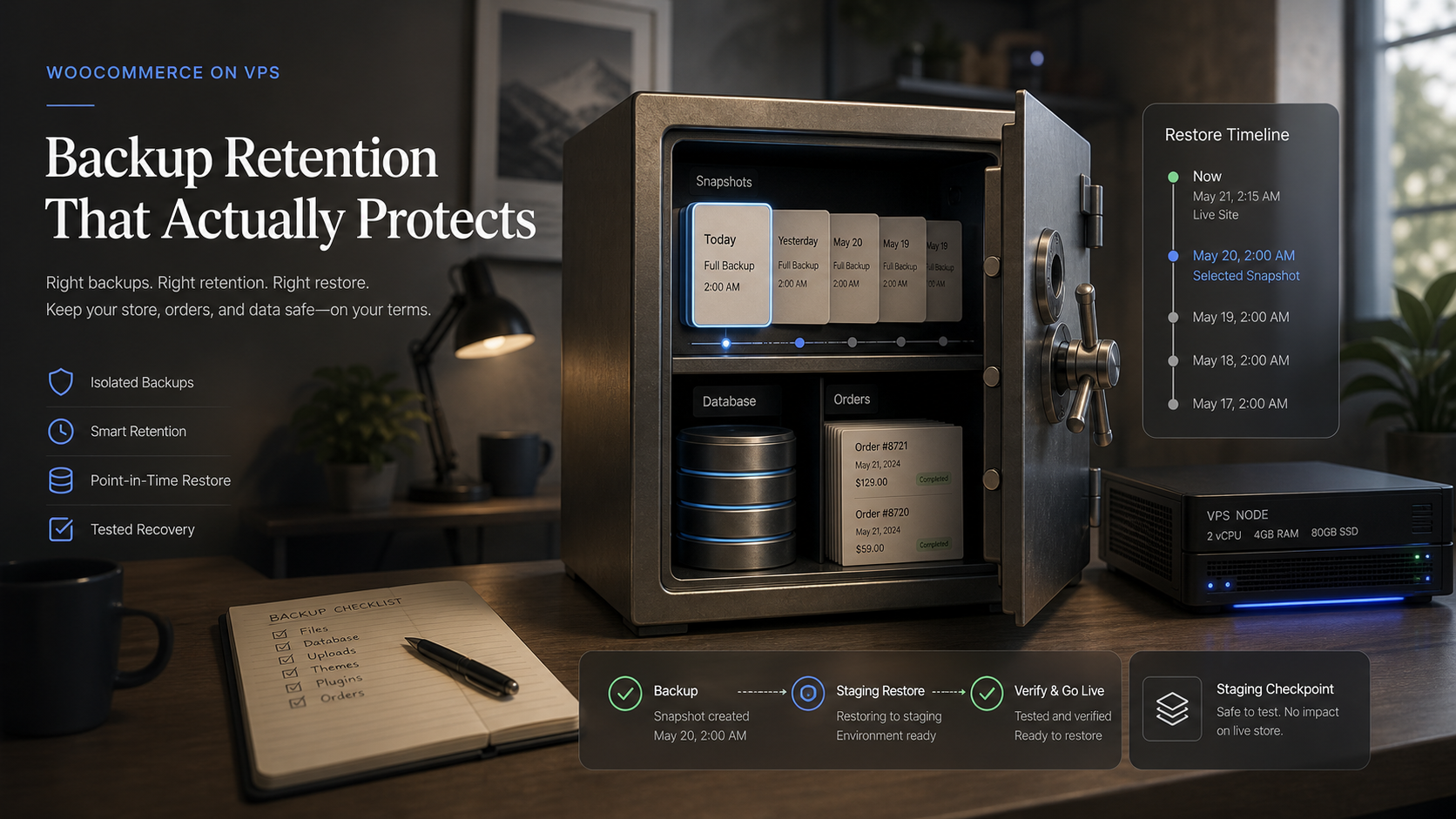
WooCommerce backups need more planning than ordinary WordPress backups because every restore can affect live orders, payments, stock changes, coupons, customer accounts and scheduled actions. A VPS gives a store more control over files, databases, snapshots and off-server copies, but that control only helps when retention and restore rules are written before something breaks.
This guide focuses on a practical backup policy for WooCommerce stores on VPS infrastructure: what to back up, how long to keep it, when snapshots are not enough, and how to test restore without overwriting fresh orders. Backup cadence and successful recovery points determine the possible recent order-loss window (RPO). Retention is a separate decision: how far back valid recovery points remain available.
Quick Answer
For WooCommerce on a VPS, keep database backups frequent, file backups separate, and at least one off-server copy outside the VPS. Small stores can start with daily database backups and weekly full-file backups. Busy stores need hourly or real-time order protection. A WooCommerce hosting environment should also include a tested restore path, not only a folder full of backup files.
Why WooCommerce Backups Are Different
A brochure WordPress site can often be restored from last night without much business damage. A WooCommerce store is different. New orders, payment status changes, customer registrations, coupon usage, product stock and refunds may arrive after the backup timestamp.
That means a restore is not just a technical action. It is an order-history decision. Restoring an old database over a live store can remove paid orders that already happened. Restoring only files can leave plugin code and database schema out of sync. Restoring only selected tables can break relationships if HPOS order tables, custom checkout plugins or subscription tools are involved.
Good retention answers three questions:
- How far back can we recover?
- How much recent order data can we afford to lose?
- How do we restore without overwriting newer orders?
Those questions are the reason this article belongs in WooCommerce and VPS operations, not only in a generic backup category.
What This Adds To Existing Voxfor Guides
Voxfor already has guides around cPanel backup restore, WooCommerce hosting and VPS hosting. This article has a narrower job: build a retention policy for stores where orders matter.
| Existing topic | Main question | This article adds |
|---|---|---|
| cPanel backup restore | How do I restore a backup from the panel? | When restore is risky for WooCommerce orders |
| WooCommerce hosting | What stack supports online stores? | Backup cadence, retention and order-safe recovery |
| VPS hosting | What server gives control? | How snapshots, database exports and off-server copies work together |
| Migration guides | How do I move a site? | Why backup testing is different from migration |
That distinction keeps the article from repeating a generic restore tutorial.
Backup Layers A Store Should Keep
A real backup plan has more than one layer. Each layer solves a different failure.
| Layer | Protects against | Cadence or retention starting point |
|---|---|---|
| VPS snapshot | Server-wide failure, bad update, broken packages | 3-7 daily snapshots where available |
| Database export | Lost orders, product edits, settings, HPOS tables | Daily for small stores, hourly for active stores |
| File archive | Uploads, themes, plugins, custom code | Weekly full copy plus daily changed files |
| Off-server copy | VPS disk loss or account-level mistake | Keep at least 2 recent copies outside the VPS |
| Staging restore | Backup corruption or incomplete restore path | Test after major changes and monthly for active stores |
Snapshots are useful, but they should not be the only safety net. A snapshot can restore the entire machine, while a database export can help inspect order tables without rolling back the full server.
Retention By Store Activity
Backup frequency should follow business risk, not habit. Frequency is not retention: hourly database exports address the recent-data RPO, while keeping 30 days of exports provides a 30-day recovery history. For example, retain hourly points for 48 hours, daily points for 30 days and weekly file archives for 12 weeks only if business, privacy and storage requirements permit; verify at least one off-server generation before pruning any local point.
| Store activity | Database cadence | File cadence | Notes |
|---|---|---|---|
| Few orders per week | Daily | Weekly full + changed files | Good starting point for small stores |
| Daily orders | Every 6-12 hours | Weekly full + daily changed files | Review order loss window before updates |
| Campaign or sale period | Hourly or real-time | Daily changed files | Do not rely on yesterday’s database |
| Subscription or booking store | Hourly or real-time | Daily changed files | Renewals and bookings change constantly |
| Agency-managed store | Policy per client | Policy per client | Document owner approval and restore contact |
Order volume is only one factor. A low-order store with expensive products may need tighter protection than a high-traffic store with low-value test orders.
Safe VPS Backup Commands
Commands below are examples for planning and testing. Adjust paths, database names and users for the real server. Do not paste production credentials into shell history.
Choose the existing WordPress OS account as the backup operator; example is a placeholder, not an account to create blindly. An administrator grants that account a private backup directory once. Do not recursively change ownership of an existing backup tree; inspect any existing directory and its policy first.
set -euo pipefail
SITE_USER=example
SITE_GROUP=$(id -gn "$SITE_USER")
sudo test ! -e /opt/store-backups
sudo test ! -L /opt/store-backups
sudo install -d -m 0700 -o "$SITE_USER" -g "$SITE_GROUP" /opt/store-backups
Open a Bash shell as that existing site account (for example, sudo -iu example) and run the following blocks in that same shell. WP-CLI and tar run as the site user, not root. Each run gets a unique UTC timestamp plus a random suffix, so even two runs in the same second cannot overwrite an earlier recovery point.
set -euo pipefail
umask 077
SITE_USER=example
WP_ROOT=/home/example/public_html
BACKUP_ROOT=/opt/store-backups
[[ "$(id -un)" == "$SITE_USER" ]]
[[ -d "$BACKUP_ROOT" && ! -L "$BACKUP_ROOT" && -O "$BACKUP_ROOT" && -w "$BACKUP_ROOT" ]]
RUN_DIR=$(mktemp -d "$BACKUP_ROOT/$(date -u +%Y%m%dT%H%M%SZ).XXXXXX")
cd "$WP_ROOT"
wp db export "$RUN_DIR/store-db.sql" --add-drop-table
test -s "$RUN_DIR/store-db.sql"
Archive uploads and custom code separately:
tar -czf "$RUN_DIR/wp-content.tar.gz" wp-content
tar -tzf "$RUN_DIR/wp-content.tar.gz" >/dev/null
printf 'recovery_point=%s\n' "$RUN_DIR"
From the same backup-operator account, check an off-server sync before copying. This is only a dry run; remove --dry-run for the approved transfer, then verify the remote files and a staging restore. Quiesce writes or use a supported consistent-backup mechanism when database and file changes must represent one recovery point.
rsync -avz --dry-run /opt/store-backups/ backup-user@backup-host:/backups/store/Keep cleanup rules conservative:
find /opt/store-backups -type f -name "*.sql" -mtime +30 -printUse -print first. Delete only after confirming the retention policy and off-server copies.
Restore Without Losing New Orders
Restoring WooCommerce is where mistakes happen. A full database restore can remove orders created after the backup. Before any restore, decide whether the problem is a file issue, a plugin issue, a database issue or a full-server issue.
Use this decision path:
| Problem | Safer first move | Why |
|---|---|---|
| Broken plugin update | Restore plugin files or roll back plugin | Avoids touching orders |
| Theme change broke layout | Restore theme files or staging copy | Database may be fine |
| Product data corrupted | Restore selected data on staging first | Product/order links may be affected |
| Malware or unknown compromise | Full investigation and clean restore plan | Fresh orders and backdoors both matter |
| VPS disk failure | Snapshot or full backup restore | Server-level recovery is needed |
For database work, restore into staging first:
RESTORE_DIR=/opt/store-backups/20260802T120000Z.ABC123
# Replace with an existing verified recovery point; staging_db must be an isolated staging database.
test -s "$RESTORE_DIR/store-db.sql"
mysql staging_db < "$RESTORE_DIR/store-db.sql"
Then inspect orders, HPOS tables, product data and plugin tables before touching production. If the live store accepted orders after the backup, plan how those orders will be preserved, exported, replayed or manually reconciled.
WooCommerce’s own backup guidance is useful because it explains why real-time backups reduce order-loss risk. WordPress.com’s selective restore documentation is also helpful when thinking about WooCommerce tables that should not be overwritten casually.
Where VPS Control Helps
VPS control matters because the store owner or operator can separate backup jobs from the application itself. A VPS hosting plan can support snapshot scheduling, local staging restores, off-server syncs, log review and isolated backup users.
That does not mean every store should self-manage everything. Stores that cannot test restores, rotate access, monitor disk space or respond during incidents may need managed hosting services instead of a purely DIY setup.
For panel-based restores, Voxfor’s guide on how to restore a backup in cPanel is useful. For WooCommerce, use that path carefully and confirm whether the restore touches the live database.
Practical Gaps And Limits
A backup policy does not guarantee a clean recovery every time. It reduces uncertainty. Payment gateways, subscription plugins, HPOS tables, stock sync tools and shipping integrations can all create extra restore work.
Two limits should stay visible:
- A backup that was never restored is only an assumption.
- A database restore can be more dangerous than the original bug if it erases newer orders.
Good stores keep restore notes, not only backup files. Record where backups live, who can restore, which tables are sensitive, what the order-loss window is and who approves production recovery.
Recommended Next Step
Start by writing a simple retention rule for the store: database cadence, file cadence, off-server destination, snapshot window, restore test schedule and order-preservation rule. Then test one staging restore before trusting the plan during a real incident.
FAQ
How often should a WooCommerce store back up its database?
Small stores can start with daily database backups. Stores with daily orders should consider every 6-12 hours, and busy stores may need hourly or real-time order protection.
Are VPS snapshots enough for WooCommerce?
Snapshots are useful, but they are not enough by themselves. WooCommerce also needs database exports, file copies, off-server storage and a tested restore path.
Can restoring a backup remove WooCommerce orders?
Yes. Restoring an older database can remove orders, refunds, stock changes and customer records created after the backup timestamp.
What should be tested before a production restore?
Test the backup on staging, inspect order tables, confirm plugin compatibility, check files and database together, and decide how newer orders will be preserved.
Should backups be stored on the same VPS?
Local backups are convenient for quick restore, but at least one copy should live off-server so a VPS disk or account issue does not remove every backup.
When should a store use managed help?
Use managed help when the store cannot safely test restores, monitor backup jobs, protect credentials or recover during a revenue-impacting incident.