
The key to any successful WooCommerce store is effective inventory management. Lack of a dependable system means that store owners can easily sell too much, experience stock-outs, disrupt cash flow and lose customers who might never come back again. Inventory only costs eCommerce businesses as much as 10 percent of yearly revenues, which no store owner can afford to overlook.
This guide will tell you all you need to know about WooCommerce inventory management in 2026: how to turn on the built-in tools of the platform, how to pick the appropriate plug-in, and how to use the advanced strategies that will make your inventory levels optimal, your operations efficient, and your customers happy.
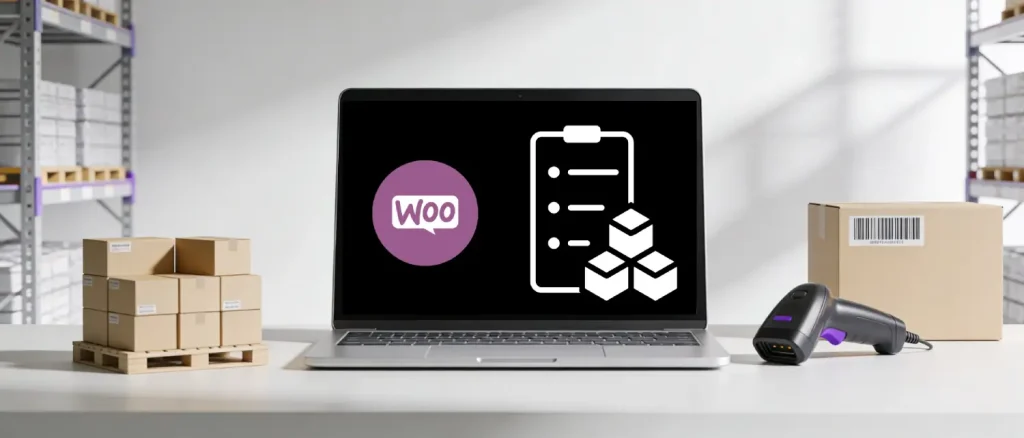
WooCommerce inventory management refers to the complete system of tracking, organizing, replenishing, and controlling your store’s product stock. It encompasses storing, ordering, tracking, reporting, and shipping as interconnected functions that all depend on accurate stock data.
Fundamentally, WooCommerce has an inbuilt inventory management tool that enables store proprietors to handle their products and inventory without extra systems. This native system automatically updates stock levels following each successful order, stops over-selling by blocking out of stock items, and notifies administrators with low stock email notices. Nevertheless, when dealing with stores having bigger catalogs, numerous warehouses, or multi-channel sales, third-party plugs are necessary to realize the full potential of inventory management.
Understanding the terminology helps you configure WooCommerce more effectively:
Managing inventory manually, or not at all, creates cascading problems that damage both revenue and customer trust. Here is why building a solid inventory system is non-negotiable:
Overselling is when a series of customers buy the same item that is of limited stock, in a single or multiple sales channels. In flash sales or a time of heavy traffic, the default system of WooCommerce does not hold stock at the time of checkout, so two customers can at the same time make a purchase on the final unit in stock. The result of this is order cancellations, bad reviews, and even the suspension of an account on third-party marketplaces such as Amazon or eBay.
Customers who experience an oversold or canceled order are unlikely to return. Studies show that nearly half of buyers will switch to a competitor after just one bad purchasing experience.
Manual stock control, particularly in stores having hundreds or thousands of product items, is error-prone. One item counted incorrectly will trigger a wave of inaccurate delivery, refunds and destroyed relationships with suppliers. Automated inventory management systems also remove the need to input data manually and recalculate data, which can significantly decrease expensive errors.
Excess inventory ties up working capital in slow-moving products, while stockouts on popular SKU mean missed sales. Effective inventory management allows store owners to strike the right balance, stocking enough to meet demand without over-investing in items that won’t sell quickly.
Stock monitoring helps in making sure that orders are delivered on time and in the right manner. Picking, packing, and shipping are reduced to less time and fewer errors when inventory data is coordinated with all sales channels and warehouses. This has a direct effect of enhancing customer satisfaction and increasing the chances of rebuys.
WooCommerce native inventory system is a powerful starting point for small to mid-size stores. Here is how to configure it effectively.
Navigate to WooCommerce → Settings → Products → Inventory and check the “Enable stock management” checkbox. This unlocks a range of inventory configuration options, including:
Once global settings are in place, configure inventory at the individual product level by navigating to Products → All Products, opening a product, and clicking the Inventory tab within the Product Data panel. Key settings include:
For products with multiple variations (such as clothing with different sizes and colors), WooCommerce allows inventory to be managed either at the parent product level or at the individual variation level. Managing stock per variation is the more accurate approach, as it ensures that selling out of one size does not block customers from purchasing other available variants.
Even experienced store owners encounter recurring challenges. Understanding these issues allows you to address them proactively:
| Problem | Root Cause | Solution |
| Overselling during peak traffic | Stock not reserved at checkout | Use a reserve-stock plugin or WooCommerce’s Hold Stock setting |
| Manual entry errors | Human data input for large catalogs | Enable automated sync with a bulk-edit plugin |
| No real-time updates | Inventory is not refreshed after sales | Activate real-time inventory tracking via a dedicated plugin |
| Poor returns management | No system for restocking returned items | Use an inventory log plugin that accounts for returns |
| Multi-warehouse confusion | Single-location WooCommerce core | Add a multi-location inventory add-on |
| No supplier management | Manual reordering by email or spreadsheet | Use a plugin with built-in purchase order and supplier management |
While WooCommerce core system handles basic needs, these plugins dramatically extend what is possible, especially for growing or scaling stores.
ATUM is the most widely used free inventory management plugin in the entire WooCommerce ecosystem. Its Stock Central dashboard provides a single-screen, spreadsheet-like view of every product’s stock level, supplier, purchase price, and sales performance, making it easy to identify problem SKUs at a glance.
Key Features:
Rating: 4.7 out of 5 stars on WordPress.org
Pricing: Free core plugin; premium add-ons start from approximately €20/quarter
Best For: Small to large stores wanting a comprehensive free inventory solution with premium scalability.
Smart Manager is the go-to tool for bulk management of WooCommerce products, orders, coupons, and inventory from a familiar Excel-like spreadsheet interface. Store owners managing hundreds or thousands of SKUs will find that it dramatically reduces the time spent updating product data.
Key Features:
Rating: 4.3 out of 5 stars
Pricing: Free core version; Pro starts at $199/year for one site
Best For: Stores that regularly run bulk price updates, promotions, or need granular order management.
This is a WooCommerce.com premium extension that offers demand prediction at an enterprise level to independent retailers and manufacturers. Using machine learning algorithms, it evaluates the previous performance of your store and provides you with daily order recommendations on each product, a feature previously only large enterprise businesses had.
Key Features:
Best For: Retailers, manufacturers, and stores with complex supply chains that need predictive replenishment.
Stock Sync would be a perfect fit in those stores that sell their products on various platforms, which require inventory to be synchronized automatically. It maintains inventory in real-time across WooCommerce and other related sales platforms, doing away with the manual labor of updating each platform individually.
Key Features:
Pricing: Free version for 2 stores with up to 100 products; Pro from $89/year for one site
Best For: Dropshippers and multi-channel sellers who need accurate stock parity across platforms.
Developed with businesses with a large number of warehouses or physical locations in mind, the given plugin allows for multi-location stock management without workarounds. Products can have stock in various warehouses, and the optimal location to fulfill an order is automatically chosen when an order is placed.
Key Features:
Pricing: $129/year with discounts available on 2-year plans
Best For: Businesses with multiple warehouses, retail locations, or regional distribution centers.
Katana MRP is a robust Manufacturing Resource Planning solution with deep WooCommerce integration, making it ideal for stores that manufacture their own products.
Key Features:
Pricing: Starter plan available free; scales up to $799/month for Professional plan
Best For: Manufacturers and artisan brands who need to manage raw materials alongside finished inventory.
This plugin has over 30,000 active installs and is designed for managing stock numbers for products and their variations from a single, clean management screen.
Key Features:
Best For: Mid-size stores wanting a lightweight stock management interface without the complexity of enterprise tools.
The WP Inventory Manager is a multi-purpose plug-in that would fit the needs of niche product shops like car dealerships, art galleries, and specialty retailers that might need advanced user control and flexibility over item manipulation.
Key Features:
Pricing: $49.99 for WP Inventory Core; $149 for All Access Pass
Best For: Specialty retailers and high-value item sellers needing granular customer and item control.
Once the foundational tools are in place, these proven strategies help you move from reactive stock management to a proactive, data-driven operation.
ABC analysis is one of the most effective inventory classification techniques for eCommerce stores. It segments your entire catalog into three tiers based on sales value and demand:
By focusing your tightest controls on A-items, you protect the revenue that matters most while keeping management overhead lean across the broader catalog.
Rather than applying a blanket low-stock alert to all products, customize thresholds based on each product’s lead time and average daily sales velocity. A product that takes three weeks to reorder from a supplier needs a much higher alert threshold than one that can be replenished in 48 hours. Per-product threshold configuration is available in both WooCommerce core and most inventory plugins.
If your WooCommerce store coexists with Amazon, eBay, Etsy, or a brick-and-mortar POS system, real-time inventory synchronization is not optional; it is essential. When a sale happens on any one channel, the inventory must update instantly across all others to prevent overselling. Tools like Trunk, Stock Sync, and Cin7 provide this level of synchronization, automatically linking products by shared SKU across platforms.
Reactive reordering, waiting until stock is low before ordering, causes stockouts during your highest-traffic periods. A smarter approach involves analyzing year-over-year sales data to identify seasonal peaks and increasing your reorder multiplier by 1.3x to 1.5x ahead of those windows. WooCommerce reporting data can be exported to Google Sheets or Excel for basic forecasting, while dedicated tools like Shelf Planner’s AI engine automate this process entirely.
WooCommerce’s default behavior does not reserve stock when a product is added to the cart or when checkout begins, only when the order is fully completed. During high-traffic events like flash sales, this creates race conditions where two customers can both purchase the final unit. To resolve this, use WooCommerce’s Hold Stock setting to temporarily reserve inventory during active checkout sessions, or implement a custom stock reservation system that holds stock for a timed window (typically 5–10 minutes) and auto-releases it if the purchase is not completed.
FIFO, selling the oldest inventory before newer stock, is a critical practice for stores selling perishable goods, time-sensitive products, or items that get updated with newer versions. It reduces the risk of stock obsolescence and minimizes write-offs. Most warehouse management add-ons for WooCommerce support FIFO rules as part of their inventory logging features.
Automated tracking reduces errors but does not eliminate them. Discrepancies arise from returns, damaged goods, mispicks, and system failures. Scheduling regular cycle counts, where staff physically verify stock levels of a product subset, keeps your digital records aligned with what is actually on the shelves. Most inventory management plugins provide inventory log exports to facilitate audit reconciliation.
Choosing the right level of inventory tooling depends entirely on your store’s scale and complexity:
| Store Type | Recommended Solution | Why |
| Under ~1,000 SKUs, single warehouse, simple products | WooCommerce Core | Built-in tools cover basic tracking, SKUs, and alerts |
| 1,000+ SKUs, need purchase orders or suppliers | WooCommerce Plugin (ATUM, Smart Manager) | Extends core with automation, forecasting, and supplier tools |
| Multiple warehouses or fulfillment locations | Multi-Location Plugin or WMS | Enables warehouse-specific stock segregation and routing |
| Manufacturer managing raw materials and production | Katana MRP or Shelf Planner BOM | Tracks components, assemblies, and finished goods simultaneously |
| Large enterprise with a complex supply chain | Full ERP or WMS Integration | Provides bin locations, audit trails, and deep accounting integration |
Building strong inventory habits from the start saves significant time and money:

Hassan Tahir wrote this article, drawing on his experience to clarify WordPress concepts and enhance developer understanding. Through his work, he aims to help both beginners and professionals refine their skills and tackle WordPress projects with greater confidence.





 Lifetime VPS Europe
 Lifetime VPS Asia
 Lifetime WooCommerce Hosting
 Lifetime Hosting
 France Lifetime Dedicated Servers
 Germany Lifetime dedicated servers
 Lifetime Game Dedicated Servers
 Chicago, US
 Tokyo, Japan
 Singapore
 Hong Kong
 Seoul, South Korea
 Amsterdem, Netherlands
 London, UK
 Stockholm, Sweden
 Oslo, Norway
 Vienna, Austria
 Zurich, Switzerland
 Sydney, Australia
 Wordpress Hosting
 VPS Hosting
 DDOS Protection
 Submit Ticket
 Full Management
 Guides
 Videos and Podcasts
 Discover Creative Ideas
 MetaAgentOS High-Ticket Support System
 Voxfor Mega Menu
 Voxfor Advanced Price Management For WooCommerce
 Voxfor Secure Live Chat and AI Support
 Voxfor Multilanguage
 Voxfor AI Content Summary


