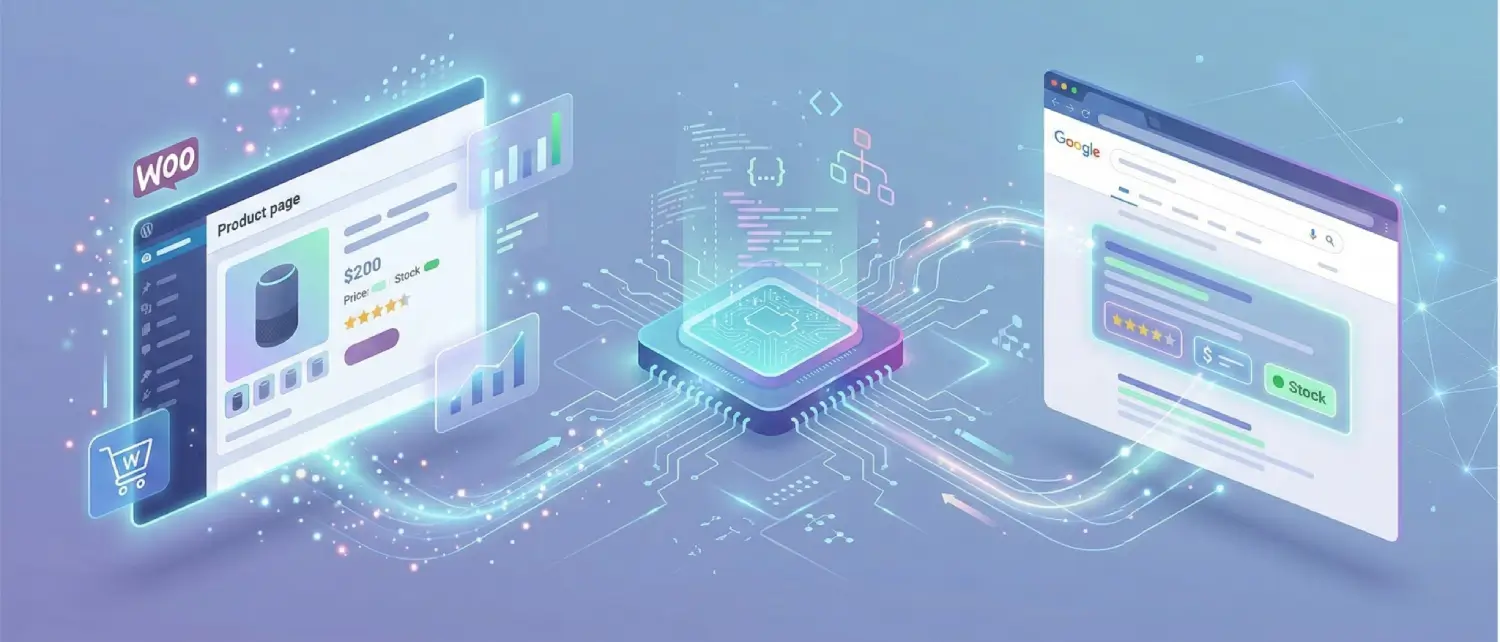
You’ve built your WooCommerce store, stocked it with real products, and optimised your pages to rank on Google. Yet when you search for your own products, you get a plain blue link. No star ratings. No price. No “In Stock” badge. Just text, the same as every other result on the page.
Meanwhile, competing listings look completely different. They show product images, pricing, review counts, and availability right there in the search results. Shoppers know what they’re getting before they ever click. That extra visual context is often the deciding factor between a click and a scroll-past.
The technical layer that makes all of this possible is called product schema, a small block of structured data that tells Google exactly what your page contains. In this guide you’ll learn what it is, why it matters, and how to implement it correctly across your WooCommerce store.

Think of product schema as a translator that sits between your WooCommerce store and Google. You already enter the product name, price, and stock status when you create a product. Schema takes that same information and packages it into a format search engines can parse reliably, without having to guess from your page layout.
Technically, product schema (also called structured data) is a compact block of standardised code, almost always in JSON-LD format, embedded in the <head> of your product page’s HTML. Shoppers never see it. Google reads it on every crawl.
This structured data follows the Schema.org standard, the shared vocabulary agreed upon by Google, Bing, Yahoo, and Yandex for describing web content. When Google visits your product page, schema tells it precisely what you’re selling and which details matter most.
Practical example: Without schema, Google may only recognise that a page is “about a product.” With schema, you’re explicitly communicating: this is a pair of wireless headphones, priced at $299.95, currently in stock, rated 4.5 stars across 86 verified customer reviews. Google can then surface those details as rich results.
The good news: WooCommerce already outputs basic product schema automatically on every single product page. You don’t need to build it from scratch. Fill in your product details as you normally would, and WooCommerce handles the schema generation, it’s one of the quickest wins available for improving your store’s search visibility.
Product schema is worthwhile because it makes your products eligible for rich results — the enhanced search listings that display far more information than a standard blue link. Here’s a breakdown of the practical benefits:
Important: Schema is only as reliable as the data you feed it. Make sure your WooCommerce product data, especially price, stock status, and identifiers, is accurate and up to date at all times.
When Google crawls a product page and finds valid product schema, it gains a clearer picture of what you’re selling. If the structured data meets its content guidelines, Google may surface those details directly inside search results.
For a WooCommerce store, the following details can appear in enhanced search listings:
Google doesn’t simply accept your schema at face value. Its process works like this:

Adding product schema to WooCommerce is primarily about structuring your existing product data so search engines can read it reliably. You do not need to redesign your store or change anything shoppers see. Choose the method that fits your technical comfort level and store setup.
Best for: Smaller stores · No plugins needed · Clean starting point
WooCommerce automatically generates a JSON-LD product schema block on every single product page. In many cases this is sufficient to make the page eligible for rich results, no extra setup required.
The native schema is intentionally minimal. The following fields are not included out of the box:
Open any single product page, right-click, and choose View Page Source. Press Ctrl + F and search for “@type”: “Product”. If WooCommerce is outputting its native schema, you will find a JSON-LD script block containing that string.
Some themes and SEO plugins override or disable WooCommerce structured data. If you don’t see the JSON-LD block, check your theme’s schema settings and your SEO plugin’s structured data options.
WooCommerce exposes PHP filters so you can append extra properties to the built-in schema without replacing it. The snippet below adds brand, gallery images, and aggregateRating. Add this to your child theme’s functions.php or a small custom plugin:
add_filter( 'woocommerce_structured_data_product', function( $markup, $product ) {

    // Add brand from a product attribute (e.g. pa_brand)
    if ( $brand = $product->get_attribute( 'pa_brand' ) ) {
        $markup['brand'] = [
            '@type' => 'Brand',
            'name'  => $brand,
        ];
    }

    // Append gallery images to the image array
    $gallery_ids = $product->get_gallery_image_ids();
    if ( $gallery_ids ) {
        $images = is_array( $markup['image'] ?? [] )
            ? $markup['image']
            : ( ! empty( $markup['image'] ) ? [ $markup['image'] ] : [] );

        foreach ( $gallery_ids as $id ) {
            $url = wp_get_attachment_url( $id );
            if ( $url ) {
                $images[] = $url;
            }
        }
        $markup['image'] = array_values( array_unique( array_filter( $images ) ) );
    }

    // Add aggregateRating only when at least one review exists
    if ( $product->get_review_count() ) {
        $markup['aggregateRating'] = [
            '@type'       => 'AggregateRating',
            'ratingValue' => $product->get_average_rating(),
            'reviewCount' => $product->get_review_count(),
        ];
    }

    return $markup;

}, 10, 2 );
To extend the Offer portion of the schema (e.g. to add shipping details), use the offer-specific filter:
add_filter( 'woocommerce_structured_data_product_offer', function( $markup_offer, $product ) {

    $markup_offer['shippingDetails'] = [
        '@type'        => 'OfferShippingDetails',
        'shippingRate' => [
            '@type'    => 'MonetaryAmount',
            'value'    => '5.00',
            'currency' => get_woocommerce_currency(),
        ],
    ];

    return $markup_offer;

}, 10, 2 );Best for: Most stores · No custom code required · Easiest ongoing management
Delegating schema management to a reputable SEO plugin is the most practical approach for the majority of WooCommerce stores. Plugins like Rank Math, Yoast SEO, SEOPress, and AIOSEO all support WooCommerce and output JSON-LD automatically. The workflow below uses Rank Math as an example, menu names differ across plugins, but the logic is identical.
Why this works well: The plugin reads directly from your WooCommerce product fields — price, stock, reviews, images — and generates enhanced JSON-LD automatically. It typically fills gaps that the native method leaves open, such as brand markup and richer review data.
Best for: Developers · Headless setups · Maximum control
Writing your own JSON-LD gives you complete control over every property in the schema. This is the right choice when WooCommerce’s native output and plugin settings can’t cover your specific requirements.
Maintenance overhead: Manual JSON-LD requires ongoing attention. If prices, stock status, reviews, or URLs change and your markup does not, Google may treat the schema as unreliable and stop surfacing rich results for that page.
Use this as a starting template for a single product or a static site. Replace every example value with the actual data shown on your product page. This version requires no PHP.
<script type="application/ld+json">
{
  "@context": "https://schema.org",
  "@type": "Product",
  "name": "Wireless Noise-Cancelling Headphones",
  "image": [
    "https://example.com/wp-content/uploads/headphones-main.jpg",
    "https://example.com/wp-content/uploads/headphones-side.jpg"
  ],
  "description": "Over-ear Bluetooth headphones with 40-hour battery life and active noise cancellation.",
  "sku": "WH-1000XM6",
  "brand": {
    "@type": "Brand",
    "name": "SoundMax"
  },
  "offers": {
    "@type": "Offer",
    "url": "https://example.com/product/wireless-headphones/",
    "priceCurrency": "USD",
    "price": "299.95",
    "availability": "https://schema.org/InStock",
    "itemCondition": "https://schema.org/NewCondition"
  },
  "aggregateRating": {
    "@type": "AggregateRating",
    "ratingValue": "4.7",
    "reviewCount": "128"
  }
}
</script>
You can inject this snippet via:
This snippet hooks into wp_head and builds the JSON-LD payload dynamically from live WooCommerce data. As your catalog changes, the schema updates automatically.
add_action( 'wp_head', 'custom_product_schema_output' );

function custom_product_schema_output() {

    // Run only on single product pages
    if ( ! is_product() ) {
        return;
    }

    global $product;
    if ( ! $product instanceof WC_Product ) {
        return;
    }

    // Retrieve the featured image URL safely
    $image     = '';
    $image_src = wp_get_attachment_image_src( $product->get_image_id(), 'full' );
    if ( ! empty( $image_src[0] ) ) {
        $image = $image_src[0];
    }

    // Build the JSON-LD payload from live product data
    $data = [
        '@context'    => 'https://schema.org',
        '@type'       => 'Product',
        'name'        => $product->get_name(),
        'image'       => $image,
        'description' => wp_strip_all_tags(
            $product->get_short_description() ?: $product->get_description()
        ),
        'sku'         => $product->get_sku(),
        'brand'       => [
            '@type' => 'Brand',
            'name'  => 'Your Brand Name', // Replace with real brand logic
        ],
        'offers'      => [
            '@type'         => 'Offer',
            'url'           => get_permalink( $product->get_id() ),
            'priceCurrency' => get_woocommerce_currency(),
            'price'         => $product->get_price(),
            'availability'  => $product->is_in_stock()
                ? 'https://schema.org/InStock'
                : 'https://schema.org/OutOfStock',
        ],
    ];

    // Only include aggregateRating when real reviews exist
    if ( $product->get_review_count() ) {
        $data['aggregateRating'] = [
            '@type'       => 'AggregateRating',
            'ratingValue' => $product->get_average_rating(),
            'reviewCount' => $product->get_review_count(),
        ];
    }

    echo '<script type="application/ld+json">'
        . wp_json_encode( $data )
        . '</script>';
}
Add this code via:
wp-content/plugins/.functions.php.After adding or modifying product schema, always validate a few live product URLs before assuming everything is working. The two primary tools, Google’s Rich Results Test and the Schema Markup Validator — check different things and are both worth using.
The Rich Results Test tells you whether your product page is eligible for enhanced search features and flags errors or warnings that Google considers significant.
The Schema Markup Validator checks whether your JSON-LD follows the full Schema.org specification — including syntax, correct type/property usage, and deprecated fields. It is a broader check than the Rich Results Test.
Once the schema is live, track its performance and any crawl-time issues inside Google Search Console.
Navigate to Search Console → Enhancements → Product Snippets. This report shows:
These relate to product-rich results in standard organic web search.
Navigate to Search Console → Enhancements → Merchant Listings. This report shows:
Schema can break silently during routine site updates. Always test live product URLs (not just code snippets) after:
Speed up reprocessing: Even after fixing schema, search results don’t update instantly. For faster processing, go to Search Console → URL Inspection, paste the product URL, and click Request Indexing.
When a product page outputs multiple product schema blocks simultaneously, from WooCommerce, an SEO plugin, a theme, and a manual snippet all at once, Google may become confused and reduce the likelihood of rich results.
For most stores, the simplest configuration is one source of product schema, typically your main SEO plugin or one dedicated schema plugin. If a plugin extends WooCommerce’s native schema (rather than replacing it), both can coexist, but the plugin documentation should confirm this approach.
Google requires a small set of fields to consider a product schema valid. If even one is absent, the page will fail validation. The most common culprits are name, offers.price, priceCurrency, and availability.
Quick fix tip: Clicking Update on the product editor forces WooCommerce and most SEO plugins to regenerate the schema with the latest field data. After updating, test the live URL again.
This issue appears when your schema shows rating data that doesn’t match what shoppers see on the product page — or conversely, when stars are visible on the page but absent from the schema.
Open the product page in a browser and note:
Your schema should mirror exactly what shoppers can see here.
Never include rating markup unless reviews are visible to shoppers. Google cross-checks schema against page content, and invisible ratings are a common reason for rich result ineligibility.
Schema validation tools — and Google itself — may flag missing or malformed identifiers such as SKU, GTIN (8, 12, 13, or 14 digit), MPN, or Brand. These help search engines distinguish your product from similar items in their index.
Adding product schema to your WooCommerce store is one of the most straightforward technical SEO improvements you can make, and one of the most impactful for search visibility.
WooCommerce gives you a solid starting point with its built-in schema output. Depending on your store’s size, catalog complexity, and technical resources, you can extend that foundation using a PHP filter, hand it off to an SEO plugin, or write fully custom JSON-LD. Any of these paths can produce valid, rich-result-eligible schema when implemented correctly.
The three principles that matter most are simple: keep your product data accurate, avoid duplicate schema sources, and ensure your markup always matches what shoppers see on the page. Get those right, and schema becomes a reliable, low-maintenance layer of your store’s SEO infrastructure.
Once schema is live, don’t set it and forget it. Monitor it in Google Search Console, retest after theme or plugin updates, and fix issues promptly. Done well, product schema reduces ambiguity for search engines, keeps your catalog consistently eligible for rich results, and gives every product page its best possible chance to stand out in search.

Hassan Tahir wrote this article, drawing on his experience to clarify WordPress concepts and enhance developer understanding. Through his work, he aims to help both beginners and professionals refine their skills and tackle WordPress projects with greater confidence.





 Lifetime VPS Europe
 Lifetime VPS Asia
 Lifetime WooCommerce Hosting
 Lifetime Hosting
 France Lifetime Dedicated Servers
 Germany Lifetime dedicated servers
 Lifetime Game Dedicated Servers
 Chicago, US
 Tokyo, Japan
 Singapore
 Hong Kong
 Seoul, South Korea
 Amsterdem, Netherlands
 London, UK
 Stockholm, Sweden
 Oslo, Norway
 Vienna, Austria
 Zurich, Switzerland
 Sydney, Australia
 Wordpress Hosting
 VPS Hosting
 DDOS Protection
 Submit Ticket
 Full Management
 Guides
 Videos and Podcasts
 Discover Creative Ideas
 MetaAgentOS High-Ticket Support System
 Voxfor Mega Menu
 Voxfor Advanced Price Management For WooCommerce
 Voxfor Secure Live Chat and AI Support
 Voxfor Multilanguage
 Voxfor AI Content Summary


