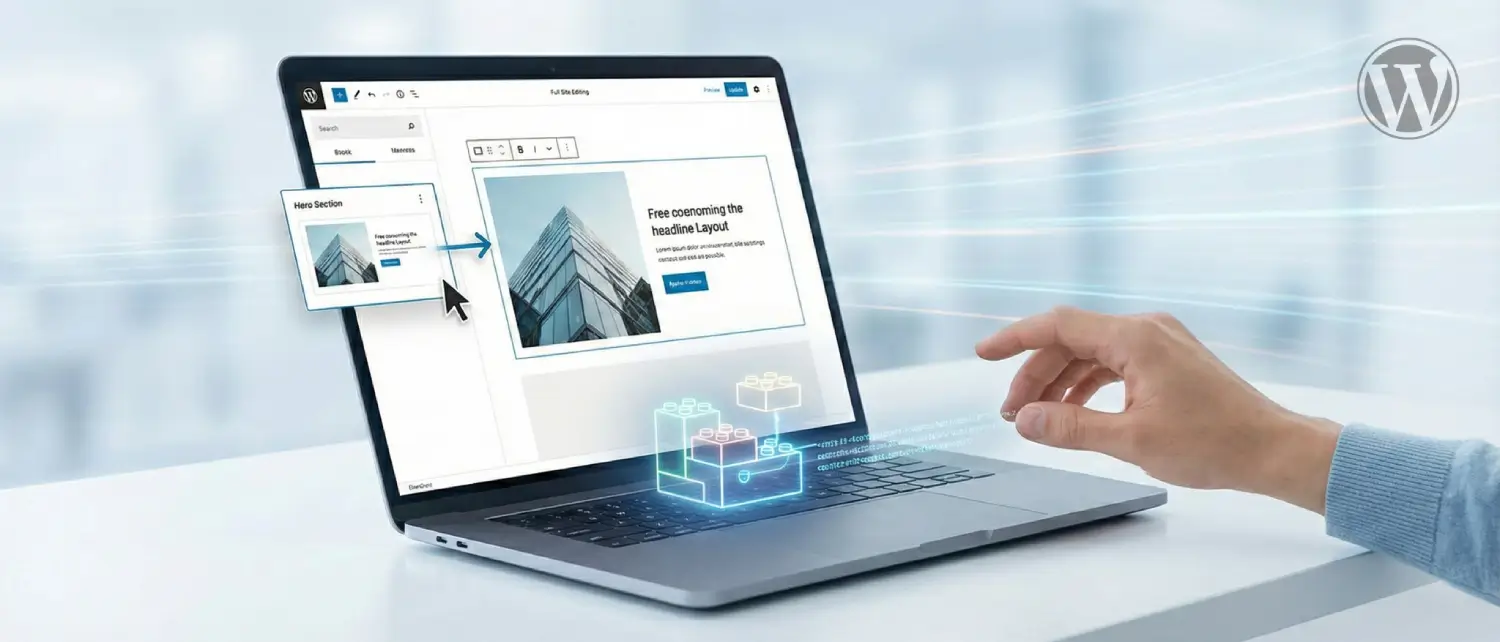
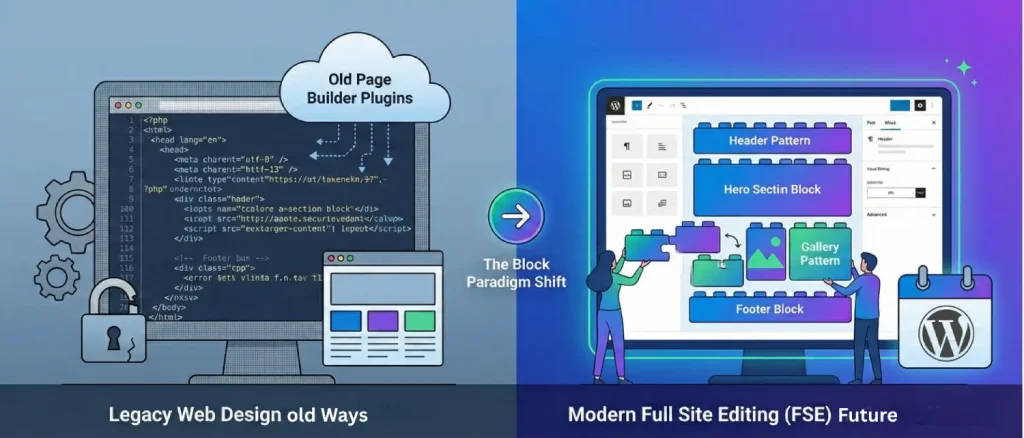
The way we build websites has changed for good. We’ve moved away from old, rigid coding systems and into a world where everything is built like Lego sets. At the heart of this change is the WordPress block pattern. Instead of building a page from scratch every time, you now use pre-made “blocks” that you can move, reuse, and customize easily.
By 2026, these block-based tools have become so fast and efficient that the old, clunky “page builder” plugins will be mostly a thing of the past. Now, websites are built using lightweight, organized data that makes them perform better and look consistent across the entire internet. Full Site Editing (FSE) is no longer an experiment or a tool just for developers; it is now the official standard for building WordPress websites. The process of creating a functional, great-looking site has changed. Instead of writing custom code and large styling files, you now organize ready-made block patterns within a single visual editor.
To build a modern WordPress site correctly, you first need to understand the different pieces that make up a page. In the past, WordPress saved your content as one long, solid block of text. Today, the editor treats your content like a collection of separate parts called blocks.
The WordPress ecosystem differentiates between several types of aggregated block structures, each serving a specific purpose. Understanding these pieces is the first step to mastering the modern web.
| Component | Core Definition | When to Use It | How it Becomes “Synced.” |
| Regular Block Pattern | A ready-made group of blocks you can drop into a page. | Best for sections like a “Team Member” profile or a “Service Feature.” | Unsynced. Changing one doesn’t affect the others. |
| Synced Pattern | A group of blocks that are linked together globally. | Best for “Call to Action” banners or contact info used on many pages. | Synced. Edit one, and every instance on your site updates instantly. |
| Template Part | Structural pieces that stay outside the main content area. | Strictly for your Header, Footer, and Sidebars. | Theme-Linked. These are tied to your specific theme and stay consistent site-wide. |
The way different pieces work together follows specific rules to keep the website running smoothly. For example, while you can use block patterns to build larger templates, you cannot put a template part inside a regular block pattern. This rule keeps the main structure of your site (like headers or footers) separate and safe from smaller design changes you make to individual pages.
Pro-Tip: The Migration Trick
Template parts are tied to your specific theme. If you plan to switch themes soon, convert your template parts into “synced patterns” first. This ensures they show up in your new theme’s library without you having to rebuild them from scratch.
Professional web design is now much easier for everyone, thanks to online collections of ready-made layouts. The main hub for these resources is the official WordPress Pattern Directory. You can access this directly inside your editor or through larger libraries like the WordPress.com Patterns portal.
These directories are more than just a gallery of ideas; they are a library of functional designs that your website can understand and use instantly. This system fundamentally changes how fast you can build a site, allowing you to create entire pages much quicker than traditional methods and removing the need for heavy, third-party layout plugins.
Patterns are organized into categories so you can find exactly what you need for a specific part of your page:
The most impressive part of the WordPress.com pattern library is how easy it is to use. You simply browse the designs, check how they look on different screen sizes (like mobile or tablet), and click “Copy pattern.”
What you are copying isn’t rigid code. Instead, you are copying the “language” that WordPress uses to build layouts. When you paste this into your own editor, your site immediately recognizes the instructions and rebuilds the layout. Because these patterns are built using standard blocks, they automatically pick up your website’s specific fonts, spacing, and colors. This ensures that a pattern you find online will immediately look like it belongs to your brand.
Before you start dragging and dropping patterns, you need to set your “design rules.” In modern WordPress, this is handled by Global Styles and a file called theme.json. Think of this as the “brain” of your website that tells every block how to behave.
In the old days, changing a font or a color meant editing a massive, messy code file. If you made a mistake, the whole site could break. In modern block themes, the theme.json file sets the rules for everything. It ensures that the “editor” looks exactly like the “live site,” so there are no surprises when you hit publish.
If you aren’t a coder, you can manage these rules through the Styles menu in the Site Editor (look for the half-filled circle icon). To build a great site, you must set these three things first:
First, ensure you are using a Block Theme (like Twenty Twenty-Four or Twenty Twenty-Five). Traditional “Classic” themes won’t allow you to use these modern tools. You should also make sure your hosting is up to date, as these new tools work best on modern servers.
Start with your Header and Footer.
Now, go to your Home page.
For your About and Contact pages, follow the same logic. Use “Gallery” patterns for your team photos and “Contact” patterns for your maps and forms. By using patterns, you ensure that the spacing and style on these pages match your homepage perfectly.
One of the newest and most powerful features (introduced in WordPress 6.6) is Synced Pattern Overrides.
In the past, you had two choices:
Overrides give you the best of both worlds. You can create a “Call to Action” banner that stays exactly the same in design across your whole site, but allows you to type a different message for each page.
The era of bloated, complicated page builders is over. Embracing WordPress Full Site Editing and Block Patterns is now the standard for building fast, modern websites. By using these native tools, you make your site faster for users, easier for you to manage, and consistent for your brand. Whether you are building a small personal blog or a large business site, mastering patterns is the smartest way to future-proof your web presence.

Hassan Tahir wrote this article, drawing on his experience to clarify WordPress concepts and enhance developer understanding. Through his work, he aims to help both beginners and professionals refine their skills and tackle WordPress projects with greater confidence.





 Lifetime VPS Europe
 Lifetime VPS Asia
 Lifetime WooCommerce Hosting
 Lifetime Hosting
 France Lifetime Dedicated Servers
 Germany Lifetime dedicated servers
 Lifetime Game Dedicated Servers
 Chicago, US
 Tokyo, Japan
 Singapore
 Hong Kong
 Seoul, South Korea
 Amsterdem, Netherlands
 London, UK
 Stockholm, Sweden
 Oslo, Norway
 Vienna, Austria
 Zurich, Switzerland
 Sydney, Australia
 Wordpress Hosting
 VPS Hosting
 DDOS Protection
 Submit Ticket
 Full Management
 Guides
 Videos and Podcasts
 Discover Creative Ideas
 MetaAgentOS High-Ticket Support System
 Voxfor Mega Menu
 Voxfor Advanced Price Management For WooCommerce
 Voxfor Secure Live Chat and AI Support
 Voxfor Multilanguage
 Voxfor AI Content Summary


