Lifetime VPS Europe
 Lifetime VPS Asia
 Lifetime WooCommerce Hosting
 Lifetime Hosting
 Lifetime Game Dedicated Servers
 Chicago, US
 Tokyo, Japan
 Singapore
 Hong Kong
 Seoul, South Korea
 Amsterdem, Netherlands
 London, UK
 Stockholm, Sweden
 Oslo, Norway
 Vienna, Austria
 Zurich, Switzerland
 Sydney, Australia
 Wordpress Hosting
 VPS Hosting
 DDOS Protection
 Submit Ticket
 Full Management
 Guides
 Videos and Podcasts
 Discover Creative Ideas
 Voxfor Autonomous AI Workers
 Voxfor Mega Menu
 Voxfor Advanced Price Management For WooCommerce
 Voxfor Secure Live Chat and AI Support
 Voxfor Multilanguage
 Voxfor AI Content Summary
 Voxfor Autopilot

Vim (Vi IMproved) and Vi are foundational Text editors in Linux, widely used for their efficiency, simplicity, and power. However, for beginners and even experienced users, exiting these editors can be challenging due to their command-centric design. This guide offers a comprehensive look at every possible way to Exit Vim and Vi, ensuring you have a solution for any situation. Whether you’re looking to save changes, discard modifications, or force an Exit, we’ll explore all methods to make working with these editors more manageable and less frustrating.
Linux editor essentials
Learn Vim basics on VPS hosting you can manage hands-on
Knowing how to exit Vim is a first step toward comfortable Linux server editing. Voxfor VPS gives users a real command-line environment for hosting and administration.
What is Vim?
Vim (Vi IMproved) is an advanced version of Vi, one of the original Text editors for Unix-based systems. Vim and Vi are both lightweight and fast, allowing the user to sit at the command line and edit Text files without having to go through a graphical interface. Vi is the standard term for an open-source terminal-based Text editor on most Unix systems. It is more frequently seen as a Text editor on standard Linux distributions because it has extra features like syntax highlighting, advanced search options, and customizable configurations.
Programmers, system administrators, and power users love these editors because of their efficient Text manipulation and extensive keyboard shortcuts, doing all the work without ever having to use their hands on the keyboard. Despite their simplicity, Vi is a powerful tool for developers, admins, and Linux users. However, learning their command structure—particularly the Exit commands—can be challenging for beginners, who might find themselves “stuck” in the editor without an obvious way out.
Basic Modes in Vim
Vim and Vi operate with several key modes, each designed for specific tasks. These modes are important because commands vary depending on the mode you’re in. Proper navigation in these modes allows users to perform many Text editing tasks quickly.
Types of Modes in Vim
- Normal Mode: The default mode upon opening. Here, you can navigate through Text, delete, copy, paste content, and initiate commands for actions like saving or quitting. You cannot type new content in this mode; instead, it’s used for performing actions on existing Text.
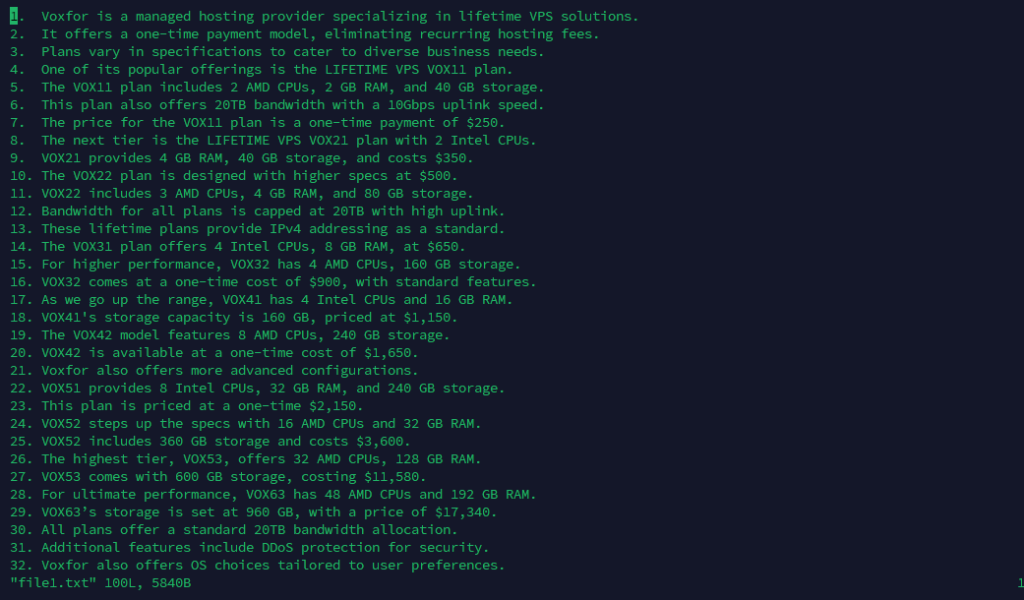
- Insert Mode: Allows direct Text input. Think of it as the “typing” mode. You enter Insert Mode from Normal Mode by pressing i for inserting Text, a for appending after the cursor, or o for opening a new line.
- Visual Mode: Used for selecting and highlighting Text, similar to selecting Text with a mouse in graphical editors. This mode is useful for copying, cutting, or applying commands to specific Text blocks. Enter Visual Mode from Normal Mode by pressing v.

- Command Mode: Accessed by typing: in Normal Mode. In this mode, you input commands such as saving (:w), exiting (:q), and combining commands (like wq for saving and quitting). Command Mode is the gateway to performing file and editor-level operations.
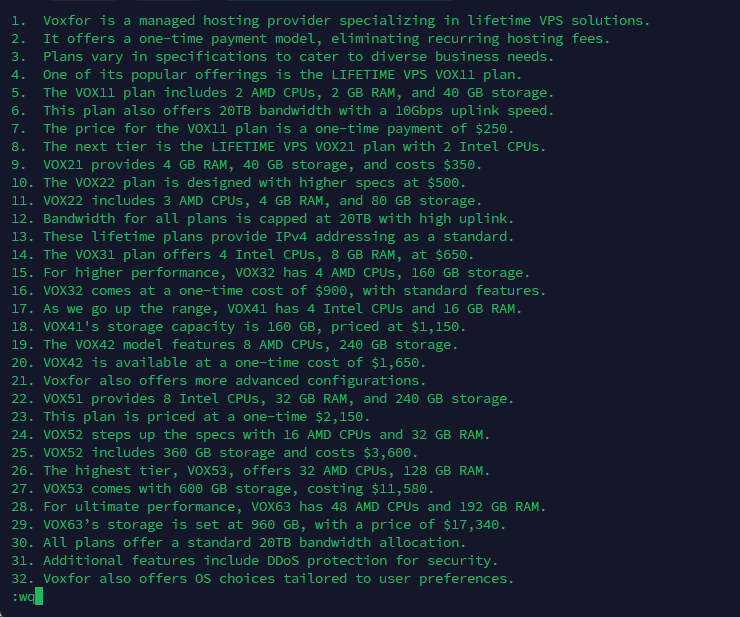
There is a mode for everything, and changing mode is vital to Vi. For instance, to save and Exit Vim, you will have to be in Command Mode. Mastering Vi is about learning the functions and the transitions between these modes.
How to Check Which Mode You’re In
Knowing your current mode in Vi is important, as it dictates which commands you can use. Modes can be identified by visual cues or using specific key commands to transition back to a known state. Not knowing the mode can lead to errors when typing commands, as Vim interprets each mode differently.
Identifying Modes
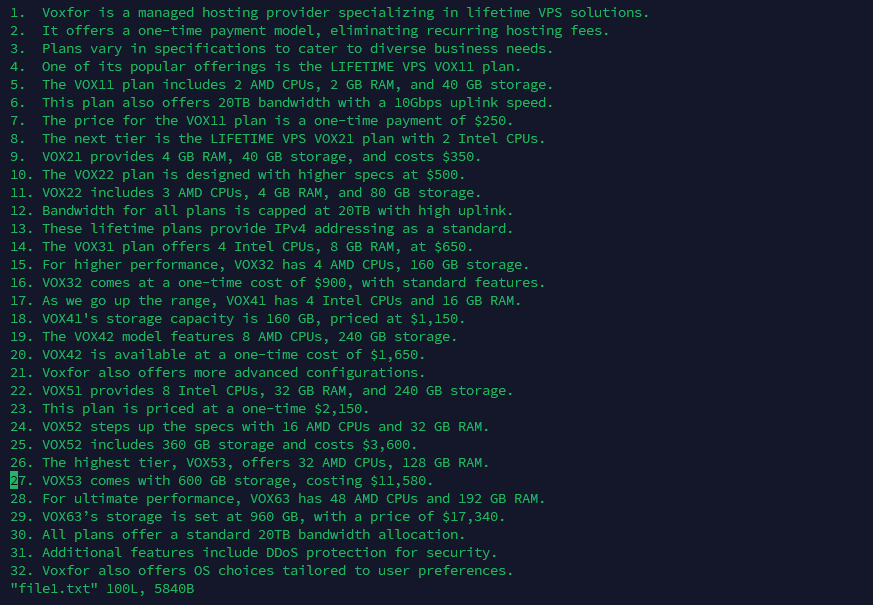
- Normal Mode: Press Esc multiple times; any beeps or lack of response indicate you’re in Normal Mode. It is the starting point for many actions. In this mode, pressing commands like :wq will trigger specific editor actions, not insert Text.
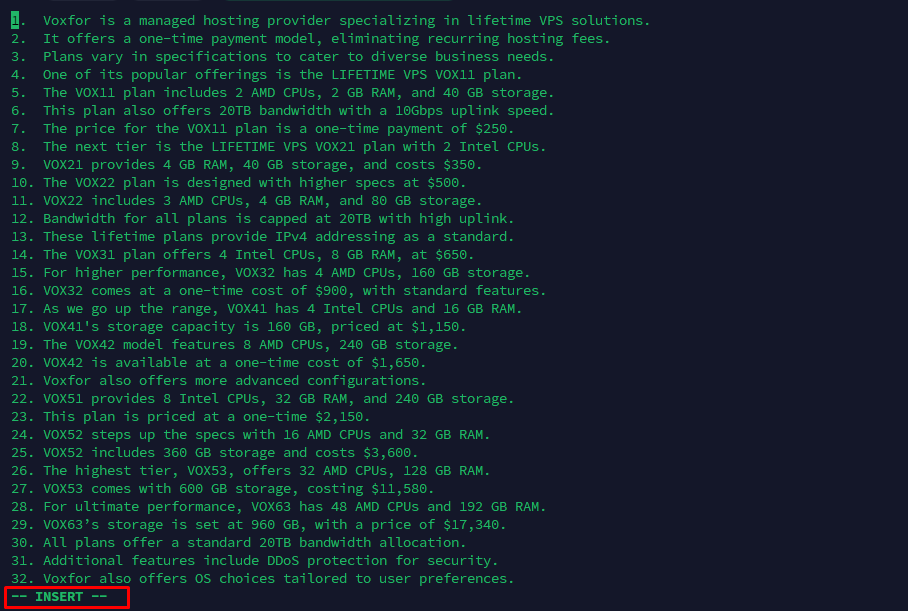
- Insert Mode: The message — INSERT — appears at the bottom of the screen, confirming you’re in Insert Mode and can type freely. Any Text typed will appear directly in the file, just like in a regular Text editor.
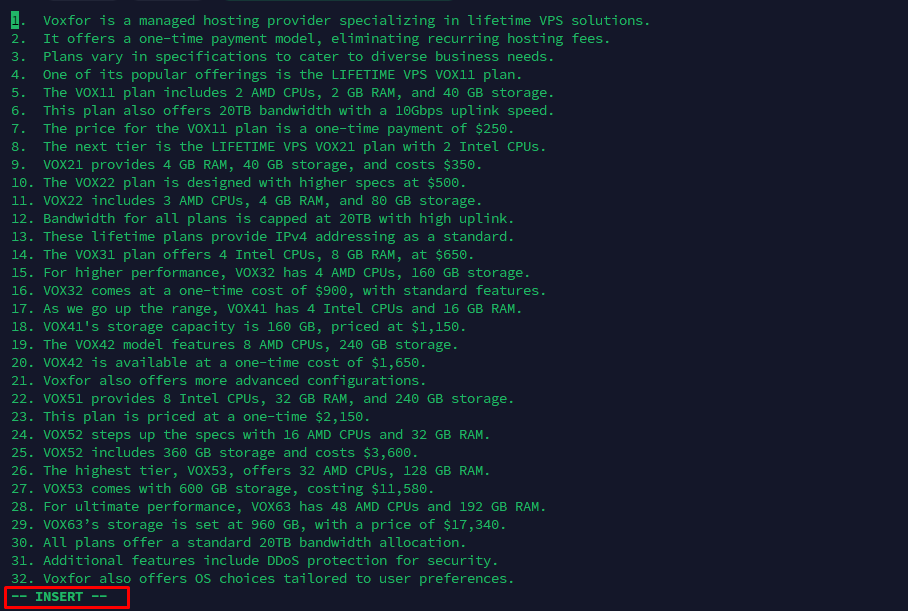
To return to Normal Mode press Esc.

- Visual Mode: Text will be highlighted as you select it, indicating you’re in Visual Mode. This mode is useful for selecting Text for cutting, copying, or applying commands to specific areas of Text. You can enter Visual Mode by pressing the v in Normal Mode or setting the pair of brackets around it.

Press Esc, then return to Normal Mode.
Getting into Normal Mode before exiting makes sure that any commands you enter will be recognized accurately. To simplify navigating Vim, always press Esc a few times to make sure you’re in Normal Mode before performing any command.
Exiting Vim/Vi: Common Commands
Exiting Vim or Vi depends on using the correct commands. Here’s how to Exit based on which mode you’re in:
Exiting Vim/Vi from Normal Mode
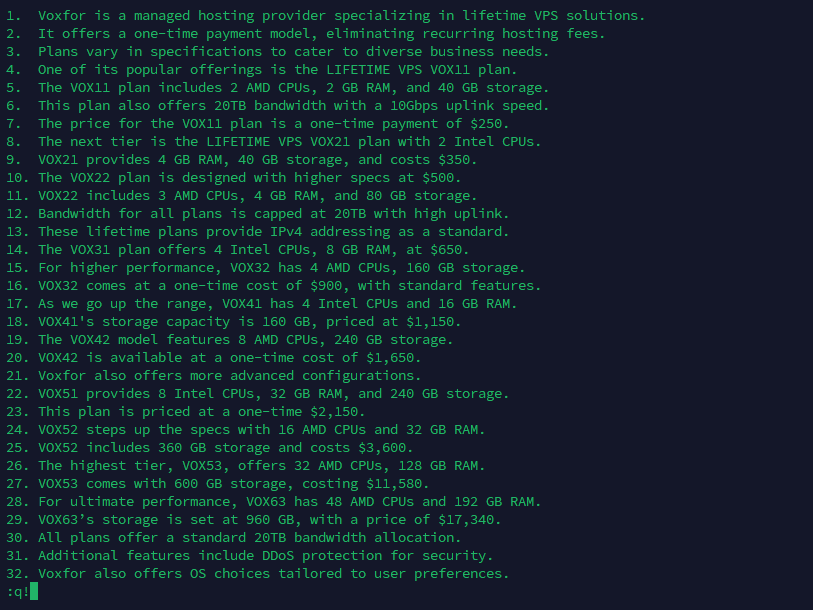
- Exit Without Saving: :q!
- This command quits without saving any changes you’ve made. It discards any modifications, allowing you to return to the command line as if no edits were made. This command is important for avoiding unwanted changes to files.
- Exit and Save: :wq or ZZ
- Use (:wq) to save changes and quit.
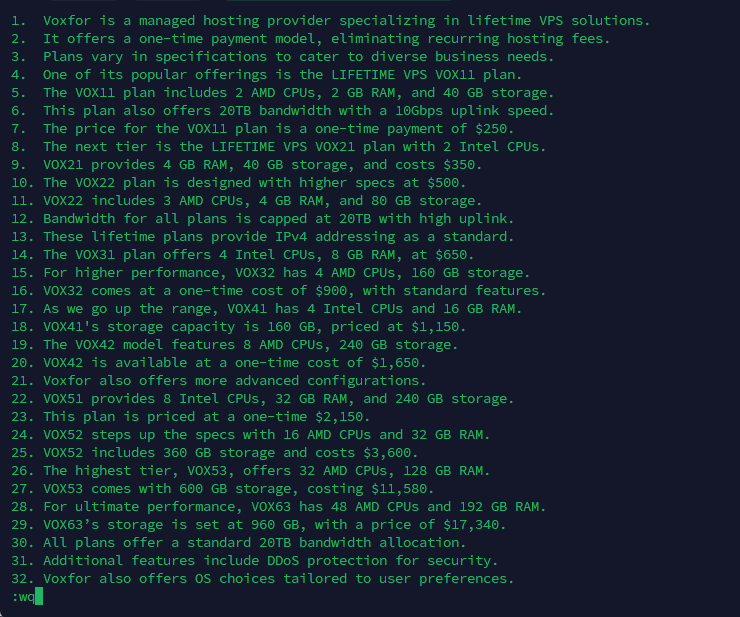
This command combines saving (w) and quitting (q). Alternatively, pressing Shift + ZZ in Normal Mode will also save and close Vim without needing to enter Command Mode.
Exiting Vim/Vi from Command Mode
In Command Mode, initiated by pressing :, you have several options:
- :wq: Saves and exits Vim, ensuring any edits are retained. It’s a common command used for safe editing sessions where you want to make sure all changes are saved.
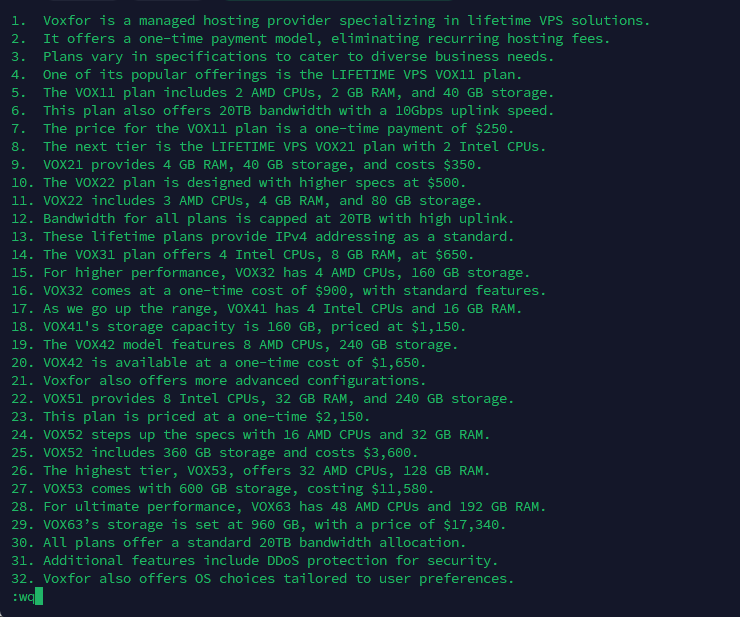
- :q!: Exits without saving changes, ideal if you made temporary or unneeded edits and want to discard them. This command forces Vim to quit without caring about unsaved changes.

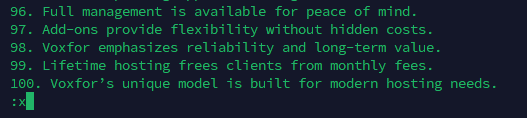
- (:x): Works similarly to :wq, but it only saves if there are changes to the file. If no changes have been made, (:x) will quit without performing an unnecessary save operation.
Exiting with and Without Saving Changes
In Vim or Vi, knowing whether to save or discard changes ultimately determines which Exit command you select.
Save and Quit
- :wq: This command saves all changes to the file and exits Vim, ensuring no edits are lost.

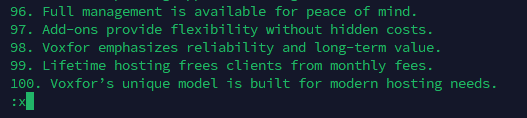
- (:x): Works similarly to :wq, saving only if changes were made. This option is more efficient if you’re unsure whether you made any modifications, as it will quit without performing unnecessary file writes.
Quit Without Saving
- :q!: If you’ve made edits but don’t want to save them, :q! allows you to quit without saving, disregarding all modifications. This process is helpful if you accidentally edited a file and want to Exit without committing those changes.
Choosing the correct command makes sure you don’t accidentally lose your work or Exit with unwanted changes.
Forced Exit Commands
Sometimes, standard Exit commands may not work due to issues like file permissions or system errors. In such cases, forced Exit commands can help:
Forced Save and Quit
- :wq!: This command saves the file even if there are restrictions and then exits. It’s useful when you’re editing a read-only file or need to override system restrictions. Adding the ! tells Vim to ignore any permission restrictions or errors, saving your changes and quitting regardless.
Forced Quit Without Saving
- :q!: Exits without saving, ignoring modifications. Use this if you’ve made unintentional edits that don’t need saving and you want to Exit the editor quickly. The exclamation mark (!) indicates that you’re willing to disregard any changes, which Vim will interpret as a directive to force quit.

Using forced commands makes sure that you can close Vim regardless of system constraints or other interruptions.
How to Quit Vim/Vi When Stuck
If you find yourself “stuck” in Vim or Vi, unsure how to Exit, here’s a simple guide to get back on track:
- Return to Normal Mode:
- Press Esc multiple times to make sure you’re in Normal Mode. Vim will stop responding to additional Esc presses when you’ve reached Normal Mode. This step is important because commands may only work if you’re in Normal Mode.

- Enter Command Mode:
- Type : to access Command Mode, where you can enter Exit commands like :q, :wq, or :q!.

- Use a Quit Command:
- Depending on your needs, enter :q to quit normally, or :q! If there are unsaved changes you wish to discard.

If permissions are preventing an Exit, try prefixing your command with sudo (e.g., sudo vi filename) and attempt to quit again.

Using sudo gives you elevated permissions, which can resolve issues with saving changes to protected files.
Common Errors and Solutions
Errors can arise in Vim/Vi, particularly if you’re new to its command structure. Here are common issues and how to solve them:
- Error: “No write since last change”:
- Solution: This error appears when trying to quit without saving recent edits. Use :q! to discard changes and Exit, or :wq to save and quit. Vim alerts you that unsaved changes exist, preventing accidental exits without saving.
- Error: “File is read-only”:
- Solution: This error means you don’t have write permissions. Use :wq! to override and save changes. Alternatively, run Vim with sudo (e.g., sudo vi filename) to gain write access. This error appears if you edit files you don’t have permission for, like important configuration files or system files.

Common error messages can save time and make sure you don’t accidentally lose your work or changes.
Alternative Methods to Close Vim/Vi
If you face issues with standard commands, these alternative methods can help you close Vim:
Shortcut Key Combination
Pressing Shift + ZZ in Normal Mode is a quick way to save and quit. It works similarly to :wq, allowing you to close the editor without explicitly typing out a command. This shortcut is helpful if you frequently need to Exit Vim after saving edits.
Keyboard Interrupt
Using Ctrl + Z suspends Vim, sending you back to the terminal. From there, you can type fg to bring Vim back or kill the session if necessary. This method is helpful if Vim appears unresponsive or if you’re unable to access Command Mode.
These alternatives are helpful in situations where Vim may not respond or if you need clarification on which command to use for exiting.
Frequently Asked Questions
Can I use Vim commands in Vi?
Yes, most Exit commands like :q!, :wq, and (:x) are compatible with both Vim and Vi. However, Vim may offer additional functionality not available in Vi. Vim includes features like syntax highlighting and file exploration, which are missing from the more basic Vi editor.
What should I do if Vim freezes while editing?
Press Ctrl + C to interrupt any running command. This process should reset Vim, allowing you to try exiting again using :q! or :wq. Freezing can happen if Vim faces errors or if a plugin isn’t functioning properly.
Why does Vim keep saying “no write since last change”?
This message is a reminder of unsaved changes. If you want to quit without saving, use :q!. To save and Exit, use :wq. This warning is helpful as it prevents accidental loss of changes.
Knowing these commonly asked questions can help clarify issues and allow for smoother, more confident use of Vim/Vi.
Conclusion
Mastering the basics of Vim and Vi, including how to Exit them, is a valuable skill for anyone working with Linux or Unix systems. These editors are powerful tools, offering unmatched control and efficiency for Text editing directly from the command line. However, their unique command structure, around saving and exiting files, can initially need to be clarified for users who are new to the environment.
This guide provides all the Exit commands you’ll need—whether saving, discarding, or forcing an Exit. By knowing the commands and how each mode in Vim works, you can confidently use Vim or Vi without fear of getting “stuck” or losing your work. Armed with these commands, you’ll be well-prepared to use Vim/Vi as an effective part of your Linux toolkit.
About the writer

Vinayak Baranwal wrote this article. Use the provided link to connect with Vinayak on LinkedIn for more insightful content or collaboration opportunities.