Lifetime VPS Europe
 Lifetime VPS Asia
 Lifetime WooCommerce Hosting
 Lifetime Hosting
 Lifetime Game Dedicated Servers
 Chicago, US
 Tokyo, Japan
 Singapore
 Hong Kong
 Seoul, South Korea
 Amsterdem, Netherlands
 London, UK
 Stockholm, Sweden
 Oslo, Norway
 Vienna, Austria
 Zurich, Switzerland
 Sydney, Australia
 Wordpress Hosting
 VPS Hosting
 DDOS Protection
 Submit Ticket
 Full Management
 Guides
 Videos and Podcasts
 Discover Creative Ideas
 Voxfor Autonomous AI Workers
 Voxfor Mega Menu
 Voxfor Advanced Price Management For WooCommerce
 Voxfor Secure Live Chat and AI Support
 Voxfor Multilanguage
 Voxfor AI Content Summary
 Voxfor Autopilot

This guide shows you how to install and use Windows Subsystem for Linux (WSL) on Windows 11 to manage and interact with AI tools like Ollama and OpenWebUI. Follow these steps to create an efficient AI-powered workflow.
Windows AI development setup
Build AI workflows on Windows VPS resources
WSL, Ollama, and OpenWebUI help create flexible local-style AI environments. Voxfor VPS gives developers remote server resources for testing and running modern tools.
What is WSL?
WSL is a layer that enables running Linux binary executables natively on Windows for running native Linux commands, tools, and distributions directly on a Windows system. It bridges the gap between the Linux and Windows environments, enabling users to seamlessly utilize the strengths of both platforms without additional hardware or software.
What are the Features of WSL
- Native Integration: Compared to its competitors, WSL has convenient integration with Windows, so SAS’s use of Linux distributions can be run natively without a hypervisor. It works within Clients offering Win OS feel of Linux in Windows so that you can use Linux commands and applications straight in Windows.
- Efficiency: This is because, compared to virtual machines, WSL utilizes far fewer system resources and functionality as part of a bid to achieve maximum efficiency. This feature enhances the features of the application on low-end devices and provides the full feature of the Linux environment. It is a much lighter solution for running Linux parallel with Windows.
- Versatility: Unfortunately, Lux allows the launching of GUI Linux applications, which means that users can run graphical programs on Windows with the help of WSL. It also supports file transfer across devices, which is very useful when moving data between the two operating systems so that work can be encouraged and continued across different systems.
- Ease of Use: It is also straightforward to install and administrate WSL with simple commands, and updates are made automatically. It enables users to choose their preferred Linux distribution and configure it, and further updates are made. It is a simple process for a beginner to handle.
What are the Benefits of using WSL?
- Cost-Free Setup: Using WSL there is no necessity to pay extra money for other licenses and also third-party virtualization programs. Windows users can use and execute Linux distributions free of charge; it provides excellent value for developers, administrators, and hobbyists.
- Time-Saving: Switching between Linux and Windows environments is effortless with WSL. It does not allow the need to restart the system; It allows direct access to Linux commands and tools via the Windows command line or terminal.
- Developer-Friendly: WSL provides access to Linux-specific development tools, libraries, and programming environments on Windows. Developers can test, build, and deploy applications using familiar Linux tools while maintaining compatibility with Windows-based workflows.
- Resource Usage: Unlike traditional virtual machines, WSL consumes minimal system resources. It runs at the core of Windows and is optimized to manage memory, storage, and CPU resources and, therefore, is suitable for low-end, hardware-constrained devices.
How to Install and use Linux WSL on Windows 11
Step 1: Enable WSL in Windows
- Click on the search bar, search for Windows Powershell, and open it.

After Opening the PowerShell, Run the command below to install wsl on your Windows Machine.
wsl --install
This simple command will automatically install WSL and the default Linux distribution (Ubuntu). It makes the process simple and has no other settings or installations that you have to perform so that users can easily run Linux on Windows.
Step 2: Check if WSL is Installed Properly in Windows
After running the installation command, it is essential to confirm that WSL has been installed successfully and is functioning correctly. Open the command prompt and enter:
wsl --list --verbose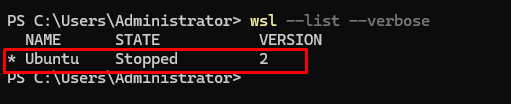
How to Install and run OpenWebUI and Ollama using WSL in Windows
What is Ollama?
Ollama is a command-line tool for managing advanced AI models like Llama on local machines. It allows users to install, configure, and run AI models with minimum effort. Ollama’s simplicity suits researchers, developers, and AI enthusiasts who want more control over model operations without relying on external servers.
What are the Features of Ollama
- Simplicity: Ollama is easy to use, offering a simplified experience with single-command installation and operation. Regardless of whether they are used for the initial setup or running models, a clean and simple design greatly simplifies the work, and it is suitable for all computer users. This feature makes things move much faster and cuts down on preparation time.
- Flexibility: Ollama provides robust flexibility by supporting multiple AI models. They can switch between different models with very little effort — from natural language processing to computer vision tasks, depending on what they need to do. This feature confirms Ollama versatility for a variety of uses in research and production.
- Local Operation: One of Ollama’s standout features is its ability to run AI models locally. By doing this, the users get control over their data and operations, increasing privacy and security. Ollama eliminates the need for any dependence on external servers, offering consistent performance in any environment with limited or no internet connectivity.
Step 1: Command to Install Ollama in WSL (Windows)
Installing Ollama begins with a simple command you can copy from the official Ollama website. Open your WSL (Windows Subsystem for Linux) and paste the command into the prompt.

curl -fsSL https://ollama.com/install.sh | shThis one-line script automates the download and setup of Ollama, including fetching dependencies and configuring the environment, ensuring minimal manual intervention.

Yet, the script is just so simple that even nontechnical users can get the software installed effortlessly. After installation, the Ollama installation is automatically executed once, and your WSL system is set up to run Ollama by making use of its powerful AI model capabilities.
Step 2: How to verify the Installation of Ollama
Method 1:
Once the installation is complete, verify it by running:
ollama -vThis command displays a list of installed models and confirms whether the Ollama CLI is functioning correctly.

If the list is empty, you can install models in the next step, ensuring your installation is successful.
Method 2:
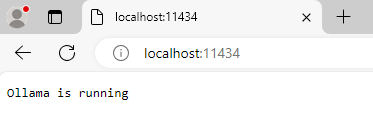
You can also verify if Ollama is Installed and Running by Opening the Browser, Trying to check if the port is accessible, and getting a message telling you Ollama is Running.
127.0.0.1:11434 or localhost:11434
Step 3: How to add and run Models in Ollama
To add a model, such as Llama, use the following command:
ollama pull llama3.2:3b
This downloads and installs the selected mode with 3 billion parameters. Once installed, you can interact with it by running:
ollama run llama3:2.3bThis command invites the model to initiate it and operates with it as a live model. However, once the model is created, then you can directly throw queries to the command prompt terminal. you could ask questions such as, “What is the theory of relativity all about?” or “What are the advantages of deploying local AI models?” After asking a query from the model, your input will be taken, and the model will type an answer just in the command prompt, so the ability of the model to answer several queries profoundly and correctly can also be seen.

This process shows us the power and utility of Ollama for interactive AI tasks.
4. How to Install Docker for OpenWebUI
Step 1: Add Docker Repository Key to your System
Docker is a mandatory requirement for running OpenWebUI. Start by adding the Docker GPG key to your system:
This command makes the directory and sets the exact permissions, proving it can hold keyring files for secure APT packages.
sudo install -m 0755 -d /etc/apt/keyrings
The Next command downloads Docker’s GPG key and securely saves it in /etc/apt/keyrings/docker.asc to verify Docker packages’ authenticity.
curl -fsSL https://download.docker.com/linux/ubuntu/gpg | sudo tee /etc/apt/keyrings/docker.asc
Now that we have the GPG Key, we can move on to the following command.
The following command confirms that all users can read the docker.asc file, enabling the system to authenticate Docker packages during installation and updates. The chmod command is used to set read permissions.
sudo chmod a+r /etc/apt/keyrings/docker.asc
This step ensures that your system can trust the Docker repository and prevents installation errors caused by invalid keys.
Step 2: Add a Repository of Docker to your Package Manager
Next, add a stable repository of Docker to your system package manager:
This command lets you download and install Docker components securely from the official Docker website.
echo \
"deb [arch=$(dpkg --print-architecture) signed-by=/etc/apt/keyrings/docker.asc] \
https://download.docker.com/linux/ubuntu $(lsb_release -cs) stable" | \
sudo tee /etc/apt/sources.list.d/docker.list > /dev/null
Step 3: Install Docker Components for OpenWebUI
Update your package list and install Docker with its necessary components for running OpenWebUI:
sudo apt-get update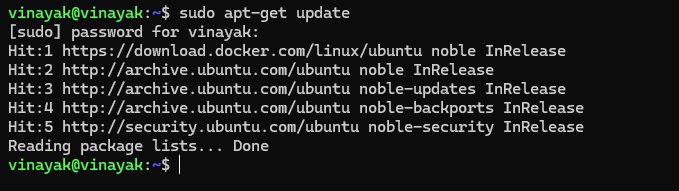
Now, we will install some Docker tools. These tools will allow you to run Docker containers, manage images, and compose multi-container setups, which is essential for OpenWebUI.
sudo apt-get install docker-ce docker-ce-cli containerd.io docker-buildx-plugin docker-compose-plugin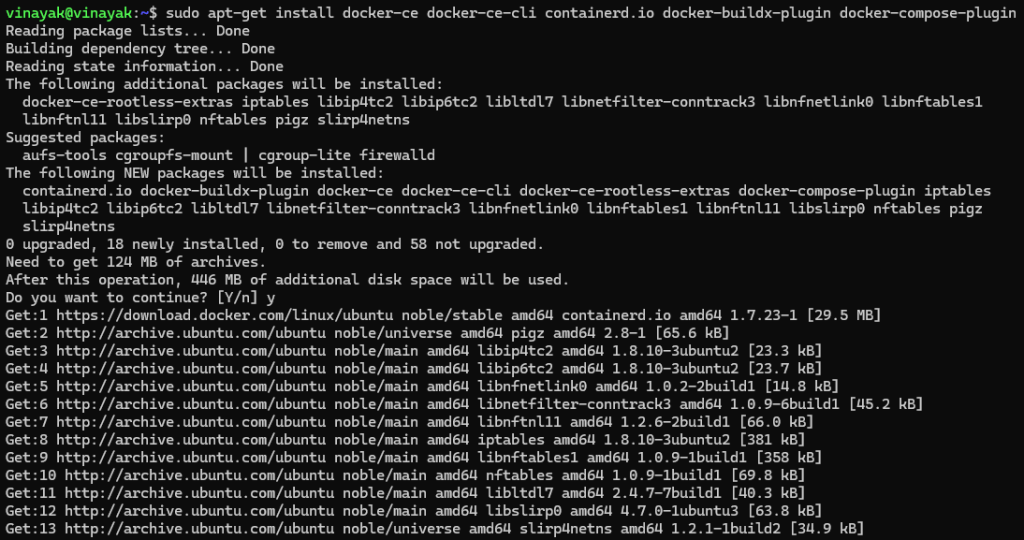
5. How to Install and Configure OpenWebUI
Step 1: Run OpenWebUI Using Docker
To start OpenWebUI, run the Docker command in your WSL terminal:
This command pulls the necessary Docker image, configures the backend, and starts a local server on your machine. Ensure that the OLLAMA_BASE_URL variable points to the correct location of your Ollama instance.
docker run --d --network host -v openwebui/app:/backend/data \
-e OLLAMA_BASE_URL=http://127.0.0.1:11434 --name open-webui
Step 2: Access the Interface of OpenWebUI
Once the OpenWebUI service is running, open a browser and go to:
http://127.0.0.1:3000 or http://yourdomain.com:3000Note: The domain will only work if you have mapped it to the IP address of your machine.
The IP 127.0.0.1 is an Internal IP Address and will only be usable on the same Network where the OpenWebUI and Ollama are Installed. To access the website from anywhere, you must ensure that people can route to the website from their IP or domain name.

You will have to sign up for a new admin account using your name, email, and your desired password. This account will allow you to work with the entire feature set of OpenWebUI and its possibilities to manage models, perform and configure queries, etc.

6. What are the Features of OpenWebUI
OpenWebUI Dashboard:
The OpenWebUI dashboard is designed for simplicity and efficiency. Key sections include:
- New Chat: Start conversational queries directly with your installed AI models.
- Models Tab: View and manage your installed models. Adjust their settings based on your requirements.
- Settings Tab: Customize global settings, such as API connections, prompt configurations, and database management.
This system gives a convenient interface for working with AI models and defining the resulting procedures.

Necessary Configurations in Settings of OpenWebUI
The Settings tab offers several customization options:
- General Settings: Configure user preferences like auto-login and default prompts. These settings make sure of a smoother interaction experience.

- Connections: Add third-party APIs, such as OpenAI or Ollama. Use this to link models to external services for extended functionality.

- Web Search Integration: This feature enables AI to fetch real-time information from the Internet for dynamic query responses. It is ideal for research and fact-checking tasks.
7. How to Manage LLM Models using OpenWebUI
Model Management using Admin Panel
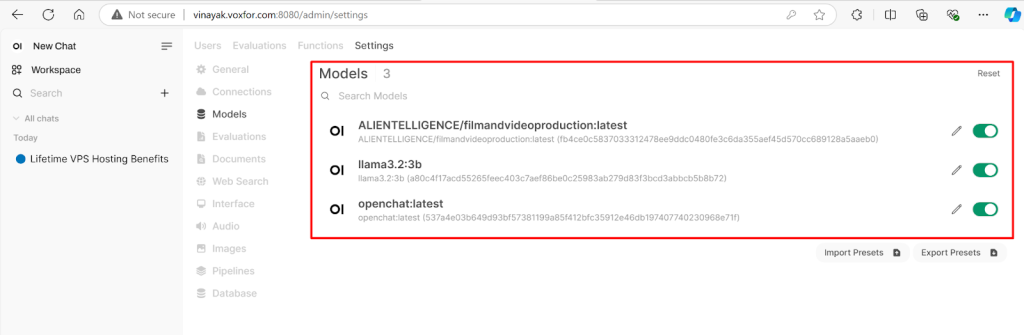
The Models Tab in Admin Panel allows you to:
- View Models: Check the list of all installed models, including details such as size and version.
- Enable/Disable Models: Toggle models on or off to control which ones are active for queries.
- Add/Delete Models: Upload new model files or remove outdated ones to optimize resource usage.
How to Make Changes to Model Settings using Admin Dashboard in OpenWebUI
Each model can be individually configured to suit your needs:
- Set Default Prompts: Predefine instructions to guide model outputs.
- Link APIs: Connect specific models to external APIs for seamless integration with other systems.
- Adjust Response Formats: You can tailor how the models present their outputs, such as Text length or tone, to suit your tasks better.

8. How to Use Advanced Features in OpenWebUI
Manage Database from Admin Panel
The Database Tab provides tools for managing system data:
- Import/Export Settings: Save your configurations as JSON files for backups or transfer them to another system.

- Reset the Database: Clear all data to troubleshoot issues or start fresh without affecting the software.
Configure Audio and Video Settings from the Admin Panel
Advanced settings include:
- Audio: Choose Text-to-Speech (TTS) and Speech-to-Text (STT) engines like Whisper or Azure. This feature enables AI to interact through audio.

- Images: Enable or turn off image storage to optimize storage space and maintain privacy. This process is particularly useful for AI models generating visual outputs.

9. Manage User Roles in OpenWebUI
How to Assign Admin and Pending Roles to Users from the Admin Panel
The Users Tab in the OpenWebUI admin panel allows administrators to manage user roles. Depending on their required access level, users can be set as Admin or remain Pending. To update a user’s role, click the pencil icon next to their name.

10. How to Fix Account Activation Issues in OpenWebUI
Check the Activation Status of the user in the OpenWebUI Dashboard.
Users may see an Account Activation Pending message if they face restricted access. This issue occurs when admin approval is needed. Navigate to the admin panel and activate user accounts to resolve this problem. Contact the administrator if the issue persists.

11. How to setup API Connections in OpenWebUI
Add and Manage API Keys from the OpenWebUI Admin Panel
Administrators can set up API connections in the Settings Tab for OpenAI, Ollama, and other integrations. Use the dropdown menu to toggle between available APIs. These settings confirm seamless integration for dynamic model capabilities.

12. How to Customize Text-to-Speech and Image Features
How to Set Up TTS and Image Configurations in OpenWebUI
OpenWebUI allows users to configure advanced features under the admin panel’s Audio and Image Settings sections. Enable Text-to-Speech engines like Whisper or adjust image storage settings for optimized resource use. Make sure you’ve selected the appropriate settings based on your project needs.

13. Manage Database in OpenWebUI
How to Import and Export Database Configurations from OpenWebUI
The Database tab enables administrators to easily manage system data, import existing configurations via JSON files for quick setup, and export current backup settings. The database can also be reset entirely to troubleshoot persistent issues.
14. Monitoring GPU Usage and Performance
Real-Time GPU Monitoring with NVIDIA-SMI for your Machine
The NVIDIA-SMI command allows users to monitor GPU performance in real-time. It provides detailed information, including the driver version, CUDA version, GPU memory usage, and processes utilizing the GPU. This tool is essential for ensuring the optimal allocation of resources when running large models like Llama 3:2b.

15. Selecting and Managing AI Models in OpenWebUI
How to Switch Between Available Models in OpenWebUI
OpenWebUI provides the flexibility to manage multiple AI models such as LLaMA 3.2b, Arena Model, and more. Use the Model Selector feature to switch between models based on project requirements. Each model offers unique capabilities tailored to specific use cases, such as help with natural language or image generation.

16. How to make Two Models Chat Using Shared Data in OpenWebUI
OpenWebUI provides a feature to share data between AI models so as to enable a scenario where two AI models can interact with each other. For this advanced use case, this feature can be especially useful, for instance, alongside collaborative problem-solving or for comparing one AI system against another.
How to Enable Model Interaction in OpenWebUI:
- Load Both Models: make sure both models are available and active in the interface.
- Select the Data Exchange Option: Utilize the settings that allow models to share relevant data streams.
- Monitor Interaction: View and analyze the ongoing exchanges to ensure coherence and accuracy.

17. How to Enable Temporary Chat in OpenWebUI
OpenWebUI temporary chats are fast and light, temporary chats giving you a quick and brief environment to try out things, see AI outputs, or run non permanent interactions. This feature forces the session history not to be saved, which is best for sensitive or trial-based exchanges.
Steps to Enable Temporary Chat:
- Activate Temporary Mode: Switch the chat mode to “Temporary” via the user interface.
- Start Interaction: Begin inputting prompts without concern for long-term storage.
- Finalize Output: Export or note down outputs manually, if necessary, before closing the session.

18. How to Troubleshoot Common Issues while using OpenWebUI and Ollama
Docker Fails to Start
If Docker doesn’t start, restart the service:
sudo systemctl restart docker
Ensure that Docker is installed correctly, and check that your user has the required permissions to run Docker commands.
Model Not Loading
Run the following command to check installed models:
ollama list
If the required model is missing, add it using Ollama pull <model_name> and confirm its availability before running queries.
Problems Accessing OpenWebUI
When OpenWebUI is not accessible, look at the status of the Docker container:
docker ps
If necessary, restart the container and make sure your browser is getting hit the right server.
Conclusion
Installing WSL on Windows 11 lets you easily integrate tools like Ollama and OpenWebUI into your AI workflows. WSL enables lightweight Linux environments, while Ollama and OpenWebUI simplify managing and interacting with AI models. Experiment with advanced features and customize the setup to suit your needs.
About the writer

Vinayak Baranwal wrote this article. Use the provided link to connect with Vinayak on LinkedIn for more insightful content or collaboration opportunities.