Lifetime VPS Europe
 Lifetime VPS Asia
 Lifetime WooCommerce Hosting
 Lifetime Hosting
 Lifetime Game Dedicated Servers
 Chicago, US
 Tokyo, Japan
 Singapore
 Hong Kong
 Seoul, South Korea
 Amsterdem, Netherlands
 London, UK
 Stockholm, Sweden
 Oslo, Norway
 Vienna, Austria
 Zurich, Switzerland
 Sydney, Australia
 Wordpress Hosting
 VPS Hosting
 DDOS Protection
 Submit Ticket
 Full Management
 Guides
 Videos and Podcasts
 Discover Creative Ideas
 Cybersecurity Services
 Voxfor Mega Menu
 Voxfor Advanced Price Management For WooCommerce
 Voxfor Secure Live Chat and AI Support
 Voxfor Multilanguage
 Voxfor AI Content Summary
 Voxfor Autopilot

Quick Answer
A WordPress backdoor is hidden persistence that lets an attacker regain access after the visible malware or vulnerable plugin is cleaned. Safe removal starts with containment and backups, then file comparison, database review, credential rotation, clean reinstalls and monitoring. Do not rush into deleting files before preserving evidence and confirming what the file does, especially on ecommerce, membership or data-sensitive sites.
This guide is defensive and written for site owners, developers and hosting teams cleaning an already compromised WordPress site.
Emergency Backdoor Cleanup Workflow
| Step | What to do | Why it matters |
|---|---|---|
| Contain | Restrict access or use maintenance mode if visitors are being redirected or exposed. | Reduces harm while cleanup starts. |
| Preserve | Back up files, database, access logs and error logs before editing. | Allows review, rollback and evidence preservation. |
| Scan | Run a security scan and manually review high-risk locations. | Automated scanners can miss hidden persistence. |
| Compare | Compare WordPress core, plugin and theme files with clean sources. | Separates legitimate code from injected code. |
| Clean | Quarantine suspicious files, remove confirmed injected code and reinstall clean components. | Reduces persistence without blind deletion. |
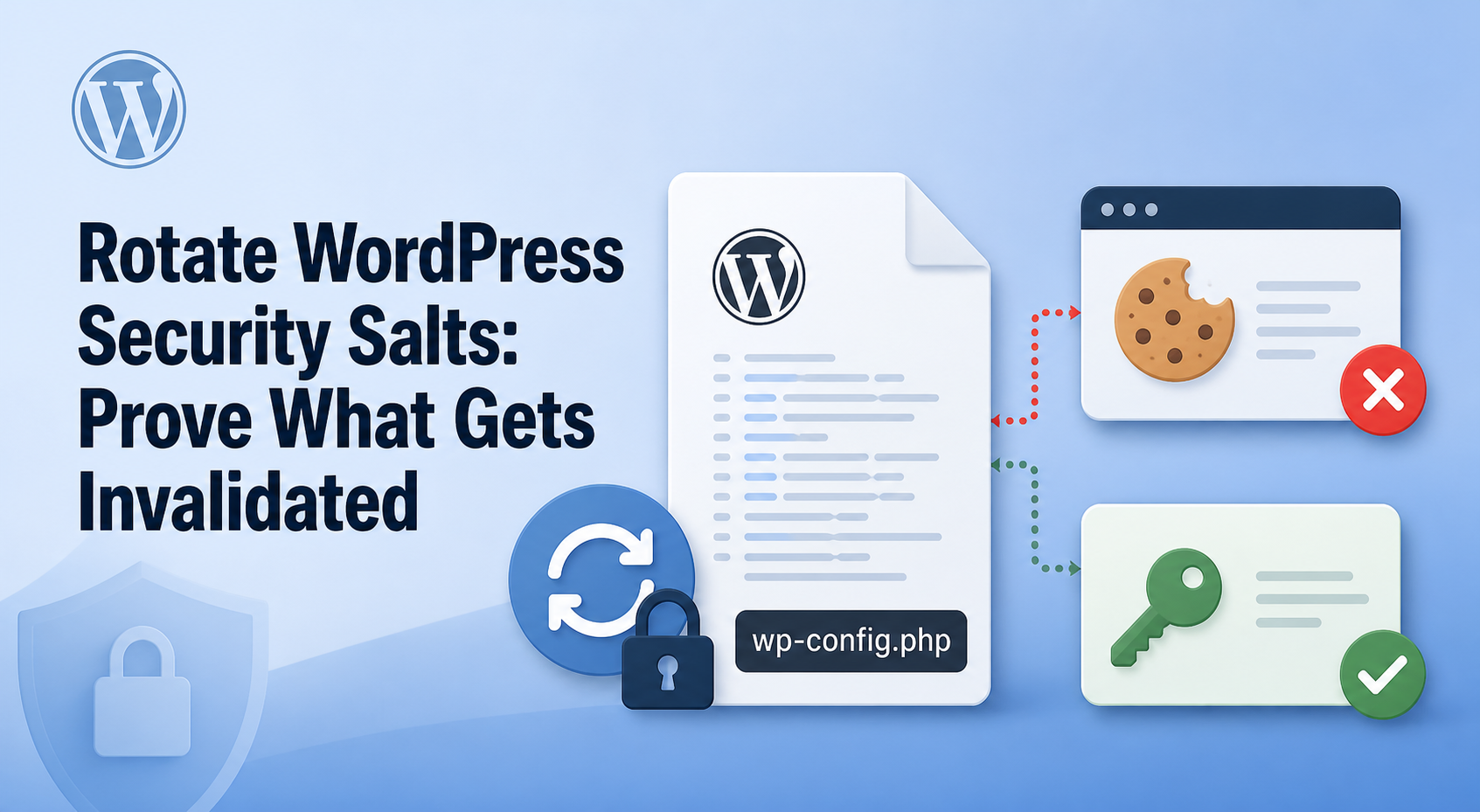
| Rotate | Change admin passwords, salts, database password, API keys, SFTP and SSH credentials. | Stops reused credentials from reopening access. |
| Monitor | Watch file changes, admin users, cron events, WAF logs and Search Console warnings. | Confirms the infection has not returned. |
What Is a WordPress Backdoor?
A backdoor is not just a visible malware file. It is a way to re-enter the site later. It may be a hidden admin user, an injected include, a modified plugin file, an unexpected must-use plugin, a database option, a scheduled task or a disguised PHP file in a media directory.
This is why a site can look clean for a few days and then show spam links, redirects or unknown admin users again. The first cleanup removed symptoms, but the persistence mechanism stayed behind.
Common Hiding Places and Safe Review Notes
| Location | What to inspect | Safe remediation note |
|---|---|---|
wp-content/uploads | Unexpected PHP, hidden files and recent modification times. | Back up and quarantine suspicious executable files before removal. |
mu-plugins | Unknown must-use plugin files. | Review carefully because these files can run without normal plugin activation. |
wp-config.php | Unknown includes, remote calls, changed database values or modified salts. | Compare to a known clean backup and rotate keys after cleanup. |
| Themes and plugins | Encoded code, unfamiliar files and changes outside expected updates. | Reinstall clean copies from trusted sources when possible. |
| Database | Fake admin users, suspicious autoloaded options, cron hooks and injected scripts. | Export before editing and avoid bulk deletion without review. |
.htaccess | Redirects, rewrite rules and injected access rules. | Back up, remove confirmed malicious rules and regenerate permalinks. |
Safe Cleanup Checklist
- Take a file and database backup before editing the compromised site.
- Record suspicious file paths, timestamps, admin users and log patterns.
- Reinstall WordPress core, plugins and themes from clean sources where possible.
- Review uploads, mu-plugins, wp-config.php, .htaccess, wp_options, wp_users and cron events.
- Rotate WordPress passwords, database credentials, salts, API keys, SFTP and SSH access.
- Patch the original entry point, such as a vulnerable plugin, weak password, exposed admin account or insecure file permission.
- Monitor after reopening the site and re-scan after the first plugin update cycle.
When To Use Professional Cleanup
Use professional help when the site handles orders, memberships, personal data, medical data, payments, customer accounts or business-critical leads. Also escalate if reinfection returns, admin users reappear, the hosting account shows unknown SSH/SFTP activity, search results show spam, or the database contains suspicious injected scripts.
Hosting evidence is useful during cleanup: access logs, error logs, backup timestamps, file ownership, WAF events, malware scan results and resource spikes. Voxfor can help with malware cleanup, backup restore, log review, permission checks and managed WordPress hardening after a compromise. Related defensive guides include WordPress brute force protection, WordPress XSS prevention and xmlrpc.php security.
Security Tool Roles During Cleanup
| Tool type | What it helps with | What it cannot decide alone |
|---|---|---|
| Malware scanner | Finds known signatures, suspicious files and changed code patterns. | Whether a flagged file is safe to delete without context. |
| WAF | Blocks common exploit traffic and reduces repeated attack attempts. | Whether the site is clean after a compromise. |
| Backup system | Provides restore points and a way to compare old files. | Whether the backup was already infected. |
| File integrity tool | Compares core, plugin and theme files to expected versions. | Whether custom code was intentionally changed. |
| Hosting logs | Show access patterns, PHP errors, file changes and repeated attack sources. | Whether every persistence point has been removed. |
Return-to-Service Checklist
- Confirm the site loads without redirects, unknown popups or injected links.
- Confirm no unknown administrator users, must-use plugins or scheduled tasks remain.
- Confirm the active theme, plugins and WordPress core were replaced or verified from trusted sources.
- Confirm passwords, salts, database credentials and server access credentials were rotated.
- Confirm backups are running after cleanup and that a restore test is scheduled.
- Confirm Google Search Console, security plugin alerts and hosting logs stay clean after reopening.
Prevention After Cleanup
- Keep WordPress core, plugins, themes and PHP versions current after staging tests.
- Use 2FA for administrators and remove unused admin accounts.
- Limit write permissions and avoid editing production files from unknown machines.
- Keep backups outside the WordPress account and test restore steps.
- Review security logs and file changes after major updates or traffic spikes.
Useful references include Google hacked-site guidance, WordPress hacked-site FAQ and current vulnerability intelligence from sources such as Patchstack or WPScan when a plugin issue is suspected.
About the Writer
Hassan Tahir writes Voxfor guides on WordPress security, hosting operations and site recovery. This update focuses on safe defensive cleanup, evidence preservation and hosting hardening.
Frequently Asked Questions
What is a WordPress backdoor?
A WordPress backdoor is hidden persistence that lets an attacker regain access after the visible malware, plugin issue or weak password has been cleaned.
Where do WordPress backdoors usually hide?
Common places include uploads, mu-plugins, theme files, plugin files, wp-config.php, .htaccess, fake admin users, cron events and suspicious database options.
Is deleting malware enough?
No. Cleanup should include backups, file comparison, database review, credential rotation, plugin updates, permission checks and monitoring after the site reopens.
Should PHP files in uploads be deleted?
Suspicious PHP files in uploads should be backed up, quarantined and reviewed before removal. WordPress media uploads normally should not require executable PHP.
When should professional cleanup be used?
Use professional help for ecommerce, membership, sensitive-data sites, repeated reinfection, unknown admin users, payment issues, SEO spam or server-level compromise.
Why does hosting matter for backdoor cleanup?
Hosting can provide backups, access logs, error logs, file ownership checks, malware scans, WAF events and restore options that are not visible inside WordPress alone.