Lifetime VPS Europe
 Lifetime VPS Asia
 Lifetime WooCommerce Hosting
 Lifetime Hosting
 Lifetime Game Dedicated Servers
 Chicago, US
 Tokyo, Japan
 Singapore
 Hong Kong
 Seoul, South Korea
 Amsterdem, Netherlands
 London, UK
 Stockholm, Sweden
 Oslo, Norway
 Vienna, Austria
 Zurich, Switzerland
 Sydney, Australia
 Wordpress Hosting
 VPS Hosting
 DDOS Protection
 Submit Ticket
 Full Management
 Guides
 Videos and Podcasts
 Discover Creative Ideas
 Voxfor Autonomous AI Workers
 Voxfor Mega Menu
 Voxfor Advanced Price Management For WooCommerce
 Voxfor Secure Live Chat and AI Support
 Voxfor Multilanguage
 Voxfor AI Content Summary
 Voxfor Autopilot

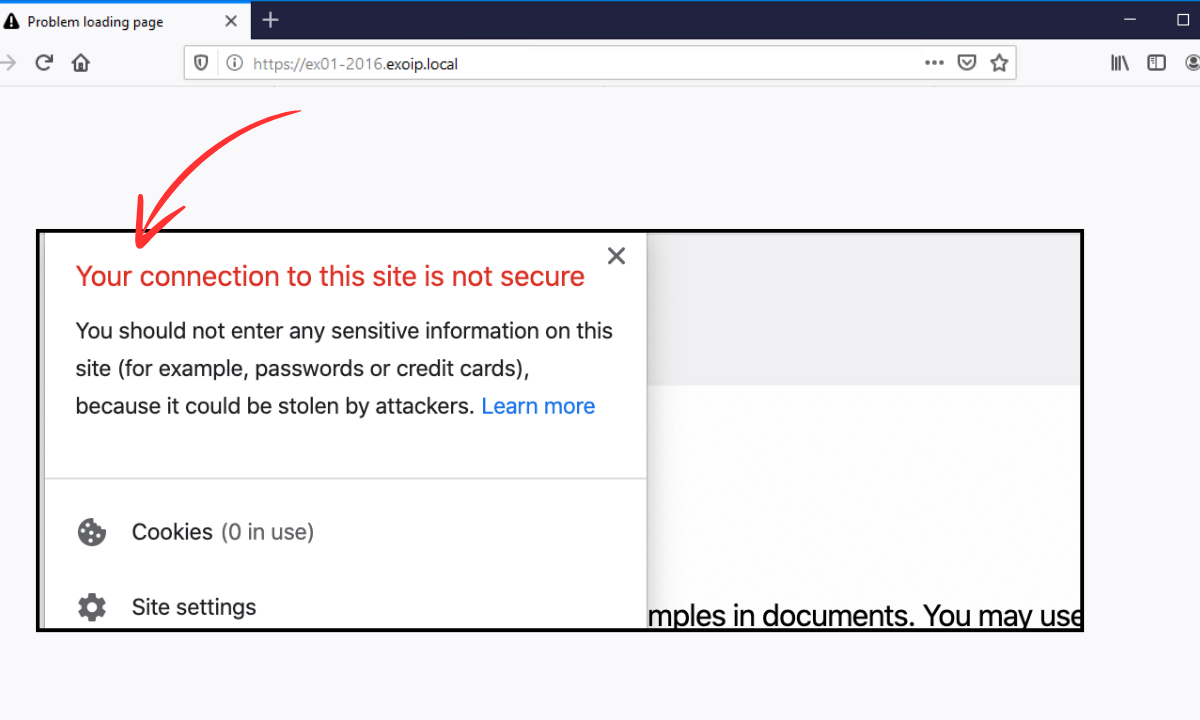
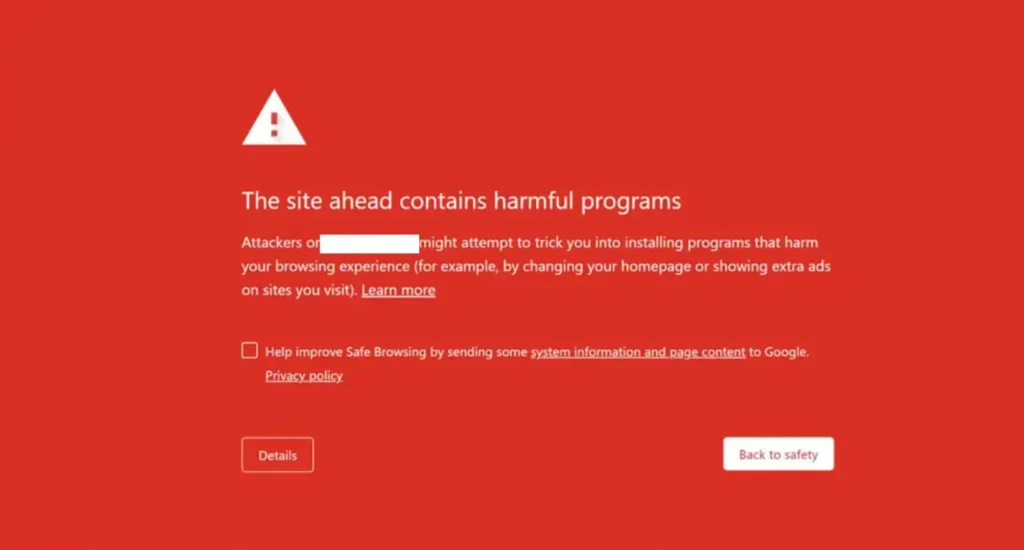
If you’ve ever opened a browser and been greeted by a full-screen red alert saying “Deceptive Site Ahead,” you already know how alarming it feels, especially when it’s your own website. Google’s Safe Browsing service generates this warning and signals that your website has been identified as potentially harmful to visitors. The message explicitly tells users: “Attackers on the site you’re trying to visit might trick you into installing software or revealing things like your password, phone, or credit card number.”
Inbound Marketing Strategy
Turn technical readers into inbound marketing growth
Helpful tutorials attract qualified visitors, but reliable hosting keeps those readers engaged. Voxfor VPS gives growing websites the speed, uptime, and control needed to support stronger inbound marketing campaigns.
Google Safe Browsing program started as early as 2005 as anti-phishing software, and since then, it has grown into one of the most widely deployed security services on the internet. As of 2017 over 3 billion internet devices relied on this service. On average, the service flags roughly 100 million Google search results per week containing security warnings. Since virtually all major browsers, Chrome, Firefox, Safari, Vivaldi, and Brave, draw on Google Safe Browsing data, a flagged website triggers warning screens across all platforms, not just Chrome.
The core message this warning sends is that your site has been compromised, and visitors risk having their sensitive data stolen or malicious software installed on their devices. For a website owner, the consequences are immediate and severe, traffic plummets, brand credibility is damaged, and SEO rankings can collapse before the issue is even noticed.
Types of Google Security Warnings
“Deceptive Site Ahead” is not the only warning Google may display on your website. Understanding which specific warning has appeared helps you target the right fix faster.
| Warning Message | What It Means |
| Deceptive Site Ahead | The site may be hosting phishing content or deceptive pages designed to steal user information |
| The Site Ahead Contains Malware | The site may try to install harmful software on a visitor’s device |
| The Site Ahead Contains Harmful Programs | The site may try to trick visitors into downloading dangerous programs |
| Suspicious Site | A general flag indicating the site is considered potentially unsafe by Google |
| This Page Is Trying to Load Scripts From Unauthenticated Sources | The site is HTTPS, but loads scripts from HTTP sources, creating a mixed content vulnerability |
| Deceptive Site! (Firefox) | Mozilla Firefox’s equivalent of Google Deceptive Site Ahead warning |
| This Site Has Been Reported as Unsafe (Edge) | Microsoft Edge version of the same warning |
| Suspected Phishing Site (Safari) | Apple Safari’s phishing site alert uses the same underlying Google Safe Browsing data |
Notably, clearing your site with Google removes the warning across virtually all browsers simultaneously, since Firefox and Safari also draw from Google Safe Browsing lists.
What Causes the “Deceptive Site Ahead” Warning?
Many website owners are shocked when they first encounter this warning, they haven’t done anything wrong themselves. The hard truth is that attackers often exploit your website without your knowledge, turning it into a platform for harmful activities. Below are the most common causes.
Malware and Phishing Infections
The most frequent trigger is malware. Hackers compromise your website and embed code that either delivers malicious software to visitors or sets up fraudulent pages that mimic trusted brands to steal login credentials and credit card numbers. This type of attack, phishing- is the single biggest reason a site gets flagged as deceptive.
Malicious Redirects
A compromised website frontend can silently redirect visitors to spam websites or malware distribution pages. These redirects often happen without the site owner ever noticing, as they are invisible to administrators logged into the backend but fully visible to ordinary visitors.
Nulled or Pirated Themes and Plugins
Installing a nulled (pirated) WordPress theme or a WordPress Plugin is one of the quickest methods of introducing malware to your site. It is into these packages that hackers have been deliberately injecting backdoors and malicious code because they are aware that cost-sensitive owners of websites will install them without questioning them. Nulled software not only has an issue with ethics, but also poses a direct security risk.
Vulnerabilities in Plugins and Themes
Even valid plugins and themes may become attack vectors when they are not updated. One report published that sites that use old software are three times more likely to be hacked. The vulnerability in a single installed software can provide an open door to an entire compromise of the site since WordPress has a large number of thousands of installed software.
SQL Injection and XSS Attacks
WordPress XSS (Cross-Site Scripting) attacks exploit vulnerabilities in your site’s code to insert malicious JavaScript into front-end or back-end pages. SQL injection attacks can infiltrate your database, steal its contents, or use it to spread further malware.
SSL Certificate Issues
An incorrectly configured or expired SSL certificate can also trigger the warning. If your site runs on HTTPS but still loads some resources over HTTP (known as “mixed content”), Google treats the HTTP elements as coming from a separate, unverified source and may flag the site accordingly.
Hidden Backdoor Code
After a successful intrusion, hackers frequently plant backdoors, hidden scripts that let them re-enter your site at any time, even after the original malware is cleaned. These backdoors often hide in inconspicuous files and can persist through basic cleanup attempts.
Deceptive Third-Party Content
Google can also flag a site if it hosts “insufficiently labeled third-party services”, for instance, if a site operates on behalf of another entity without clearly disclosing this. Embedded ads or third-party widgets that redirect users to harmful sites can similarly trigger the warning.
The Impact on Your Website
The damage caused by a “Deceptive Site Ahead” warning extends well beyond lost traffic. The following consequences are commonly reported by affected site owners:
- SEO rankings drop sharply: Google demotes flagged sites in search results
- Traffic collapses: Visitors are turned away before they ever land on your page
- Brand trust and reputation suffer lasting damage
- Revenue loss: particularly acute for e-commerce websites where customer trust is critical
- Potential legal exposure: if visitor data were compromised, legal and regulatory obligations may apply
- Web host suspension: many hosting providers will suspend accounts with detected malware
The longer a site stays compromised, the worse these effects become. Speed of response is critical.
How to Fix the “Deceptive Site Ahead” Warning: Step-by-Step

Step 1: Check Your Security Issues Report in Google Search Console
The first place to look is your Google Search Console account. If Google has detected a security problem on your site, it will display a notification on the Overview tab and list specific issues under Security & Manual Actions > Security Issues.
Google organizes detected problems into three broad categories:
- Hacked Content: Includes malware injections, code injections, content injections, and URL injections
- Social Engineering: Covers deceptive web pages and deceptive embedded resources
- Malware and Unwanted Software: Covers harmful downloads and links to dangerous files
Reviewing this report tells you exactly what type of infection you are dealing with and gives you a starting point for cleanup.
Step 2: Scan Your Website for Malware
Once you know a security problem exists, run a deep malware scan. There are three main approaches:
Deep Scan with a Security Plugin (Recommended)
Installing a dedicated WordPress security plugin is the most thorough approach. Tools like MalCare, Wordfence, and Sucuri scan every file, folder, and database entry for malware, including newly discovered threats that haven’t yet been added to signature databases. Wordfence is the most downloaded WordPress security plugin and maintains a continuously updated vulnerability database with real-time threat defense. MalCare scanning goes further by checking for suspicious code variations and novel malware patterns, not just known signatures.
Online Scanners
Free tools like Sucuri SiteCheck and Google own Safe Browsing Site Status tool scan the publicly visible parts of your website. These are useful as a first diagnostic step, but cannot access deeper files like wp-config.php or hidden folders. They are best used to confirm, not replace, a deep scan.
Manual Scanning
Manual scanning is generally not recommended unless you have deep familiarity with WordPress file structures, PHP scripting, and backend tools like cPanel, SFTP, and phpMyAdmin. The risk of missing malware or accidentally breaking the site is high.
Step 3: Remove the Malware
Using a Security Plugin
The fastest and most reliable method. After scanning, most security plugins offer one-click malware removal. MalCare, for example, surgically removes malicious code from files and the database while leaving legitimate content intact. Wordfence can detect and clean 70–80% of file-based malware, though it may occasionally generate false positives.
Hiring a WordPress Security Expert
If you prefer not to use a plugin, engaging a certified WordPress security professional is the next-best option. Professional services are thorough but can be costly.
Manual Cleanup
If you choose to clean manually, which is only advisable for experienced developers, follow this sequence:
- Contact your host to whitelist your IP and obtain their scan results if the account has been suspended
- Back up your website before touching anything, even an infected backup is better than no backup
- Re-download WordPress core, plugins, and themes from the official repository and compare files against your live installation using a diff tool
- Look for fake plugins, these often contain very few files and are not listed in the official WordPress repository
- Replace core folders (
/wp-admin and /wp-includes) entirely with clean versions - Inspect critical files, index.php, wp-config.php, wp-settings.php, wp-load.php, and .htaccess for unexpected code
- Delete PHP files from /wp-uploads, this folder should never contain executable PHP files
- Clean plugin and theme folders, paying close attention to header.php, footer.php, and functions.php in the active theme
- Scrub the database using phpMyAdmin, starting with the posts and pages tables
- Remove all backdoors, look for functions like eval, base64_decode, gzinflate, preg_replace, and str_rot13 that can serve as execution points
- Re-upload cleaned files and clear all site caches
Step 4: Post-Cleanup Checklist
After removing malware, address the secondary damage that security plugins cannot automatically undo:
- Change all passwords, user accounts, database credentials, and FTP/SFTP passwords
- Review user accounts, remove any unauthorized admin accounts and trim privileges to the minimum required
- Review and resubmit your sitemaps via Search Console, hackers often inject thousands of spam pages and submit fraudulent sitemaps to manipulate your SEO
- Verify your SSL certificate, use a tool like SSL Checker to confirm it is properly installed and not expired
- Redirect all HTTP traffic to HTTPS, a plugin like Really Simple SSL can assist, though a server-level redirect is the more permanent solution
- Clear all caches, server cache, WordPress cache, and CDN cache, so visitors receive the clean version of your site
Step 5: Request a Google Review
Once the site is completely clean, submit a review request to Google. This step is mandatory; Google will not remove the warning automatically.
⚠️ Critical: Do not submit your review request until every trace of malware is gone. If Google reviewers find any remaining issues, the request will be rejected. Being flagged too many times as a “Repeat Offender” can lock you out of submitting review requests for 30 days.
To submit a review:
- Log in to Google Search Console
- Navigate to Security & Manual Actions > Security Issues
- Click Request a Review
- Describe in detail the steps taken to identify and resolve each security issue
- Submit the request
Review timelines vary by issue type. Phishing reviews may resolve within 24 hours; malware reviews typically take a few days; hacking with spam may take a couple of weeks. During this period, the red warning screen will remain visible to visitors — there is no way to expedite this.
How to Prevent the “Deceptive Site Ahead” Warning in the Future
Fixing a compromised site is stressful and costly. Prevention is far less burdensome. The following practices collectively eliminate the vast majority of attack vectors.
Keep Everything Updated
Update WordPress core, themes, and plugins as soon as new versions are released. A study found that 49% of hacked WordPress websites were running outdated CMS versions at the time of infection. Updates frequently patch known security vulnerabilities, the moment a vulnerability is made public, hackers begin actively scanning for unpatched sites.[6][1]
Install a Security Plugin
A good security plugin provides continuous malware scanning, a web application firewall (WAF), brute force protection, and real-time threat intelligence. Wordfence is widely regarded as the most comprehensive free option for WordPress, with an actively updated vulnerability database. MalCare offers deep scanning without impacting site performance.
Use Strong Passwords and Two-Factor Authentication
One of the most widespread points of entry that are used by hackers is weak passwords. Turn on two-factor authentication on your WordPress administration area and block attempts at the login. Limit access by the administrator to trusted members.
Avoid Nulled Software
Never install nulled or pirated themes and plugins. They are a primary delivery mechanism for pre-packaged malware and backdoors.
Enable SSL and Force HTTPS
SSL encrypts all communication between your website and its visitors, making it significantly harder for third parties to intercept sensitive data. Google also penalizes sites without SSL in search rankings. Ensure your certificate is current and all pages redirect from HTTP to HTTPS.
Choose a Secure Hosting Provider
A reputable hosting provider offers server-level firewalls, automatic backups, malware scanning, and proactive security monitoring. Features to look for include automatic security updates, two-factor authentication support, Cloudflare integration, and regular automated backups.
Maintain Regular Backups
Reliable backups are the last line of defense against catastrophic data loss from ransomware or aggressive malware. Store backups on an external server, not just your hosting account, so they remain accessible even if your host suspends the account.
Monitor Google Search Console
Set up email alerts in Google Search Console for any new security warnings. Many site owners discover a hack only after significant damage has already occurred, proactive monitoring means you can act within hours rather than days.[6]
Use SFTP Instead of FTP
When accessing your website files remotely, always use SFTP (Secure File Transfer Protocol). FTP transmits credentials in plain text, making them easy to intercept. SFTP encrypts the entire connection.
Remove Unused WordPress Installations
An abandoned WordPress install on the same hosting account, such as a staging site or an old redesign- can become a silent attack vector. Malware from one installation can migrate to others sharing the same cPanel account. Delete any WordPress installs that are no longer actively maintained.
Why Google Flags Sites: Understanding Safe Browsing
Google Safe Browsing service was introduced in 2005 as an anti-phishing tool and has expanded significantly over the years. The service maintains continuously updated lists of URLs containing malware or phishing content and pushes those lists to Chrome, Firefox, Safari, and other browsers. Google also sends notifications to webmasters through Search Console and provides ISPs with data on threats hosted on their networks.
The scale of the service is considerable. Google identifies approximately 9,500 new malicious websites every day, the majority of which are legitimate sites that have been compromised rather than purpose-built attack sites. The service processes billions of URLs and shows security warnings to users across tens of millions of search queries every week.
Google flags a site when its automated crawlers detect deceptive content, malware code, harmful downloads, phishing forms, or suspicious redirect behavior. The flagging is primarily automated, which occasionally results in false positives — for instance, when cached versions of a previously infected page are still being indexed after cleanup. In such cases, clearing the site cache and resubmitting the review resolves the discrepancy.
FAQs
About the writer

Hassan Tahir wrote this article, drawing on his experience to clarify WordPress concepts and enhance developer understanding. Through his work, he aims to help both beginners and professionals refine their skills and tackle WordPress projects with greater confidence.