The Linux sed command, short for stream editor, is one of the most powerful tools available for Text manipulation. Whether you want to search and replace Text, delete lines, or extract parts of a file, sed offers a variety of functions to handle Text processing in an efficient and non-interactive manner. This article will take you through everything you need to know about sed, from basic commands to advanced usage, including common issues and how to troubleshoot them.

Sed command line tool that allows you to perform fundamental Text modifications on an input data stream (typically a file or input from a pipeline). Unlike Text editors like Vim or Nano, which require manual interaction, sed can automate Text processing tasks. It’s widely used for:
The best part? You don’t need to open the file in an editor to make changes—sed can do it all from the command line.
Let’s first understand the basic syntax of sed Before diving into examples:
sed [options] 'command' fileHere are some useful options you will frequently use with sed:
Let’s start with some simple examples that illustrate the power of sed for everyday text-processing tasks.
One of the most common uses of sed is to replace Text. The s (substitute) command allows you to replace occurrences of one string with another.
Syntax:
sed 's/old-text/new-text/' filename
Example: Replace the word “apple” with “orange” in a file:
sed 's/apple/orange/' fruits.txt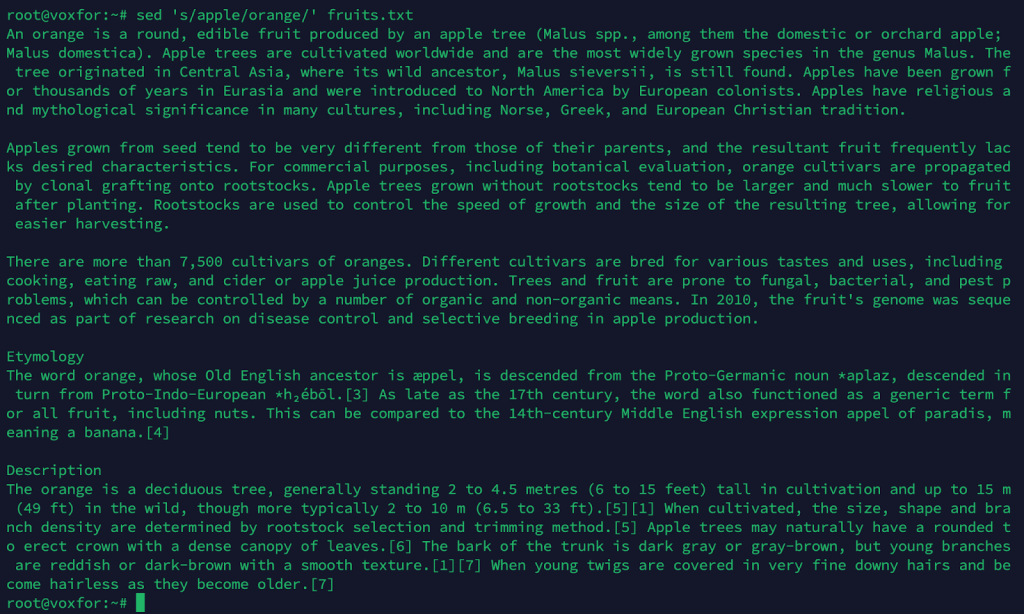
This action replaces the first occurrence of the word ‘apple’ on each line with ‘orange.’
To replace every occurrence of the word on a line, add the g (global) flag:
sed 's/apple/orange/g' fruits.txt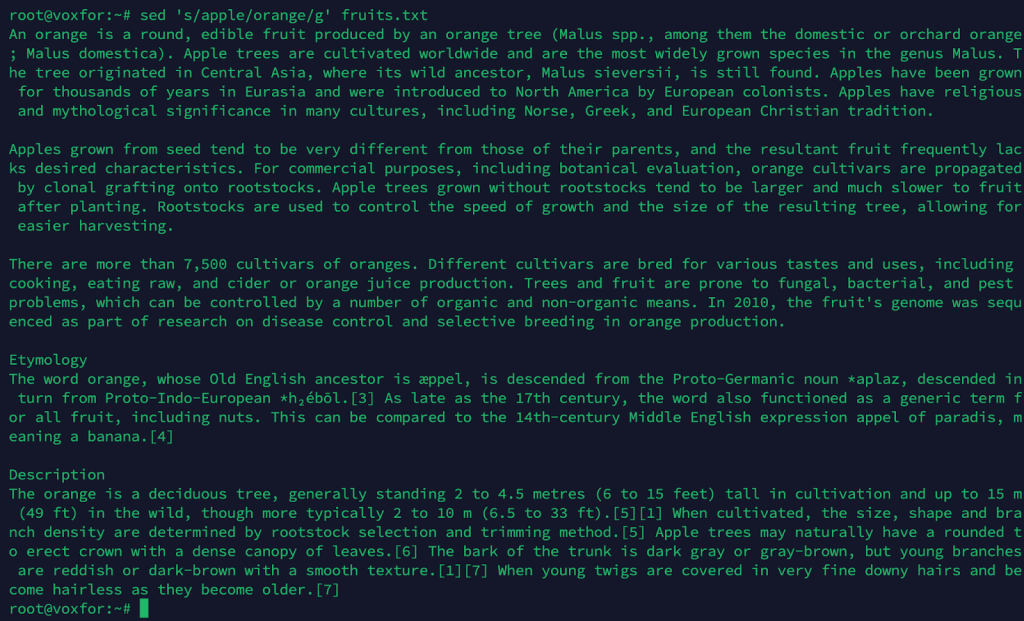
You can also target a specific line number. For example, to replace the word “apple” with “orange” only on the second line:
sed '2s/apple/orange/' fruits.txt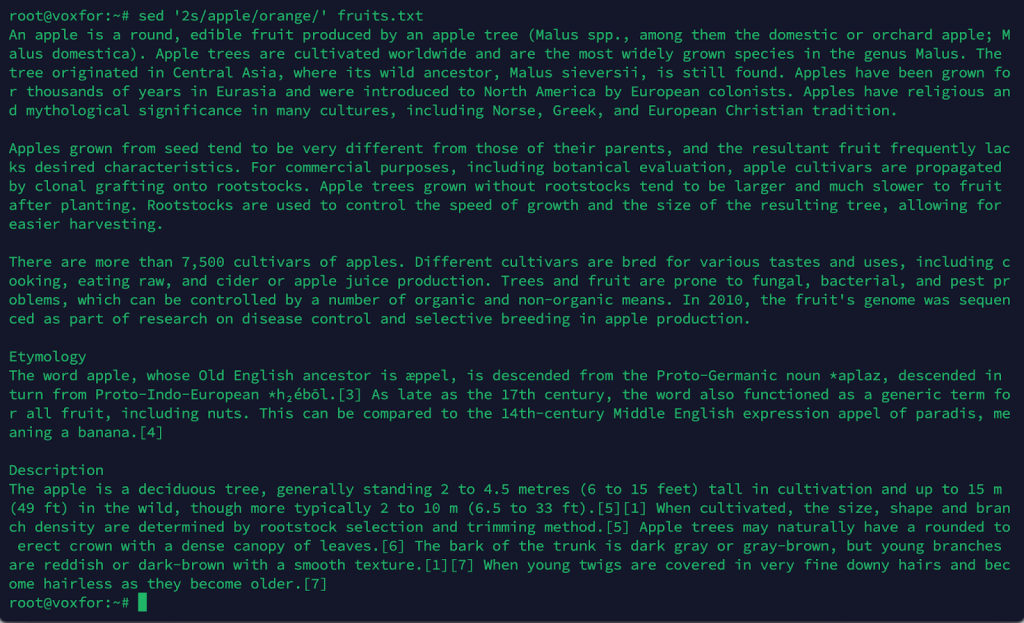
sed can delete lines based on line numbers or patterns.
Syntax:
sed 'Nd' filename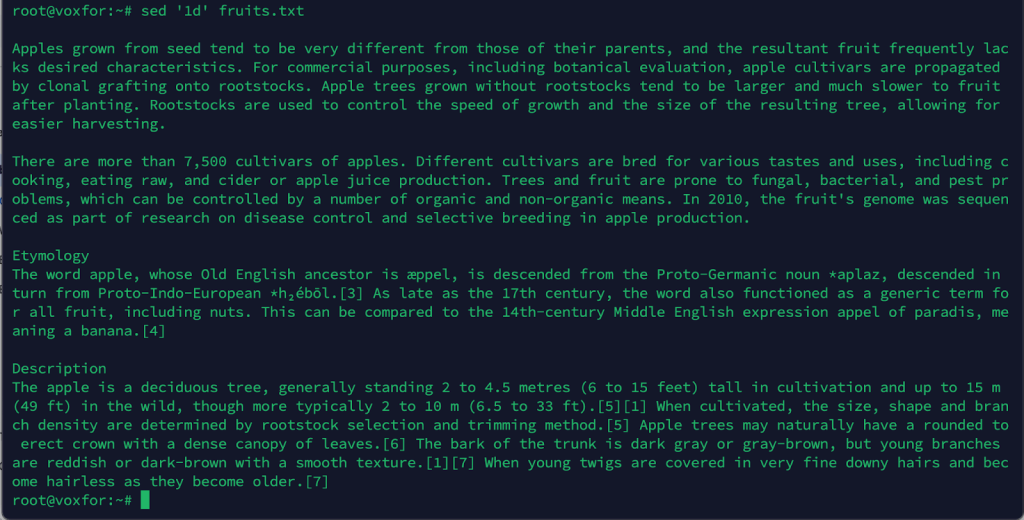
Example: To delete the third line from a file:
sed '3d' file.txt
You can also delete a range of lines:
sed '3,5d' file.txt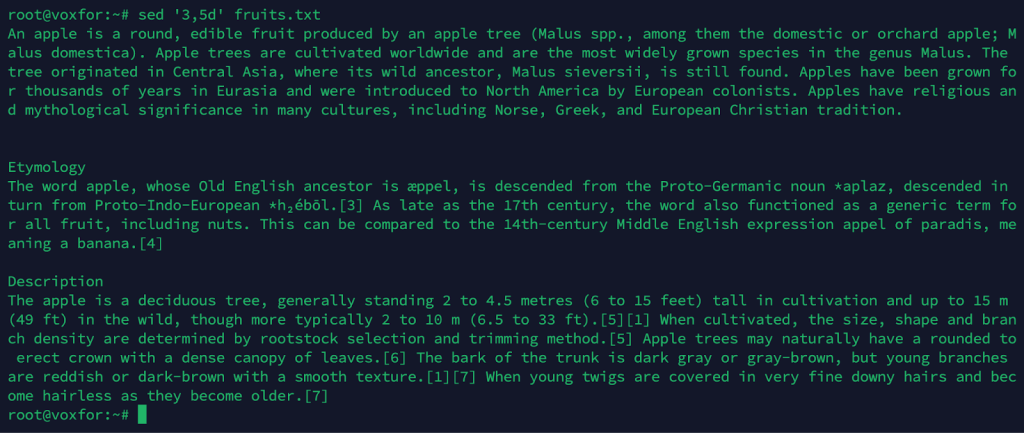
This command deletes lines from 3 to 5.
Then, you can remove lines that have the same pattern using this command:
sed '/pattern/d' file.txt
Example: Delete all lines containing the word “error”:
sed '/error/d' logfile.txt
Using the i (insert) and a (append) commands, you can insert or append Text at a specific location in a file.
Insert Text Before a Line:
sed '2i\Inserted line' file.txt
Append Text After a Line:
sed '2a\Appended line' file.txt
Enter or add Text to the line numbers in order to change the file values.
After you’ve learned the rudiments, you will crave knowledge of what more sed has to offer. Included are patching regular expressions, conditional replacements, and combining multiple commands.
sed is capable of understanding and using regular expressions, which allows for more complex Text manipulation.
Example: Replace any sequence of digits with the word “number”:
sed 's/[0-9]\+/number/g' file.txt
This operation replaces all digit sequences in the file with the word ‘number.’
You can perform multiple operations in one sed command by separating them with a semicolon (;):
sed 's/apple/orange/g; 5d' file.txt
This command replaces “apple” with “orange” globally and then deletes the fifth line.
By default, sed works on the input file without making any changes to the original file, ensuring the original stays intact. However, you can use the -i flag to edit the file in place:
sed -i 's/old-text/new-text/g' file.txt
“This action saves the changes directly to the file without creating a new copy.”
When using the—i option, you can specify a backup extension for the original file and have a copy of it as a backup.
sed -i.bak 's/old-text/new-text/g' file.txt
This process creates an original copy of the file by adding a .bak extension before making any changes.
Sed is definitely a versatile tool, but users may need help using it. Here’s how to resolve them:
Solution: Make sure you don’t just print the output but actually modify the file.
sed -i 's/apple/orange/g' file.txt
Solution: Some characters like /, &, and \ are special in sed and need to be escaped with a backslash.
Example: To replace /home/user with /root:
sed 's/\/home\/user/\/root/' file.txt
Alternatively, you can use different delimiters:
sed 's|/home/user|/root|' file.txt
Solution: Ensure you’re using the correct pattern to match blank lines. Use the following command to delete all blank lines:
sed '/^$/d' file.txt
Solution: It is usually caused when sed is trying to read from a very huge file. If you need to optimize your sed commands and you want to divide the file into pieces in order.
Here’s a quick overview of the most commonly used sed commands:
| Command | Description |
| sed ‘s/old/new/’ file | Replace the first occurrence of “old.” |
| sed ‘s/old/new/g’ file | Replace all occurrences of “old” globally |
| sed ‘Nd’ file | Delete line number N |
| sed ‘/pattern/d’ file | Delete lines matching a pattern |
| sed -n ‘Np’ file | Print line number N |
| sed -i ‘s/old/new/g’ file | Edit the file in place |
| sed ‘Ni\new line’ file | Append Text after line N |
| sed ‘Na\new line’ file | Append text after line N |
| sed ‘/^$/d’ file | Delete all blank lines |
Linux Text Processing is just not a process, but sed is a cornerstone. Small files, large files, whether used for repetitive tasks working with only a little bit of file or an awful lot of file, sed is your friend here. From slight Text substitution to advanced usage, like using regular expressions and solving an everyday problem, we’ve learned everything.
By mastering sed, you’ll be able to manipulate Text files quickly and precisely, making it invaluable for system administrators, developers, and anyone working with Text files in Linux.

Vinayak Baranwal wrote this article. Use the provided link to connect with Vinayak on LinkedIn for more insightful content or collaboration opportunities.





 Lifetime VPS Europe
 Lifetime VPS Asia
 Lifetime WooCommerce Hosting
 Lifetime Hosting
 France Lifetime Dedicated Servers
 Germany Lifetime dedicated servers
 Lifetime Game Dedicated Servers
 Chicago, US
 Tokyo, Japan
 Singapore
 Hong Kong
 Seoul, South Korea
 Amsterdem, Netherlands
 London, UK
 Stockholm, Sweden
 Oslo, Norway
 Vienna, Austria
 Zurich, Switzerland
 Sydney, Australia
 Wordpress Hosting
 VPS Hosting
 DDOS Protection
 Submit Ticket
 Full Management
 Guides
 Videos and Podcasts
 Discover Creative Ideas
 MetaAgentOS High-Ticket Support System
 Voxfor Mega Menu
 Voxfor Advanced Price Management For WooCommerce
 Voxfor Secure Live Chat and AI Support
 Voxfor Multilanguage
 Voxfor AI Content Summary


