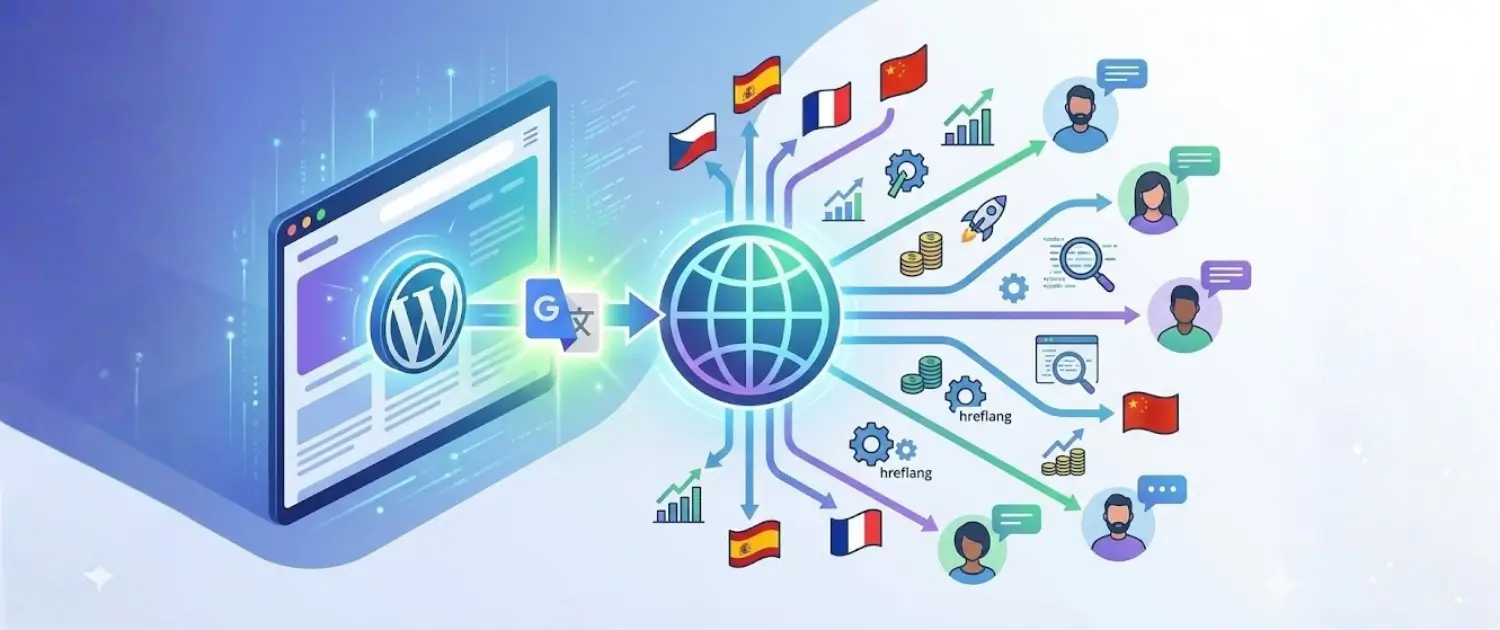
The decision to expand your WordPress site to the global markets is a business step that can make your site grow dramatically and be able to earn more revenue. The language barrier, however, is one of the major challenges that are facing businesses that want to exploit international markets. The solution? One way that it is possible to make your WordPress site multilingual without necessarily having to perform costly professional translations or know a lot of code is by adding the Google Translate tool to your site.
This step-by-step tutorial will show how to install Google Translate in WordPress, set up translation options, optimize the translated content without compromising on the search market, and the available translation tools that could be more useful in your context.
Why Add Google Translate to Your WordPress Website?
It is important to first gain insight into the business advantages of making your WordPress site multilingual before getting into the technical side of it.
Reaching a Global Audience
The internet has been able to connect billions of individuals in the world, but of the internet users, about 60 percent are non-native English speakers. With the provision of the content in several languages, you are accessing huge markets that would have been unreachable by English-oriented websites. A multilingual site eliminates language obstacles that hinder the ability of the potential customer to interact with your content, product or service.
This increased coverage is converted straight into business growth: increased traffic and conversions, increased customers and increased revenue. Language translation would get you a significant boost to your bottom line, even with a slight percentage growth in your target market.
Improving User Experience and Engagement
Users strongly prefer consuming content in their native language. When visitors encounter your website in their preferred language, they experience a significantly better user experience, spend more time on your site, and are more likely to convert into customers or subscribers.
A customer-centric and professional website is one that maintains the language preferences of the user. This factor creates a feeling of trust and promotes action; customers will have a much greater chance of buying, completing contact forms or signing up to newsletters when they are in their own language.
Cost-Effective Accessibility
Professional human translation is outrageously costly. Hiring translators in several languages is very expensive and needs continuous upkeep as you generate additional content. Google Translate offers a low-cost option that offers 100+ languages at the press of a button on your WordPress site.
Professional human translation is outrageously costly. Hiring translators in several languages is very expensive and needs continuous upkeep as you generate additional content. Google Translate offers a low-cost option that offers 100+ languages at the press of a button on your WordPress site.
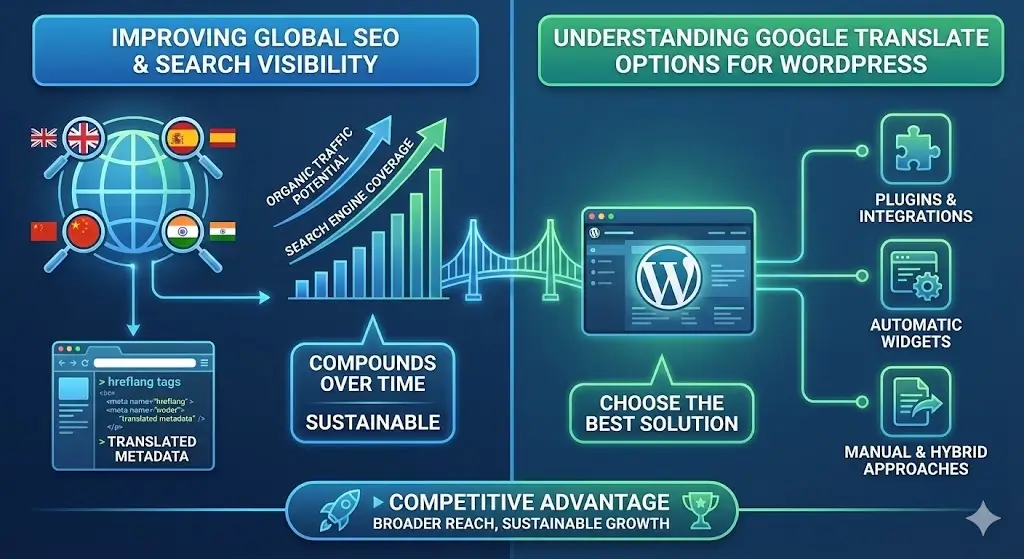
Improving Global SEO and Search Visibility
Posting your content in more than one language increases your search engine coverage by a significant margin. Every language version of your content can appear in Google searches of that language, and increase your organic traffic potential many times.
Multilingual websites that implement proper SEO practices, including hreflang tags, language-specific URLs, and translated metadata, see measurable increases in global organic traffic. This organic visibility is particularly valuable because it’s sustainable, cost-effective, and compounds over time as your multilingual content library grows.
Competitive Advantage
Posting your content in more than one language increases your search engine coverage by a significant margin. Every language version of your content can appear in Google searches of that language, and increase your organic traffic potential many times.
Understanding Google Translate Options for WordPress
WordPress offers multiple approaches to integrating Google Translate. Understanding these options helps you choose the best solution for your specific needs.
Approach 1: Google Translate Widget (Embed Google Official Tool)
Google Translate is also free and is directly embedded in a translation widget offered by Google. This is the simplest method, which demands minimum installation. Nonetheless, it does not provide much customization and does not optimize translated content to be used in SEO.
Pros:
Completely free
No installation required
Users access Google’s official translation quality
Cons:
Limited customization options
Doesn’t improve SEO for translated pages
No control over translation quality
Users must select the language manually
Approach 2: Google Language Translator Plugin
The Google language translator WordPress translator is a translator that adds Google Translate to WordPress with more customization. It is a translation plug-in that has the ability to install the translation modules anywhere on your site, style them, and decide the languages to use.
Multilingual web translation systems entail far more than translation, and they are provided by high-quality translation plugins. These extensions extend translation, make language versions separately, apply the best practice of eCommerce, and make eCommerce possible.
Such plugins are the next generation of Google Translate, and it includes features that are similar to professional translation but at affordable costs.
Adding Google Translate to WordPress with Google Language Translator Plugin
For most WordPress users, the Google Language Translator plugin offers the best balance of simplicity, customization, and functionality.
Step 1: Install and Activate the Google Language Translator Plugin
Navigate to Your WordPress Dashboard:
Log in to your WordPress admin panel
Go to Plugins > Add New
In the search bar, type “Google Language Translator.”
Locate the official plugin (maintained by the plugin developers)
Click Install Now
After installation completes, click Activate
Verify Activation:
Navigate to Plugins > Installed Plugins and verify that “Google Language Translator” appears in your plugin list with an “Activated” status.
Step 2: Configure Basic Translation Settings
After activation, access the plugin settings:
Go to Installed Plugins
Find Google Language Translator
Click Settings beneath the plugin name
You’ll see the main configuration screen
Enable the Plugin:
Ensure the checkbox labeled “Enable the plugin” is checked (it should be by default)
This activates the translation functionality
Set Your Site Default Language:
Look for the “Default Language” field
Select your website’s primary language (e.g., English)
The plugin typically auto-detects this, but verify it’s correct
This setting ensures translations work from your chosen default language
Select Languages to Enable:
Under “What Languages Will Be Active, you’ll see a comprehensive list of available languages with checkboxes:
Select All: Enables translation to every available language (typically 100+)
Individual Selection: Choose specific languages your audience uses
Best Practice: Instead of making all the languages active, only choose those languages that make sense to your target markets. This makes it less cluttered and user-friendly. The popular ones are Spanish, French, German, Portuguese, Chinese (Simplified and Traditional), Arabic, Japanese and Russian.
Display Language Flags:
Check the option “Display Flags for Each Language.”
This provides visual language identification, making selection intuitive for users.
Users can quickly identify their language without reading text
Step 3: Customize Widget Display Settings
The floating widget is how users access translation on your website. Customize it to match your site’s design and user experience goals.
Navigate to Floating Widget Settings:
Scroll down to the Floating Widget Settings section to find numerous customization options:
Show Floating Translation Widget:
Decide whether to display the floating widget
Toggle to “Yes” to enable
This widget remains visible as users scroll, providing constant language access
Custom Text for Floating Widget:
Enter custom text that appears in the floating widget
Examples: “Translate For Me,” “Choose Language,” “Read in Your Language”
This text improves user clarity about the widget’s purpose
Allow Floating Widget Text Translation:
Check this option if you want the floating widget itself to translate
For example, “Translate For Me” would appear as “Traduisez pour moi” in French
Improves user experience for non-English speakers
Floating Widget Position:
Choose where the widget appears on your website
Common positions: top-left, top-center, top-right, bottom-left, bottom-center, bottom-right
Best Practice: Place widgets in corners or edges rather than the center to avoid blocking content
Customize Text and Background Colors:
Floating Widget Text Color: Select the color of the text inside the widget
Floating Widget Background Color: Choose the widget’s background color
Best Practice: Use colors that contrast with your site design and draw attention without being distracting
Consider your brand colors when selecting colors
Example Configuration:
Show Widget: Yes
Custom Text: "Translate This Page"
Allow Translation: Yes
Position: Top-right corner
Text Color: White
Background Color: Brand red (#C4302B)
Step 4: Configure Widget Placement and Display Options
Beyond the floating widget, you can place translation widgets in multiple locations on your WordPress site.
Scroll to the Usage Section:
This section provides the code snippets and instructions for placing translation widgets in different website locations.
Option A: Using Shortcodes for Pages/Posts/Sidebars
To add the translation widget to specific pages, posts, or sidebar areas:
Open the page or post where you want the widget to appear
In the editor, position your cursor where the widget should display
Add the shortcode: [google-translator]
Publish or save the page
This shortcode inserts the translation widget inline with your content. Users can click the widget to select their preferred language.
Best Placement Locations:
Immediately below page headers
In sidebar widgets
Above footer content
In prominent areas of high-traffic pages
Option B: Using PHP Code for Headers/Footers/Templates
For advanced placement in theme files or custom templates:
Important: Only add PHP code if you’re comfortable with code editing. Incorrect code can break your website. Always create a child theme before editing parent theme files.
Option C: Using the Widget System
Some themes support adding shortcodes as widgets:
Go to Appearance > Widgets
Add a Custom HTML Widget
Paste: [google-translator]
Save and position the widget in your desired sidebar
Step 5: Additional Configuration Options
Advanced Settings:
The plugin offers additional advanced settings you may want to configure:
Translate Pages and Posts: Enable to translate all page and post content
Translate Categories and Tags: Include taxonomy labels in translation
Translate Menus and Widgets: Ensures navigation remains coherent in translated languages
Translate Theme and Plugin Text: Translates text hardcoded in your theme and plugins
Support for Right-to-Left Languages: Essential if supporting Arabic, Hebrew, or other RTL languages
Google Analytics Integration: Tracks translation usage in Google Analytics, helping you understand which languages your audience uses most
Note About SEO in Free Version:
The free version of Google Language Translator does not make translated content searchable by search engines. Search engines cannot index the translated pages, so that they won’t appear in search results for non-English queries.
Step 6: Test Translation Functionality
After configuration, thoroughly test that the translation works correctly:
Test in Multiple Browsers:
Visit your website in a modern browser (Chrome, Firefox, Safari, Edge)
Locate the translation widget
Click to open the language selector
Select a language
Verify that your website content translates correctly
Verify Widget Appearance:
Check that the widget position matches your configuration
Confirm colors and styling look professional
Ensure the widget doesn’t overlap important content
Test Translation Quality:
Read through the translated content carefully
Look for obvious translation errors or awkward phrasing
Pay special attention to key pages (homepage, product pages, contact pages)
Test multiple languages if you’ve enabled several
Check Language Persistence:
Select a language
Navigate to another page
Verify the selected language persists (you should still see translated content)
Mobile Testing:
Test on multiple mobile devices (iPhone, Android)
Verify the widget displays correctly on smaller screens
Ensure touch interactions work properly
Check that translated content doesn’t break the mobile layout
Test on Tablet Devices:
Verify responsive behavior on tablets
Ensure widgets don’t obscure content on medium-sized screens
Request Feedback:
Share your website with native speakers of the languages you’re translating to
Ask them to identify any translation issues
Note any problematic areas for potential improvement
Alternative WordPress Translation Plugins: Beyond Google Translate
Although Google Language Translator is simple, there are more complex and better quality translation-related plugins. Knowledge of these options will assist you in selecting the most appropriate solution to your particular demands.
Voxfor Multilanguage: Professional DeepL-Powered Translation for WordPress
Overview:
Voxfor Multilanguage is an effective and free WordPress language multilingual translator that uses DeepL API to provide high-quality translations at no cost and retains full control over your content and translations. Voxfor offers more flexibility than the other alternative, which uses a deep learning API, by enabling you to use your own DeepL API key, with unlimited scalability and cost.
Key Features:
DeepL AI Translation: Uses DeepL API for highly accurate, context-aware translations superior to Google Translate in quality
Bring Your Own API Key (BYO): Complete freedom by providing your own DeepL API key, no vendor lock-in or forced licensing
SEO-Optimized Architecture: Automatic hreflang tag generation, language-specific canonical URLs, translated image ALT text, and structured data support
Translation Memory System: Stores all translations locally in your WordPress database for efficiency, consistency, and offline access
Visual In-Context Editor: Edit translations directly on your pages as they appear to visitors, seeing exactly how translations affect layout
Flexible Language Switcher: Multiple widget styles including dropdown menus, inline buttons, flag icons, and compact designs
Smart URL Routing: Clean SEO-friendly URL structure with language prefixes (example.com/fr/, example.com/de/, example.com/es/)
Glossary Support: Define critical terms and brand names that must always translate consistently across your entire site
Exclusion Rules: Skip translation for specific pages, elements, or content sections where translation isn’t needed
WooCommerce Compatible: Full e-commerce translation support with smart exclusions for checkout processes and sensitive areas
Page Builder Support: Works seamlessly with Gutenberg, Elementor, Divi, WPBakery, Beaver Builder, and most other builders
33+ Languages: Supports English, French, German, Spanish, Italian, Portuguese, Russian, Japanese, Chinese, Korean, Arabic, Hebrew, and many more
RTL Language Support: Proper handling of Right-to-Left languages like Arabic, Hebrew, Persian, and Urdu
Developer Friendly: Clean, well-documented code with extensive hooks, filters, and REST API for programmatic access
WordPress Multisite Ready: Full multisite compatibility for managing multiple sites from one installation
Pricing:
Plugin Cost: 100% free (GPLv3 open source license, no premium versions or hidden costs)
DeepL API Cost: Separate from the plugin, you provide your own API key
DeepL API Free: Up to 500,000 characters/month at zero cost
DeepL API Pro: Pay-as-you-go pricing, typically under $10/month for small to medium websites
Best For:
Website owners wanting professional-quality translations (DeepL outperforms Google Translate in accuracy)
Developers and agencies requiring complete control and flexibility
Businesses are unwilling to be locked into a plugin ecosystem pricing
Sites requiring multiple language versions with SEO optimization
E-commerce stores needing WooCommerce translation with checkout security
Organizations prioritizing GDPR compliance and data privacy
Sites needing granular control over which content gets translated
Advantages:
Superior Translation Quality: DeepL’s neural AI typically outperforms Google Translate, especially for complex sentences and nuanced content
Zero Vendor Lock-In: By using your own API key, you maintain complete independence and can switch providers anytime
Cost-Effective: Free plugin + affordable DeepL API is often cheaper than other comprehensive solutions.
Locally Stored Translations: All translations stored in your database—no reliance on external caching, ensuring fast performance
Complete SEO Support: Automatic hreflang tags, translated image ALT text, language-specific canonical URLs built in from the start
Open Source: GPLv3 licensed, allowing unlimited customization and community contributions
Visual Translation Editor: Edit translations in context, seeing exactly how they appear to visitors
GDPR Compliant: DeepL is GDPR compliant; translations are sent only when explicitly requested, not on page loads
Extensive Customization: Hooks, filters, and REST API allow developers to extend functionality without modifying the core plugin.
No Hidden Costs: Transparent pricing—you only pay DeepL API for what you use, no surprise plugin subscription fees
Full WooCommerce Support: Safe checkout translation with smart exclusions preventing translation of sensitive payment elements
2. GTranslate: Google Translate with Advanced Features
Overview:
GTranslate is the most popular WordPress translation plug-in, which includes Google Translate with further opportunities of neural machine translation (NMT), search engine optimization, and cloud-based translation hosting.
Key Features:
Neural Machine Translation (NMT): Uses advanced AI for higher-quality translations than basic machine translation
Sites needing better control over translation URLs and structure
Advantages:
Cloud-hosted translations reduce server load
Higher translation quality via NMT
Excellent SEO support in the paid version
Proven track record with 100,000+ active installations
Limitations:
Free version lacks SEO features
Requires a paid upgrade for search engine indexing
Slightly more complex setup than Google Language Translator
2. Weglot: Professional Translation Management
Overview:
GTranslate is the most popular WordPress translation plug-in, which includes Google Translate with further opportunities of neural machine translation (NMT), search engine optimization, and cloud-based translation hosting.
Key Features:
AI-Powered Automatic Translation: Uses DeepL and Google Translate (with DeepL as a premium option for superior quality)
Manual Translation Editing: Visual editor for reviewing and refining translations in real-time
100+ Languages: Comprehensive language coverage
Professional Translator Integration: Hire professional translators through Weglot for critical content
SEO Optimization: Automatically implements hreflang tags, translates URLs and metadata
Translation Glossary: Define terms and brand names never to translate, ensuring consistency
Visual In-Context Editor: Edit translations directly on your website as you see them
WooCommerce Compatible: Full e-commerce translation support
Automatic Content Detection: Identifies new content needing translation automatically
14-Day Free Trial: Test before committing
Pricing:
Freemium model: Free plan for a single language
Paid plans: Starting at $15/month for additional languages
Best For:
Professional websites requiring high-quality translations
Growing businesses are willing to invest in translation quality
Highest translation quality among automatic solutions
Professional human translation available
Comprehensive SEO optimization
User-friendly interface
Strong support for multiple language versions
Limitations:
More expensive than GTranslate or Google Language Translator
A cloud-based dashboard means translation management outside WordPress
Requires external service (vendor lock-in considerations)
WPShout Assessment: Weglot has crossed €44,000 monthly revenue, indicating strong customer satisfaction and adoption.
3. WPML: Comprehensive Multilingual Solution
Overview:
WPML (WordPress Multilingual Plugin) is the most feature-rich translation plugin, offering complete control over every aspect of WordPress translation, including custom post types, taxonomy translations, and even WordPress admin interface translation.
Key Features:
Complete WordPress Translation: Every element translates (posts, pages, custom types, taxonomies, menus, theme text)
Admin Interface Translation: Team members can manage the site in their preferred language
Automatic and Manual Translation: Choose between Google Translate, human translators, or a combination
Multiple Implementation Methods: Subdirectories (example.com/de/), subdomains (de.example.com), or separate domains
Advanced SEO: Full multilingual SEO support, including hreflang implementation
String Translation: Translate hardcoded strings in themes and plugins
Content Duplication: Easily copy content between language versions and translate
Media Translation: Associate different media with different languages
WooCommerce and Multicurrency Support: Full e-commerce translation with currency variations
Media Translation: Translate image alt text and metadata
Pricing:
Yearly subscriptions starting around $30-80/year (often the cheapest premium option)
Multiple packages for sites with different needs
Not a SaaS model; everything stays on your server
Best For:
Large websites with complex content structures
Businesses wanting complete control over translations
WordPress multisite networks
Organizations needing an admin interface translation for international teams
Advantages:
Most comprehensive feature set
Everything stays on your server (no external dependencies)
Excellent documentation and support
Often most cost-effective long-term solution
Supports unlimited languages without additional costs
Limitations:
Steeper learning curve than simpler plugins
More server resources are required
Setup more complex than the alternatives
Optimizing Translated Content for SEO: Critical Implementation
Adding translation alone will not ensure that the search engines are visible in other languages. SEO optimization is necessary to make sure that your translated content appears in the search results in international searches.
Understanding Multilingual SEO Challenges
Search engines must understand that your translated content is an alternative version of the same page, not duplicate content that violates search engine guidelines. Without proper optimization, search engines may:
Treat translations as duplicate content
Fail to show the correct language version to users
Dilute SEO authority by spreading it across multiple language versions
Rank the wrong language version for user searches
1. Implement Hreflang Tags (Critical)
What Are Hreflang Tags?
Hreflang tags are HTML elements that tell search engines about language and regional variations of a page. They’re the single most important signal for multilingual SEO, communicating to Google exactly which page versions should appear for which languages and regions.
Why Hreflang Matters:
In the absence of hreflang tags, Google might rank your English-based content as the best that French users are seeking, or display the wrong language version to the French users. Hreflang guarantees people the right language variant and avoids penalties for duplicate content.
The x-default tag tells Google which version to show to users when none of the language versions match.
How to Implement:
Method 1: Using Translation Plugins
Hreflang tags are automatically created by the majority of the developed translation extensions (Voxfor Multilanguage, Weglot, WPML, TranslatePress). The plugin takes care of this: you do not have to add them manually.
Weglot: Automatic hreflang implementation included
WPML: Hreflang settings in the Multilingual SEO section
TranslatePress: Automatic hreflang generation
Method 2: Using Hreflang Manager Plugin
For sites not using comprehensive translation plugins, use the Hreflang Manager Lite plugin:
Install Hreflang Manager Lite
Navigate to each page that has translations
Add hreflang tags for each language version manually
Save changes
Method 3: Manual Implementation
Add hreflang tags directly to your theme’s header.php file (advanced):
Best Practice: Use subdirectories (option 1) unless you have specific reasons otherwise. This structure maximizes SEO authority sharing while maintaining clear language separation.
5. Avoid Duplicate Content Penalties
The URL structure provides language and location-related information to search engines. The right structure of URL enhances search and usability.
Preventing Duplicate Content:
Never copy-paste translations:
Automatic translation needs manual refinement
Edit all translated content to improve quality
Adapt phrasing for native speakers in each language
Use canonical tags strategically:
Don’t use canonical tags to point all language versions to English (this removes them from indexing)
Each language version should be its own canonical
Use hreflang instead of canonical for multilingual content
Create original translations, not machine-only:
Google’s algorithms can detect and penalize poor translations
Invest in at least spot-checking critical pages
Consider professional translation for top-performing pages
Vary content naturally:
Languages have different optimal content lengths
Sentence structure varies by language
Cultural references differ
Adapt content for each language’s conventions
6. Create Language-Specific XML Sitemaps
XML sitemaps are efficient so that search engines can crawl and index your content. The discovery of translated pages is faster on language-specific sitemaps.
Verify in Search Console that all sitemaps are properly indexed.
7. Focus on High-Quality Content for Each Language
Poor-quality translations hurt user experience and SEO rankings. Search engines evaluate content quality in each language independently.
Content Quality Standards:
Professional writing: Ensure translations read naturally, not like literal machine translations
Cultural relevance: Adapt examples, references, and images for each market
Accuracy: Verify facts and figures are accurate for each region
Engagement: Match the tone and style of your brand in each language
Avoid thin content: Don’t create minimal pages just to rank multiple languages
Investment Strategy:
Translate high-traffic pages professionally
Use machine translation for lower-priority pages with manual refinement
Hire native speakers to review critical content
Budget 10-15% of your SEO efforts for translation quality assurance
8. Optimize Images and Alt Text
Images also need optimization for multilingual SEO. Search engines index images and their metadata.
Image Optimization for Multiple Languages:
Translate alt text into each language:
English: alt=”Red Ferrari sports car”
Spanish: alt=”Coche deportivo Ferrari rojo”
French: alt=”Voiture de sport Ferrari rouge”
Use language-appropriate images:
Consider cultural differences in images
Ensure images are relevant for each market
Localize images when culturally important
Translate image captions and descriptions
Optimize file names in the target language when relevant
Implementation:
If using WPML, Weglot, or similar plugins:
Most plugins automatically handle image localization
Translate image metadata through the plugin interface
Manually adjust cultural elements as needed
Monitoring and Maintaining Your Multilingual WordPress Site
Adding translation is the beginning, not the end. Ongoing maintenance ensures your translations remain accurate and SEO-effective.
Regular Monitoring Tasks
Monitor Search Console for Each Language:
Create separate Search Console properties for each language (or use URL prefix versions)
Monitor crawl errors and coverage for each language
Review search performance reports for each language
Watch for indexing issues specific to any language
Review Analytics by Language:
Google Analytics: Filter traffic by language to see which languages drive the most engagement
Monitor bounce rates and conversion rates by language
Identify languages with low engagement for potential improvement
Adjust strategy based on language performance
Regular Content Review:
Periodically review translated content for quality
Update translations when you update English content
Fix any translation errors discovered by users
Keep terminology consistent across all language versions
Monitor Translation Updates:
Keep translation plugins updated
Watch for changes in plugin features or pricing
Test new plugin versions in staging before production
Stay informed about Google Translate API changes
Conclusion: Taking Your WordPress Site Global
One of the most efficient and cheap methods to reach the global audience, broaden the market base, and raise the chances of income is adding Google Translate to WordPress. It can be Google Language Translator, the advanced options of GTranslate, the professionalism of Weglot, or the multilingual capabilities; in any case, the decision to go multilingual produces quantifiable business advantages.
The key to success is moving beyond simple translation to comprehensive multilingual optimization:
Optimize content for each language: Keywords, meta tags, cultural adaptation
Maintain quality standards: Professional review of critical content
Monitor performance: Track which languages drive engagement
Continuously improve: Regular updates and refinement
Your only English WordPress site is missing out on the cash. When confronted with foreign languages, visitors of other countries who do not speak English hopelessly bang their heads against the wall. Translated material solves this problem and provides a chance to international users to interact, and the number of people to whom you can address grows dramatically.
Start with Google Language Translator for basic functionality, then graduate to more advanced solutions as your multilingual presence grows. The investment in translation is rapidly repaid through increased traffic, engagement, and revenue from global markets.
About the writer
Hassan Tahir wrote this article, drawing on his experience to clarify WordPress concepts and enhance developer understanding. Through his work, he aims to help both beginners and professionals refine their skills and tackle WordPress projects with greater confidence.







 Lifetime VPS Europe
 Lifetime VPS Asia
 Lifetime WooCommerce Hosting
 Lifetime Hosting
 France Lifetime Dedicated Servers
 Germany Lifetime dedicated servers
 Lifetime Game Dedicated Servers
 Chicago, US
 Tokyo, Japan
 Singapore
 Hong Kong
 Seoul, South Korea
 Amsterdem, Netherlands
 London, UK
 Stockholm, Sweden
 Oslo, Norway
 Vienna, Austria
 Zurich, Switzerland
 Sydney, Australia
 Wordpress Hosting
 VPS Hosting
 DDOS Protection
 Submit Ticket
 Full Management
 Guides
 Videos and Podcasts
 Discover Creative Ideas
 MetaAgentOS High-Ticket Support System
 Voxfor Mega Menu
 Voxfor Advanced Price Management For WooCommerce
 Voxfor Secure Live Chat and AI Support
 Voxfor Multilanguage
 Voxfor AI Content Summary


