
The Python Selector in CloudLinux simplifies hosting Python applications by allowing users to manage multiple Python versions within isolated environments. This guide provides a step-by-step walkthrough to install, configure, and optimize the Python Selector on a CloudLinux server integrated with cPanel.
Before beginning the installation process, make sure that the server meets all the necessary requirements. First, root access is required to perform administrative actions. Preinstalled software, such as cPanel and CloudLinux, must already be configured, and CageFS should be enabled. Lastly, make sure that system packages are up-to-date to avoid compatibility issues.
Run the following commands to update the system packages:
sudo dnf update -y
sudo dnf upgrade -y
This makes sure your server has the latest updates and is ready for installation.
Install the necessary Python tools provided by CloudLinux:
yum groupinstall alt-python -y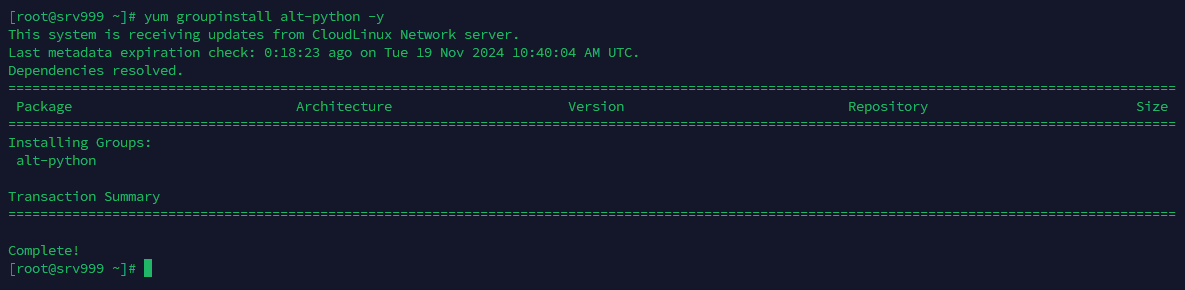
This installs multiple Python versions and prepares the system for integration with CageFS.
To confirm Python Selector’s availability, log in to cPanel as a user. Navigate to the Software section and check for the “Setup Python App” option.

If visible, Python Selector is correctly installed, providing users the capability to manage Python applications directly from their cPanel interface.
Once the “Setup Python App” option appears under the Software section in cPanel, it confirms the successful installation of Python Selector. Users can now choose from many Python versions to deploy their applications seamlessly.

This interface simplifies application management, allowing configurations like setting environment variables and specifying application directories directly from cPanel.


Once created, manage your application by:
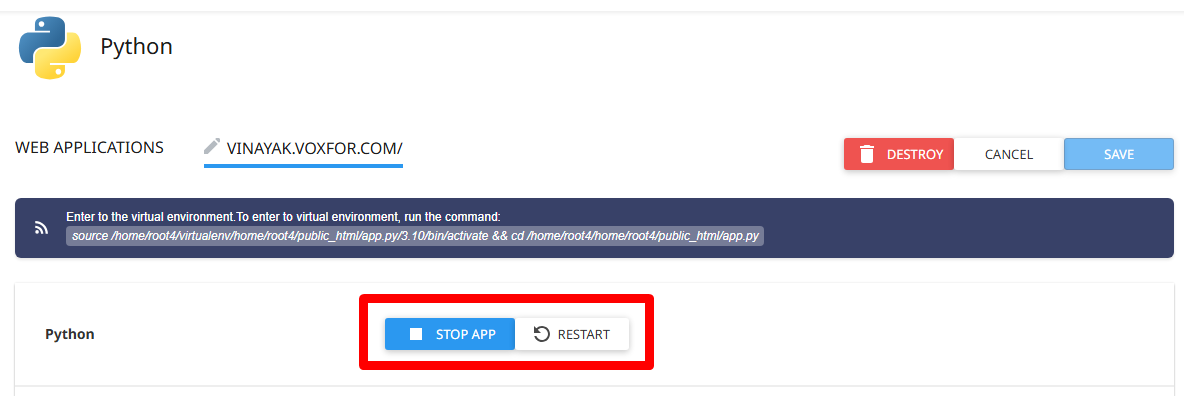
Use the cPanel interface to control the application by clicking Start, Stop, or Restart. These actions make sure the application runs easily or is paused as needed for updates or maintenance.
Adjust critical framework variables like DJANGO_SETTINGS_MODULE or FLASK_APP directly in cPanel. Add or update these variables to configure the application’s environment for optimized performance or feature updates.

To update the Python version for your application, navigate to the Python version dropdown in the cPanel interface. Select the desired version, such as the latest recommended one (e.g., 3.10.15). Updating makes sure your application benefits from the latest features, performance increase , and security updates, keeping it optimized and secure.

sudo dnf update -y
yum groupupdate alt-python -y
Use CageFS to prevent unauthorized access to application files and isolate resources between users.

The Python Selector on CloudLinux, integrated with cPanel, offers a powerful and flexible solution for managing Python applications. By following this guide, you can successfully install, configure, and optimize the Python Selector for seamless deployment and management. Regular updates and proactive monitoring will make sure of a secure and efficient hosting environment tailored for Python development.

Vinayak Baranwal wrote this article. Use the provided link to connect with Vinayak on LinkedIn for more insightful content or collaboration opportunities.





 Lifetime VPS Europe
 Lifetime VPS Asia
 Lifetime WooCommerce Hosting
 Lifetime Hosting
 France Lifetime Dedicated Servers
 Germany Lifetime dedicated servers
 Lifetime Game Dedicated Servers
 Chicago, US
 Tokyo, Japan
 Singapore
 Hong Kong
 Seoul, South Korea
 Amsterdem, Netherlands
 London, UK
 Stockholm, Sweden
 Oslo, Norway
 Vienna, Austria
 Zurich, Switzerland
 Sydney, Australia
 Wordpress Hosting
 VPS Hosting
 DDOS Protection
 Submit Ticket
 Full Management
 Guides
 Videos and Podcasts
 Discover Creative Ideas
 MetaAgentOS High-Ticket Support System
 Voxfor Mega Menu
 Voxfor Advanced Price Management For WooCommerce
 Voxfor Secure Live Chat and AI Support
 Voxfor Multilanguage
 Voxfor AI Content Summary


