
Running local large language models is no longer limited to expensive AI labs or high-end desktop machines. With tools like Ollama, developers, agencies, students, and businesses can run open-weight LLMs on a server and use them for chatbots, coding assistants, content workflows, document summarization, internal automation, and private AI experiments.
However, the most important question before installing Ollama on a VPS is simple: what VPS specs do you actually need?
Many users buy a VPS and immediately try to run a large model without checking RAM, CPU, disk space, context length, or model size. The result is usually slow responses, failed model loading, high memory usage, or server crashes. Ollama makes local LLM deployment easier, but it does not remove the hardware requirement. A model still needs enough memory to load, enough CPU power to generate tokens, enough storage to keep model files, and enough bandwidth if users will access the model remotely.
This guide explains the best VPS specs for practically running Ollama and local LLMs. You will learn how CPU, RAM, disk, bandwidth, operating system, model size, quantization, and context length affect performance. You will also see which Voxfor VPS plans make sense for different Ollama use cases, from small testing environments to heavier private AI workloads.
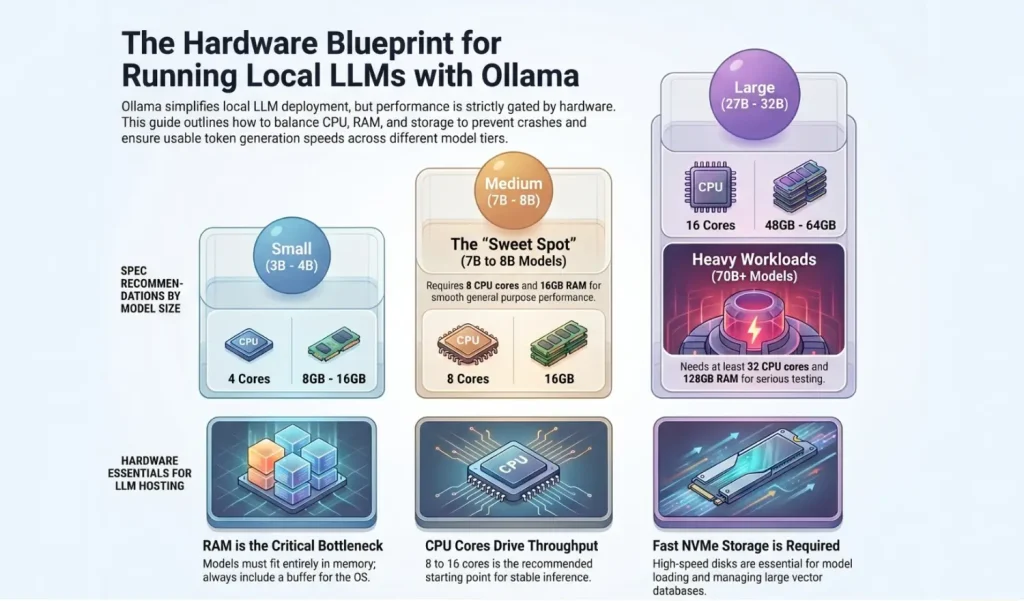
Ollama is a popular tool for running large language models locally or on your own server. It gives users a simple command-line interface and API for downloading, running, and managing models. Instead of building a complicated inference stack manually, users can install Ollama, pull a model, and start sending prompts through the terminal or API.
For example, a developer can install Ollama on an Ubuntu VPS, run a model such as Llama, Gemma, Qwen, or another supported model, and connect it to a web app, chatbot interface, internal dashboard, or automation script.
Ollama is especially useful for:
The main advantage is control. You decide which model to run, where the model is hosted, who can access it, and how it integrates with your application. For privacy-focused projects, this is a major reason to use a VPS-hosted local LLM instead of depending entirely on external AI APIs.
A normal website can often run on a small VPS because web pages, PHP scripts, databases, and static files do not require huge amounts of memory. Local LLMs are different. A language model is a large file that must be loaded into memory before it can generate answers.
The bigger the model, the more memory it needs. The larger the context window, the more memory it uses while processing long prompts. The more users you serve at the same time, the more CPU and RAM pressure your VPS will face.
This means you should not choose a VPS only by price. You should choose it based on workload.
A small 1B or 3B model can run on a modest VPS for testing. A 7B or 8B model needs more RAM and CPU to feel usable. A 13B, 14B, 27B, or 32B model needs much more memory and should be treated as a serious workload. A 70B model needs a high-memory server and will be slow on CPU-only inference unless your workload is light and you accept longer response times.
For a CPU-based Ollama VPS, CPU cores directly affect how quickly the model can process prompts and generate responses. A local LLM performs a large number of mathematical operations. Without GPU acceleration, the CPU handles this work.
For basic testing, 2 to 4 CPU cores can run small models. This is suitable for learning Ollama, trying small models, or building a simple prototype. However, users should not expect high-speed production inference on a very small CPU allocation.
For serious use, 8 to 16 CPU cores is a much better starting point. This gives the server more processing room for model inference, API requests, web server processes, background tasks, and monitoring tools.
For larger models or multiple users, 32 or more CPU cores can help, especially when the model is fully CPU-driven. More cores will not magically turn a CPU server into a GPU server, but they do improve throughput, stability, and multitasking.
Recommended CPU guidance:
For most VPS users, CPU inference is best for private tools, internal workflows, low-traffic chatbots, and development. For very fast public AI chat at scale, users should plan a more specialized AI infrastructure.
RAM is usually the most important VPS spec for running Ollama on a CPU-based server. If the model cannot fit into memory, it may fail to load or become extremely slow. Even if the model file size is smaller than your RAM, you still need extra memory for the operating system, Ollama runtime, context window, API layer, web interface, logs, and other services.
A common beginner mistake is choosing a VPS with the same RAM as the model size. For example, if a model is around 5 GB, a 6 GB or 8 GB server may technically run it, but the server will have very little room left. A better approach is to leave a comfortable memory buffer.
Practical RAM guidance:
If you plan to run long context prompts, RAG workflows, document analysis, or concurrent API requests, choose more RAM than the minimum. Memory usage increases when you increase the context length or handle multiple requests.
Ollama models can take a surprising amount of disk space. Small models may only need hundreds of MBs to a few GBs, while larger models can use tens or even hundreds of GBs. If you pull multiple models for testing, disk usage can grow quickly.
Your VPS storage should cover:
For light Ollama testing, 40 GB can work if you only use very small models. For practical use, 80 GB to 160 GB is better. For multiple models, RAG projects, or larger LLMs, 320 GB or more is recommended.
Storage recommendations:
NVMe or SSD storage is recommended because model loading, Docker operations, and indexing workflows benefit from faster disk access.
Ollama does not need a huge bandwidth for normal text generation after the model is downloaded. However, bandwidth still matters for three reasons.
First, downloading model files can consume several GBs per model. Larger models can be much bigger, so a good monthly bandwidth allocation helps if you test different models.
Second, if your Ollama API is used by remote team members, applications, or chat interfaces, every prompt and response travels over the network.
Third, if you build a RAG application, your server may exchange documents, embeddings, API calls, and application traffic.
For private use, bandwidth is rarely the biggest bottleneck. CPU and RAM matter more. But for business use, a VPS with strong bandwidth and a stable uplink gives a better user experience.
GPU acceleration is the best way to run LLMs faster because GPUs are built for parallel computation. GPU memory, also called VRAM, is extremely important for AI inference. If a model fits fully into GPU memory, response speed can be much better than CPU-only inference.
However, many general VPS plans focus on CPU, RAM, NVMe storage, and bandwidth rather than dedicated GPU resources. That does not mean Ollama is impossible. It means users should choose the right model size and set realistic expectations.
A CPU-based VPS is suitable for:
A CPU-based VPS is not ideal for:
For most businesses starting with self-hosted AI, a CPU/RAM VPS is a practical first step. It is easier to manage, more predictable for simple workloads, and useful for internal automation.
The model size matters more than the model name. A 1B model is small and fast but less capable. A 7B or 8B model is a strong general-purpose option. A 14B model gives better reasoning but needs more memory. A 30B or 32B model can be powerful but requires serious RAM. A 70B model is much heavier and should only be used on high-memory plans.
General model categories:
Tiny models, 0.5B to 1B: Best for simple tasks, quick testing, classification, rewriting, and low-resource servers.
Small models, 3B to 4B: Good for basic chat, summarization, light writing help, and private assistant experiments.
Medium models, 7B to 8B: Good balance for developers, technical assistants, content drafts, and general-purpose use.
Larger models, 12B to 14B: Better reasoning and quality, but slower and more memory-hungry.
Heavy models, 27B to 32B: Better quality for advanced tasks, but should run on high-RAM VPS plans.
Very large models, 70B and above: Best treated as specialized workloads. They require high memory and patience on CPU-only servers.
Voxfor offers several VPS plans with AMD CPU, RAM, disk space, bandwidth, operating system choices, optional backups, and optional full management. For Ollama, the most important plan specs are CPU, RAM, and disk space.
VOX11 includes 2 AMD CPU cores, 2 GB RAM, and 40 GB disk space. This is not recommended for practical Ollama usage except for very basic server setup, Linux learning, or testing the Ollama installation process without running meaningful models.
Best for:
Learning Linux commands
Testing installation steps
Very small experiments only
Not recommended for:
7B models
Production AI workloads
Multiple models
RAG projects
VOX22 includes 2 AMD CPU cores, 4 GB RAM, and 80 GB disk space. VOX22 US includes 3 AMD CPU cores, 4 GB RAM, and 80 GB disk space. These plans may be used for tiny models or basic experiments, but 4 GB RAM is still limited for local LLM use.
Best for:
Tiny models
CLI testing
Basic API experiments
Educational practice
Not recommended for:
Smooth 7B model usage
Concurrent users
Large context windows
VOX32 includes 4 AMD CPU cores, 8 GB RAM, and 160 GB disk space. This is a more realistic starting point for small Ollama models. It can be used for 1B, 3B, and some 4B model workflows, especially for learning, testing, and lightweight internal tools.
Best for:
Llama 3.2 1B or 3B style models
Small Gemma or Qwen models
Basic chatbot testing
Small internal automation
Developer learning environment
Suggested use:
Run one small model at a time
Keep context length moderate
Avoid multiple concurrent users
Monitor RAM closely
VOX42 includes 8 AMD CPU cores and 16 GB RAM. The standard plan includes 320 GB disk space, while the US variant includes 240 GB disk space. This is a strong starting point for users who want to run Ollama properly on a VPS.
Best for:
7B to 8B models
Light 12B models with careful settings
Private AI assistant
Internal chatbot
Content summarization
Developer API testing
Small RAG prototype
Why this plan makes sense:
16 GB RAM gives enough room for many useful models while leaving memory for Ubuntu, Ollama, and your application stack. 8 CPU cores also provide better response stability than smaller plans.
VOX52 includes 16 AMD CPU cores and 32 GB RAM. The standard plan includes 640 GB disk space, while the US variant includes 360 GB disk space. This is a much better choice for users who want to test larger models or run heavier internal AI tools.
Best for:
12B to 14B models
Some 27B models with careful tuning
RAG applications
Multiple small models
Document summarization workflows
Internal team assistant
API-based AI tools
Why this plan makes sense:
32 GB RAM gives more flexibility. You can run a better model, increase context length carefully, store more models, and host supporting tools like a web UI, vector database, or API backend.
VOX53 includes 32 AMD CPU cores, 128 GB RAM, 600 GB disk space, and a large bandwidth allocation. This plan is suitable for serious CPU-based LLM work where memory is the main requirement.
Best for:
70B model experiments
Multiple medium models
Heavy RAG workloads
Larger context windows
Team-level internal AI tools
Advanced AI development environment
Important note:
A 70B model on CPU can still be slow compared with GPU inference. Choose this plan when privacy, control, memory capacity, and self-hosting are more important than ultra-fast token generation.
VOX63 includes 48 AMD CPU cores, 192 GB RAM, and 960 GB disk space. This is the strongest listed option for users who want maximum CPU and RAM capacity for local LLM workloads on Voxfor VPS.
Best for:
Large model testing
Multiple Ollama models
High-memory RAG pipelines
AI research environment
Internal enterprise knowledge assistant
Longer context workflows
Heavier concurrent processing
Why this plan makes sense:
The combination of 48 CPU cores and 192 GB RAM gives much more room for large models and multiple processes. This is the type of plan to consider when smaller VPS plans are no longer enough.
For most users, Ubuntu 22.04 or Ubuntu 24.04 is a strong choice. Ubuntu has broad package support, simple server management, and good compatibility with Docker, Nginx, Python, Node.js, and common AI tools.
Recommended OS:
Ubuntu 24.04 for the latest server environment
Ubuntu 22.04 for a stable and widely documented setup
Debian 12 for users who prefer a minimal, stable Linux server
Avoid installing a heavy desktop environment on an Ollama VPS unless you need it. A clean server OS keeps more RAM available for models.
A simple deployment workflow looks like this:
Example setup commands:
sudo apt update && sudo apt upgrade -y
curl -fsSL https://ollama.com/install.sh | sh
ollama run llama3.2
To check running models:
ollama psTo stop a model:
ollama stop model-nameTo use the API locally:
curl http://localhost:11434/api/chat -d '{
  "model": "llama3.2",
  "messages": [
    { "role": "user", "content": "Hello, explain VPS hosting in simple words." }
  ]
}'Do not begin with the largest model. Start with a 1B, 3B, 4B, or 8B model. Confirm the server is stable, then test larger models.
Use tools like:
htop
free -h
df -h
If the server starts using too much swap, performance will drop. Swap can prevent crashes, but it is not a replacement for real RAM.
Larger context length allows the model to remember more text, but it increases memory usage. For small VPS plans, keep context length moderate. For larger RAG or coding tasks, choose a higher RAM VPS before increasing context.
Small plans should not run multiple models at the same time. Load one model, test it, stop it, then test another model.
If you expose Ollama through a domain, use a reverse proxy like Nginx and protect it with authentication. Never expose an unauthenticated Ollama API directly to the public internet.
If your Ollama VPS stores important prompts, custom models, documents, vector indexes, or application data, enable backups. Model files can be downloaded again, but user data and indexed documents may be harder to rebuild.
Running a local LLM on a VPS gives you control, but it also gives you responsibility. A poorly secured AI server can become a risk.
Important security steps:
For business use, place the Ollama API behind your own backend instead of allowing direct public access. Your backend can handle authentication, rate limits, logging, and prompt filtering.
This is the most common mistake. A 2 GB or 4 GB VPS is not enough for most useful LLM workloads. Start with at least 8 GB for small models and 16 GB for serious use.
Every model consumes disk space. Remove models you no longer use.
ollama rm model-nameCPU inference can be useful, but it is not the same as GPU inference. Use CPU-based VPS hosting for privacy, control, and moderate workloads, not for massive public AI traffic.
A model may load successfully with short prompts but struggle when you increase context length. If your workload involves long documents, choose more RAM.
Never leave an Ollama endpoint open to the internet without security. Treat it like any powerful backend API.
Recommended specs:
4 CPU cores
8 GB RAM
80 GB to 160 GB storage
Suggested Voxfor plan:
VOX32 or VOX32 US
Best for:
Small models, CLI testing, basic API experiments, and learning how Ollama works.
Recommended specs:
8 CPU cores
16 GB RAM
160 GB to 320 GB storage
Suggested Voxfor plan:
VOX42 or VOX42 US
Best for:
7B to 8B models, coding support, content drafts, basic summarization, and private assistant workflows.
Recommended specs:
16 CPU cores
32 GB RAM
320 GB to 640 GB storage
Suggested Voxfor plan:
VOX52 or VOX52 US
Best for:
RAG workflows, document search, internal support assistant, content operations, and multiple small AI tasks.
Recommended specs:
32 CPU cores
128 GB RAM
600 GB storage or more
Suggested Voxfor plan:
VOX53
Best for:
Large model experiments, 70B model testing, multiple medium models, and advanced private AI workflows.
Recommended specs:
48 CPU cores
192 GB RAM
960 GB storage
Suggested Voxfor plan:
VOX63
Best for:
High-memory local LLM research, larger RAG pipelines, multiple Ollama models, and serious internal AI infrastructure.
For most users who want to run Ollama on a Voxfor VPS, the best starting plan is VOX42 because it provides 8 AMD CPU cores and 16 GB RAM. This is enough for practical small-to-medium local LLM usage without immediately hitting the limits of entry-level plans.
For users who want smoother performance, larger models, document-based AI, or a more serious internal chatbot, VOX52 is a better long-term choice because 32 GB RAM gives more breathing room.
For advanced users who want to experiment with 70B-class models or run heavier local AI workloads, VOX53 or VOX63 should be considered because large models need high memory capacity.
The simple rule is this:
Choose VOX32 for learning.
Choose VOX42 for serious small-model Ollama use.
Choose VOX52 for business AI and RAG workflows.
Choose VOX53 for large model testing.
Choose VOX63 for advanced AI labs and high-memory workloads.
Ollama makes local LLM hosting easier, but the VPS still decides the real performance. If you choose enough RAM, enough CPU cores, and enough storage from the beginning, your self-hosted AI setup will be more stable, more secure, and more useful for real projects.
Running Ollama and local LLMs on a VPS gives users more privacy, control, and flexibility for AI-powered projects. However, the right VPS specs matter a lot. CPU cores affect response speed, RAM decides which models can run smoothly, and NVMe storage helps manage model files and application data. For beginners, a smaller Voxfor VPS can be used for testing, while serious users should choose a higher RAM plan for stable performance, larger models, and real-world AI workloads. By selecting the right Voxfor VPS plan based on model size and usage needs, users can build a reliable self-hosted AI environment for development, automation, chatbots, and private LLM experiments.

Hassan Tahir wrote this article, drawing on his experience to clarify WordPress concepts and enhance developer understanding. Through his work, he aims to help both beginners and professionals refine their skills and tackle WordPress projects with greater confidence.






 Lifetime VPS Europe
 Lifetime VPS Asia
 Lifetime WooCommerce Hosting
 Lifetime Hosting
 France Lifetime Dedicated Servers
 Germany Lifetime dedicated servers
 Lifetime Game Dedicated Servers
 Chicago, US
 Tokyo, Japan
 Singapore
 Hong Kong
 Seoul, South Korea
 Amsterdem, Netherlands
 London, UK
 Stockholm, Sweden
 Oslo, Norway
 Vienna, Austria
 Zurich, Switzerland
 Sydney, Australia
 Wordpress Hosting
 VPS Hosting
 DDOS Protection
 Submit Ticket
 Full Management
 Guides
 Videos and Podcasts
 Discover Creative Ideas
 MetaAgentOS High-Ticket Support System
 Voxfor Mega Menu
 Voxfor Advanced Price Management For WooCommerce
 Voxfor Secure Live Chat and AI Support
 Voxfor Multilanguage
 Voxfor AI Content Summary


