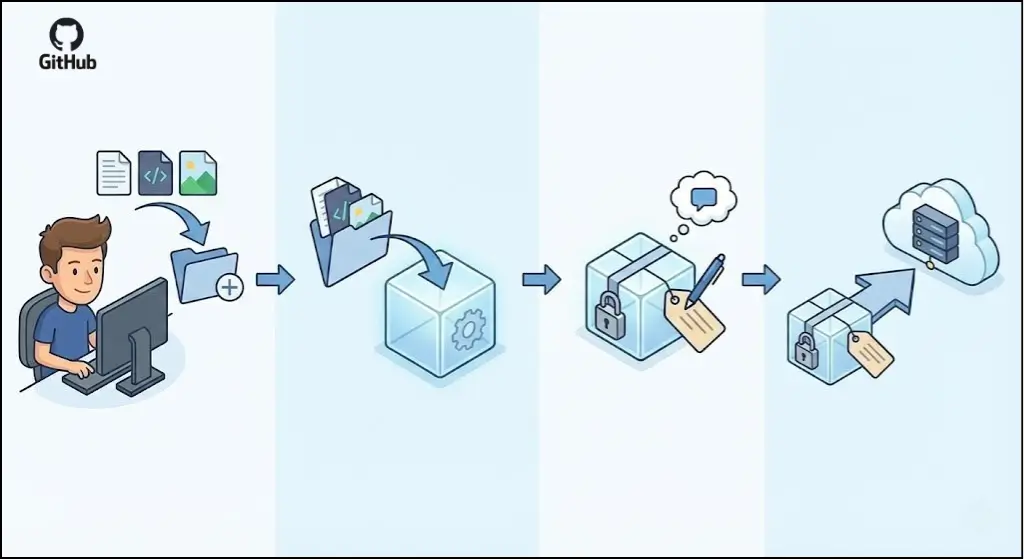
Git and GitHub are the new tools in the world of software development, which are joined together to assist you with the management of your code. Git is a version control system that helps to monitor the changes in your files as time goes by, and it lets you know what, when, and why. GitHub is a web-based tool that manages your Git repositories, so it is simple to work together with other programmers, save your code, and communicate your projects to the world.
Learning to push and commit files is the basic knowledge of using Git and GitHub. By committing, you are taking a snapshot of your project at a given time with a description of the changes. With a push, you are sending those commits from your local machine to GitHub so that your colleagues can see them, as well as so that your work is safely stored in the cloud. This process is the foundation of group development and does not allow the chaos of working with various versions of files manually.
Before you start committing and pushing files to GitHub, make sure you have the following in place:
git config --global user.name "Your Name"
git config --global user.email "[email protected]"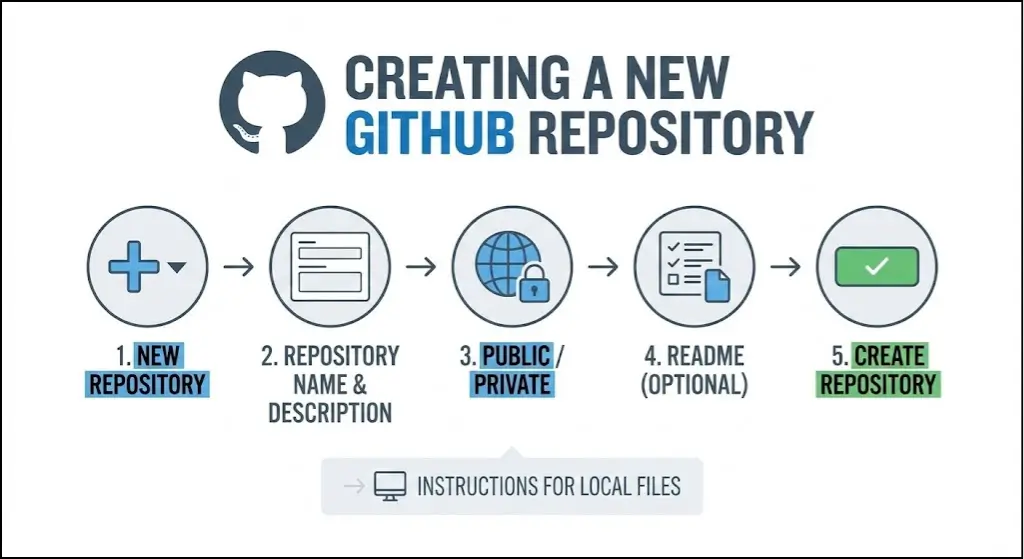
To start a new project, create a repository directly on GitHub:
Once created, GitHub will show you instructions on how to add files from your local machine.
If you want to work on a repository that already exists on GitHub (either your own or someone else’s), clone it to your local machine:
git clone https://github.com/username/repository-name.git
cd repository-name
This downloads a local copy of the repository on your computer, which contains all the project files and Git history.
Once you have a repository set up locally, add your files and folders to the project directory. You can do this by:
For example, if you have an index.html file, place it in your project directory:
my-first-project/

├── index.html
├── style.css
└── script.jsAfter adding files, check what Git sees in your repository by running:
git statusThis command will output something like:
On branch main

No commits yet

Untracked files:
  (use "git add <file>..." to include in what will be committed)
        index.html
        style.css
        script.js

nothing added to commit but untracked files present (track files)
Nothing added to commit, but untracked files present (track files)
Untracked files are the files that are there in your project directory, but which Git is not yet tracking. This is the default of new files, and they are followed by staging and commitment.
Before committing, you need to understand Git workflow:
Imagine it as a process of shipping: you make something (working directory), place it in a box (staging area) and then ship the package (repository).
To stage files, use the git add command. You have several options:
Stage a single file:
git add index.htmlStage all changes:
git add .The dot (.) means “add all changes in this directory and subdirectories.“
Stage-specific files:
git add index.html style.cssAfter staging, run git status again to verify:
On branch main

Changes to be committed:
  (use "git rm --cached <file>..." to unstage)
        new file:   index.html
        new file:   style.css
new file: script.jsOnce files are staged, commit them using:
git commit -m "Add initial HTML, CSS, and JavaScript files"The -m flag allows you to include a commit message. Posting this message explains what you changed and why. A great commit message is both brief and informative.
Good commit messages:
Poor commit messages:
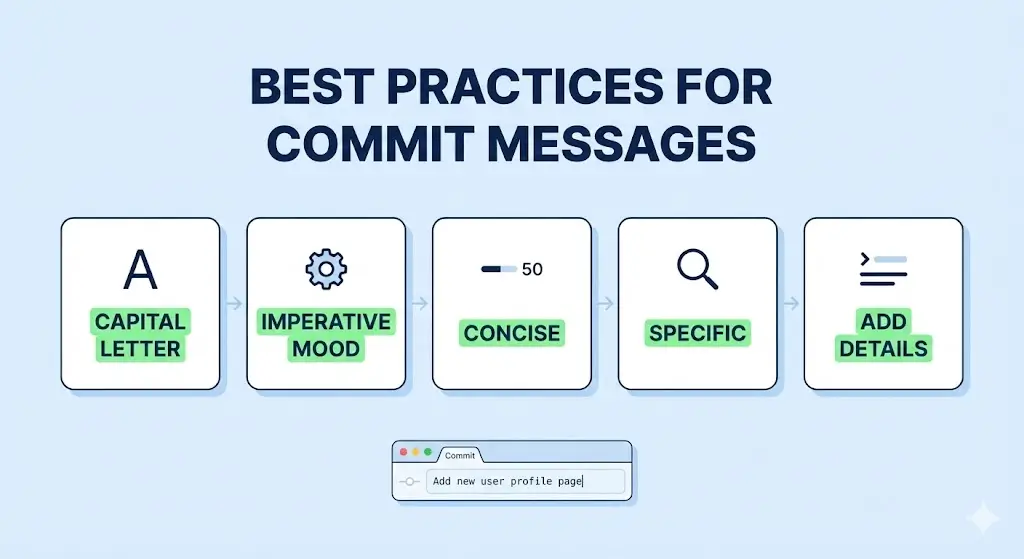
Follow these guidelines when writing commit messages:
Example of a detailed commit message:
git commit -m "Add user login page

- Create login form with email and password fields
- Add form validation
- Implement password reset functionality"It is advisable to learn about branches before pushing. A branch is a line of development in itself. As the default, Git generates a primary branch named main or master (GitHub changed the default name to main in 2020, but older repositories may use master as the default name).
You can check your current branch with:
git branchThis will show something like:
* mainThe asterisk indicates which branch you’re currently on.
Once you’ve committed your changes, push them to GitHub using:
git push origin mainBreaking this down:
If this is your first time pushing from a newly created local repository, Git might ask for your GitHub credentials. Enter your username and password (or personal access token if you’ve set up two-factor authentication).
After a successful push, you’ll see output like:
Counting objects: 3, done.
Writing objects: 100% (3/3), 256 bytes | 256.00 KiB/s, done.
Total 3 (delta 0), reused 0 (delta 0), pack-reused 0
To https://github.com/username/repository-name.git
* [new branch] main -> mainOpen your GH-repo in your web browser and reload the page. Your files should now be on GitHub, and the commit message you have created should now show on the list of commit history.
Problem: You ran a Git command in a folder that isn’t a Git repository.
Solution: Navigate to your project folder or initialize a new repository:
cd my-project
git initProblem: Git can’t authenticate with GitHub using SSH.
Solution: Use HTTPS instead of SSH. In cloning, one should use the HTTPS URL (not the SSS URL). Change it in case you have already cloned using SSH:
git remote set-url origin https://github.com/username/repository-name.gitProblem: Your local branch is behind the remote branch (someone else pushed changes, or you’re working on an older version).
Solution: Pull the latest changes first:
git pull origin mainIf there are no conflicts, this will automatically merge changes. Then try pushing again:
git push origin mainProblem: Git found conflicting changes in the same lines of a file.
Solution:
<<<<<<< HEAD
Your changes
=======
Their changes
>>>>>>> branch-namegit add conflicted-file.jsgit commit -m "Resolve merge conflict in conflicted-file.js"git push origin mainProblem: Someone else pushed changes to the branch while you were working locally.
Solution: Pull before pushing:
git pull origin main
git push origin mainInstead of making one massive commit with dozens of changes, break your work into smaller, logical commits. This makes it easier to:
Example of good practice:
Example of poor practice:
You are documenting to your team and your future. Take the time to compose in a clear, descriptive message that will tell you what and why you are changing.
Maintain a clear folder structure in your repository:
project-name/
├── src/
│   ├── index.js
│   └── components/
├── assets/
│   ├── images/
│   └── styles/
├── tests/
├── README.md
└── .gitignoreCreate a .gitignore file in your repository root to tell Git which files to ignore. This is useful for files that shouldn’t be tracked, like:
node_modules/
.env
.DS_Store
*.log
dist/
Simply create a file named .gitignore and list files and folders (one per line) that Git should ignore.
Don’t wait until you’ve made massive changes to push. Push regularly throughout your day to:
Before staging files, review what you’re about to commit:
git diffThis is a demonstration of your changes. Stage only after making everything look right.
If you’re using multiple branches, name them descriptively:
Any developer needs to learn how to work with the Git commit and push workflow. It is very easy to do, as you know, the simple steps:
Such practices and a knowledge of the pitfalls you could possibly fall into will provide a strong version control and collaboration base. As you become familiar with Git, you might venture into new functions such as branching, merging and rebasing but these basics will do you well in any development project.
Remember: commit often, write clear messages, and push regularly. This habit will make your development process smoother, protect your work, and make collaboration with other developers seamless. Happy coding!

Hassan Tahir wrote this article, drawing on his experience to clarify WordPress concepts and enhance developer understanding. Through his work, he aims to help both beginners and professionals refine their skills and tackle WordPress projects with greater confidence.





 Lifetime VPS Europe
 Lifetime VPS Asia
 Lifetime WooCommerce Hosting
 Lifetime Hosting
 France Lifetime Dedicated Servers
 Germany Lifetime dedicated servers
 Lifetime Game Dedicated Servers
 Chicago, US
 Tokyo, Japan
 Singapore
 Hong Kong
 Seoul, South Korea
 Amsterdem, Netherlands
 London, UK
 Stockholm, Sweden
 Oslo, Norway
 Vienna, Austria
 Zurich, Switzerland
 Sydney, Australia
 Wordpress Hosting
 VPS Hosting
 DDOS Protection
 Submit Ticket
 Full Management
 Guides
 Videos and Podcasts
 Discover Creative Ideas
 MetaAgentOS High-Ticket Support System
 Voxfor Mega Menu
 Voxfor Advanced Price Management For WooCommerce
 Voxfor Secure Live Chat and AI Support
 Voxfor Multilanguage
 Voxfor AI Content Summary


