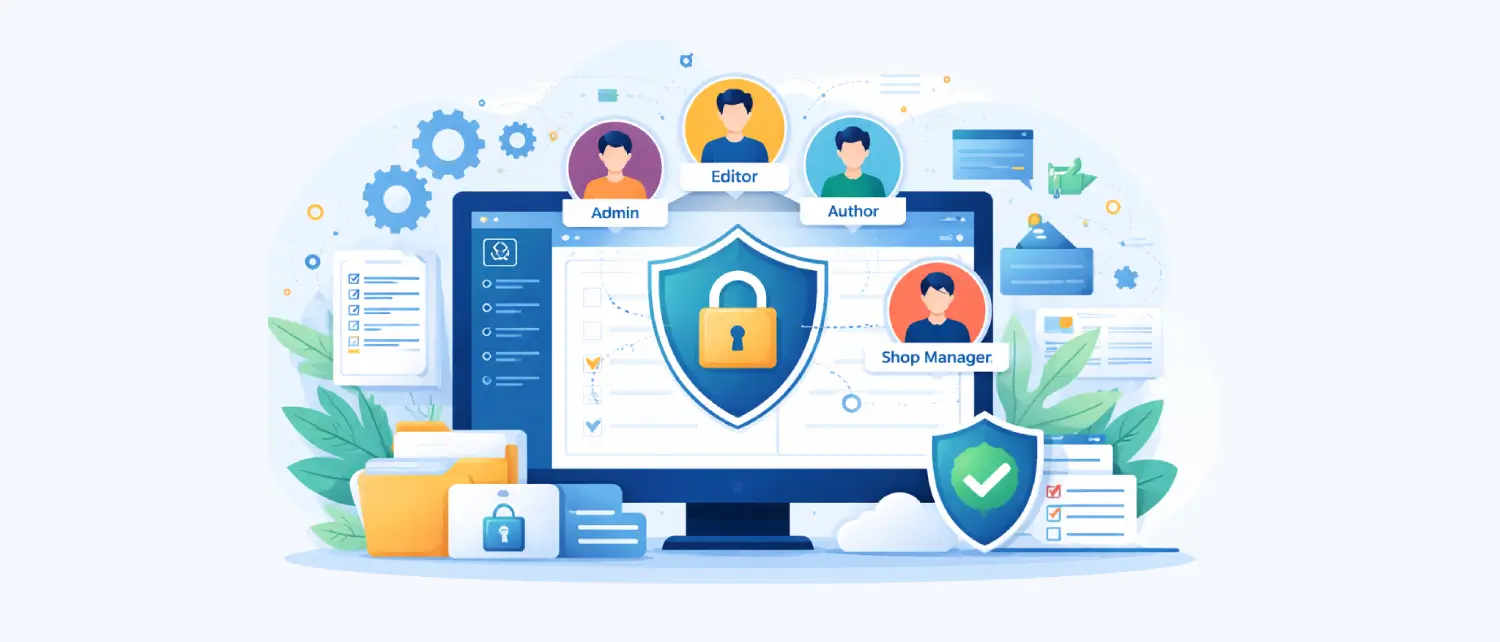
The digital world has seen the growth of WordPress in its primitive form as a blogging tool used by amateurs to advanced levels of enterprise-level and quality Content Management System, serving as the staple powering the internet in a considerable majority. As organizations grow their online business, they shift to multi-tiered collaborative digital environments with many actors, including developers, content creators, external contractors, marketing agencies, and consumer bases. The zero point of this collaborative infrastructure is the WordPress system of user roles and capabilities. The structure, management, and ongoing auditing of user controls determine the integrity of operations, functional workflow, and the overall security posture of the whole digital property.
Essentially, that first section says that the “foundation” of building a site is knowing how to set up user permissions. It’s about deciding who gets to post content, change technical settings, or see private financial data. The article plans to look at how this works behind the scenes, how it changes for large networks of sites, how tools like online stores add their own rules, and how to keep everything secure.
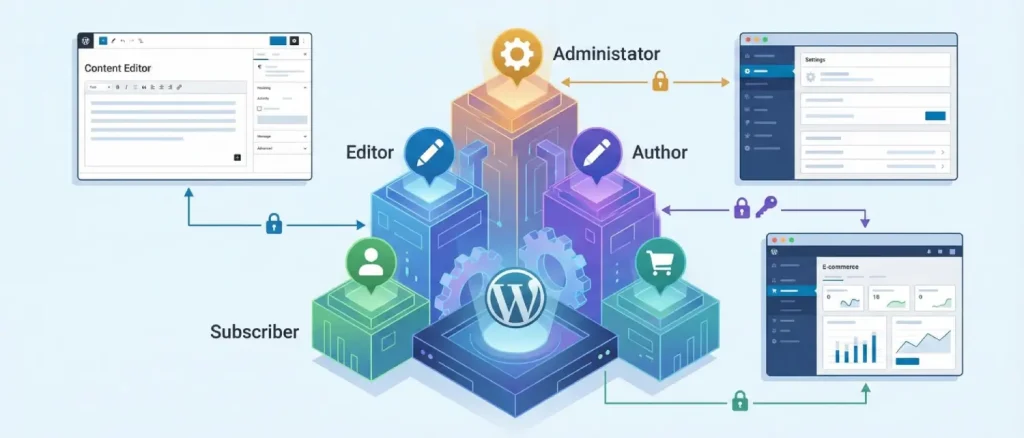
To understand how a site manages users, you have to look at how it organizes its “rules.” WordPress uses two main ideas: Roles and Capabilities. Think of a Role as a job title, like “Editor” or “Author.” It’s just a label given to a user. On the other hand, Capabilities are the specific tasks that a person is allowed to do, like “delete a post” or “upload a photo.” Essentially, the Role is the bucket, and the Capabilities are the specific tools kept inside that bucket.
This separation of roles and capabilities is a genius design of software engineering, such that the WordPress core system can be used by third-party developers to build access protocols with extreme granularity and extensibility. Upon authentication by the user, the WordPress core identifies their assigned role, retrieves the encoded array of capabilities in the database pertaining to that particular role, and adds this capability matrix to the memory of the server. Whenever the user tries to access a secured function, such as creating a page, uploading a media file, deleting a comment, or changing a core setting, the platform makes a programmatic current_user_can() function call to determine whether the necessary capability exists in the active user profile.
Each role is pre-allocated a default set of capabilities when a new WordPress installation is done. But the real strength of the system is that it is programmably extensible. Using the native add_cap() and remove_cap() functions, it is possible to dynamically assign and revoke capabilities. Meanwhile, completely new custom roles may be created by using the add_role() function, and old roles may be eliminated by using the remove_role() function.
Such flexibility means the access control matrix is capable of being scaled to meet the needs of very specific organizational workflows without being subjected to potentially hazardous changes to the underlying WordPress core software. Moreover, it is a general architectural principle that one specific role should not automatically be considered a senior role to another role simply because of its nomenclature. Instead, administrators should recognize that roles define the specific operational responsibilities and oversight an individual has over the site.
A default single-site WordPress installation has a very optimized structure of default user roles. All roles are designed to satisfy a particular, well-defined operational need, descending in power and ability from the Administrator role to the extremely limited, read-only access of the Subscriber. The hierarchical nature usually implies that higher-level roles inherit the capabilities of lower-level roles. As an example, Editors can perform all the actions that Authors can, and Authors can perform all the actions that Contributors can do.
The Administrator (which the database refers to using the slug administrator) is the highest access tier of a standard single-site WordPress installation. The administrators have the final control to decide on all facets of the digital property. This includes the capability to modify fundamental settings, install, edit and uninstall active themes, control third-party modules, manipulate the macro-architecture of the site, and manage the overall user base.
Administrators hold the highest level of power on a website, with the ability to create or delete accounts, change user permissions, and control every piece of content, from blog posts to private settings. Because an Admin can install new software and change the site’s core design, this role is the biggest target for hackers. If an attacker breaks into an Admin account, they gain total control over the server, allowing them to steal sensitive data, break the site, or inject hidden malware.
To keep the website secure, you should follow the “principle of least privilege,” which means giving this level of access to as few people as possible, usually just the owner and a lead developer. On platforms like WordPress.com, an Admin even has the “nuclear option” to delete the entire site, though only the original owner can officially transfer full control to someone else.
The Editor is the person in charge of all the content on the website. This role is designed for managers or marketing leaders who need to control everything related to articles and pages without touching the technical “under the hood” settings, like plugins or themes. Essentially, an Editor has the power to create, change, or delete any post or page on the site, even if someone else wrote it.
The Editor role comes with heavy-duty powers like managing categories, approving or deleting comments, and uploading files to the site’s library. They have the authority to change or delete anyone’s posts or pages to make sure everything meets the company’s standards. While they can’t mess with the site’s technical design or plugins, they have total control over the actual information on the site. If an Editor’s account is hacked, the consequences are serious: an attacker could wipe out every article, ruin the site’s reputation by changing content, or mess with search engine settings to redirect visitors to dangerous places.
The Author (identified by the slug author) is designed for trusted internal writers, staff journalists, and dedicated content creators. The primary operational distinction between an Author and an Editor is that Authors are strictly restricted to managing only their own intellectual property. Authors possess the capabilities to write new manuscripts, upload necessary media files and images, edit their drafts, and ultimately publish their own posts to the live environment without requiring any secondary editorial approval or intervention.
They are given the ability to publishposts, editpublishedposts, deleteposts, and upload files. Engines that provide absolute freedom inside their localized part of the content creation chain. They, however, are severely lacking in the editothersposts and deleteothers_posts capabilities so that they are not able to touch, overwrite, or maliciously destroy the work of their colleagues. Security-wise, since an Author is not allowed to make changes to the general site settings, they are, however, able to publish directly to the live site. In this situation, organizations have no choice but to implicitly trust the judgment, writing quality and security hygiene of whoever is placed at this level.
The Contributor (also known as the slug contributor) is a very narrow rung that is specifically created to allow external writers, freelance copywriters, guest bloggers, and junior employees who need supervision. Contributors are the users who have the minimum necessary writing skills and the ability to edit their own posts, but are expressly and deliberately deprived of the publish-posts permission. As a Contributor finishes a manuscript, they will only send the manuscript to the system as a pending draft, and only an Editor or an Administrator will be required to revise it, approve it, and publish the piece manually to the live site.
In addition, regular Contributors usually do not have the upload files permission. It is an intentional, very effective security control that will not allow untrusted external users to upload potentially malicious executable code, non-optimized large images, or unauthorized media objects directly to the server infrastructure. The Contributor role is a tremendously safe way of accepting user-provided content in bulk, and it acts as a quarantine zone for drafts, which can be carefully vetted for content quality, brand compatibility, and security before the contents are released into the world.
The lowest level of registered user role is the Subscriber (known as slug subscriber), used mostly in relation to comment management protocols, membership portals, online communities, and email list integrations. Subscribers can only have the minimal amount of access, the read capability. This enables them to access the WordPress dashboard just in order to change personal profile details, including their display name, password, and contact email address. They do not have any authority over Authors, Editors, or Administrators. In case an organization permits visitors to open their own accounts, they will be automatically assigned this role to avoid unauthorized access to the operating backend.
In certain hosted platforms, like WordPress.com, there is a similar role called the Viewer. This limits viewers to reading and commenting on posts and pages only in private network sites, which provide access to internal corporate documentation, private community hubs, or gated family blogs with controlled, read-only access.
The following table maps the standard default user roles to a selection of their corresponding core capabilities, illustrating the cascading, hierarchical nature of standard WordPress permissions.
| Core Capability Function | Administrator | Editor | Author | Contributor | Subscriber |
| manage_options (Settings) | Yes | No | No | No | No |
| edit_users (User Management) | Yes | No | No | No | No |
| manage_categories | Yes | Yes | No | No | No |
| moderate_comments | Yes | Yes | No | No | No |
| edit_others_posts | Yes | Yes | No | No | No |
| publish_posts | Yes | Yes | Yes | No | No |
| upload_files | Yes | Yes | Yes | No | No |
| edit_posts (Own Content) | Yes | Yes | Yes | Yes | No |
| read | Yes | Yes | Yes | Yes | Yes |
When WordPress is configured as a Multisite Network, a highly specialized architectural deployment allowing multiple, distinct virtual websites to operate from a single, centralized WordPress software installation and database, the fundamental user role paradigm undergoes a significant and necessary transformation. In this shared environment, the absolute authority shifts upward from the individual site-level Administrator to the network-level Super Admin.
The Super Admin is the most powerful user level possible, holding total control over an entire network of multiple websites. While a regular Admin manages just one site, the Super Admin oversees the big picture, with the power to change settings across every single site on the server at once. This role includes special abilities that aren’t even available on standard websites, making them the ultimate authority of the entire digital ecosystem.
The special powers of a Super Admin include managing settings for the entire network, creating new websites, or deleting existing ones permanently. They also have the authority to oversee every single user account across the whole system. Additionally, the Super Admin acts as a gatekeeper for software, deciding which plugins and themes are allowed to be used by individual site managers. By controlling these network-wide rules, they ensure that every site in the collection stays consistent and follows the same standards.
The transition to a Multisite Network fundamentally and intentionally limits the power of the standard Administrator role. To preserve the stability, security, and performance of the shared hosting environment, highly destructive or globally impactful capabilities that could compromise the entire network are systematically stripped from individual site Administrators and reserved exclusively for the Super Admin.
In a Multisite setup, a site-level Administrator completely loses the ability to install, update, or delete themes and plugins (install_plugins, update_core, delete_themes). They must rely on the Super Admin to provision the necessary software. They also lose the highly dangerous unfiltered_html capability. In a single-site setup, an Administrator can post raw HTML or JavaScript. However, in a Multisite environment, this capability is restricted solely to Super Admins to prevent site-level Administrators from embedding arbitrary JavaScript that could introduce catastrophic cross-site scripting (XSS) vulnerabilities to the wider network.
Furthermore, while an Administrator can promote existing users or remove users from their specific site ecosystem (promote_users, remove_users), they cannot create entirely new user accounts or permanently delete user records from the central network database without Super Admin intervention (create_users, delete_users).
| Action / Capability Specification | Super Admin | Administrator (Multisite) |
| Global Network Settings Management | Yes | No |
| Create or Delete Virtual Sites | Yes | No |
| Install/Update Plugins & Themes | Yes | No |
| Network-Wide User Deletion | Yes | No |
| Post Unfiltered HTML (unfiltered_html) | Yes | No |
| Manage Specific Site Content | Yes | Yes |
| Moderate Specific Site Comments | Yes | Yes |
To manage users effectively, you need a clear and strict process for adding or removing people from your site. The WordPress dashboard makes this simple by providing easy-to-use tools for inviting new staff, assigning their specific job roles, and managing their login details. Following a step-by-step routine is essential to keep your website secure and well-organized.
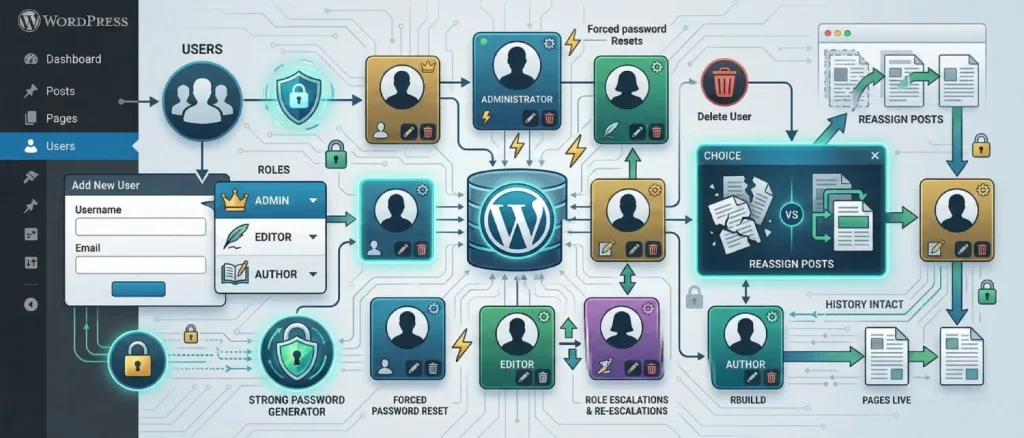
To start, log in to your WordPress dashboard and click on Users in the left-hand menu. From there, select Add New to open the setup screen. You’ll need to enter basic details like a unique username, a working email address, and a strong password. WordPress actually has a built-in tool that creates a complex, random password for you. It’s much safer to use this automatic feature than to make up your own, as it protects the account from hackers trying to guess their way in.
When setting up a new user, the Admin must choose the right job role from a dropdown menu, making sure to give the person only the specific powers they need to do their work. It is also important to check the box that sends the new user an email about their account. This sends an automatic message with their login link and instructions, making it easy for team members or clients to get started. Once you’ve double-checked the details and clicked “Add New User,” the account is officially active and saved to the site’s database.
User management, however, is an ongoing operational requirement. As organizational structures evolve, personnel shift roles, depart the organization, or require escalated privileges, the Administrator must dynamically adjust the access control matrix. By navigating back to the central Users page, an Administrator can hover over specific accounts and select the ‘Edit’ function to modify profile data, issue forced password resets, or alter the assigned role from the dropdown interface to accommodate changes in team structure.
When it’s time to remove a user, the Administrator starts the process by clicking Delete under that person’s name. A key safety feature in WordPress prevents you from accidentally losing all your hard work; before the account is deleted, the system asks if you want to delete the user’s posts or “reassign” them to someone else. By choosing to reassign the content to a different active user, you ensure old articles and pages stay live on the site, protecting your search engine rankings and keeping your site’s history intact even after the original creator has left.
When organizations transform a standard WordPress installation into a complex e-commerce platform via the WooCommerce plugin, the default access control matrix is significantly expanded to accommodate highly specific transactional workflows. WooCommerce programmatically injects specific user roles designed to separate standard content management from retail operations, financial reporting, and consumer analytics.
The Customer role is automatically given to anyone who signs up to buy something from an online store. Technically, it is a limited version of the basic Subscriber role, meaning customers have no power to change the website, write articles, or edit posts. Their access is restricted to their own private dashboard, where they can manage their billing and shipping addresses, view past orders, track current shipments, and update payment or account details.
In advanced organizational setups, the data generated by the Customer role is frequently mapped to external Customer Relationship Management (CRM) software, classifying these users as active leads or ongoing commercial contacts for targeted marketing campaigns.
The Shop Manager is a special role created specifically for people who run the day-to-day operations of an online store. This role sits right between a content Editor and a full site Administrator. A Shop Manager has total control over the shop’s settings, including shipping zones, tax rules, and inventory. They have the power to add or delete products, issue refunds, respond to customers, and manage incoming orders.
Additionally, Shop Managers hold the view_woocommerce_reports capability, granting them critical access to sensitive financial analytics, sales velocity data, product performance metrics, and customer purchasing patterns. It is imperative to note that the Shop Manager role inherently includes the capabilities of a standard WordPress Editor. This means a Shop Manager can also manipulate blog posts, alter standard pages, and moderate comments. Because of this vast operational power, the Shop Manager role should be reserved exclusively for trusted senior retail staff, avoiding the need to grant full site Administrator privileges, thereby adhering to security best practices.
| Operational Retail Function | Administrator | Shop Manager | Customer |
| Modify Core WP System Settings | Yes | No | No |
| Manage WooCommerce Store Settings | Yes | Yes | No |
| View Financial and Sales Reports | Yes | Yes | No |
| Add, Edit, or Delete Products | Yes | Yes | No |
| Edit Standard WP Posts and Pages | Yes | Yes | No |
| View Own Historical Order Data | Yes | Yes | Yes |
Search Engine Optimization (SEO) is the ongoing process of tweaking your website hidden data, link settings, and code to make sure it shows up at the top of search results. A key part of this is using LSI keywords. These are simply words and phrases that are related to your main topic. They help search engines like Google understand exactly what your page is about by looking at the context. For example, if your main topic is “computers,” using related words like “hardware,” “software,” and “processor” proves to the search engine that you are providing helpful, relevant information.
SEO experts perform deep research to figure out exactly what people are looking for, whether they want information, a specific website, or to buy a product. They look at how many people are searching for certain terms and how hard it is to rank for them, then pick the best related keywords to use. These keywords must be naturally blended into titles, descriptions, and the main text. It’s important not to overdo it, as “stuffing” too many keywords into a page can actually cause search engines to punish your site. To do this job well, they use powerful tools like Yoast SEO or AIOSEO to check how well the content is written, create site maps for search engines, and track how well each page is performing.
In the past, businesses faced a major security problem: SEO experts and marketing agencies needed access to powerful tools to improve the site’s search rankings, but giving them full “Administrator” access was too risky. To fix this, popular SEO plugins created their own special user roles. These roles allow SEO teams to work on content and keywords in a “silo,” meaning they have all the tools they need to optimize the site without being able to touch the core technical settings or break the website’s foundation.
The Yoast SEO plugin introduces two highly distinct roles specifically engineered for modern marketing workflows: the SEO Editor and the SEO Manager.
The SEO Editor role is built for people who write content or handle basic site improvements. It gives them access to a special “SEO box” inside each post or page where they can set the main keywords, write the short descriptions you see on Google, and check if their writing is easy to read. A great feature in the premium version is that these editors can also create “redirects”, which automatically send visitors from a broken link to a working one. This is a huge help because, in the past, writers had to wait for a tech expert to fix every broken link. Despite these powers, an SEO Editor is still blocked from changing the most important, site-wide settings that could break the entire plugin.
The SEO Manager represents an elevated, highly trusted tier, possessing all standard optimization capabilities alongside the powerful wpseo_manage_options capability. The SEO Manager can access the global Yoast settings panel, allowing them to dictate sitewide schema output, configure global XML sitemaps, edit advanced metadata, and alter default metadata structures for entire post types. This role is ideal for external SEO agencies that require deep access to metadata but should not be permitted to install new software or delete user accounts.
AIOSEO uses a very detailed control system to let you hand out SEO tasks safely without putting your whole website at risk. The makers of this tool understand that improving your search rankings shouldn’t mean compromising your security. While the plugin comes with ready-to-use roles like SEO Manager and SEO Editor, its standout feature is the ability to lock specific tools or customize exactly what each person is allowed to touch.
Administrators can use AIOSEO management tools to lock away very specific, technical functions like the site’s code structure (schema), the link redirection system, or the most important site-wide settings. This setup allows marketing teams to do their jobs, like fine-tuning keywords and matching content to what users are searching for, without the risk of accidentally hiding the site from Google or messing with sensitive admin areas. This method is perfect for large teams because it sets clear, safe boundaries, allowing everyone to work together on marketing while keeping the website secure and performing at its best.
While the default capabilities provided by the WordPress core, WooCommerce, and leading SEO utilities cover a vast array of standard operational scenarios, bespoke web applications and complex corporate portals often require highly specific permission matrices. There are several clear indicators that the default user roles are no longer sufficient for an organization’s operational security and workflow.
You can tell the standard roles aren’t working when you feel forced to give someone full “Administrator” access just to let them do one specific job. This is a big security risk because you’re giving away too much power. This problem also shows up when you have special sections on your site, like a staff list or a portfolio, and you want someone to manage those without touching your main blog. Standard roles also fail when you need a “middle ground” worker, for example, someone who can moderate comments but shouldn’t be allowed to write new articles. In these cases, the “Editor” role is too powerful, but the “Subscriber” role is too weak, leaving you stuck with no perfect fit.
In these scenarios, constructing Custom Roles becomes an operational necessity. Examples of highly useful custom roles include a “Client” role, which allows agency clients to log in and edit their own specific pages without giving them the power to break the active theme; a “Support Moderator” role restricted solely to managing support ticket post types; or an “External Collaborator” role that bridges the gap between a Contributor and an Author.
To overcome the limitations of default roles, administrators must engineer custom user roles. There are two primary methodologies for achieving this: utilizing dedicated user role editor plugins or manually injecting PHP code into the site architecture.
For most people, even those who are tech-savvy, using a specialized plugin to manage website permissions is the best way to go. These tools give you a simple dashboard where you can easily check boxes to turn specific powers on or off for any user. You can also take an existing role, copy it, and then tweak it to create a brand-new job title without the risk of breaking your site by messing with the underlying code. There are several reliable options available that make customizing these “rules” safe and straightforward.
User Role Editor: The User Role Editor is often seen as one of the best tools because it is simple and doesn’t slow down your site. It gives you a clear list of check boxes so you can easily turn specific powers on or off for any job title. It also lets you handle many users at once and even allows you to give a single person more than one role at the same time if they need extra permissions. Because it follows the official WordPress rules, it works reliably and keeps everything organized in a way that makes sense.
PublishPress Capabilities: This utility is specifically designed for complex publishing environments. It excels at managing permissions for Custom Post Types and custom taxonomies. An organization can use PublishPress to seamlessly engineer a custom role that is granted capabilities strictly limited to a specific post type, completely isolating them from the main company blog and ensuring editorial silos are maintained.
Profile Builder Pro: If you need more than just basic role management, Profile Builder Pro is a great all-in-one solution. It helps you build custom sign-up forms and profile pages that users see on the front of your site, rather than in the technical back-end. It also lets you lock certain content, so only specific people can see it. This makes it a perfect choice for membership sites or private portals where you want to control exactly what your members see and do.
Advanced Access Manager (AAM): AAM is built for granular access control, focusing not just on capability toggles but also on backend routing and dashboard visibility. Administrators can utilize AAM to completely hide specific administrative menus from certain roles, further streamlining the backend interface, reducing visual clutter, and physically preventing users from clicking into restricted areas.
When you want to create a custom job role using a plugin, there is a simple step-by-step process to follow. First, you install the tool and create a new role, usually by copying an existing one, so the person can at least see the basic parts of the site. Next, you check the boxes for the specific tasks you want them to do; for example, you might let a “Producer” write and delete pages but block them from touching the site’s main settings. Finally, you should always create a test account to make sure the new rules work correctly and that the user can’t access things they shouldn’t before you actually give the role to your team.
The following table provides a market overview of prominent role management utilities, detailing their pricing structures and core competencies:
| Plugin Designation | Free Option Available | Premium Pricing Tier | Primary Functional Strengths |
| User Role Editor | Yes | $29 / year | Lightweight, multi-role assignment, bulk capability edits |
| PublishPress Capabilities | Yes | $69 / year | Custom Post Type restrictions, advanced editorial workflows |
| WPFront User Role Editor | Yes | $89 / single site | Granular UI customization, robust permission toggles |
| Advanced Access Manager | Yes | $99 / year | Hiding admin menus, deep access tracking and routing |
| Profile Builder Pro | Yes | Variable Pricing | Front-end user profiles, comprehensive registration flows |
| LoginWP | Yes | $49 / year | Role-based login redirection rules and access flows |
For enterprise developers operating in highly controlled environments where minimizing plugin overhead is a strict requirement, custom roles can be engineered manually using code. This involves utilizing the WordPress core functions add_role(), remove_role(), add_cap(), and remove_cap() within a custom plugin or a child theme’s functions.php file.
This approach requires a deep knowledge of coding and how the website’s database is organized. A developer has to manually write out the specific technical ID, the visible name for the role, and a long list of “yes or no” rules for every single action that the user can take. While this is a very powerful way to work, it is only for experts. One tiny typing mistake can crash the entire website, and if a rule is set up incorrectly, it can leave your site wide open to hackers without you even realizing it.
How you set up and manage user roles is directly tied to how safe your website stays. Security experts often find that most hacked sites aren’t attacked through high-tech software flaws, but rather because users were given too much power, used weak passwords, or left old, unused accounts active. To keep a business site truly secure, it is mandatory to stay organized and strictly limit what each user is allowed to do.
The most important rule for a safe website is the “Principle of Least Privilege,” which simply means giving people only the specific tools they need to do their job and nothing more. Every time you give someone extra power, you create a new way for things to go wrong. For example, a freelance writer should never have the “keys to the house” as an Admin or Editor; they should only be a “Contributor.” That way, if their account is ever hacked, the attacker is stuck in a safe corner where they can only mess with unfinished drafts, rather than being able to crash the server, ruin your Google rankings, or delete your entire site.
The Administrator role is the central, highest-value target for automated brute-force attacks, credential stuffing, and sophisticated spear-phishing campaigns. Organizations must aggressively and systematically limit the number of administrative accounts. Full administrative access is rarely required by anyone other than the lead site developer and the ultimate business owner.
Think carefully about who really needs full control over your website. When you hire outside help, like a marketing agency or a developer, you should only give them a high-level account for as long as they are actually working. As soon as the project is finished, you should close those accounts immediately. To add even more protection, experts recommend using security tools like Wordfence to hide your login page and making sure everyone with power changes their password every three months.
The way you set up and manage user roles is the foundation of a safe, efficient, and growing website. Whether it’s a “Super Admin” managing multiple sites at once, a “Shop Manager” handling online sales, or an “SEO Manager” focusing on search rankings, understanding how these permissions work is key. When you know how to give each person exactly the right amount of access, you can safely grow your business and your website without taking unnecessary risks.
When setting up or checking your website, you should first try to use the standard roles that come with WordPress before adding new, complicated tools. If those basic roles don’t quite fit your needs, using a trusted plugin is the best way to create custom roles that match exactly how your team works.
Most importantly, managing these roles must be treated as a top priority for your site’s safety. By strictly giving people only the access they need, limiting the number of administrators, and performing regular check-ups every few months, you create the best defense against hackers and accidents. Mastering these user settings ensures your website stays easy to use for your team while remaining completely locked down and secure.

Hassan Tahir wrote this article, drawing on his experience to clarify WordPress concepts and enhance developer understanding. Through his work, he aims to help both beginners and professionals refine their skills and tackle WordPress projects with greater confidence.





 Lifetime VPS Europe
 Lifetime VPS Asia
 Lifetime WooCommerce Hosting
 Lifetime Hosting
 France Lifetime Dedicated Servers
 Germany Lifetime dedicated servers
 Lifetime Game Dedicated Servers
 Chicago, US
 Tokyo, Japan
 Singapore
 Hong Kong
 Seoul, South Korea
 Amsterdem, Netherlands
 London, UK
 Stockholm, Sweden
 Oslo, Norway
 Vienna, Austria
 Zurich, Switzerland
 Sydney, Australia
 Wordpress Hosting
 VPS Hosting
 DDOS Protection
 Submit Ticket
 Full Management
 Guides
 Videos and Podcasts
 Discover Creative Ideas
 MetaAgentOS High-Ticket Support System
 Voxfor Mega Menu
 Voxfor Advanced Price Management For WooCommerce
 Voxfor Secure Live Chat and AI Support
 Voxfor Multilanguage
 Voxfor AI Content Summary


