Lifetime VPS Europe
 Lifetime VPS Asia
 Lifetime WooCommerce Hosting
 Lifetime Hosting
 Lifetime Game Dedicated Servers
 Chicago, US
 Tokyo, Japan
 Singapore
 Hong Kong
 Seoul, South Korea
 Amsterdem, Netherlands
 London, UK
 Stockholm, Sweden
 Oslo, Norway
 Vienna, Austria
 Zurich, Switzerland
 Sydney, Australia
 Wordpress Hosting
 VPS Hosting
 DDOS Protection
 Submit Ticket
 Full Management
 Guides
 Videos and Podcasts
 Discover Creative Ideas
 Voxfor Autonomous AI Workers
 Voxfor Mega Menu
 Voxfor Advanced Price Management For WooCommerce
 Voxfor Secure Live Chat and AI Support
 Voxfor Multilanguage
 Voxfor AI Content Summary
 Voxfor Autopilot

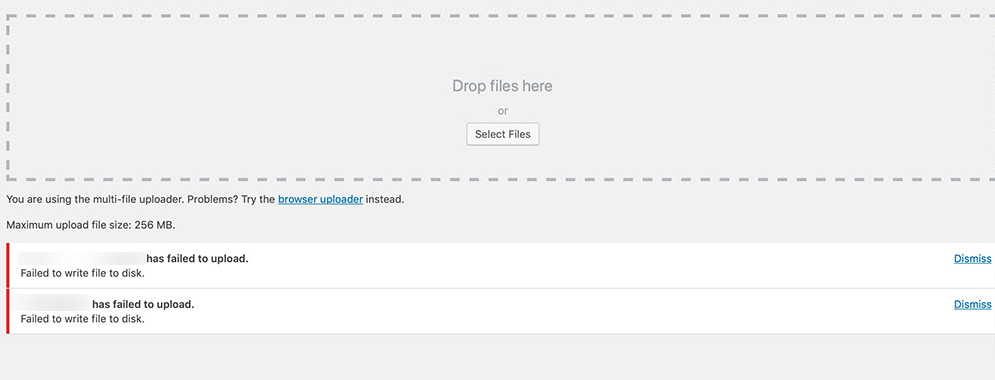
Have you ever experienced the frustration of the ‘Failed to Import Media’ error in WordPress? I know I have. It happened to me right in the middle of a critical project, leaving me unable to add essential media files to my site. It was infuriating, and I felt utterly stuck.
WordPress media hosting
Import media on WordPress hosting with room to work
Media import failures can involve upload limits, memory, permissions, or server timeouts. Voxfor VPS gives WordPress sites dedicated resources for media-heavy content and smoother migrations.
But don’t worry—I managed to resolve the issue, and I’m here to share my experience and guide you through fixing it. This error is more common than you might think, and with patience and the proper steps, you’ll be back on track in no time. If you use the best-managed WordPress hosting, many of these issues can be prevented with their superior support and optimized configurations.
So, let’s dive in and understand what this error is all about.
Understanding the “Failed to Import WordPress Media” Error
When you see the “Failed to Import WordPress Media” error, your WordPress site has trouble uploading and processing media files. This could be images, videos, audio files—anything you want to add to your media library.
Common Causes for the Error:
- Insufficient PHP Memory Limit: Your server might need more memory allocated to handle the upload.
- Incorrect File Permissions: Sometimes, the files or folders in your WordPress directory need the correct permissions.
- Outdated PHP Version: Running an older version of PHP can cause compatibility issues.
- Conflicting Plugins: Some plugins might interfere with the media upload process.
- Issues with the Upload Directory: There might be problems with your media files folder.
- Problematic File Names: File names with special characters or spaces can sometimes cause errors.
It’s crucial to ensure your site is adequately secured to prevent security vulnerabilities that could exacerbate these issues, such as SQL injection attacks. Learn more about how to avoid SQL injection attacks in WordPress.
Essential Solutions | Guide for Beginners
Hey there! If you’re reading this, you’ve probably encountered the frustrating “Failed to Import WordPress Media” error. I’ve been there myself, and I know how annoying it can be when you’re trying to upload your media files, but they won’t cooperate. Don’t worry, though—I’ve got essential solutions that helped me fix this issue, and I’m sure they’ll work for you, too.
Solution 1: Increase PHP Memory Limit

One of the first things I tried was increasing the PHP memory limit. This can often be the culprit behind media import issues. Here’s how you can do it:
- Access Your wp-config.php File: First, you need to access your WordPress installation files. You can upload files using FTP or your hosting provider’s file manager.
- Edit the File: Open the wp-config.php file in a Text editor.
- Add the Code: Find the line that says “/* That’s all, stop editing! Happy blogging. */” and add the following code just above it.
| define(‘WP_MEMORY_LIMIT’, ‘256M’); |
- Save and Upload: After saving your changes, upload the file to your server via FTP.
This increases the memory limit to 256MB, which is usually sufficient for most media uploads. After making this change, try importing your media again.
Solution 2: Check and Change File Permissions

If increasing the memory limit didn’t solve the problem, I next checked the file permissions. Incorrect file permissions can prevent WordPress from uploading media files. Here’s what we need to do:
- Access Your Server: Use FTP or your hosting control panel to access your WordPress installation files.
- Navigate to wp-content: Go to the wp-content folder and find the uploads directory.
- Check Permissions: Right-click on the uploads folder and select “File Per”missions” or “Permission” ns.” Ensure the permissions are set to 755 for directories and 644 for files.
- Apply Permissions to All Files and Folders: If you’re using an FTP client, you can apply these permissions recursively to all subdirectories and files within the uploads folder.
Changing the file permissions made a massive difference for me. It allowed WordPress to correctly write files to the server, resolving the import issue.
Intermediate Solutions
If the essential solutions didn’t do the trick, don’t wouldn’t’ve been there, too. It’s time to dive deeper into some intermediate solutions that can help fix the “Failed to Import WordPress Media” error. These steps are more advanced but still manageable. Let’s get started.
Solution 1: Update PHP Version

Running an outdated PHP version can cause issues, including media import errors. Here’s hoHere’sdated my PHP version:

- Check Current PHP Version: First, I needed to know my site’s PHP version. Check this in your WordPress dashboard under Tools > Site Health > Info > Server. Look for the PHP version.
- Access Hosting Control Panel: I logged into my control panel (cPanel).
- Find PHP Selector: In cPanel, there’s a section called “Software” where you’ll select PHP Version” or something similar.
- Update PHP Version: I selected the latest stable version of PHP (at least 7.4 or higher) and clicked “Set as current.”
Updating to a newer PHP version resolved the media import issue and improved my site’s performance.
Solution 2: Disable Conflicting Plugins

Sometimes, plugins can interfere with each other, causing unexpected issues like this media import error. Here’s hoHere’sgured out if a plugin was causing the problem:
- Deactivate All Plugins: From the WordPress dashboard, go to Plugins > Installed Plugins. Select all plugins and deactivate them at once.
- Test Media Import: With all plugins deactivated, I tried importing my media again. If it worked, I knew the problem was with one of the plugins.
- Reactivate Plugins One by One: I started reactivating plugins one at a time, testing the media import after each activation. This way, I could pinpoint the exact plugin causing the issue.
- Find an Alternative: Once I identified the problematic plugin, I looked for an alternative plugin that offered the same functionality without causing the conflict.
Disabling and testing plugins helped me identify a conflict causing the media import error. Switching to an alternative plugin resolved the issue altogether.
Advanced Solutions
Hey again! If you’re still having trouble after trying the essential solutions, don’t worry—I’ve got some advanced fixes that helped me when I was stuck. Let’s dive into these more technical solutions.
Solution 1: Check and Fix the Upload Directory

One thing that tripped me up was an issue with the upload directory. If WordPress can’t find or access the directory where it stores media files, you’ll run into problems. Here’s what I did to fix it:
- Access WordPress Settings: Go to your WordPress dashboard and navigate to Settings > Media.

- Check Upload Path: Ensure the “Store uploads in this folder” field is set to wp-content/uploads. WordPress will only know where to save your media files if this field is blank or correct.
- Create the Directory Manually: If the wp-content/uploads directory doesn’t exist, create it manually using FTP or your hosting control panel. Make sure the directory has the correct permissions (755 for directories).
I eliminated the import error by ensuring the upload directory was correctly set and had the correct permissions.
Solution 2: Verify and Correct File Names

Another tricky issue I encountered was related to file names. Sometimes, special characters or spaces in file names can cause problems. Here’s hoHere’sndled it:
- Rename Files: Before uploading, rename your files to remove any special characters, spaces, or non-Latin characters. Stick to letters, numbers, dashes, and underscores.
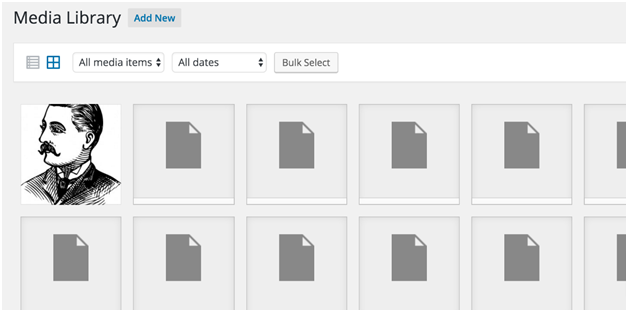
- Re-upload Files: After renaming, try uploading the files through the WordPress media library.
In my case, this was a game-changer. I had a bunch of files with spaces and special characters, and renaming them solved the problem instantly.
Advanced Troubleshooting Techniques
Sometimes, the “Failed to Import WordPress Media” error can persist even after trying all the basic and intermediate solutions. This happened to me, and I had to dig deeper into more advanced troubleshooting techniques. Here’s what for me:
Check Server Logs
When I was at a loss, I checked the server logs. These logs are like a diary of everything happening on your server and can provide insights into what might be causing the error.
- Accessing Server Logs: I logged into my hosting control panel and navigated to the section where server logs are stored. This is usually under “Logs” or “Error Logs.”
- Interpreting the Logs: Once there, I looked for any error messages or warnings that occurred when I tried importing the media. An issue with a specific file was causing the import to fail.
Modify .htaccess File
Another step I took was to modify the .htaccess file. This file controls many server settings for your WordPress site; sometimes, a small change can fix major issues.
- Locate the .htaccess File: Using an FTP client or the file manager in my hosting control panel, I navigated to the root directory of my WordPress installation and located the .htaccess file.
- Editing the File: I made a backup of the file first (just in case something went wrong). Then, I added the following lines to the top of the file:
| <IfModule mod_substitute.c>SubstituteMaxLineLength 10M</IfModule> |
This tweak helped increase the maximum line length the server could process, causing the import error.
Enable Cloudflare Protection
During my troubleshooting, I also enabled Cloudflare protection to shield my site from potential security threats that might interfere with media imports. Cloudflare’s robust security features helped mitigate these issues, allowing for a smoother import process.
Support Assistance:
When I contacted my hosting provider, I gave them detailed information about the error, the steps I had already taken, and any error messages I found in the server logs.
The support team identified a server-side issue causing the import failure. They fixed the issue on their end, and I could finally import my media without problems.
Final Words
After following these steps, I finally resolved my WordPress site’s “Failed to Import WordPress Media” error. It was a frustrating experience, but each solution brought me closer to understanding and fixing the underlying issues. Remember, staying patient and methodically working through each solution is critical.
Whether you increase your PHP memory limit, check file permissions, or contact your hosting provider, your media imports can work smoothly again.