 Lifetime VPS Europe
 Lifetime VPS Asia
 Lifetime WooCommerce Hosting
 Lifetime Hosting
 Lifetime Game Dedicated Servers
 Chicago, US
 Tokyo, Japan
 Singapore
 Hong Kong
 Seoul, South Korea
 Amsterdem, Netherlands
 London, UK
 Stockholm, Sweden
 Oslo, Norway
 Vienna, Austria
 Zurich, Switzerland
 Sydney, Australia
 Wordpress Hosting
 VPS Hosting
 DDOS Protection
 Submit Ticket
 Full Management
 Guides
 Videos and Podcasts
 Discover Creative Ideas
 Voxfor Autonomous AI Workers
 Voxfor Mega Menu
 Voxfor Advanced Price Management For WooCommerce
 Voxfor Secure Live Chat and AI Support
 Voxfor Multilanguage
 Voxfor AI Content Summary
 Voxfor Autopilot

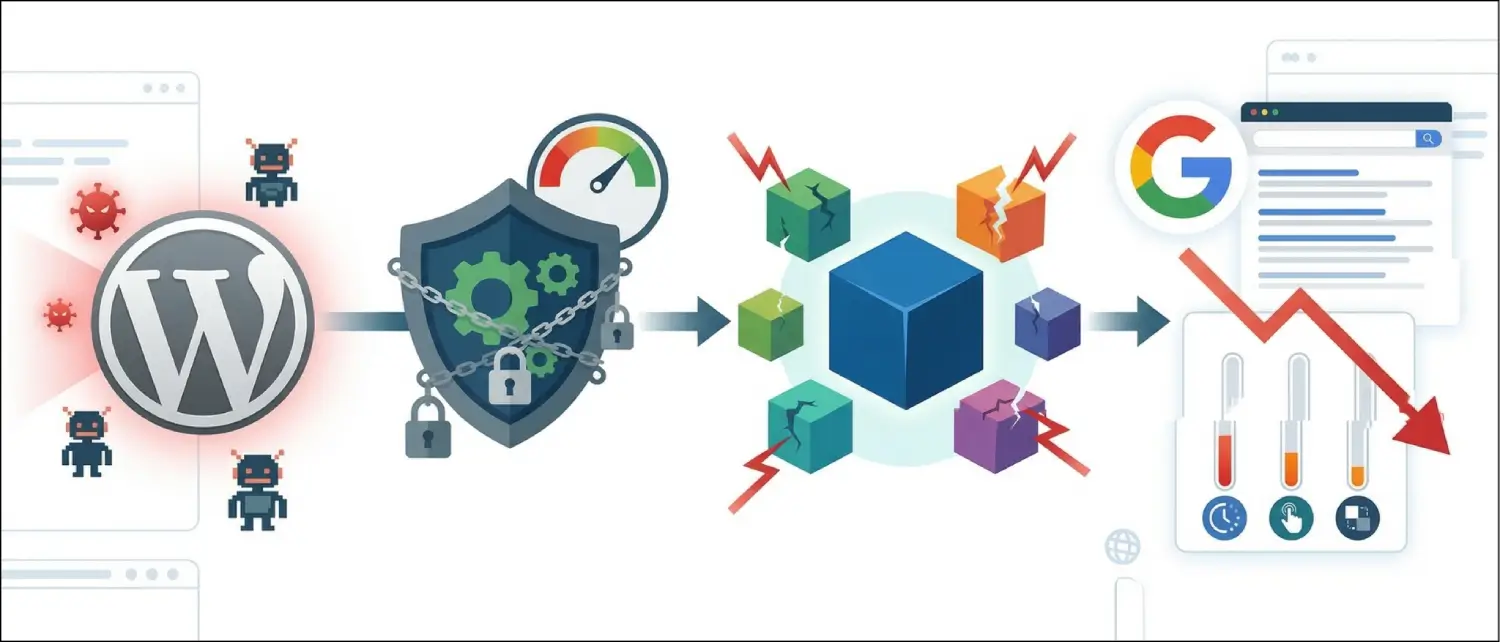
If a WordPress site shows malware warnings, strange redirects, spam pages, unknown admin users or corrupted files, do not start by randomly deleting files. A safe cleanup starts with preserving a backup, reducing exposure, finding the entry point and removing the persistence that would let the infection return.
Quick Answer: Remove Malware Without Breaking the Site
To remove malware from WordPress safely, first take a full backup of the infected site and database, then limit public damage while you investigate. Scan the site, compare core files, inspect plugins, themes, uploads, mu-plugins, users, scheduled tasks, database options and server logs. Clean or replace infected files only after you know what changed. After cleanup, rotate passwords and security keys, patch the weakness, verify Search Console or browser warnings and monitor the site for reinfection.
This matters because visible malware is often only one symptom. A hacked WordPress site may also contain a backdoor, fake administrator account, injected database option, malicious cron task, altered .htaccess rule or compromised plugin file. If those are missed, the site can look clean for a day and then become infected again.
First 30 Minutes: Stabilize Before You Clean
The first goal is control, not perfection. You want to stop the damage from spreading while keeping enough evidence to understand what happened. This is especially important for WooCommerce, membership, LMS and lead-generation sites where user data, orders or form submissions may be involved.
- Take a full backup. Save files and database before cleanup. Mark it clearly as an infected backup so it is not restored accidentally later.
- Record symptoms. Note the warning message, redirect URL, suspicious page, modified file time, unknown user or scanner result.
- Reduce public exposure. If the site is actively redirecting visitors or serving malware, put it into maintenance mode, block only the affected path or temporarily restrict access while you investigate.
- Do not bulk-delete files yet. Quarantine suspicious files when possible and keep notes. Deleting without a backup can destroy evidence and break the site.
- Check whether sensitive data may be affected. If accounts, payments, private forms or customer records are involved, treat the cleanup as a security incident, not only a technical task.
WordPress.org has a practical baseline for compromised sites in its site hacked FAQ. Use that as a safety reminder: regain control, identify the compromise, remove it and harden the site afterwards.
Decide: Restore Clean Manually or Get Help
Not every infected site should be cleaned the same way. The right path depends on the quality of your backups, the age of the infection and how much trust you need to restore.
| Situation | Recommended next step | Why |
|---|---|---|
| You have a clean backup from before the infection | Restore to staging first, then compare and patch before going live | A clean restore is often safer than manually editing many infected files. |
| You do not know when the infection started | Inspect files, database, users and logs before choosing a restore point | An old backup may already contain the backdoor. |
| The site handles payments, private accounts or medical/legal data | Use professional cleanup and preserve logs | There may be legal, privacy or payment-processing obligations that vary by business and location. |
| The site reinfects after cleanup | Look for persistence: backdoors, cron tasks, fake admins, modified options and vulnerable plugins | Repeated infection usually means the original entry point or backdoor was not removed. |
Scan the Site but Do Not Trust One Scanner Alone
A security scanner is useful, but it is not a full investigation. A scanner can miss custom backdoors, flag harmless code by mistake or show only the visible infected file. Use scan results as leads, then verify them manually.
- Run a WordPress security scan if the dashboard is safe enough to access.
- Run a server-side malware scan if your hosting panel provides one.
- Check recently modified files by date, especially around the first known symptom.
- Compare WordPress core files against a fresh copy of the same WordPress version.
- Review plugin and theme folders against the official source or a known-clean backup.
If you use Wordfence or a similar scanner, treat the result as a map for the next inspection step. The scanner may point to an injected file, but you still need to ask why that file changed and whether another file can recreate it.
Inspect the WordPress Files That Malware Commonly Abuses
Start with high-risk locations. You are looking for code that does not belong: obfuscated PHP, strange remote requests, fake image files with PHP inside, unexpected admin tools, hidden files, unknown redirects and files modified at odd times.
wp-content/uploads/: uploads should usually be media, not executable PHP. Be careful with legitimate plugin-created files, but treat PHP files in uploads as suspicious.wp-content/mu-plugins/: must-use plugins load automatically and are easy to forget during cleanup.wp-content/plugins/: compare active plugin folders with trusted copies, especially plugins that have not been updated or are no longer maintained.wp-content/themes/: checkfunctions.php, template files and any recently modified theme files..htaccess: look for redirects, strange rewrite rules, blocked admin access or injected code that sends only search visitors elsewhere.wp-config.php: check for unknown includes, remote calls or modified database settings. WordPress has official guidance for editing wp-config.php safely.
If you find a suspicious file, do not delete it as the first action. Copy it into a quarantine folder outside the public webroot or download it for analysis, then replace it with a clean copy only after confirming the site still works. This keeps the cleanup recoverable.
Check the Database Users and Scheduled Tasks
Many WordPress infections are not only file infections. Attackers can store redirects, spam links, hidden admins or malicious options in the database. A file cleanup that ignores the database can miss the mechanism that keeps the infection alive.
- Admin users: review all administrators and remove accounts that no one recognizes. Check email addresses and creation dates.
wp_options: inspect the site URL, home URL, active plugins, active theme and unusual autoloaded options.- Posts and pages: search for injected script tags, hidden links, pharmaceutical spam, casino links or strange iframes.
- Widgets and menus: attackers sometimes hide links or scripts in areas editors rarely inspect.
- Cron tasks: review WordPress scheduled tasks and server cron jobs for unknown scripts that recreate malware.
Use database tools carefully. Do not run broad search-and-delete operations on a production database without a backup and a clear rollback path. If the site uses WooCommerce or memberships, database mistakes can damage orders, subscriptions or user records.
Replace Core Files and Patch the Entry Point
Once you understand the infection pattern, replace WordPress core files from a clean source and update vulnerable plugins and themes. This is different from treating updates as the whole cleanup. Updates are important, but they should happen after you have preserved evidence and identified what needs to be removed.
Core WordPress files can usually be replaced from a clean download of the same or newer version. Plugin and theme files should be replaced from the official source or your paid vendor download, not from random ZIP files found online. If a plugin is abandoned or no longer trusted, replace it with a maintained alternative instead of reinstalling the same risk.
The entry point may be a weak password, outdated plugin, nulled theme, exposed XML-RPC endpoint, vulnerable custom code or compromised hosting account. If brute force was involved, review the Voxfor guide on preventing WordPress brute force attacks. If injected scripts or unsafe input handling are part of the issue, review WordPress XSS prevention. If suspicious PHP keeps returning, use the dedicated WordPress backdoor removal guide.
Rotate Passwords Keys and Access After Cleanup
After malware cleanup, assume old access may be exposed. Rotating credentials is not a cosmetic step; it is how you stop an attacker from logging back in after you clean the files.
- Reset passwords for all WordPress administrators.
- Remove unknown users and reduce administrator access to the smallest practical group.
- Change hosting panel, SFTP/FTP, SSH, database and email passwords if they may have been exposed.
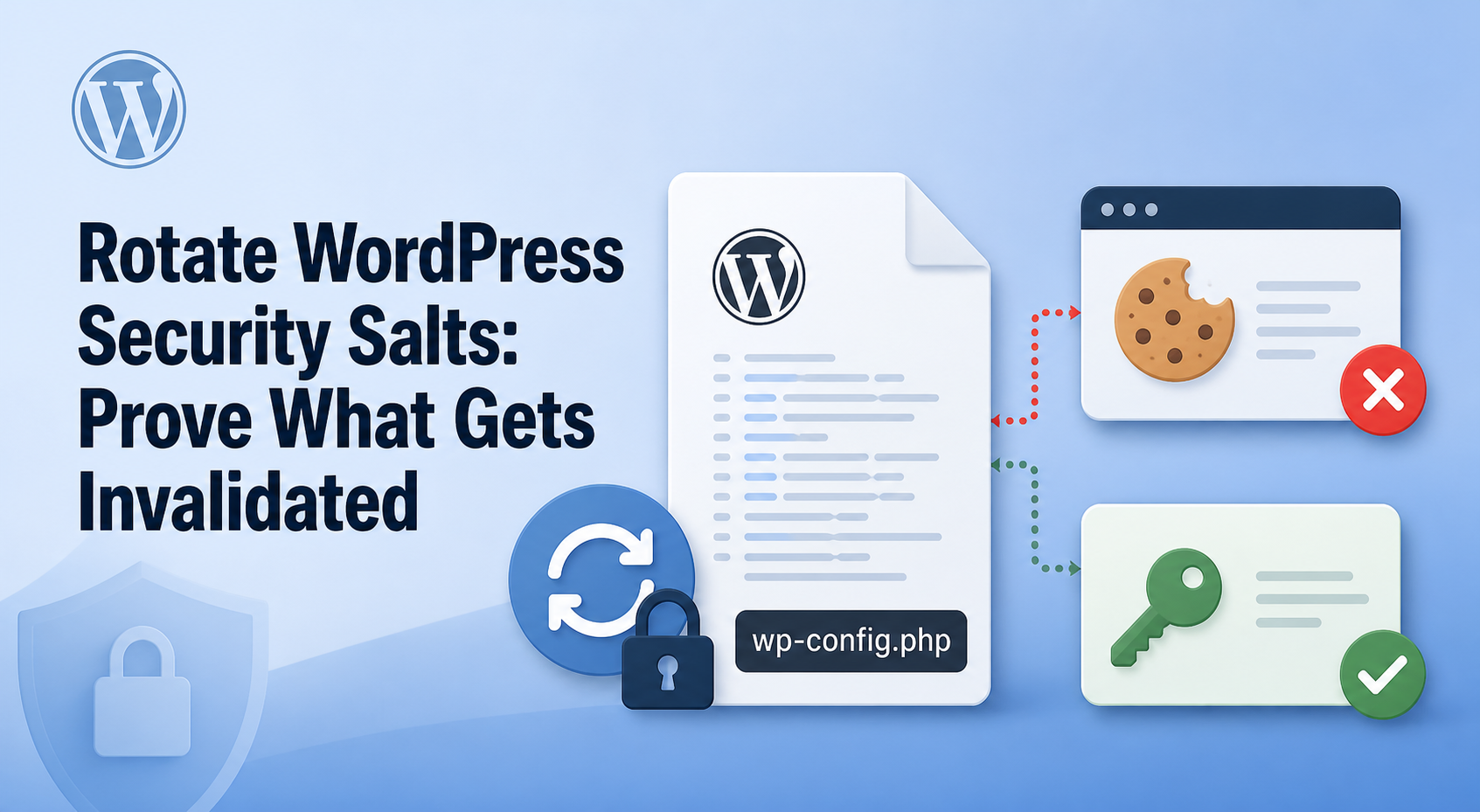
- Regenerate WordPress authentication salts and security keys in
wp-config.php. - Reissue API keys used by forms, payment plugins, CRM integrations or AI plugins if there is evidence they were exposed.
- Enable two-factor authentication for administrators where possible.
For general hardening after recovery, the official WordPress hardening guide is a strong baseline. It covers updates, access control, file permissions and server-side protections that reduce future risk.
Verify the Site Is Clean
A site is not clean just because the homepage loads. Verify the areas where malware usually hides and the areas where users actually interact with the business.
| Area | What to check |
|---|---|
| Public pages | Homepage, top landing pages, blog posts, forms, checkout and account pages. |
| Search visitors | Open pages from a clean browser and check for conditional redirects or spam content. |
| File system | No unknown PHP files in uploads, no strange mu-plugins, no unexpected recent modifications. |
| Database | No injected scripts, spam links, fake admins, suspicious options or unknown cron tasks. |
| Security tools | Scan again and review each warning instead of assuming all warnings are equal. |
| Google signals | Check Search Console security issues and request a review only after the cleanup is complete. |
If Google or browsers show malware warnings, follow the relevant Search Central process after cleanup. Google’s documentation on malware and unwanted software warnings explains how warnings are detected and why cleanup must be complete before requesting review.
Harden Hosting So the Infection Does Not Return
Malware cleanup should end with hardening. That does not mean adding every security plugin available. It means reducing the ways attackers can get back in and making recovery easier if something goes wrong again.
- Keep WordPress core, plugins and themes maintained.
- Remove abandoned plugins, unused themes and old ZIP backups from the webroot.
- Use least-privilege admin access and two-factor authentication.
- Keep tested backups that include files and database.
- Review file permissions and disable risky file editing from the dashboard where appropriate.
- Use HTTPS correctly and fix mixed content after recovery. The Voxfor WordPress SSL guide can help with that part.
- Review XML-RPC exposure if login abuse was part of the incident. See the Voxfor xmlrpc.php security guide for safe exceptions and blocking options.
If the cleanup also involves moving the site, use a structured post-migration review. The WordPress migration checklist is useful after recovery because DNS, SSL, redirects, caching and Search Console signals can all affect trust after a move.
When Voxfor Hosting Support Makes Sense
Some site owners can clean a simple infected blog themselves. Others should not risk it. If the site earns revenue, stores user data, has repeated reinfections or depends on WooCommerce, professional recovery and hosting review can save time and reduce the chance of missing a backdoor.
Voxfor managed WordPress hosting is the better fit when the site owner wants help with performance, backups, recovery planning, monitoring and WordPress operations after the emergency is under control. For broader site owners comparing hosting paths, the main WordPress hosting page is the right next step.
Be realistic about what hosting can and cannot do. Better hosting can improve isolation, backups, monitoring and support workflows. It does not magically make unsafe passwords, abandoned plugins or unreviewed custom code safe. The cleanup is strongest when the site, plugins, users and hosting layer are reviewed together.
Frequently Asked Questions
Can I remove WordPress malware with one plugin scan?
A plugin scan can help find suspicious files, but it should not be the whole cleanup. You still need to check users, database entries, cron tasks, mu-plugins, uploads, .htaccess, wp-config.php and the vulnerable plugin or access path that allowed the infection.
Should I restore from backup or clean the current site?
Restore from a known-clean backup when you are confident the backup is older than the infection and you can patch the original weakness before going live. Clean the current site when no clean backup exists, when content changed after the last clean backup or when you need to understand the entry point before restoring.
Should I update WordPress before malware cleanup?
Updates are important, but preserve a backup and reduce exposure first. Updating immediately can overwrite evidence or make troubleshooting harder. After you understand the infection, update WordPress, plugins and themes from trusted sources.
What should I do if malware keeps coming back?
Repeated infection usually means a persistence mechanism remains. Look for backdoors, fake admin accounts, malicious scheduled tasks, injected database options, exposed credentials, vulnerable plugins or server-level access that was not rotated.
Do I need to notify users after a WordPress hack?
It depends on what data may have been exposed, your business type and the laws or platform rules that apply to you. If accounts, payments, health information, legal data or private form submissions may be involved, preserve logs and get professional advice before assuming it is only a website cleanup issue.