 Lifetime VPS Europe
 Lifetime VPS Asia
 Lifetime WooCommerce Hosting
 Lifetime Hosting
 Lifetime Game Dedicated Servers
 Chicago, US
 Tokyo, Japan
 Singapore
 Hong Kong
 Seoul, South Korea
 Amsterdem, Netherlands
 London, UK
 Stockholm, Sweden
 Oslo, Norway
 Vienna, Austria
 Zurich, Switzerland
 Sydney, Australia
 Wordpress Hosting
 VPS Hosting
 DDOS Protection
 Submit Ticket
 Full Management
 Guides
 Videos and Podcasts
 Discover Creative Ideas
 Cybersecurity Services
 Voxfor Mega Menu
 Voxfor Advanced Price Management For WooCommerce
 Voxfor Secure Live Chat and AI Support
 Voxfor Multilanguage
 Voxfor AI Content Summary
 Voxfor Autopilot
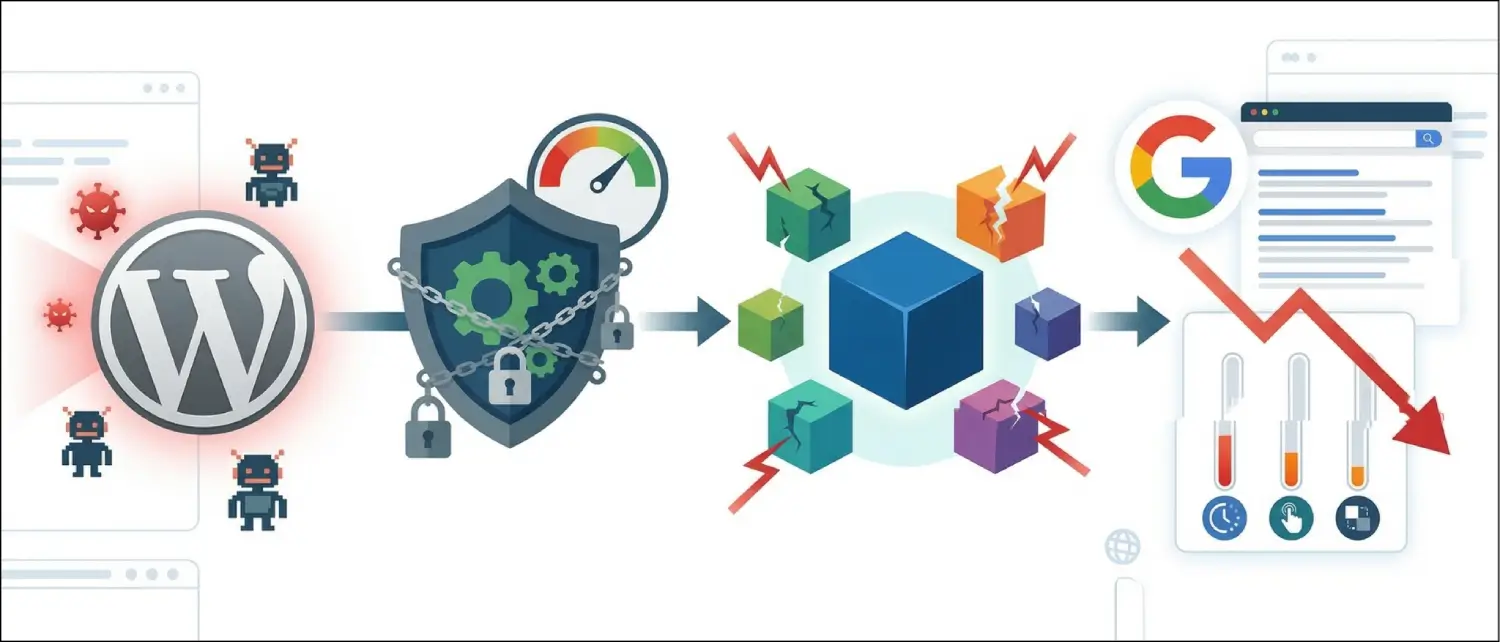
Quick answer: A WordPress 504 Gateway Timeout means a gateway, proxy, CDN, web server, PHP process, database, or upstream service did not respond in time. Start with evidence: affected URLs, timing, server logs, PHP-FPM logs, database load, CDN status, and recent WordPress changes. Do not randomly delete plugins or database rows before you know where the request is timing out.
504 errors are frustrating because the browser message is vague. The fix depends on whether the timeout happens at the CDN edge, the web server, PHP workers, database queries, a slow plugin, a payment or shipping API, or a scheduled job running at the wrong time.
What a 504 Gateway Timeout Means
HTTP 504 means a server acting as a gateway or proxy did not receive a timely response from an upstream server needed to complete the request. In WordPress, that upstream delay often comes from PHP, MySQL, a reverse proxy, a CDN, a firewall, or an external API used by a plugin.
| Error | Meaning | Common WordPress angle |
|---|---|---|
| 500 | Internal server error. | PHP fatal error, bad configuration, or application failure. |
| 502 | Bad gateway response. | PHP-FPM, upstream service, or proxy returned an invalid response. |
| 503 | Service unavailable. | Server overload, maintenance mode, or service unavailable. |
| 504 | Gateway timeout. | Upstream request took too long to respond. |
First Evidence To Collect
- Write down the exact URL, time, browser, user action, and whether the error affects frontend, wp-admin, checkout, REST API, or cron.
- Check whether static pages load while dynamic pages fail.
- Review hosting resource graphs for CPU, memory, disk I/O, database load, and PHP workers.
- Check web server error logs, PHP-FPM logs, WordPress debug log, and CDN events around the same timestamp.
- List recent plugin, theme, PHP, CDN, firewall, DNS, import, backup, or WooCommerce changes.
Where the Timeout Usually Comes From
| Layer | Signal | What to check |
|---|---|---|
| CDN or edge proxy | Only proxied traffic fails, direct origin works. | CDN event logs, origin IP, firewall allowlist, cache rules. |
| Web server | Nginx or Apache logs show upstream timeout. | Proxy timeout, FastCGI timeout, worker saturation, error logs. |
| PHP-FPM | Slow scripts or busy workers. | PHP-FPM status, slow log, max children, memory pressure. |
| Database | Admin searches, checkout, or imports hang. | Slow queries, locked tables, large options, missing indexes. |
| Plugin or theme | Timeout started after a change or appears on specific actions. | Recent updates, external calls, hooks, logs, staging test. |
| External API | Checkout, shipping, tax, license, or email requests hang. | Provider status, timeout settings, API logs, retry behavior. |
Safe WordPress Troubleshooting Order
If the dashboard is accessible, avoid mass changes first. Start with logs and a staging copy when possible. If the site is down and revenue is affected, take a backup before disabling plugins, changing themes, or editing timeout settings.
- Pause scheduled imports, backups, or sync jobs that started near the timeout window.
- Temporarily bypass CDN or firewall rules only long enough to identify whether the origin is reachable.
- Disable the most likely plugin on staging or during a controlled maintenance window.
- Check whether a default theme changes the behavior only if theme templates appear in logs.
- Increase timeout limits only after confirming the request is legitimate and not stuck in a loop.
- Optimize database tables, options, or transients only after a backup and clear diagnosis.
Useful Read-Only Checks
The following checks gather evidence without deleting content or changing configuration. Paths vary by host, so use the log locations provided by your server or hosting panel.
tail -n 100 /var/log/nginx/error.log
tail -n 100 /var/log/apache2/error.log
tail -n 100 /var/log/php*-fpm.log
wp cron event list --due-now
wp option get siteurl
On managed hosting, these details may be available in the control panel instead of the filesystem. The goal is the same: match the timeout timestamp with a specific layer, request, plugin, cron event, or upstream service.
Decision Tree for the Next Action
| Observation | Likely direction | Next action |
|---|---|---|
| Only CDN traffic fails | Edge, origin IP, firewall, or CDN timeout. | Check CDN events and direct-origin response. |
| Only checkout fails | Payment, shipping, tax, sessions, or WooCommerce hooks. | Check gateway logs, order notes, and Action Scheduler. |
| Only wp-admin fails | Plugin admin screen, product query, report, or import. | Check PHP slow logs and recent admin actions. |
| All dynamic pages fail | PHP-FPM, database, object cache, or server resources. | Check workers, database load, memory, and disk. |
| Static files load normally | Web server is alive, application layer may be blocked. | Focus on PHP, database, plugins, and external calls. |
WooCommerce 504 Errors Need Extra Care
For WooCommerce, a 504 on cart, checkout, payment return, order admin, or product import can affect orders and stock accuracy. Check payment gateway logs, webhooks, shipping/tax API calls, session handling, object cache, HPOS compatibility, Action Scheduler backlog, and long-running imports before changing checkout plugins.
If a payment may have completed while the site timed out, reconcile the order with the payment provider before retrying or canceling anything. A timeout in the browser does not automatically mean the transaction failed.
Timeout Settings Are Not the Whole Fix
Raising PHP, Nginx, Apache, or proxy timeouts can hide a symptom while the slow request remains. Longer timeouts may be useful for legitimate imports or admin tasks, but they can also keep workers busy for too long. Find the slow query, plugin call, external API, or resource limit before relying on higher timeout numbers.
What To Send Your Hosting Provider
- Affected URLs and timestamps with timezone.
- Whether the issue affects frontend, wp-admin, checkout, REST API, or cron.
- Recent plugin, theme, DNS, CDN, firewall, PHP, or import changes.
- Relevant log snippets without passwords, API keys, or private customer data.
- Whether CDN bypass or direct-origin testing changes the result.
Prevention Checklist
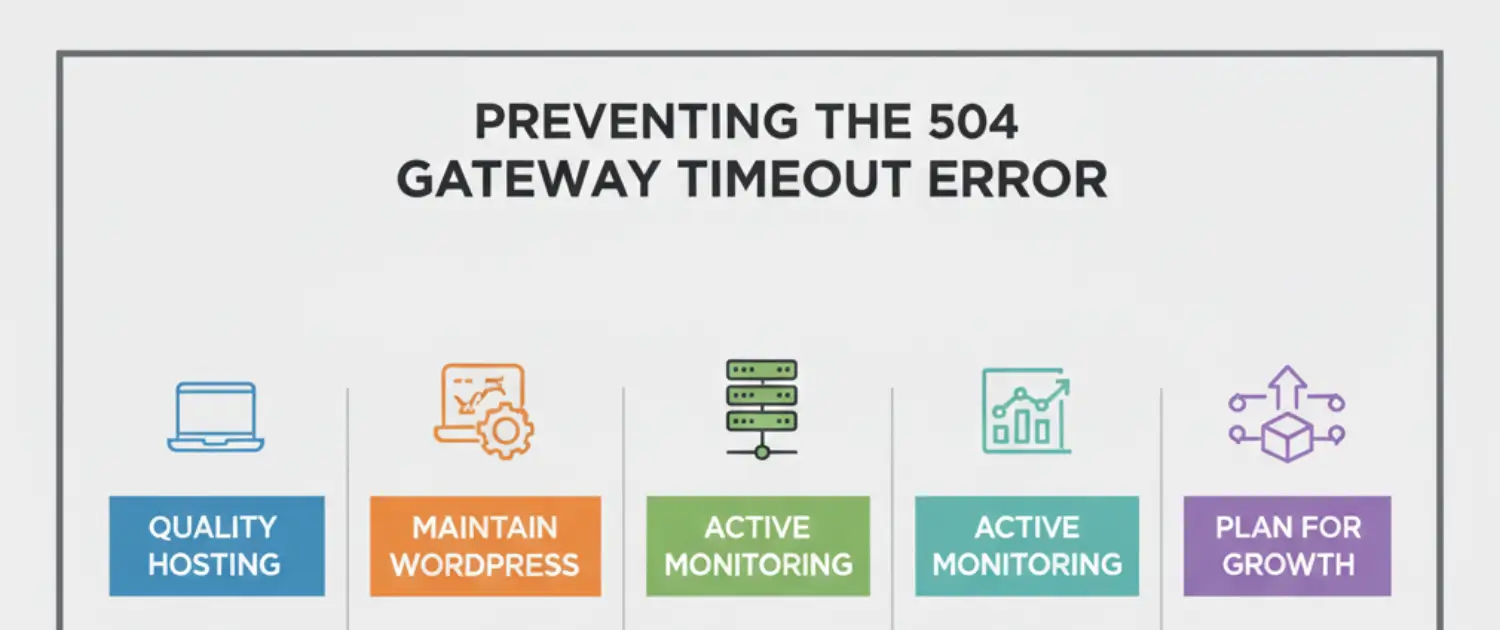
- Monitor PHP workers, database load, cron, Action Scheduler, disk, and memory.
- Schedule backups, imports, and feed sync outside busy store hours.
- Keep plugin changes staged and documented.
- Use object cache and page cache where the site workflow supports it.
- Review CDN and firewall events after major traffic spikes or rule changes.
- Keep a rollback plan for plugins, themes, PHP versions, and server config.
About the Writer
Hassan Tahir wrote the original article. This version was manually reviewed and rebuilt by the Voxfor editorial team for safer WordPress 504 diagnosis, WooCommerce timeout handling, hosting escalation, and performance troubleshooting.
Frequently Asked Questions
What causes a WordPress 504 gateway timeout?
Common causes include slow PHP requests, busy PHP workers, database bottlenecks, plugin conflicts, CDN proxy timeouts, firewall blocks, external API delays, and overloaded hosting resources.
Should I deactivate plugins before checking logs?
No. Check logs, timestamps, and recent changes first. Disable likely plugins in a controlled way, preferably on staging or after taking a backup.
Can CDN settings cause a 504?
Yes. CDN origin settings, firewall rules, proxy timeouts, and blocked CDN IP ranges can create 504 errors even when WordPress is available at the origin.
Why do WooCommerce checkout 504 errors matter?
Checkout timeouts can affect payments, order creation, stock, sessions, and customer trust. Reconcile payment provider logs before assuming a failed browser response means no transaction occurred.
Should timeout limits be increased?
Only after diagnosis. Increasing timeout values can help legitimate long-running tasks, but it can also hide slow queries, stuck external calls, or worker exhaustion.
What should I send to hosting support?
Send affected URLs, timestamps, error logs, recent changes, CDN status, and whether the issue affects frontend, wp-admin, checkout, REST API, or scheduled jobs.