 Lifetime VPS Europe
 Lifetime VPS Asia
 Lifetime WooCommerce Hosting
 Lifetime Hosting
 Lifetime Game Dedicated Servers
 Chicago, US
 Tokyo, Japan
 Singapore
 Hong Kong
 Seoul, South Korea
 Amsterdem, Netherlands
 London, UK
 Stockholm, Sweden
 Oslo, Norway
 Vienna, Austria
 Zurich, Switzerland
 Sydney, Australia
 Wordpress Hosting
 VPS Hosting
 DDOS Protection
 Submit Ticket
 Full Management
 Guides
 Videos and Podcasts
 Discover Creative Ideas
 Cybersecurity Services
 Voxfor Mega Menu
 Voxfor Advanced Price Management For WooCommerce
 Voxfor Secure Live Chat and AI Support
 Voxfor Multilanguage
 Voxfor AI Content Summary
 Voxfor Autopilot

To order Voxfor managed WordPress hosting, start from the Voxfor WordPress hosting page, choose a plan that fits your site type, review the cart, create or log in to your account, complete checkout, then verify DNS, SSL, WordPress access, backups, caching and any migration request before sending promotion traffic to the site.
Plan names, prices, billing cycles and included support can change, so use the live Voxfor order page as the source of truth during checkout.
Before You Order: Prepare These Details
- Domain plan: decide whether you will point an existing domain, register a new one or move DNS later.
- Current site access: if migrating, keep WordPress admin, old hosting panel, FTP/SFTP and database access ready.
- Email usage: know whether email is hosted separately or needs to be preserved during DNS changes.
- Site type: blog, business site, WooCommerce store, membership site, agency site or high-traffic campaign page.
- Launch timing: avoid DNS or migration work during active campaigns unless you have a rollback plan.
Choose the Right Managed WordPress Hosting Plan
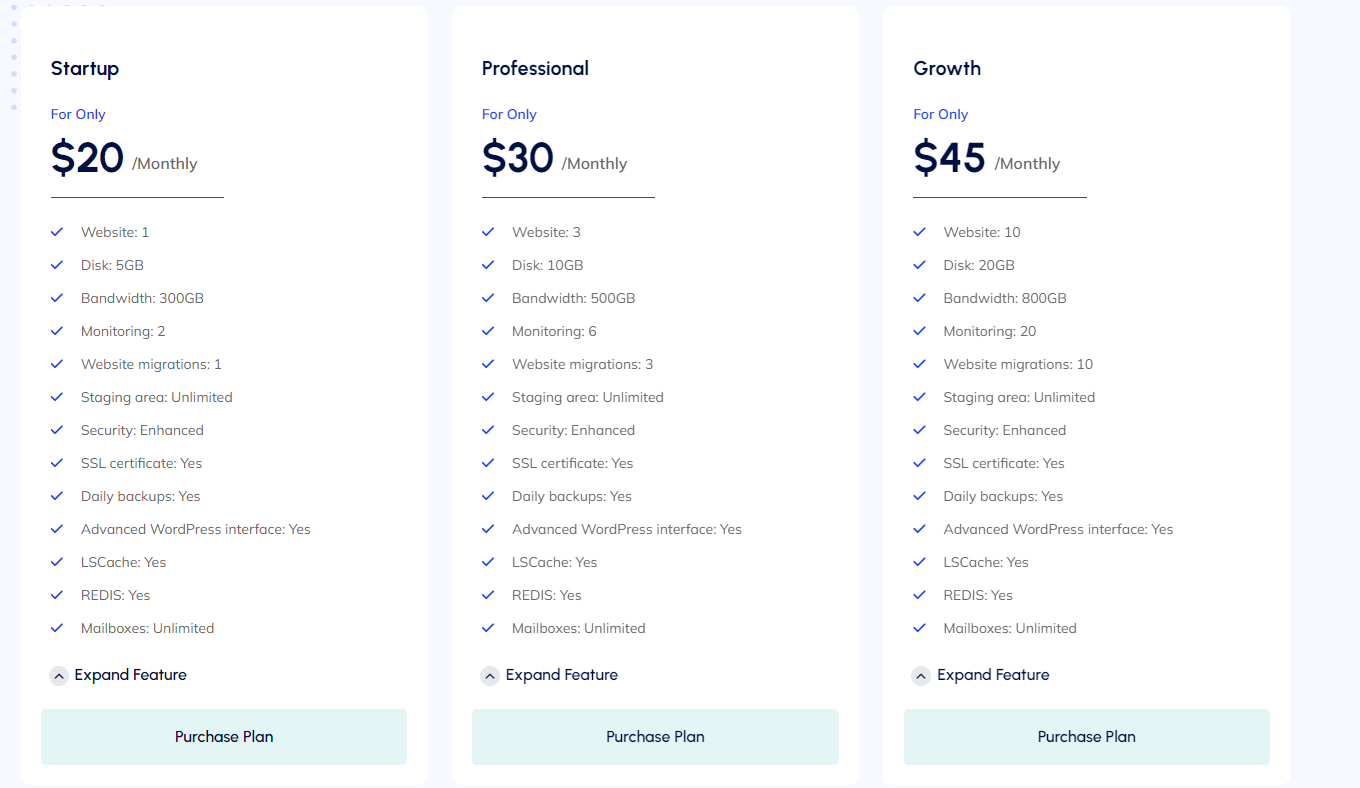
A plan should match the workload, not only the lowest visible price. Use the live order page for current pricing and limits, then choose based on site count, storage, traffic, WooCommerce needs, migration support and how much technical help you expect after launch.
| Site type | What to prioritize | Questions before checkout |
|---|---|---|
| Personal blog or small brochure site | Simple WordPress install, SSL, backups and clean DNS setup | How many sites are included? Do you need migration help? |
| Business website | Reliability, contact forms, SSL, caching and support response | Who will update content and plugins after launch? |
| WooCommerce store | Checkout speed, database health, cache exclusions, backups and staging discipline | Does the plan fit product count, orders, payment gateways and shipping plugins? |
| Agency or multisite work | Multiple installs, access control, backups and repeatable launch workflow | How will client access, updates and billing responsibility be handled? |
| High-traffic WordPress project | CPU/RAM headroom, object cache, image optimization, CDN/cache strategy and monitoring | What happens during campaigns, launches or traffic spikes? |
Order Flow: From Plan Page to Checkout
- Open the Voxfor managed WordPress hosting page.
- Compare the current plan options, included resources and billing choices shown on the page.
- Select the plan that matches your site type and expected workload.
- Review the cart carefully: plan, billing cycle, domain choices, add-ons and total due today.
- Create a Voxfor client account or log in to your existing account.
- Enter billing details and choose one of the payment methods currently offered at checkout.
- Submit the order and keep the confirmation email, invoice and login details available for setup.
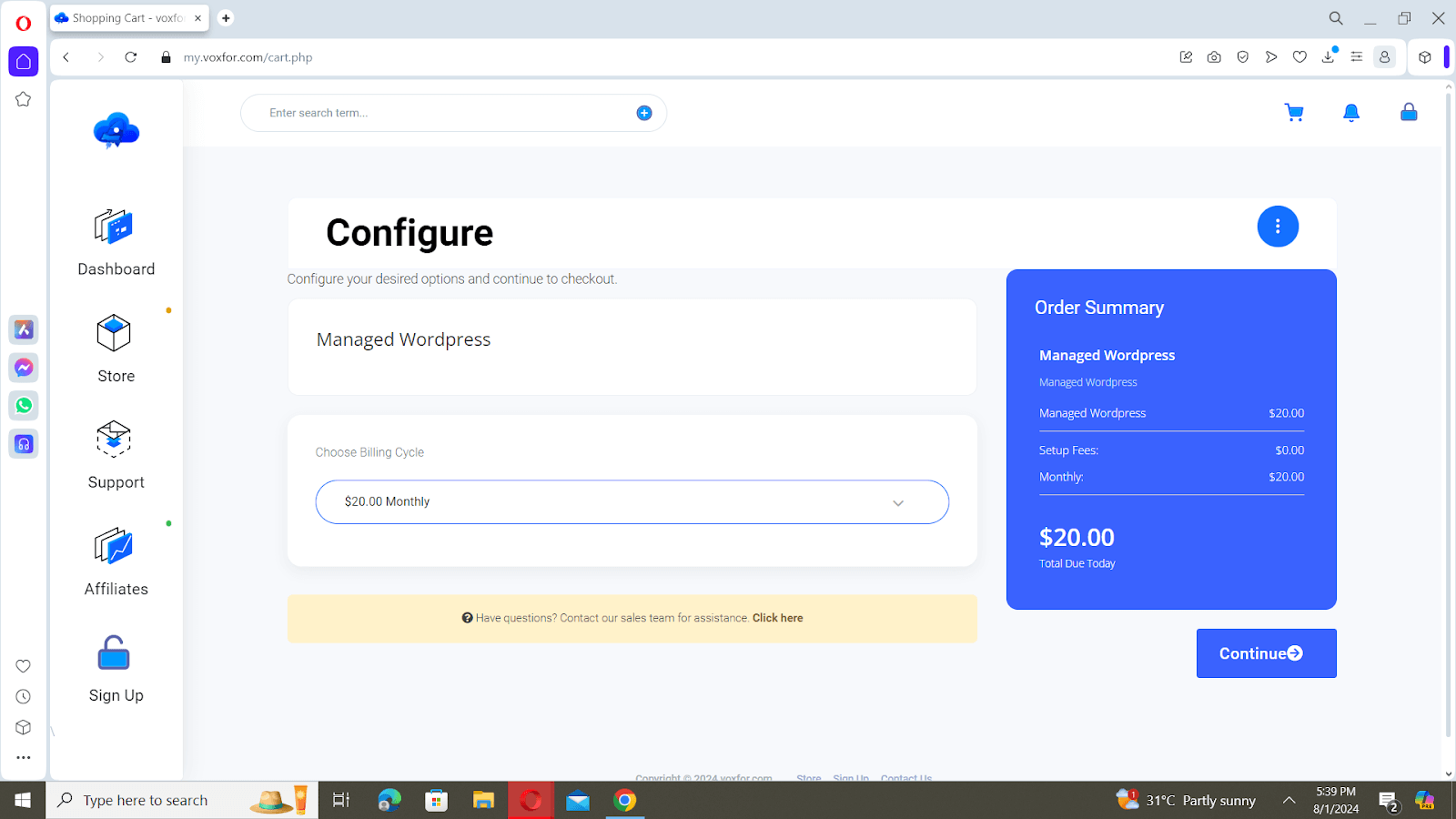
What to Check During Checkout
- The plan supports the number of WordPress sites you expect to run.
- The storage and traffic assumptions fit your media library, backups and expected visitors.
- The billing cycle and renewal/lifetime terms match what you intend to buy.
- The domain field is correct and does not contain a typo.
- You understand which setup tasks are automatic and which require a support request or your own DNS change.
After Payment: Setup and Launch Checklist
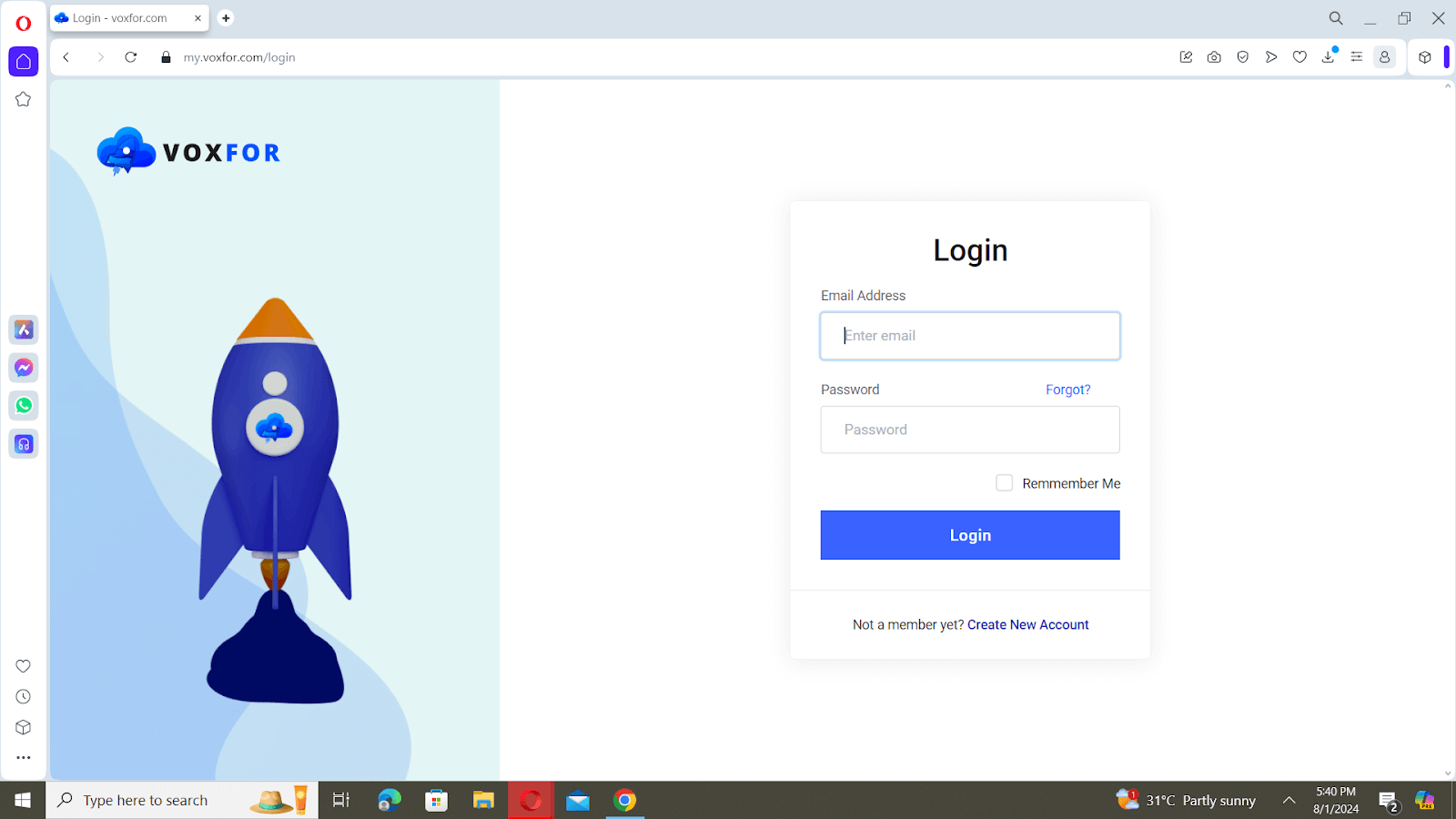
- Log in to your Voxfor account and confirm the hosting service is active.
- Access the hosting control panel or setup instructions provided with the service.
- Install WordPress or confirm that the managed setup was provisioned for you.
- Point DNS to the correct server records when you are ready to connect the domain.
- Verify HTTPS/SSL after DNS resolves. Use the WordPress SSL guide if you need a checklist for mixed content and secure URLs.
- Check WordPress admin login, permalink settings, cache behavior and important pages.
- Confirm backups, restore expectations and migration status before making major content changes.
If You Are Migrating an Existing WordPress Site
A migration order needs more preparation than a fresh WordPress install. Do not change DNS until the copied site has been checked. Use the WordPress migration checklist to verify redirects, SSL, forms, images, login, search visibility, analytics, sitemap, robots settings and performance after the move.
Keep the old hosting account active until the new site is tested and DNS propagation is stable. If the site receives leads or orders, test contact forms, checkout, payment gateways and email delivery before announcing the move.
When Managed WordPress Hosting Is the Right Choice
Managed WordPress hosting makes sense when you want WordPress-focused hosting, help with the hosting layer and a cleaner path for launch or migration. It is especially useful for business sites, WooCommerce stores and owners who do not want to manage every server detail themselves.
For the current managed WordPress offer, plan details and checkout path, use the Voxfor WordPress hosting page. If you are unsure which plan fits the site, contact support before checkout with traffic, plugin, migration and launch details.
Troubleshooting Common Ordering Problems
| Problem | What to check |
|---|---|
| Payment did not complete | Check the invoice status, payment method result and whether the order confirmation email arrived. |
| Wrong domain entered | Do not change DNS yet. Correct the service/domain details in the client area or ask support before launch. |
| DNS is not resolving | Confirm nameservers or DNS records, then allow propagation time before retesting. |
| SSL is not active yet | Wait until DNS points correctly, then issue or verify SSL and check for mixed-content warnings. |
| Migration is not ready | Keep the old site live, provide missing access details and test the copied site before switching DNS. |
Final Recommendation
Ordering managed WordPress hosting should feel like a launch workflow, not only a purchase. Choose the plan from the live Voxfor page, prepare domain and migration access, check the cart, complete checkout, then verify DNS, SSL, WordPress login, backups and key pages before you promote the site.
If the site is a business asset, do not skip the post-order checks. A correct order is only the first step; the real goal is a WordPress site that loads correctly, accepts leads or orders, and can be safely maintained after launch.
Frequently Asked Questions
What do I need before ordering managed WordPress hosting?
Prepare your domain, current hosting access if migrating, WordPress admin access, email requirements, billing details and preferred launch timing.
Can Voxfor help move an existing WordPress site?
Migration support depends on the current service terms and the access you can provide. Before DNS changes, verify the migrated site with a checklist for SSL, forms, redirects, images, analytics and performance.
Should I move my domain or only point DNS?
Many sites only need DNS records or nameservers changed. A domain transfer is a separate decision and should not be rushed during a live migration.
When should I check SSL?
Check SSL after DNS is resolving to the new hosting. Then test the homepage, login page, forms, checkout pages and any images or scripts that may still load over HTTP.
What should I check after ordering?
Check DNS, SSL, admin login, backups, cache, forms, analytics, sitemap, robots settings, important pages and any migration-specific redirects.