 Lifetime VPS Europe
 Lifetime VPS Asia
 Lifetime WooCommerce Hosting
 Lifetime Hosting
 Lifetime Game Dedicated Servers
 Chicago, US
 Tokyo, Japan
 Singapore
 Hong Kong
 Seoul, South Korea
 Amsterdem, Netherlands
 London, UK
 Stockholm, Sweden
 Oslo, Norway
 Vienna, Austria
 Zurich, Switzerland
 Sydney, Australia
 Wordpress Hosting
 VPS Hosting
 DDOS Protection
 Submit Ticket
 Full Management
 Guides
 Videos and Podcasts
 Discover Creative Ideas
 Cybersecurity Services
 Voxfor Mega Menu
 Voxfor Advanced Price Management For WooCommerce
 Voxfor Secure Live Chat and AI Support
 Voxfor Multilanguage
 Voxfor AI Content Summary
 Voxfor Autopilot

Quick Answer
A vector database on a VPS lets you build private AI search and RAG workflows without sending every storage decision to a SaaS platform. The VPS hosts embeddings, metadata, APIs and access controls, while Claude or another AI model can retrieve relevant context from your own indexed content. This is useful for support knowledge bases, internal documents, product catalogs and private research.
VPS Fit by Vector Search Workload
| Use case | Recommended starting point | Why it matters |
|---|---|---|
| Small knowledge base | 2-4 vCPU, 4-8 GB RAM | Good for prototypes, private notes and small support libraries. |
| Business RAG app | 4-8 vCPU, 8-16 GB RAM, NVMe | Better for larger indexes, API access and regular updates. |
| AI agent memory/search | 8+ GB RAM, backups, monitoring | Pair with MCP, agents and careful access control. |
Sizing Assumptions Before You Choose a VPS
| Workload | Typical starting point | Manual check |
|---|---|---|
| Proof of concept | Small Qdrant/Chroma index, API-only RAG, limited documents | Track RAM, disk growth, query latency and backup size. |
| Business knowledge base | 8-16 GB RAM, NVMe, scheduled ingestion, private API | Measure vector dimensions, chunks, metadata filters and update frequency. |
| Production AI search | Dedicated resources, backups, monitoring, access controls | Test restore, retention, auth, rate limits and retrieval quality before launch. |
| Very large indexes | Cluster or managed architecture | Do not assume one VPS can handle distributed-scale vector workloads. |
Where This Fits in the Voxfor AI VPS Stack
You can fully manage your AI search infrastructure by hosting your own vector database on a Virtual Private Server (VPS). In contrast to SaaS fees that are charged on a per-query basis, you deal with a predictable fee for the VPS and take care of the setup. This allows you to create powerful applications with AI search or AI agents, with Claude or another LLM through a RAG application, while keeping storage, access control and maintenance decisions under your control.
Whether you’re hosting a vector database on a VPS, you can still enjoy the cloud-like performance: Today VPS (Voxfor) come with NVMe SSD and powerful CPU, which can help indexing and similarity search respond quickly when the dataset is sized correctly. Install Docker, pull the image of the DB, and run it (e.g., Docker Milvus, Docker Weaviate, or Docker Qdrant). Then your AI system (chatbot, RAG app, etc.) asks this local vector database for relevant data that it can pass to Claude in return. This self-hosted deployment can reduce SaaS dependence for the right workload, but it still needs resource planning, backups and retrieval-quality testing.
Figure: High-performance VPS servers (with NVMe SSDs) make it possible to run vector databases for AI search. Voxfor VPS plans use NVMe SSDs to eliminate I/O bottlenecks.
Why Self-Host a Vector Database?
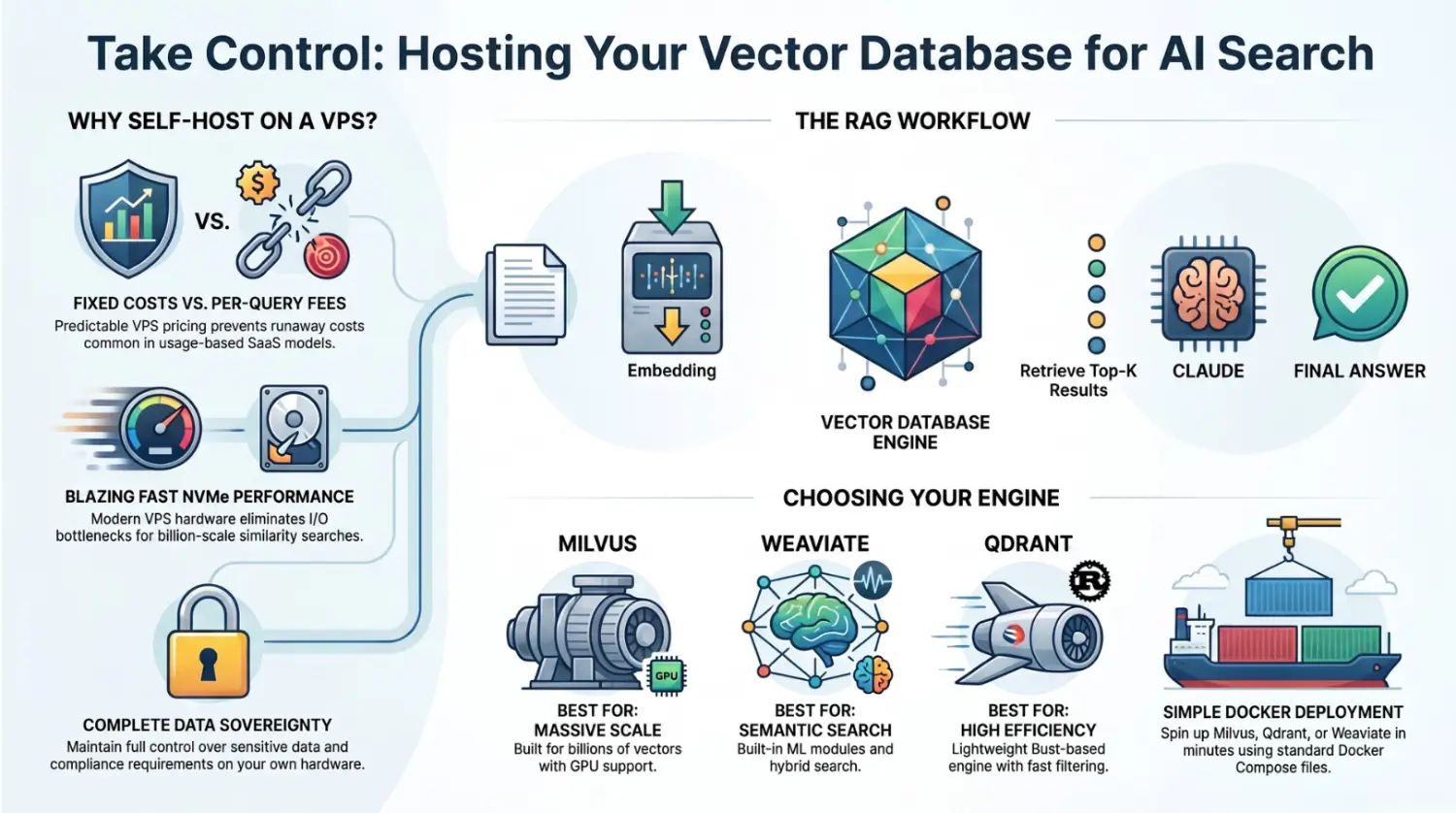
Vector databases are specialized storage for embeddings: instead of classic text or relational queries, you do “similarity search” over vectors. This is essential for AI tasks like search, QA, or recommendation when using models like Claude. While services like Pinecone provide hosted solutions, running the database yourself on a VPS has big advantages:
- Cost Savings at Scale: Hosted services charge per query or per storage. Self-hosting has a fixed server cost, so heavy usage becomes cheaper over time. Once your VPS is paid, each additional search is essentially free (aside from electricity).
- Full Control: You control software versions, scaling, and data. This is important if your data is sensitive or you need compliance, everything stays on your own server.
- Performance: With enough CPU, RAM and NVMe, a VPS can handle small to medium private indexes well. Very large or distributed indexes need clustering, sharding, specialized architecture and careful capacity testing.
- Flexibility: You can choose any open-source vector DB and configure it as needed. Want more memory or a GPU? You upgrade your VPS. Need custom indexing or plugins (like Weaviate’s hybrid search or Cohere embedder)? You can install them.
Of course, self-hosting also means you handle maintenance: installing updates, setting up backups, and so on. But these are one-time or periodic tasks that many teams find worth the savings and control. We will outline practical checks below.
Popular Open-Source Vector Databases
There are several mature open-source vector databases you can run on a VPS. The right choice depends on your needs:
- Milvus: A high-performance, distributed vector DB. It is suited to larger deployments when the architecture is planned carefully of vectors) and supports GPUs and multiple index types (HNSW, IVF, etc.). Milvus requires running
etcdandMinIOalongside it, so it’s a bit heavier to configure. Use Milvus if raw speed and scalability are top priority. - Weaviate: A vector DB with built-in ML integrations. Weaviate supports hybrid search (keyword + vector) and can plug in models (OpenAI, Cohere, etc.) to generate embeddings automatically. It has a GraphQL API and can be easier to work with for semantic search and knowledge graphs. However, Weaviate tends to use more memory and has a more complex setup than some simpler DBs. It’s great if you want rapid development with built-in AI modules.
- Qdrant: A lightweight, high-performance vector DB in Rust. Qdrant shines when you need fast filtering by metadata (its payload system) and easy deployment. It can run on a single node with modest resources and still handle millions of vectors quickly. Qdrant is very friendly for standard VPS setups: you just run a Docker container with your data directory mounted.
- ChromaDB: A newer in-memory vector DB (not listed above, but worth a mention). Chroma is simple to use, ideal for small to medium projects and prototyping. It’s easy to self-host but less battle-tested at large scale. (Not shown in our sources, but known in the community.)
(Note: Pinecone is managed only, so you cannot host it on your VPS. It’s easy to start but may cost more for large datasets. Self-hosted DBs like Milvus/Weaviate/Qdrant give more control.)
When choosing, think of your workload:
- Need massive scale / GPU support? Try Milvus.
- Need keyword filtering, GraphQL, or on-the-fly embedding? Weaviate might fit.
- Want a simple, efficient Rust solution? Qdrant is a great choice.
- Fast prototyping or small data? Chroma or a managed option could work.
All these DBs can run in Docker, which makes deployment on a VPS straightforward.
Claude and Retrieval-Augmented Generation
Claude and other modern LLMs can reason over retrieved data when the RAG layer supplies relevant context. In practice, you don’t dump all your documents into the prompt at once. Instead, you use a Retrieval-Augmented Generation (RAG) workflow:
- Embed and Store: First, embed your documents or data into vectors and store them in the vector DB. Also store any metadata (timestamps, categories, etc.).
- Query & Retrieve: When a user asks a question, Claude rewrites it (or the system rewrites it) into a search query. You compute an embedding for that query and ask the vector DB for the top-K similar results.
- Context & Synthesize: Insert those retrieved snippets (and maybe related chat history) into Claude prompt and generate an answer.
Claude Opus 4.x is particularly well-suited for this. Its large context window and improved reasoning allow you to feed it more retrieved content without confusing. It handles multi-hop questions (requiring information from multiple sources) very reliably. You can even use your vector DB as long-term memory: store key decisions or summaries, and have Claude fetch those for continuity in long conversations.
In short, Claude plus a vector database gives you a powerful AI search/agent. Claude handles the “brainy” part (planning, rewriting, answering), while the vector DB handles fast similarity search. This separation of concerns makes the system reliable and scalable.
Figure: Modern AI chips and servers. A retrieval system can give an LLM focused context from a vector database instead of forcing all documents into one prompt.
Setting Up a Vector Database on Your VPS
Getting started is easier than you might think. The common pattern is to use Docker or Docker Compose. Here’s a typical process:
- Provision a VPS: Choose a plan with enough RAM and CPU for your data size. (Recommendation: at least 16GB RAM for medium workloads, 32GB or more if you plan billions of vectors or use Milvus.) Ensure the VPS uses NVMe SSD storage for fast I/O.
- Install Docker: SSH into the server and install Docker (Docker Compose). For example, on
Ubuntu: sudo apt install docker.io docker-compose. Voxfor servers often come ready with Docker support. - Download Configuration: Each DB has a quickstart. For Milvus, use its Docker Compose file:
wget https://github.com/milvus-io/milvus/releases/download/v3.0-beta/milvus-standalone-docker-compose.yml -O docker-compose.yml
sudo docker compose up -d
This starts Milvus with etcd and MinIO containers. After launching, Milvus listens on port 19530 and has a web UI on 9091.
- For Qdrant, you can simply run:
docker run -p 6333:6333 -v $(pwd)/qdrant_data:/qdrant/storage qdrant/qdrantThis starts Qdrant on port 6333 with persistent storage in qdrant_data. Or use a Docker Compose like:
version: '3'
services:
  qdrant:
    image: qdrant/qdrant:latest
    ports: ["6333:6333"]
    volumes:
      - ./qdrant_data:/qdrant/storage
– For Weaviate, run the Docker command:
docker run -p 8080:8080 -p 50051:50051 semitechnologies/weaviate:latestOr use the sample docker-compose.yml from Weaviate’s docs, which sets up data volume and any needed modules. Weaviate defaults to port 8080 for the API.
Once your database container(s) are running, check that the service is up (e.g., visit http://your-vps-ip:8080/v1/ping or the Milvus UI on :9091).
RAG Pipeline Checklist
- Create embeddings from approved source documents only.
- Store chunk text, metadata, source URL or document ID, and update timestamp.
- Protect vector DB ports with firewall rules and private networking where possible.
- Test retrieval quality with real questions before connecting the answer layer.
- Back up the database and the original source documents, then test restore.
Security Backups and Monitoring
Since the database holds your data, secure it properly:
- Network Access: Don’t expose the DB ports publicly if possible. Use SSH tunnels or a firewall (e.g. ufw) to restrict access. For example, allow port 19530 (Milvus) only from your application server or local machine.
- Authentication: Some
DBs support API keysor tokens (Weaviate, Qdrant). Enable those so only your app can query the DB. - Backups: Regularly back up the data directory. For Milvus, use its built-in backup tools or snapshot the MinIO/etcd volumes. For Qdrant, use its snapshot API (curl POST /collections/your_col/snapshots) and copy the files to safe storage.
- Monitoring: Vector DBs often expose Prometheus metrics. Deploy a small monitoring stack: e.g. add Prometheus and Grafana via Docker Compose. Qdrant has native Prometheus support. Use these to track query latency and resource usage.
- Resources: Monitor CPU and memory. For instance, Weaviate HNSW index holds data in RAM, so ensure you have enough memory. If RAM is tight, Weaviate can use on-disk storage or quantization. Qdrant and Milvus also allow quantization or sharding across servers for large data sets.
Pros and Cons of Self-Hosting
Pros:
- Cost Planning: Fixed VPS cost can be easier to forecast than usage-based SaaS, but CPU, RAM, storage, backups and maintenance still have real operational cost.
- Data Control & Privacy: Keep more of the storage layer under your control. Compliance still depends on contracts, access controls, retention rules, encryption and legal review.
- Flexibility: Choose any DB and version, add GPU or RAM as needed. No vendor lock-in.
- High Performance: With a beefy VPS (especially Voxfor NVMe servers), you get great I/O and CPU for fast searches.
Cons:
- Maintenance Overhead: You are responsible for setup, updates, security patches, and monitoring. This can take a few hours per month.
- Scaling Complexity: If you outgrow one server, you’ll need to configure clustering or sharding (e.g. Qdrant distributed mode, Milvus cluster). This requires DevOps effort.
- Initial Setup: Compared to clicking a managed service, there’s more up-front work. You’ll need to set up Docker, configure storage paths (e.g. NVMe mounts for DB files), and test the deployment.
- Reliability: On your own VPS, you’re responsible if the server crashes or runs out of disk. (This is why you should use RAID/backup or a secondary node for important data.)
Overall, the trade-off is control & cost vs. convenience. For many AI startups, the savings (and learning) from self-hosting vector DB on a VPS outweigh the extra maintenance work.
When Voxfor VPS Fits Private AI Search
For private AI search stacks, Voxfor VPS plans can fit teams that want root access, NVMe storage and predictable server resources. They use enterprise-grade hardware (AMD EPYC/Intel Xeon CPUs and NVMe SSD) to avoid I/O bottlenecks. Their global data centers ensure low-latency connections wherever your users are. Importantly, Voxfor gives you full root access and expert Linux support, so you can tune the system for your vector DB and Claude setup.
Whether you are starting a proof-of-concept or building a production AI product, choose the VPS size from dataset size, vector dimensions, update frequency, API traffic and backup requirements. For example, an 8GB RAM VPS can be a practical starting point for a small Qdrant or Weaviate test, while Milvus or larger indexes usually need more memory, storage planning and monitoring.
In short, a VPS is a practical place to start when you want private RAG infrastructure and are ready to manage Docker, firewall rules, backups, monitoring and retrieval testing. Start small, measure query behavior, and scale only when the index and traffic justify it.
Next Steps
- Choose your DB: Pick Milvus, Weaviate, Qdrant (or Chroma) based on your needs.
- Sign up for Voxfor: Get a VPS with enough CPU/RAM (e.g. 16–32GB RAM for Milvus).
- Install and Deploy: SSH in, install Docker, and run your chosen database (using official Docker images and compose files).
- Connect Claude: Use Claude’s tool/coding interface to call your DB’s API (or use an agent that speaks to the database). Follow the RAG pattern: query the DB, then let Claude synthesize answers.
- Secure & Monitor: Set up firewall, backup scripts, and a
Prometheus/Grafanastack to watch your database. Test your QA/pipeline.
By following these steps, you’ll have a robust AI search system. A retrieval layer combined with your own vector database on a Voxfor VPS can support practical AI search products when the data pipeline, permissions and evaluation process are designed carefully.
Ready to build your AI search? Choose a VPS size that matches your dataset, traffic, privacy requirements and maintenance capacity, then start with a measured proof of concept before moving to production.
About the writer

Hassan Tahir prepared this guide for readers planning private RAG and AI search infrastructure on VPS hosting, with attention to vector database sizing, backups, access control and retrieval quality.
Frequently Asked Questions
Why host a vector database on a VPS?
A VPS gives predictable cost, control over data location, private networking options and the flexibility to choose your vector database stack.
Can Claude use a self-hosted vector database?
Yes, through a RAG application or tool layer that retrieves relevant chunks from the vector database and passes context to Claude.
Which vector database should I use?
For small projects, lightweight options are fine. For larger systems, choose a database with good filtering, backups, monitoring and API support.
How do I back up a vector database?
Back up the vector database storage, metadata, configuration and the original source documents. Test restore before relying on the system for production RAG or customer-facing search.
Should the vector database be public?
No, not by default. Keep database ports private, expose only the application API that needs access, and protect it with authentication, rate limits and logs.
What data should not be indexed?
Avoid indexing secrets, passwords, private keys or highly sensitive data unless access controls, encryption and retention policies are already in place.