 Lifetime VPS Europe
 Lifetime VPS Asia
 Lifetime WooCommerce Hosting
 Lifetime Hosting
 Lifetime Game Dedicated Servers
 Chicago, US
 Tokyo, Japan
 Singapore
 Hong Kong
 Seoul, South Korea
 Amsterdem, Netherlands
 London, UK
 Stockholm, Sweden
 Oslo, Norway
 Vienna, Austria
 Zurich, Switzerland
 Sydney, Australia
 Wordpress Hosting
 VPS Hosting
 DDOS Protection
 Submit Ticket
 Full Management
 Guides
 Videos and Podcasts
 Discover Creative Ideas
 Voxfor Autonomous AI Workers
 Voxfor Mega Menu
 Voxfor Advanced Price Management For WooCommerce
 Voxfor Secure Live Chat and AI Support
 Voxfor Multilanguage
 Voxfor AI Content Summary
 Voxfor Autopilot
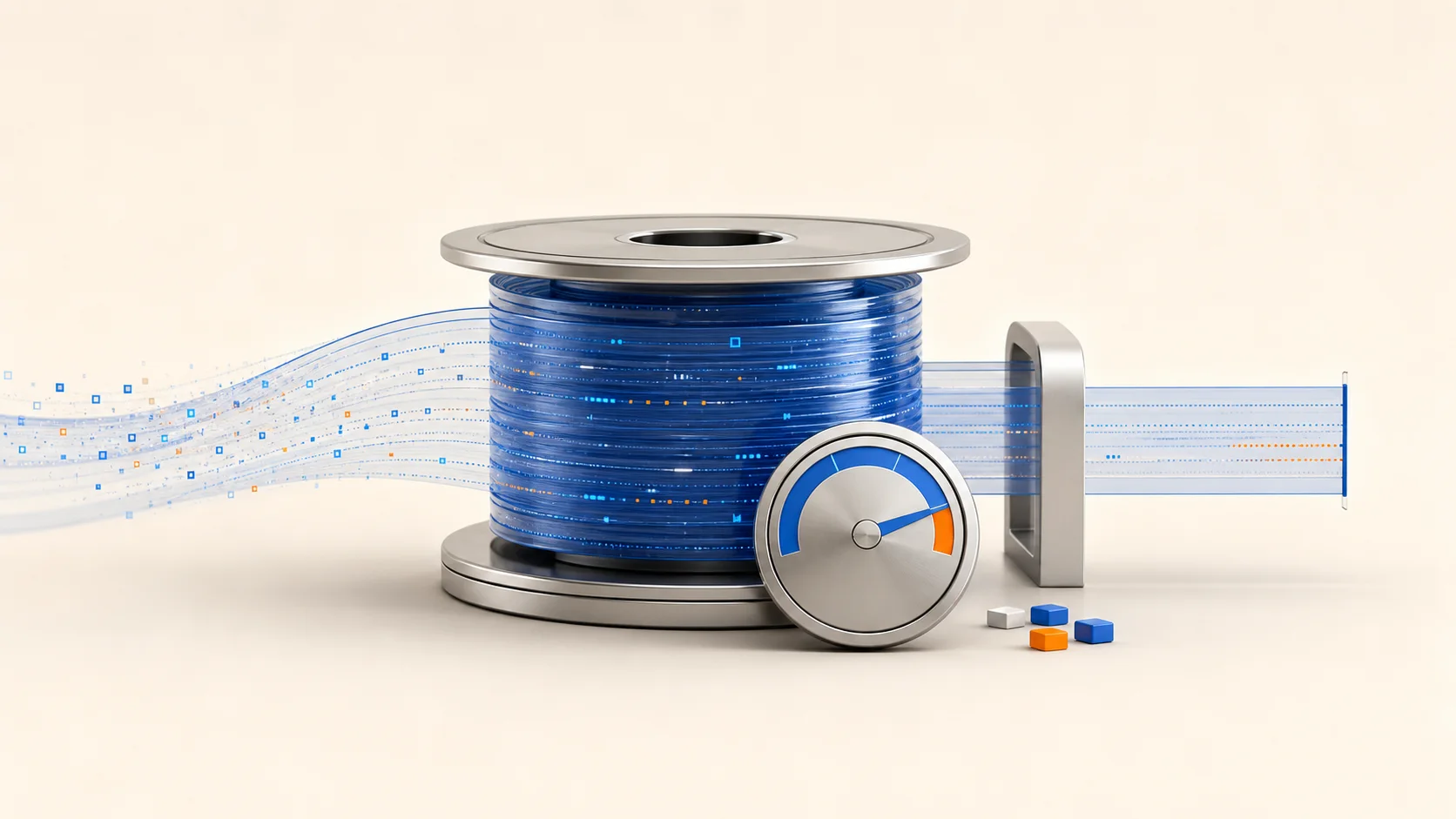
Docker can fill a VPS disk even when images and volumes are modest. The usual cause is the default json-file logging driver collecting a noisy container’s stdout and stderr without a size limit. A safe fix is to measure first, preserve useful evidence, apply bounded logging options, recreate affected containers deliberately, and verify both the application and disk afterward.
Do not begin by truncating files under /var/lib/docker. Docker’s documentation says those files belong to the daemon, and external interaction can produce unexpected behavior. Rotation should be configured through Docker, not improvised underneath it.
Quick Decision
| Situation | Recommended path | Main tradeoff |
|---|---|---|
| Small or medium single-host Compose stack | local driver with an explicit retention budget |
Efficient and rotated, but not a searchable off-host archive |
Existing tooling requires json-file behavior |
Keep json-file, set max-size and max-file |
Familiar format, usually more disk overhead |
| Logs must survive host loss or support audits | Forward to a remote logging platform | More components, network dependency and cost |
| Disk is already critically full | Preserve a narrow evidence window, contain the noisy service, then recreate it with limits | May require a planned service interruption |
Docker currently recommends the local logging driver for ordinary non-Kubernetes use because it rotates automatically and stores data efficiently. json-file remains the default for compatibility, but its max-size is unlimited until you configure it.
Confirm Logs Are Actually the Disk Problem
A full filesystem can come from a database, uploads, image layers, package caches or deleted-but-open files. Prove the Docker logging hypothesis before changing the stack:
df -h /var/lib/docker
sudo du -xhd1 /var/lib/docker | sort -h
docker system df
docker ps --format 'table {{.Names}}t{{.Status}}t{{.Image}}'
docker system df explains images, containers and volumes, but container stdout/stderr logs may still require a host-level view of the Docker data directory. Keep that inspection read-only. For one suspected container, ask Docker which driver and options it owns:
docker inspect --format
  'name={{.Name}} driver={{.HostConfig.LogConfig.Type}} options={{json .HostConfig.LogConfig.Config}}'
  api
Also capture a useful time-bounded sample through the supported interface:
docker logs --since 30m --timestamps api 2>&1 | tail -n 500Repeated exceptions, debug loops or failed connection retries usually point to an application problem as well as a retention problem. Rotation protects capacity; it does not excuse runaway logging.
For a wider host investigation, compare Docker’s data directory with database, upload and application paths before assigning the whole filesystem problem to container logs.
Choose the Driver Before Choosing the Numbers
Driver choice changes what “retention” means. Docker’s local driver documentation says it keeps five 20 MB files per container by default and compresses rotated segments. That roughly caps its logical retained window at 100 MB per container before considering compression and implementation overhead.
The json-file driver stores timestamped stdout/stderr records in JSON. To rotate it, both a positive max-size and a useful max-file count are needed. Docker warns that its underlying files must not be treated as an application-facing log API.
| Driver | Useful when | Important caveat |
|---|---|---|
local |
One Docker host needs bounded logs and normal docker logs access |
Internal format is Docker-managed and not an audit archive |
json-file with limits |
Compatibility or an existing operating standard requires it | Rotation is absent unless configured; compression is off by default |
journald |
The VPS already manages retention and collection through systemd-journald | Host journal policy becomes part of the capacity plan |
| Remote driver | Search, correlation or host-loss survival matters | Delivery behavior and remote outages need an explicit policy |
Docker logging delivery is blocking by default. That protects messages but can back-pressure an application if a driver cannot keep up. Non-blocking mode keeps the application moving by buffering, yet Docker states that new messages are dropped when the buffer fills. Choose deliberately: complete logs and application availability are not always the same requirement.
Turn Retention into a Disk Budget
20m and 5 are examples, not universal values. A simple upper-bound calculation is:
max-size × max-file × number of containers
Fifteen containers at 20 MB × 5 files imply about 1.5 GB of logical local history. Leave additional capacity for images, writable layers, volumes, package operations, database growth and the temporary overhead of reading compressed segments.
| Workload signal | Starting decision | What to measure next |
|---|---|---|
| Quiet web/API service | 10-20 MB × 3-5 files | Whether one incident still fits in the retained time window |
| Busy worker or queue consumer | 20-50 MB × 5 files | Logs per hour during retry storms |
| Temporary debug mode | Shorter, tighter cap plus an expiry time | Who will restore the normal log level and when |
| Compliance or forensic retention | Off-host collection, not larger local files alone | Required duration, immutability and access controls |
Watch time coverage, not only megabytes. A 100 MB allowance may represent days for one service and six minutes for another. Generate representative traffic, note how quickly a segment rolls, and adjust the application log level before simply raising the cap.
Apply Rotation in Docker Compose
Per-service Compose configuration travels with the workload and makes exceptions visible during review. A YAML extension avoids copying the same block across services:
x-default-logging: &default-logging
  driver: local
  options:
    max-size: "20m"
    max-file: "5"

services:
  api:
    image: example/api:stable
    logging: *default-logging

  worker:
    image: example/worker:stable
    logging:
      driver: local
      options:
        max-size: "40m"
        max-file: "5"
Quoted values avoid YAML and daemon-configuration type surprises. Before touching running services, render and validate the effective Compose model:
docker compose config --quiet
docker compose config --services
For a detailed review, render the effective configuration only in a protected terminal because docker compose config may resolve environment values. Do not save that output in a ticket, shared paste or world-readable temporary file.
Set a Daemon Default Without Overwriting Other Settings
A daemon default is useful as a safety net for containers created outside Compose. Merge it into /etc/docker/daemon.json; do not replace an existing file that may hold storage, networking, registry or live-restore settings.
{
  "log-driver": "local",
  "log-opts": {
    "max-size": "20m",
    "max-file": "5"
  }
}
Docker requires daemon log-opts values to be strings. Back up the current configuration, preserve every unrelated key, then validate the complete result:
if sudo test -f /etc/docker/daemon.json; then
  sudo cp --archive /etc/docker/daemon.json /etc/docker/daemon.json.before-log-policy
fi
sudo dockerd --validate --config-file=/etc/docker/daemon.json
Docker’s documentation requires a daemon restart for a changed default. Plan recovery access and an application check before running it. Existing containers keep their old driver and options even after the daemon restarts, so a green restart does not prove the fleet is protected.
Recreate Existing Containers in a Controlled Rollout
Logging configuration is attached when a container is created. For a Compose service, first record its current image, mounts, health and logging configuration:
docker compose ps
docker inspect api --format '{{.Config.Image}} {{json .Mounts}}'
docker inspect api --format '{{json .HostConfig.LogConfig}}'
Then recreate one non-critical service or replica during a maintenance window:
docker compose up -d --no-deps --force-recreate api
docker inspect api --format '{{json .HostConfig.LogConfig}}'
docker compose ps api
docker logs --since 5m --timestamps api
Use the actual Compose-generated container name if it differs from api. Confirm the service’s health endpoint or a real read-only application journey before proceeding. A process marked “running” can still be unable to reach its database, queue or upstream API.
Do not add --volumes or run broad cleanup commands during this change. Log-policy rollout should not delete named volumes, images or unrelated evidence. If the first service fails, restore the previous Compose file and recreate that service from the known image before changing anything else.
This staged lifecycle is one reason to choose Docker Compose instead of ad-hoc Docker commands for a multi-service application.
Recover Safely When the Disk Is Already Near Full
At critical utilization, the order matters:
- Confirm which filesystem is full and whether writes are already failing.
- Capture a narrow, recent log window to a destination with verified free space or to an approved remote collector.
- Pause or stop only the confirmed noisy service when the business impact is understood.
- Fix the application’s retry/debug loop when possible.
- Add bounded logging configuration and recreate that service.
- Verify free space, application behavior and new logging options before expanding the rollout.
Avoid copying a large evidence file onto the same nearly full filesystem. Avoid truncate, rm or external logrotate rules against Docker’s active internal files; Docker explicitly reserves those files for the daemon. If no safe recovery space exists and a production service must be interrupted, treat it as an incident with a recorded decision rather than disguising it as routine maintenance.
Prove the Fix Instead of Trusting the YAML
After each recreated service, collect four kinds of evidence:
| Layer | Verification | Failure it catches |
|---|---|---|
| Configuration | docker inspect shows expected driver and options |
Compose block did not reach the container |
| Application | Health check plus one real read-only journey | Container runs but workload is broken |
| Logging | New lines appear through docker logs |
Driver or application output path is wrong |
| Capacity | Disk headroom stabilizes across a representative busy period | Cap is too large or another path is growing |
Alert on free bytes and free percentage for the Docker filesystem. A threshold such as 15% is only a starting point; databases and image pulls may need a larger safety margin. Also alert on rapid change, because a disk falling from 60% free to 25% free in an hour is more urgent than a stable disk at 20% free.
If the VPS hosts revenue-sensitive services and the team cannot maintain Docker, logging, updates and recovery, a managed hosting service may fit better than treating every incident as an ad-hoc SSH session. For teams that want root control, a Docker-ready VPS host should be sized with separate headroom for application data, images and bounded logs.
When This Fits and When It Does Not
| This workflow fits | Choose another design when |
|---|---|
| A single VPS or small fleet needs predictable local log usage | Logs must remain searchable after the VPS is lost |
| Operators use Docker or Compose and can recreate services safely | Containers cannot tolerate recreation without a redundancy plan |
docker logs is sufficient for immediate troubleshooting |
Audit rules require immutable, centrally controlled retention |
| Application logs are useful but not the system of record | Security events need correlation across hosts and identities |
Local rotation is a capacity control, not a complete observability platform. It intentionally discards the oldest retained segment. If those messages are legally or operationally important, forward them off-host before they leave the local window.
Recommended Next Step
Inventory every container’s current LogConfig, calculate a host-wide retention ceiling, then apply the policy to one low-risk service. Keep the change only after the new driver is visible, the application journey passes and disk growth stabilizes under representative traffic.
FAQ
Does Docker rotate container logs by default?
The default json-file driver does not rotate unless max-size is configured. Docker recommends the local driver for many non-Kubernetes deployments because it rotates and compresses by default.
Does changing daemon.json fix existing containers?
No. Docker states that changed daemon logging defaults apply only to newly created containers. Existing containers must be recreated with the desired driver and options.
Can I truncate a huge Docker JSON log file?
Avoid it. Docker warns that its logging files are daemon-managed and that external interaction can cause unexpected behavior. Preserve evidence, contain the service and recreate it with bounded settings.
Is local log rotation enough for production?
It can be enough for short-term troubleshooting and disk protection on one host. It is not enough when logs must survive host loss, support centralized search or meet immutable retention requirements.