 Lifetime VPS Europe
 Lifetime VPS Asia
 Lifetime WooCommerce Hosting
 Lifetime Hosting
 Lifetime Game Dedicated Servers
 Chicago, US
 Tokyo, Japan
 Singapore
 Hong Kong
 Seoul, South Korea
 Amsterdem, Netherlands
 London, UK
 Stockholm, Sweden
 Oslo, Norway
 Vienna, Austria
 Zurich, Switzerland
 Sydney, Australia
 Wordpress Hosting
 VPS Hosting
 DDOS Protection
 Submit Ticket
 Full Management
 Guides
 Videos and Podcasts
 Discover Creative Ideas
 Cybersecurity Services
 Voxfor Mega Menu
 Voxfor Advanced Price Management For WooCommerce
 Voxfor Secure Live Chat and AI Support
 Voxfor Multilanguage
 Voxfor AI Content Summary
 Voxfor Autopilot

WooCommerce shipping setup is safest when you build it in this order: define shipping zones, add the right methods to each zone, create shipping classes for products that cost more to ship, assign those classes to products, test real customer addresses, then turn on debug mode only while testing. If a store uses table-rate plugins, live carrier rates or complex checkout rules, hosting and cache configuration matter too, but the shipping logic should be correct before you blame the server.
It focuses on practical setup, common rate mistakes, checkout testing and performance risks. For official behavior details, compare your settings with the WooCommerce shipping zones documentation.
WooCommerce Shipping Setup Checklist
- Go to WooCommerce > Settings > Shipping > Shipping zones.
- Create the smallest, most specific zones first, such as local delivery postcodes or one state.
- Add broader zones below them, such as the rest of the country or international regions.
- Add methods to each zone: Flat Rate, Free Shipping, Local Pickup or a carrier/table-rate method.
- Create shipping classes only for products that need different costs, such as heavy, fragile, oversized or freight items.
- Assign classes to simple products and to the correct variations of variable products.
- Test with sample addresses, coupons, mixed carts, free-shipping thresholds and products with no class.
- Use WooCommerce shipping debug mode during testing, then turn it off before normal traffic.
How Shipping Zones Work
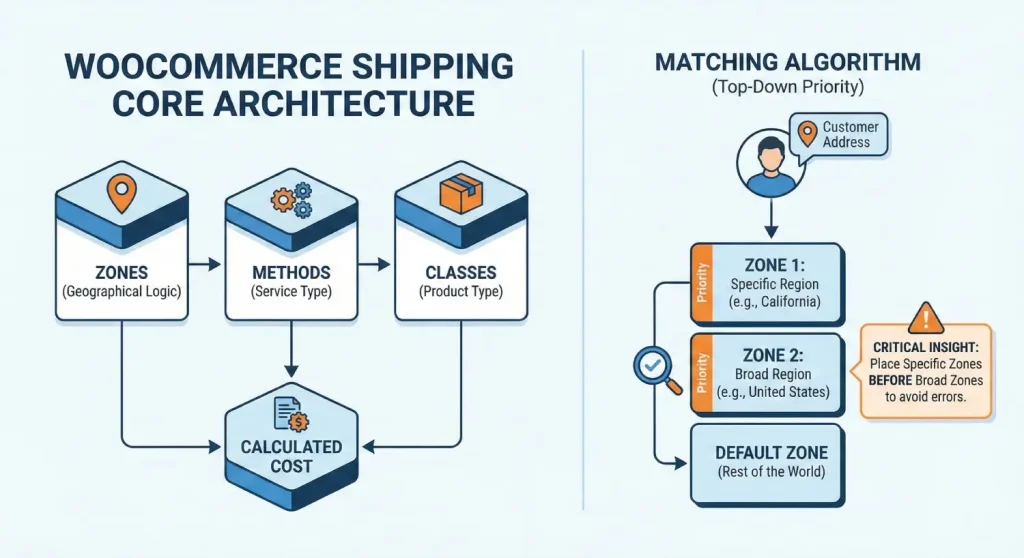
A shipping zone is a geographic rule. WooCommerce reads the customer’s shipping address, scans your zones from top to bottom, and stops at the first matching zone. That is why ordering matters. A broad “United States” zone placed above a “California” zone can prevent California-specific rates from appearing.
Use this rule: specific zones first, broad zones later. Put local pickup postcodes, local delivery regions and state-specific zones above country-wide zones. Leave “Locations not covered by your other zones” as a fallback only if you truly want to ship outside your defined regions.
| Zone type | Example | Good use |
|---|---|---|
| Postcode or ZIP range | 90210...90299 or CB2* | Local delivery, local pickup, city-specific rules |
| State or province | California, Bavaria, Ontario | Regional carriers, regional fees, local warehouse rules |
| Country or region | United States, United Kingdom, Europe | Domestic flat rates or broad international policies |
| Rest of world | Locations not covered by your other zones | Fallback only when you intentionally support those destinations |
Methods: Flat Rate Free Shipping and Local Pickup
Each zone needs one or more shipping methods. Core WooCommerce includes Flat Rate, Free Shipping and Local Pickup. Third-party plugins can add table rates, live carrier rates, label services, multi-warehouse logic and delivery-date rules.
Flat Rate is the safest starting method because it is predictable and easy to test. Free Shipping works well when margins can support it or when a minimum order amount makes sense. Local Pickup should usually live in a narrow local zone, not in a whole-country zone, unless every customer in that country can realistically collect the order.
Shipping Classes: When Products Need Different Costs
Shipping classes should describe shipping behavior, not product categories. A class called “Heavy Box” or “Oversized Freight” is clearer than “Furniture” because it explains why the rate changes. Use classes when a product needs special packaging, weighs more, ships separately or should be excluded from a normal flat rate.
- For simple products, edit the product and choose the class under the Shipping tab.
- For variable products, assign the class to the specific variation that needs it.
- For existing catalogs, use bulk edit carefully and sample-check products afterward.
- Also test a product with no shipping class so a missing class does not accidentally create free shipping.
Flat Rate Formula Examples
The Flat Rate cost field accepts simple numbers and formulas. Keep formulas readable and document why they exist, because future store managers will need to troubleshoot them during promotions, migrations or plugin changes.
| Formula | Meaning | Example |
|---|---|---|
10 | One fixed shipping charge for the order | Every matching cart pays 10 in the store currency |
10 + ( 2 * [qty] ) | Base packaging cost plus a per-item amount | Five items cost 10 + 10 = 20 |
[fee percent="10" min_fee="4"] | Percentage-based fee with a minimum charge | A 20 cart hits the minimum fee; a 100 cart pays 10 |
| Class cost plus no-class cost | Adds product class rules to the flat rate | Heavy item gets an extra cost while normal items use the baseline |
When shipping classes are enabled inside a Flat Rate method, WooCommerce lets you choose whether to calculate per class or per order. Per class adds costs from every class in the cart. Per order uses the most expensive class cost. Neither is universally better; the right choice depends on whether items really ship together or require separate handling.
Free Shipping Without Margin Surprises
Free shipping is a business rule, not only a WooCommerce switch. Before enabling it, decide whether the threshold is based on the cart before or after coupon discounts, whether local pickup should remain visible, and whether heavy or freight products are excluded.
| Requirement | Behavior | Watch for |
|---|---|---|
| No requirement | Free shipping appears for that zone without a coupon or threshold | Useful for local pickup or narrow promotions, risky if applied too broadly |
| Valid coupon | Customer needs a free-shipping coupon | Coupon conflicts and expired campaigns |
| Minimum order amount | Free shipping appears after the cart reaches the threshold | Whether discounts are checked before or after the threshold |
| Minimum amount and coupon | Both conditions must be met | Customers may find this confusing if not explained clearly |
If free shipping appears alongside a paid flat rate, customers may wonder why both options exist. WooCommerce does not automatically hide paid methods in every setup. Test whether your store should hide other shipping methods when free shipping is available, and avoid hiding Local Pickup if customers still need that option.
Local Pickup and Tax Caution
Local Pickup should be configured like a shipping method with a real fulfillment process. Create a tight local zone, place it above broad zones, add Local Pickup only to that zone, and write clear pickup instructions in order emails or checkout notes.
Tax behavior for pickup, delivery, destination rules and origin rules can vary by jurisdiction and store setup. WooCommerce settings can support common workflows, but this guide is not tax or legal advice. Confirm tax behavior with the relevant authority, accountant or tax professional before relying on it for production orders.
When to Use Table Rates or Carrier APIs
Flat rates are easiest to understand. Move to table rates or carrier APIs when the store has meaningful differences in weight, dimensions, warehouse location, destination, delivery service or carrier cost. Do not add a complex shipping plugin just because it exists; add it when the current rate model is overcharging, undercharging or creating support tickets.
- Use table rates for weight bands, price bands, postcode groups or predictable regional rules.
- Use carrier APIs when the store needs live rates from services such as courier, postal or freight providers.
- Use box-packing logic when dimensions affect the real shipping cost.
- Keep a fallback rate or support workflow for carrier API outages.
Testing Matrix Before Launch
| Test | What to check |
|---|---|
| Specific zone address | The narrow zone wins over the broad zone |
| Rest-of-world address | The store either shows intended fallback rates or blocks checkout clearly |
| No-class product | Baseline shipping is not accidentally zero |
| Heavy or oversized item | Class cost applies correctly |
| Mixed cart | Per class or per order behavior matches the real packing workflow |
| Coupon plus free shipping | Threshold behavior matches the promotion terms |
| Carrier API timeout | Store handles failure without a blank checkout |
| Mobile checkout | Shipping methods, notes and pickup instructions are readable |
Troubleshooting WooCommerce Shipping Problems
| Problem | Likely cause | Fix |
|---|---|---|
| No shipping options found | No matching zone, disabled method, missing product weight or plugin conflict | Check zone order, product data, method status and enable shipping debug mode temporarily |
| Wrong rate appears | Broad zone matched before specific zone | Move the specific zone above the broad zone |
| Free shipping appears unexpectedly | Threshold/coupon rule or no-class cost is wrong | Test cart totals before and after coupons, and check no-class cost fields |
| Carrier rates load slowly | External API latency, plugin overhead or server delays | Test with and without the carrier method, review logs, and keep a fallback method |
| Rates differ by cache state | Checkout, cart or geolocation cache conflict | Exclude cart, checkout and account pages from page cache; review geolocation cache settings |
For checkout issues that involve both shipping and payment, use the WooCommerce payment processing problems guide. For stock and fulfillment coordination, review inventory and shipping workflows. For store reporting, use shipping cost and profitability analytics.
Checkout Performance and Hosting
Shipping calculations happen during cart and checkout interactions that cannot be treated like static blog pages. Page cache can help product and category browsing, but cart, checkout and account pages usually need exclusions or careful ecommerce-aware cache rules. Object cache, PHP workers, database health and plugin quality can all affect how quickly shipping methods appear.
A faster server cannot make a carrier’s API respond faster than the carrier allows, but it can reduce avoidable delays from slow PHP execution, overloaded databases, poor object caching and unnecessary plugin work. If your shipping rules are complex, review object cache for WooCommerce scaling and test checkout under realistic cart conditions.
Voxfor’s WooCommerce hosting is a relevant next step when shipping, inventory, checkout and payment workflows are becoming slow or fragile. Treat hosting as part of the operating system for the store, not as a replacement for correct zone, class and rate configuration.
Final Recommendation
Start with a simple shipping model that customers can understand. Put specific zones above broad zones, use classes only where product handling really differs, document every formula, and test real addresses before launch. Add table rates, carrier APIs and advanced shipping plugins only when the business rules justify the maintenance cost.
After the logic is correct, test checkout speed. A WooCommerce store with live rates, mixed carts and heavy plugins needs reliable hosting, cache exclusions and monitoring. Shipping is not just a setting page; it is part of the customer’s buying experience.
Frequently Asked Questions
What are WooCommerce shipping zones?
Shipping zones are geographic regions where specific methods and rates apply. WooCommerce checks zones from top to bottom and uses the first zone that matches the customer’s address.
Why does WooCommerce show no shipping options?
Common causes include a missing matching zone, disabled shipping method, products without weight or class data, address mismatch, cache conflict or plugin error. Enable shipping debug mode only while testing.
Should I use Flat Rate or Table Rate Shipping?
Use Flat Rate when pricing is simple and predictable. Use table rates when weight, destination, order value, product class or postcode groups need different rules.
Can shipping plugins slow checkout?
Yes. Live carrier rates, table-rate lookups and multi-warehouse rules can add plugin, database and API work. Test checkout speed after every shipping plugin or rule change.
Should cart and checkout pages be cached?
Usually not with normal page cache. Cart, checkout and account pages contain session-specific data and should be excluded or handled with ecommerce-aware cache rules.