Lifetime VPS Europe
 Lifetime VPS Asia
 Lifetime WooCommerce Hosting
 Lifetime Hosting
 Lifetime Game Dedicated Servers
 Chicago, US
 Tokyo, Japan
 Singapore
 Hong Kong
 Seoul, South Korea
 Amsterdem, Netherlands
 London, UK
 Stockholm, Sweden
 Oslo, Norway
 Vienna, Austria
 Zurich, Switzerland
 Sydney, Australia
 Wordpress Hosting
 VPS Hosting
 DDOS Protection
 Submit Ticket
 Full Management
 Guides
 Videos and Podcasts
 Discover Creative Ideas
 Cybersecurity Services
 Voxfor Mega Menu
 Voxfor Advanced Price Management For WooCommerce
 Voxfor Secure Live Chat and AI Support
 Voxfor Multilanguage
 Voxfor AI Content Summary
 Voxfor Autopilot

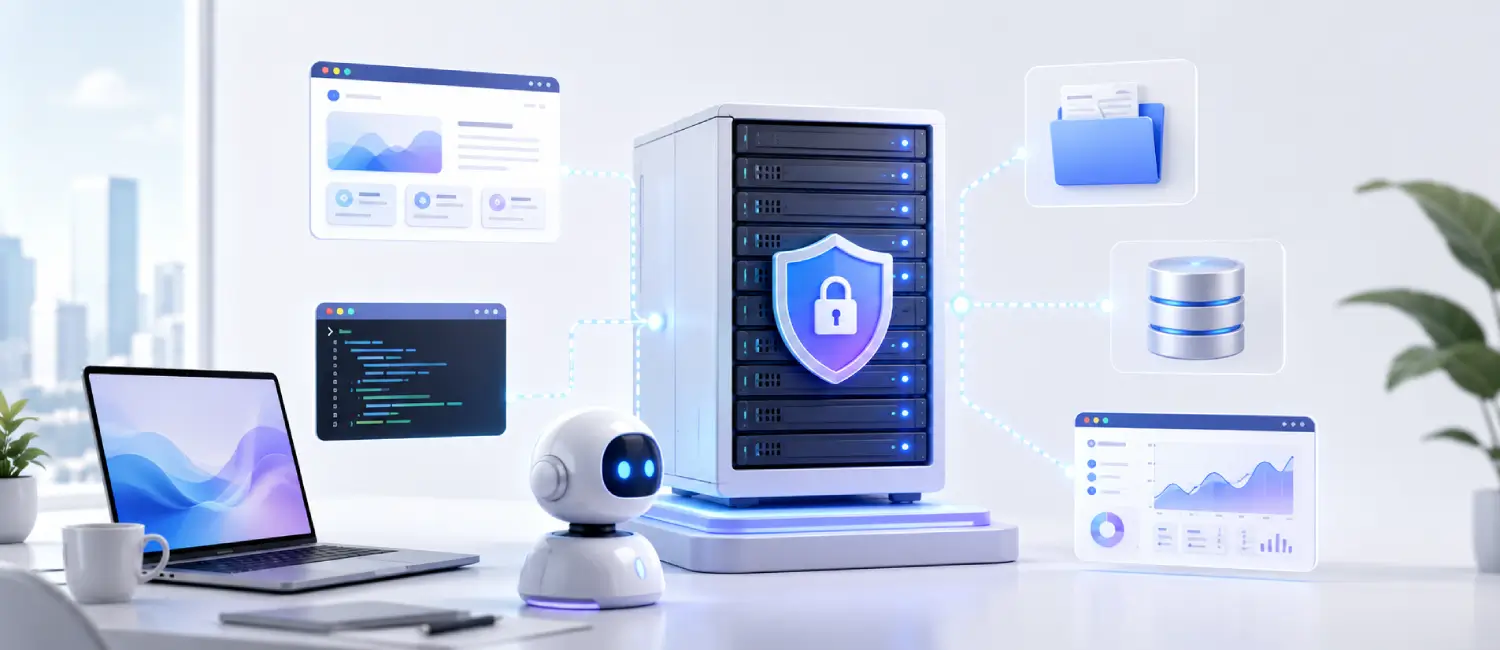
A lifetime VPS can become a private app stack for files, passwords, code, dashboards, automation, and AI tools. The right starting point depends on the job: a solo founder may need Git and automation, a small team may need shared files and dashboards, and a technical operator may want a controlled AI workspace with private data services.
The safest way to self-host is to start with one or two useful services, secure the server, add backups, document restore steps, and expand only after the base stack is stable. A VPS gives control, but the owner still has to manage updates, access rules, storage, logs, and recovery.
How To Choose a Self-Hosted VPS App Stack
Do not begin with a long list of apps. Begin with the workflow you want to own. If the problem is file access, choose a private cloud. If the problem is code delivery, choose Git and deployment tools. If the problem is repetitive operations, choose automation. If the problem is private AI experimentation, choose an AI interface and a controlled data layer.
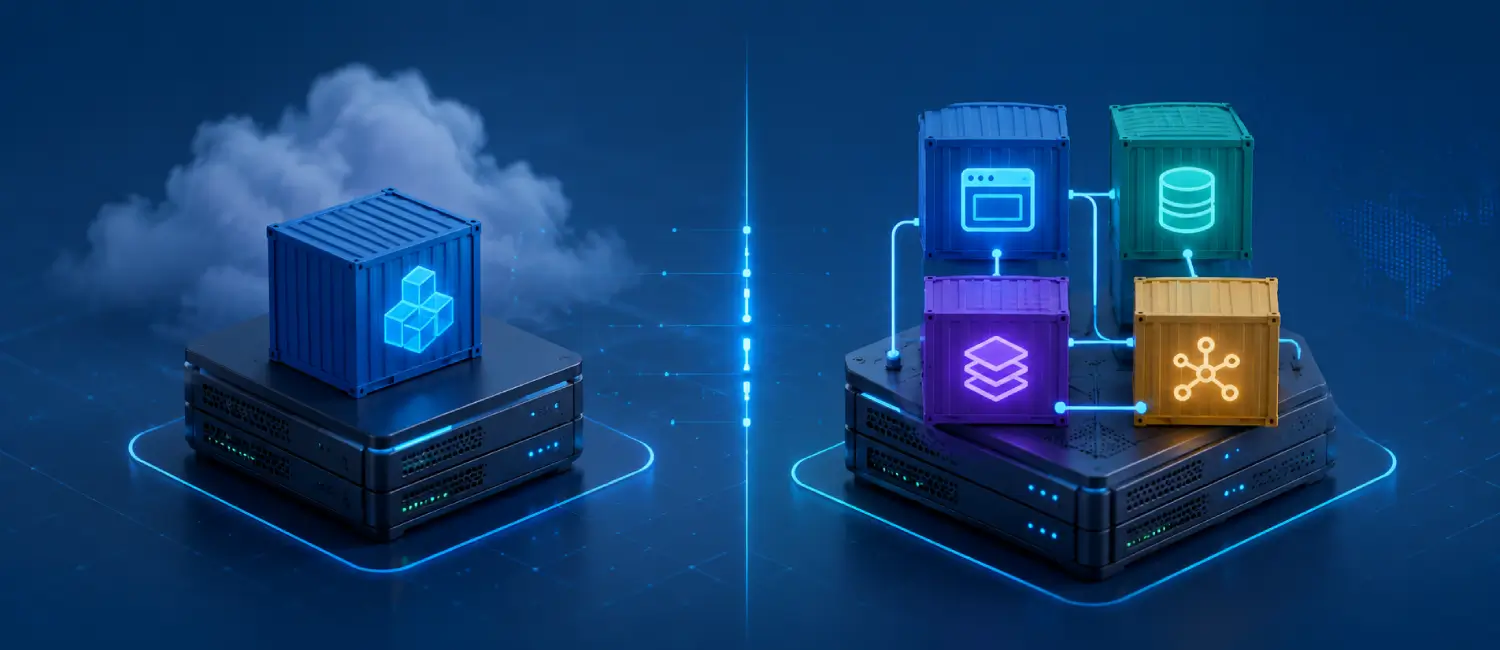
Each new app adds ports, credentials, volumes, updates, and backup requirements. A small stack that is patched and restorable is more valuable than a crowded server with unclear ownership. For most VPS users, Docker Compose plus a reverse proxy is a practical base because each service can keep its own configuration and storage.
Useful App Categories for a Lifetime VPS
| Need | Example app type | What to check first |
|---|---|---|
| Private files | Nextcloud or a lighter file manager | Storage size, upload limits, backups, and user access. |
| Password vault | Vaultwarden-style vault | HTTPS, admin access, backups, and account recovery. |
| Code hosting | Gitea or a small Git service | SSH keys, repository backups, email delivery, and permissions. |
| Monitoring | Grafana with metrics sources | Metric retention, disk usage, alerts, and private access. |
| Automation | n8n or workflow runner | Secrets, webhook exposure, queue behavior, and logs. |
| AI workspace | Open WebUI, vector database, or RAG helper | RAM, storage, authentication, model location, and data privacy. |
Starter Stack for Private Files and Team Utilities
A private utility stack can include a file service, a password vault, and a dashboard. This combination gives immediate value without turning the VPS into a complicated platform. File tools need storage planning and backup discipline. Password vaults need careful access control and a tested restore path. Dashboards should be private unless there is a clear reason to expose them.
Before adding users, confirm HTTPS, firewall rules, update routine, admin login protection, and backup storage outside the VPS. If the VPS is the only copy of files or vault data, the setup is not ready for important work.
Developer Stack for Git and Deployment
Developers often get strong value from self-hosted Git, a reverse proxy, a database, and a deployment panel. Gitea can keep private repositories under the user’s control. Coolify can help deploy web apps from Git and manage services with less manual work. Docker Compose keeps supporting services readable and portable.
This stack needs key management, repository backups, private environment variables, and a clear separation between test apps and production services. For related setup paths, see the Voxfor guides on Docker and Docker Compose on a VPS and hosting Coolify on a lifetime VPS.
Automation Stack for Repetitive Work
Automation tools such as n8n are useful when work repeats across forms, APIs, emails, CRMs, spreadsheets, or internal systems. The main risk is not the workflow editor itself; it is secret handling. API keys, webhook URLs, credentials, logs, and exported workflows need controlled access.
Start with non-destructive workflows. Add logging. Review failures. Keep credentials out of public repositories. If a workflow can change customer data, product prices, payments, or DNS, treat it as production infrastructure and require a restore plan.
AI and RAG Stack on a VPS
A VPS can also host private AI tooling such as Open WebUI, a vector database, document parsers, and lightweight internal agents. The stack should be sized around RAM, disk, model location, document volume, and user count. CPU-only VPS setups are suitable for private testing and small models, while heavier inference may need a different infrastructure path.
For AI workflows, secure the interface before uploading private documents. Use authentication, limit public exposure, keep logs under control, and back up vector indexes only when they can be rebuilt or restored safely. See the Voxfor guides on running Open WebUI on a VPS and hosting a vector database on a VPS.
Security and Maintenance Checklist
- Use SSH keys, a firewall, and limited admin access.
- Put public apps behind HTTPS with a reverse proxy.
- Keep app data in named volumes or documented paths.
- Back up configuration, databases, uploads, and vault data to a separate location.
- Test restore steps before relying on the stack.
- Track updates for the host, containers, plugins, and app images.
- Monitor disk growth from logs, uploads, repositories, model files, and database data.
When a Lifetime VPS Makes Sense
A lifetime VPS makes sense when the apps are useful over a long period, resource needs are predictable, and the owner is comfortable maintaining the server. It is a strong fit for private tools, small team utilities, developer workflows, internal automation, and controlled AI experiments. It is less suitable when the app needs hands-off compliance, large managed storage, or a team that cannot handle server operations.
If the goal is replacing several SaaS subscriptions, plan the move one service at a time. Migrate the lowest-risk tool first, verify backups, document access, and then add the next service. The related guide on replacing SaaS subscriptions with a lifetime VPS app stack explains that transition in more detail.
About the Writer
This guide was prepared by the Voxfor editorial team for VPS users who want practical self-hosted services without losing control of security, backups, and maintenance. Voxfor works with VPS hosting, WordPress infrastructure, deployment stacks, and private app hosting for technical teams and site owners.
Frequently Asked Questions
Which self-hosted app should I start with?
Start with the app that solves a real weekly task and has a simple restore path. File sharing, Git hosting, a password vault, or a monitoring dashboard are common first choices.
Can one VPS run several self-hosted apps?
Yes, if CPU, RAM, storage, database load, and backups are planned carefully. Docker Compose and a reverse proxy can keep the stack organized, but each app still needs maintenance.
What is the main risk in self-hosting?
The main risk is relying on a service without tested backups, access control, and update discipline. A self-hosted service should be restorable before it becomes important.
Should self-hosted apps be exposed publicly?
Only expose what needs public access. Admin panels, dashboards, vaults, AI interfaces, and internal tools should use authentication, firewall rules, VPN access, or private network restrictions.
Is Docker Compose enough for self-hosting?
Docker Compose is enough for many small VPS stacks when configuration, volumes, networking, updates, and backups are documented. Larger teams may add a deployment panel or orchestration layer.
When should I use a separate VPS?
Use a separate VPS when an app has sensitive data, high resource use, different maintenance needs, or a security profile that should not share the same host as other services.