Lifetime VPS Europe
 Lifetime VPS Asia
 Lifetime WooCommerce Hosting
 Lifetime Hosting
 Lifetime Game Dedicated Servers
 Chicago, US
 Tokyo, Japan
 Singapore
 Hong Kong
 Seoul, South Korea
 Amsterdem, Netherlands
 London, UK
 Stockholm, Sweden
 Oslo, Norway
 Vienna, Austria
 Zurich, Switzerland
 Sydney, Australia
 Wordpress Hosting
 VPS Hosting
 DDOS Protection
 Submit Ticket
 Full Management
 Guides
 Videos and Podcasts
 Discover Creative Ideas
 Voxfor Autonomous AI Workers
 Voxfor Mega Menu
 Voxfor Advanced Price Management For WooCommerce
 Voxfor Secure Live Chat and AI Support
 Voxfor Multilanguage
 Voxfor AI Content Summary
 Voxfor Autopilot

Whitelisting a local IPv4 address is only “simple” once you identify where the traffic is actually being filtered. If the client and server are on the same LAN, you usually whitelist the client’s private RFC 1918 address such as 192.168.1.50 on the destination host firewall. If the traffic crosses the internet, the upstream router, cloud firewall, or remote server usually sees the caller’s public IP/CIDR, not its private 10.0.0.0/8, 172.16.0.0/12, or 192.168.0.0/16 address, because those ranges are private and NAT rewrites traffic at the edge.
The user did not specify the target service, destination port, server OS, router model/firmware, whether the source device is on the same LAN or coming from the internet, or whether the source IP is static or DHCP-assigned. Those details materially change the exact implementation. Because they are unspecified, this report covers the major layers where allowlisting is usually enforced: host firewalls, edge firewalls/NAT devices, cloud firewalls, and common hosting/control-panel layers. Any version-specific detail that could not be confirmed from an official source is marked unspecified.
The safest pattern is: identify the real source IP seen by the filtering device, stabilize it if possible with a static assignment or DHCP mapping, whitelist only the minimum source and minimum port range required, test at both ICMP and TCP/UDP levels, and document an owner plus review date. AWS explicitly recommends authorizing only the specific IP ranges that need access; Google Cloud recommends least privilege; Azure evaluates NSG rules by priority and stops at the first match.
A previously uploaded file in this conversation concerns a different topic and was not used as a source for this networking report.
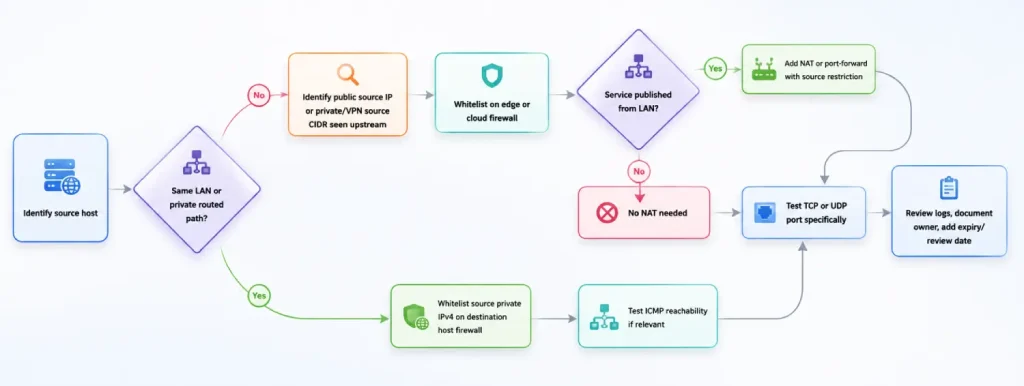
“Whitelisting a local IP” can mean several different things in practice, so the first task is to map the request to the correct control point:
Private IPv4 ranges reserved for internal use are 10.0.0.0/8, 172.16.0.0/12, and 192.168.0.0/16. That matters because a rule on a public internet-facing firewall generally cannot match a laptop’s internal 192.168.x.x address unless the whole path is private or tunneled; NAT changes the address the upstream device sees.
Static versus dynamic addressing is also important. DHCP exists to automatically allocate reusable network addresses, but a moving source address makes allowlists brittle. In practice, you either assign a static IP at the host or use a DHCP mapping/reservation on the DHCP server/router. On pfSense, for example, a static DHCP mapping is explicitly described as an IP preference, not an absolute reservation, and unknown-client controls can be combined with static mappings for tighter environments.
CIDR notation is the standard way to express single hosts and networks in most modern firewalls. A single IPv4 host is usually written as /32, such as 203.0.113.1/32 in AWS security groups. A local subnet example is 192.168.1.0/24, which means 256 addresses in that subnet, though only the usable host range is assignable in normal IPv4 subnetting.
Implementation Workflow and Image Plan
A practical, low-risk workflow looks like this. It is intentionally layered because “the right place” to whitelist depends on where filtering happens.
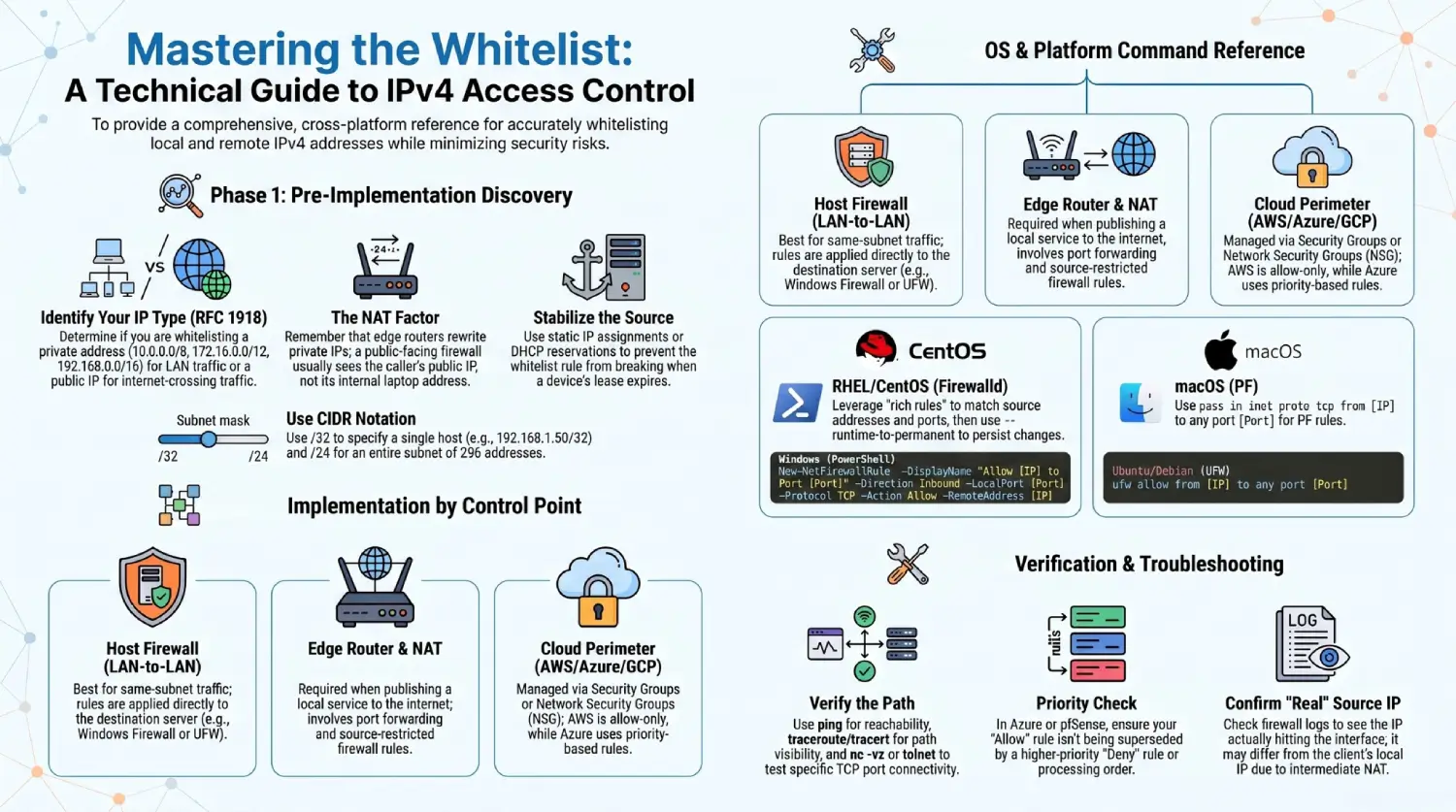
The image requirements below are written so an editor or engineer can generate real guide screenshots consistently. Because this chat interface cannot safely embed every vendor screenshot inline, the table specifies the exact content to capture, target resolution, and the official page or source context for each image. Where the exact vendor/version UI could not be confirmed from an official document, it is marked unspecified.
Host Operating Systems
The most common same-LAN use case is: server on one machine, approved client on another machine in the same private network. In that case, whitelist the client’s private IPv4 on the destination host firewall, and restrict by protocol and port whenever possible.
Windows 10 and Windows 11
Use Windows Firewall to allow only the approved source IPv4 to the required port. Microsoft documents both netsh advfirewall and PowerShell flows, including remote-address matching and later modification of a rule’s remote address. ipconfig shows the current IPv4 address, subnet mask, and default gateway.
Discovery
ipconfig
Create a tight inbound allow rule for a single local client
New-NetFirewallRule `
  -DisplayName "Allow SSH from 192.168.1.50" `
  -Direction Inbound `
  -Protocol TCP `
  -LocalPort 22 `
  -RemoteAddress 192.168.1.50 `
  -Action Allow
Equivalent legacy netsh example
netsh advfirewall firewall add rule name="Allow SSH from 192.168.1.50" dir=in protocol=TCP localport=22 remoteip=192.168.1.50 action=allowVerify
Get-NetFirewallRule -DisplayName "Allow SSH from 192.168.1.50"Update the allowed source later
Set-NetFirewallRule -DisplayName "Allow SSH from 192.168.1.50" -RemoteAddress 192.168.1.60GUI path
Open Windows Defender Firewall with Advanced Security → Inbound Rules → New Rule → choose the rule type that fits your service → set protocol/port → on the scope/remote-address step, restrict to the approved IPv4 or CIDR. The exact dialog text can vary slightly by build, so if your UI differs, treat the label wording as environment-specific. The underlying remote-address capability is confirmed in Microsoft’s rule-management docs.
macOS
Apple’s built-in GUI firewall is primarily an application firewall: it lets you allow or block connections for apps and services. If your requirement is specifically source-IP allowlisting, that is a Packet Filter (pf) task, not a simple app-firewall toggle. Apple documents the GUI firewall under Apple menu → System Settings → Network → Firewall, and the PF toolchain is exposed through pfctl and pf.conf.
If your goal is only to allow an app to receive inbound connections
Go to Apple menu → System Settings → Network → Firewall → Options, add the app/service, and set it to allow connections. This is app-based, not source-IP-based.
If your goal is source-IP allowlisting
Because persistent PF integration can vary by existing pf.conf/anchor layout, the exact insertion point is environment-specific and therefore unspecified. The rule pattern itself is well-defined by PF syntax. A minimal rule concept for allowing only 192.168.1.50 to SSH would be:
table <whitelist_ipv4> persist { 192.168.1.50 }
pass in inet proto tcp from <whitelist_ipv4> to any port 22 keep state
Validate PF syntax and load configuration
sudo pfctl -nf /etc/pf.conf
sudo pfctl -f /etc/pf.conf
sudo pfctl -e
sudo pfctl -sr
If you use PF on macOS, make a backup of /etc/pf.conf first and apply changes through your normal change-control process. The safest precise statement here is that PF supports tables, source-address matching, and runtime rule loading; the exact persistent anchor layout is local-environment-specific.
Ubuntu and Debian
For Ubuntu and Debian systems that use UFW, the most direct way to whitelist a single IPv4 source is to permit traffic from that address to the required port/protocol. UFW’s full rule syntax explicitly supports from ADDRESS … to ADDRESS … port PORT … proto PROTOCOL, and ufw status shows the resulting rule set. Routing/forwarding rules use the route keyword and additionally require IP forwarding.
Discovery
ip addr show
ip route
Allow only one source to one service
sudo ufw allow from 192.168.1.50 to any port 22 proto tcp
sudo ufw status numbered
Allow an entire subnet instead of one host
sudo ufw allow from 192.168.1.0/24 to any port 443 proto tcpDelete the rule later
sudo ufw delete allow from 192.168.1.50 to any port 22 proto tcpIf the machine is forwarding traffic between interfaces
sudo ufw route allow in on eth0 out on eth1 from 192.168.1.50 to 10.0.0.10 port 443 proto tcpOn Debian specifically, UFW may be present but not always preconfigured in every environment; if your host uses raw nftables or another firewall manager instead, the exact rule path is unspecified and should follow the active firewall framework on that machine. The UFW syntax above is accurate where UFW is installed and active.
CentOS and RHEL
Modern RHEL-family systems commonly use firewalld. The official rich-language documentation explicitly supports IPv4 source-address matching and simple source-only allowlisting, and firewall-cmd documents –add-rich-rule, –list-rich-rules, –query-rich-rule, and –runtime-to-permanent. A secure workflow is to add the rule at runtime, test it, then persist the runtime configuration once you know it works.
Allow one source to one TCP service
sudo firewall-cmd --zone=public \
  --add-rich-rule='rule family="ipv4" source address="192.168.1.50" port port="22" protocol="tcp" accept'
Verify
sudo firewall-cmd --zone=public --list-rich-rules
sudo firewall-cmd --zone=public \
  --query-rich-rule='rule family="ipv4" source address="192.168.1.50" port port="22" protocol="tcp" accept'
Persist after successful testing
sudo firewall-cmd --runtime-to-permanentSource-only allowlist pattern
/codesudo firewall-cmd --zone=public \
  --add-rich-rule='rule family="ipv4" source address="192.168.1.50" accept'
That last form allowlists the source broadly. It is valid, but in most real environments a source-plus-port rule is safer. firewalld rich-language examples and rule structure support both styles.
Routers Firewalls Clouds and Control Panels
If the service sits behind a router, next-generation
perimeter, a host-only rule is often not enough. You may also need an upstream allow rule, and, for inbound internet access to a private host, port forwarding or destination NAT. Netgate’s pfSense docs define port forwarding as inbound NAT that rewrites the destination, and MikroTik’s RouterOS docs show the same principle using dst-nat, with optional src-address restriction for tighter control.
Router and Firewall Vendor Examples
pfSense
pfSense filters traffic on the interface where packets enter the firewall, and interface rules are stateful by default. On LAN-only access, go to Firewall → Rules → LAN, add a Pass rule, set the source to the specific host or alias, destination to the server or firewall service, and restrict protocol/port. For internet-published services, go to Firewall → NAT → Port Forward, set the Source to the approved remote IP/CIDR if the remote source is limited, choose the external destination and port, and redirect to the internal target IP/port. Netgate explicitly notes that source restrictions on port forwards increase security for static, limited remote sources.
MikroTik RouterOS
RouterOS NAT documentation shows a dst-nat rule that publishes an internal server and then improves security by adding src-address=192.168.88.1 so only that source can use the rule. It also shows firewall filters that match src-address on input/output/forward chains. A practical source-restricted publish example is:
/ip firewall nat add chain=dstnat action=dst-nat \
  dst-address=<WAN_IP> protocol=tcp dst-port=443 \
  src-address=203.0.113.1 to-addresses=192.168.1.50 to-ports=443
Replace <WAN_IP> with the router’s real public address. If your source is on the same LAN and you are only filtering traffic to the router itself, use a filter rule instead; exact chain/interface placement is environment-specific.
Ubiquiti UniFi
The exact UniFi Network click path is unspecified here because the relevant official Ubiquiti page was not retrievable in this research and the UI changes materially across controller releases. Functionally, you are looking for a source-restricted firewall or traffic rule, or a source-restricted port-forward on the gateway. Before production use, verify the exact labels and rule order on your specific UniFi Network version.
Cisco ASA and Cisco IOS
The exact ASA/IOS command reference and ASDM click path are also unspecified here because the official Cisco reference was not retrievable in this research. At a design level, the correct control remains the same: place a source-restricted ACL or policy on the ingress interface and verify with the platform’s show/inspection commands. Because your requirement prioritizes 100% accuracy, do not copy generic internet ASA/IOS snippets until they are confirmed against your exact software train.
Cloud Platform Examples
AWS Security Groups
AWS security groups control inbound and outbound traffic to associated resources. They support allow rules only, not deny rules. A single IPv4 source host must be written as /32, for example 203.0.113.1/32. In the console: VPC console → Security groups → select SG → Edit inbound rules → Add rule → set type/protocol/port/source → Save rules. AWS explicitly warns against using Anywhere-IPv4 unless that is truly required, and calls it best practice to authorize only the specific IP ranges that need access.
Azure Network Security Groups
Azure NSG support both allow and deny rules. Rules are processed in priority order, where lower numbers have higher priority, and processing stops once traffic matches a rule. In the portal: Network security groups → select NSG → Inbound security rules or Outbound security rules → Add. If you choose Source = IP Addresses, fill Source IP addresses/CIDR ranges with one or more comma-delimited IPs/ranges. Azure also notes that if the IP belongs to an Azure VM, you should use its private IP, not its public IP, because of NSG translation behavior.
GCP VPC Firewall
Google Cloud VPC firewall rules can allow or deny traffic, and lower numbers mean higher priority. In the console: Create firewall rule → Name → Network → Priority → Direction → Action → Targets → Source filter → Protocols and ports. For ingress IPv4 restrictions, choose Source filter = IPv4 ranges and enter CIDR blocks in Source IPv4 ranges. Google Cloud also recommends least privilege and minimizing unnecessary broad rules.
Control Panel Examples
cPanel and WHM
There are two distinct cPanel allowlist scenarios:
First, for service access control, use WHM → Security Center → Host Access Control. cPanel documents that this interface can allow, reject, or drop access to services such as cPanel, WHM, Webmail, FTP, SSH, SMTP, POP3, and IMAP for specific IP addresses. On CloudLinux/AlmaLinux/Rocky Linux, enter Port, IP Address/CIDR, Protocol, and Action = ACCEPT, and cPanel explicitly says to place ACCEPT rules before DROP or REJECT rules. On Ubuntu-based cPanel systems, access control is handled through /etc/hosts.allow and /etc/hosts.deny, and allow rules must come before deny rules.
Second, for brute-force protection exclusions, use WHM → Security Center → cPHulk Brute Force Protection → Whitelist Management. cPanel strongly recommends adding your own IP address to the whitelist to avoid locking out the root account, and the UI accepts individual IPv4/IPv6 entries or CIDR notation. This is particularly useful for WHM/cPanel administrative access, but it is not a general-purpose port firewall in the same way Host Access Control is.
Plesk
Plesk details are unspecified in this report because the relevant official Plesk documentation/version page was not retrievable during this research. In practice, Plesk-related allowlisting is commonly split between panel-login trust controls and server firewall controls, but you should confirm the exact path on your installed Plesk edition and version before following any step-by-step guide.
NAT Port Forwarding and DHCP Mapping Notes
If you are publishing a server that lives on a private LAN, you usually need both a firewall allow rule and a destination NAT/port-forward rule. pfSense describes port forwarding as inbound NAT that rewrites the packet destination to an internal host, and it documents that you can restrict the Source of the port-forward rule to a limited set of remote IPs for additional security. MikroTik documents the same architecture with dst-nat, again allowing src-address restriction for better security.
If your source device is DHCP-based and frequently changes address, create a DHCP mapping on the local DHCP server/router first. On pfSense, static mappings are keyed primarily by MAC address and become especially important when you deny unknown DHCP clients or use static ARP controls. Netgate also cautions that a static mapping is a preference, not an absolute reservation, so verify the final assigned lease after implementation.
Vendor and UI Path Comparison
| Platform | Exact or best-confirmed UI path | Best use case | Notes |
|---|---|---|---|
| pfSense | Firewall → Rules or Firewall → NAT → Port Forward | LAN firewalling or internet publication with source restriction | Interface rules are inbound-on-interface and stateful by default. |
| MikroTik | RouterOS CLI shown in NAT docs | Source-restricted dst-nat or source-matched filtering | Official docs retrieved here confirm dst-nat with src-address= and filter examples using src-address=. |
| UniFi | Unspecified by controller version | Gateway traffic rule or source-restricted port forward | Confirm exact labels on your installed UniFi release before rollout |
| Cisco ASA/IOS | Unspecified by software train/tooling | Ingress ACL/policy on the correct interface | Confirm against your exact ASA/IOS reference before change |
| AWS | VPC console → Security groups → Edit inbound rules | VM/instance perimeter | SGs are allow-only. Single IPv4s use /32. |
| Azure | Network security groups → Inbound/Outbound security rules → Add | Subnet/NIC perimeter | Lower priority number wins. Allows both allow and deny. |
| GCP | Create firewall rule in Google Cloud console | VPC perimeter | Lower priority number wins; for ingress use Source IPv4 ranges. |
| cPanel/WHM | WHM → Security Center → Host Access Control or cPHulk → Whitelist Management | Panel/service administration controls | Distinguish service ACLs from brute-force allowlists. |
| Plesk | Unspecified | Version-specific | Confirm on your installed version before use |
Verification Troubleshooting and Migration
A correct allowlist change should be verified at multiple layers. ping or traceroute/tracert can help you confirm basic path and reachability, but application-level checks such as telnet, nc, or curl are better for proving that the exact allowed port is reachable from the allowed source. Windows documents both ping and tracert, including tracert’s hop-by-hop TTL method.
Use the following verification pattern:
# Reachability
ping 192.168.1.50

# Path visibility
traceroute 192.168.1.50      # Linux/macOS
tracert 192.168.1.50         # Windows

# TCP port check
nc -vz 192.168.1.50 22       # Linux/macOS
telnet 192.168.1.50 22       # If telnet client is installed

# HTTP/HTTPS check
curl -I http://192.168.1.50:8080
curl -kI https://192.168.1.50:443
For each platform, also use platform-native inspection after the network probe. On Windows, inspect the rule and confirm the RemoteAddress. On UFW, run ufw status numbered. On firewalld, use –list-rich-rules or –query-rich-rule. On pfSense, review Firewall Logs and the NAT/firewall rule counters. On AWS/Azure/GCP, verify the rule object as well as the effective network attachment and whether the target resource is actually associated with the intended SG/NSG/firewall target.
A short troubleshooting checklist is usually enough to isolate why a rule “looks right” but still does not work:
- Confirm the real source IP seen by the filtering device. If the path crosses NAT, the upstream firewall likely sees a public IP, not 192.168.x.x.
- Confirm the destination port and protocol. A rule for TCP 22 will not help UDP traffic, and a common failure on pfSense is accidentally choosing TCP-only when non-TCP traffic is needed.
- Confirm the rule is attached to the correct interface, security group, NIC, subnet, or target tag/service account. Azure and GCP both make attachment scope important.
- Confirm priority and order. Azure NSGs and GCP firewall rules are priority-driven, while pfSense processes rules in interface/group order and stops at the first match.
- Confirm whether port forwarding/NAT is also required. A firewall allow alone does not publish a private host to the internet.
- Confirm IP stability. If the client is DHCP-based and changed addresses, your rule may already be stale. Use a DHCP mapping or static address when appropriate.
- Confirm existing sessions versus new sessions. Azure notes that NSG changes affect new connections, while established flows can remain active.
A practical migration checklist is useful when you are tightening an environment that currently uses broad rules such as “allow from any” or “allow 192.168.1.0/24”:
- Inventory the service owner, destination host, real protocol, and real port range.
- Discover the actual approved sources from logs or current operations.
- Replace dynamic clients with static IPs or DHCP mappings where feasible.
- Create a new narrow rule first, ideally /32 for single hosts.
- Test the new narrow rule from the approved source.
- Only after successful validation, remove the broad rule.
- Persist the change on platforms with separate runtime/permanent stores, such as firewalld.
- Document the rule with owner, purpose, change ticket, and review date.
- Prefer VPN-based administrative access over exposing management services by raw port forward wherever possible; Netgate explicitly notes that VPN can be a better practice than direct source-restricted port forwarding when viable.
About the writer

Hassan Tahir wrote this article, drawing on his experience to clarify WordPress concepts and enhance developer understanding. Through his work, he aims to help both beginners and professionals refine their skills and tackle WordPress projects with greater confidence.