 Lifetime VPS Europe
 Lifetime VPS Asia
 Lifetime WooCommerce Hosting
 Lifetime Hosting
 Lifetime Game Dedicated Servers
 Chicago, US
 Tokyo, Japan
 Singapore
 Hong Kong
 Seoul, South Korea
 Amsterdem, Netherlands
 London, UK
 Stockholm, Sweden
 Oslo, Norway
 Vienna, Austria
 Zurich, Switzerland
 Sydney, Australia
 Wordpress Hosting
 VPS Hosting
 DDOS Protection
 Submit Ticket
 Full Management
 Guides
 Videos and Podcasts
 Discover Creative Ideas
 Voxfor Autonomous AI Workers
 Voxfor Mega Menu
 Voxfor Advanced Price Management For WooCommerce
 Voxfor Secure Live Chat and AI Support
 Voxfor Multilanguage
 Voxfor AI Content Summary
 Voxfor Autopilot
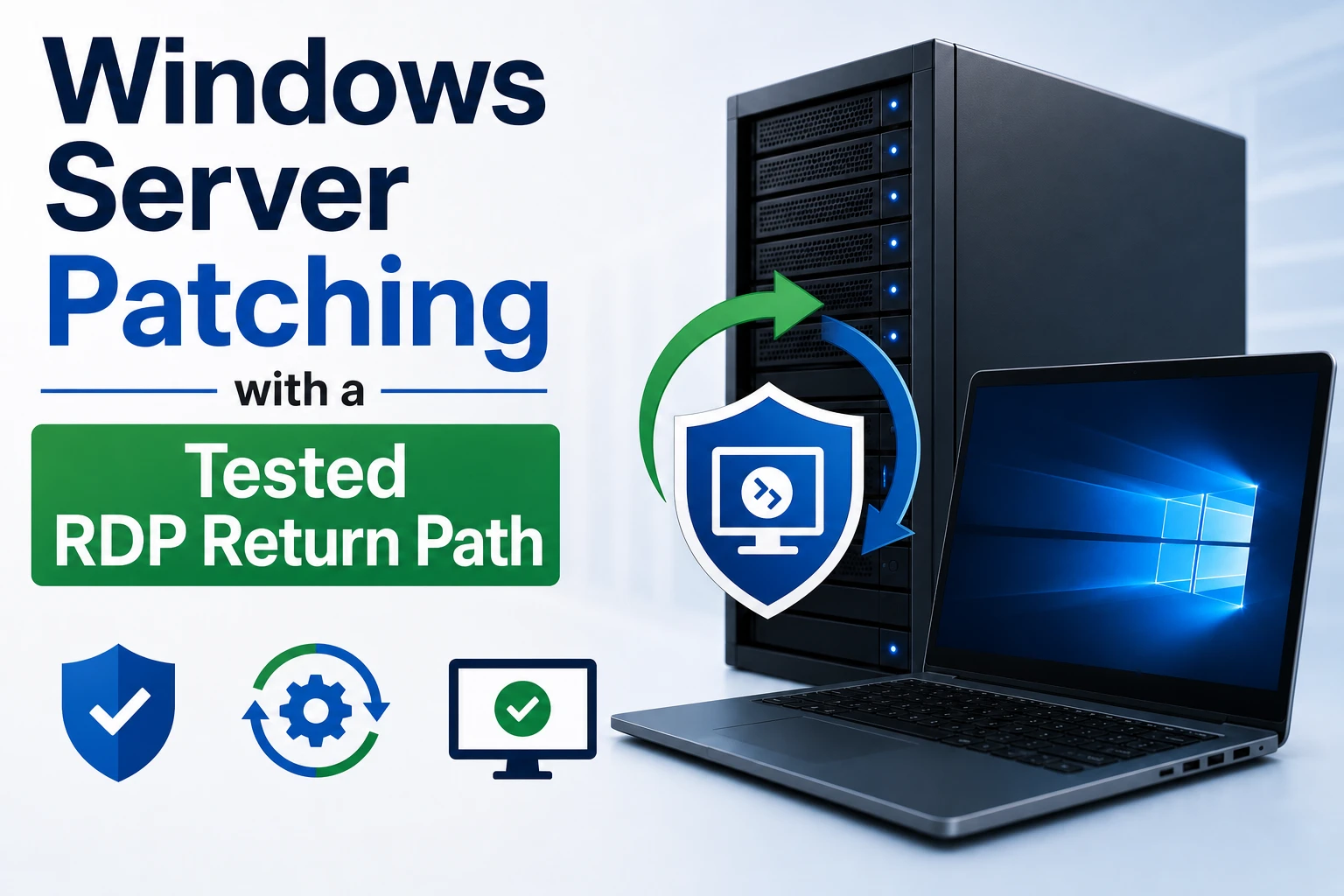
A Windows Server update can install successfully and still turn a routine maintenance window into an access incident. The server may reboot, answer ping and even show as powered on while Remote Desktop, a critical Windows service or the hosted application remains unavailable. The safest patch process therefore starts with a return path that does not depend on RDP, records the exact starting state, and defines what must work after the reboot before anyone calls the change complete.
For a remote VPS, console access is part of the patch plan, not a last-minute support request. Confirm the provider console, verify that an authorized operator can use it, preserve a recoverable backup, identify the update and its known issues, and write workload-specific acceptance checks. Then patch one machine, reboot once under observation and classify any failure before removing an update.
This guide fits standalone and small-fleet Windows Server 2019, 2022 and 2025 systems. Domain controllers, failover clusters, Hyper-V clusters, Remote Desktop Services farms and multi-node applications need role-specific drain, replication and failover procedures in addition to this baseline.
Remote access is a production dependency
RDP is convenient, but it runs inside the operating system being changed. If Windows does not finish booting, the network profile changes, the firewall no longer permits the expected rule, or Remote Desktop Services fails, another RDP attempt cannot repair the machine.
Separate the control path from the service path
Use two paths with different failure modes:
- Service path: the ordinary RDP connection, management VPN or remote administration route used every day.
- Recovery path: the hosting control-panel console, virtual KVM, serial console or another out-of-band facility that remains available when the guest network or RDP listener is broken.
Open the recovery console before the window and reach the Windows sign-in screen. Confirm the keyboard layout, authorized credentials and any multi-factor or panel access needed by the on-call operator. A screenshot of a console button is not a test; the operator who owns recovery must complete a real sign-in or an approved non-invasive console check.
Do not weaken RDP exposure to make maintenance easier. Keep the existing VPN, source-IP restriction, gateway or firewall boundary in place. A temporary internet-wide rule on TCP 3389 creates a new security problem without helping if the Windows listener itself fails.
Give the window one owner and one abort authority
Name the person who can proceed, pause or roll back. Record who owns the application check, who can reach the provider console and who can retrieve the backup if the server will not boot. On a revenue-sensitive system, those may be different people.
If nobody owns monitoring, backups or recovery access, stop the window and assign those responsibilities before the reboot.
Identify the exact change before touching Windows Update
“Install the latest patches” is not a sufficient change record. Capture the Windows edition, version, build, last boot time, installed hotfixes and pending maintenance context. Microsoft maintains a Windows Server release history with supported builds and KB references, while each supported release has a release-health page for known and resolved issues.
Run an elevated PowerShell session and save the output to a restricted maintenance record. The commands below are read-only:
$stamp = Get-Date -Format "yyyyMMdd-HHmmss"
$out = "C:PatchEvidence$stamp"
New-Item -ItemType Directory -Path $out -Force | Out-Null

Get-ComputerInfo -Property WindowsProductName,WindowsVersion,OsBuildNumber,OsLastBootUpTime |
  Out-File "$outos.txt"
Get-HotFix | Sort-Object InstalledOn |
  Format-Table -AutoSize | Out-File "$outhotfixes.txt"
Get-Service TermService,UmRdpService |
  Format-Table Name,Status,StartType -AutoSize | Out-File "$outrdp-services.txt"
Get-NetTCPConnection -State Listen |
  Sort-Object LocalPort | Out-File "$outlisteners.txt"
Creating an evidence directory changes only local files, but choose a protected path that matches your retention policy. Hotfix inventory is helpful, not complete proof by itself: compare the OS build with Microsoft’s release history and retain the actual KB identifier approved for the window.
Read known issues for the server’s version and role
Check the release-health page and the KB article before approval, not while waiting for a reboot. Search for the installed server version and for the roles that matter: RDP, Active Directory, Hyper-V, IIS, .NET, VPN, storage, printing or authentication.
Do not turn every community report into a blocker. Community posts can reveal demand or a symptom worth investigating, but Microsoft release health, the KB article and your own staging result should drive the decision. If a known issue directly affects the server’s role, either apply the documented mitigation, wait for the resolved build, or document why the risk is accepted.
Define the workload acceptance contract
RDP is only one check. Write the smallest set of results that proves the server still does its job. An IIS server may need an external HTTPS request and an authenticated application transaction. A database host needs connection, read/write and backup-agent checks. A file server needs share access and a controlled read/write test. A domain controller needs replication, DNS and logon checks that this standalone guide does not attempt to replace.
The contract should include a timeout. “Wait and see” leaves the server in an undefined state. A useful change record says, for example, that the server must return to the sign-in screen within an expected boot window, accept RDP from the normal administration path, start named services, pass the external application probe and remain stable through an observation period.
Build the return path before the maintenance window
Recovery preparation has three layers: a working console, a restorable data/system backup and a known-good network/access baseline. None substitutes for the others.
Prove the console without changing production settings
Open the provider console while RDP is healthy. Confirm that it shows the same hostname and current time as the target server. If the console requires a separate account, password vault entry or support permission, resolve that now.
The console test also catches a common operational trap: the person who can approve Windows updates may not have access to the virtualization panel. A patch run should not begin until the recovery operator is available for the entire reboot and initial validation period.
Confirm what the backup can actually restore
A provider snapshot can be useful for short-term rollback, but do not assume it is application-consistent or that it replaces the normal backup. Confirm its timestamp, retention, restore method and whether restoring it replaces the whole disk. For important application data, keep the application’s normal backup and test recovery path as well.
Record the point after which rollback could discard new data. If the server accepts writes after patching, restoring a pre-window image will remove those writes. That makes rollback a business-data decision, not merely a technical button.
Freeze a remote-access baseline
From the server console or RDP session, capture Remote Desktop service state, the listener and relevant firewall rules. From a separate operator machine, test the actual port over the normal management path. Microsoft’s Test-NetConnection supports a TCP test that is more relevant than ping alone.
# Run on the server
Get-Service TermService,UmRdpService
Get-NetTCPConnection -State Listen -LocalPort 3389
Get-NetFirewallRule -DisplayGroup "Remote Desktop" |
  Select-Object DisplayName,Enabled,Direction,Action

# Run from a separate authorized Windows machine
Test-NetConnection <server-management-name> -Port 3389 -InformationLevel Detailed
Replace port 3389 if the environment uses a reviewed alternate port. Do not publish the management address or paste unrestricted firewall output into a public ticket.
On a non-English Windows installation, the Remote Desktop display-group name can be localized. Use the group name shown by that server instead of assuming the English label, and record the rule identities you actually verified.
Freeze the starting state
A good baseline is small enough to compare during an incident. Capture signals that distinguish boot, network, RDP and application failures.
| Layer | Before the update | Pass after reboot | If it fails |
|---|---|---|---|
| Guest boot | Console sign-in works; hostname and clock are correct | Sign-in screen returns within the expected window | Stay on console; inspect boot/update state |
| Network | Expected address, gateway and DNS are recorded | Normal management path reaches the server | Compare adapter/profile/routes before changing firewall |
| RDP | TermService, listener and restricted firewall rule are healthy | Fresh external RDP session succeeds | Separate TCP reachability from listener/authentication |
| Workload | Named services and synthetic transaction pass | Same transaction passes with expected result | Diagnose the application before blaming RDP |
| Update state | OS build and installed KBs are recorded | Approved KB/build is present and reboot is complete | Review servicing/event logs and pending state |
| Recovery | Console and backup owner are confirmed | Evidence remains available through observation | Do not close the change |
Capture free disk space on the system volume and stop if the server is already under storage pressure. Updates need working space, and an almost-full system disk can produce failures that look unrelated to capacity.
Get-Volume -DriveLetter C |
  Select-Object DriveLetter,HealthStatus,Size,SizeRemaining
Get-CimInstance Win32_OperatingSystem |
  Select-Object Caption,Version,BuildNumber,LastBootUpTime
Also check that no other installer, servicing operation or unplanned reboot is already pending. Do not start a second maintenance mechanism merely because the GUI appears idle. If WSUS, Group Policy, Azure Arc, an RMM platform or another management system owns updates, use that approved control plane rather than racing it with a manual install.
Patch one server and observe one reboot
For one standalone server, use the organization’s approved Windows Update, WSUS, Windows Admin Center or SConfig path. Microsoft documents SConfig as a convenient lifecycle tool for a single Server Core machine, while recommending scalable remote-management methods for larger fleets.
Do not combine patching with unrelated cleanup
Avoid changing the RDP port, firewall policy, NIC configuration, antivirus product, storage layout and application version in the same window. Every extra change weakens the evidence when something fails.
If the server is part of a pool, remove it from service through the application’s normal drain procedure before patching. Do not improvise a load-balancer or cluster sequence from this standalone article.
Let the servicing stack finish
Record when installation begins and when the restart is initiated. Keep the console visible through reboot. Windows may display several update phases or restart more than once depending on the approved package and servicing state. Do not force-reset the VM because the percentage pauses unless the provider and Microsoft guidance for the observed failure support that action.
On Server Core, Microsoft documents installed-update checks and the SConfig update path in its Server Core servicing guidance. For a graphical server, the same evidence rules apply even when the approved installation is launched from Settings or a management platform.
Run only one update owner. A copied script or third-party PowerShell Gallery module may change behavior, dependencies or reboot handling over time. Use it only if your organization has reviewed, pinned and tested it; this guide does not require one.
Prove access from outside, then prove the workload
The sign-in screen is the start of validation. Test from a fresh client session so an existing RDP connection or cached application response cannot hide a broken path.
Classify the path before logging in
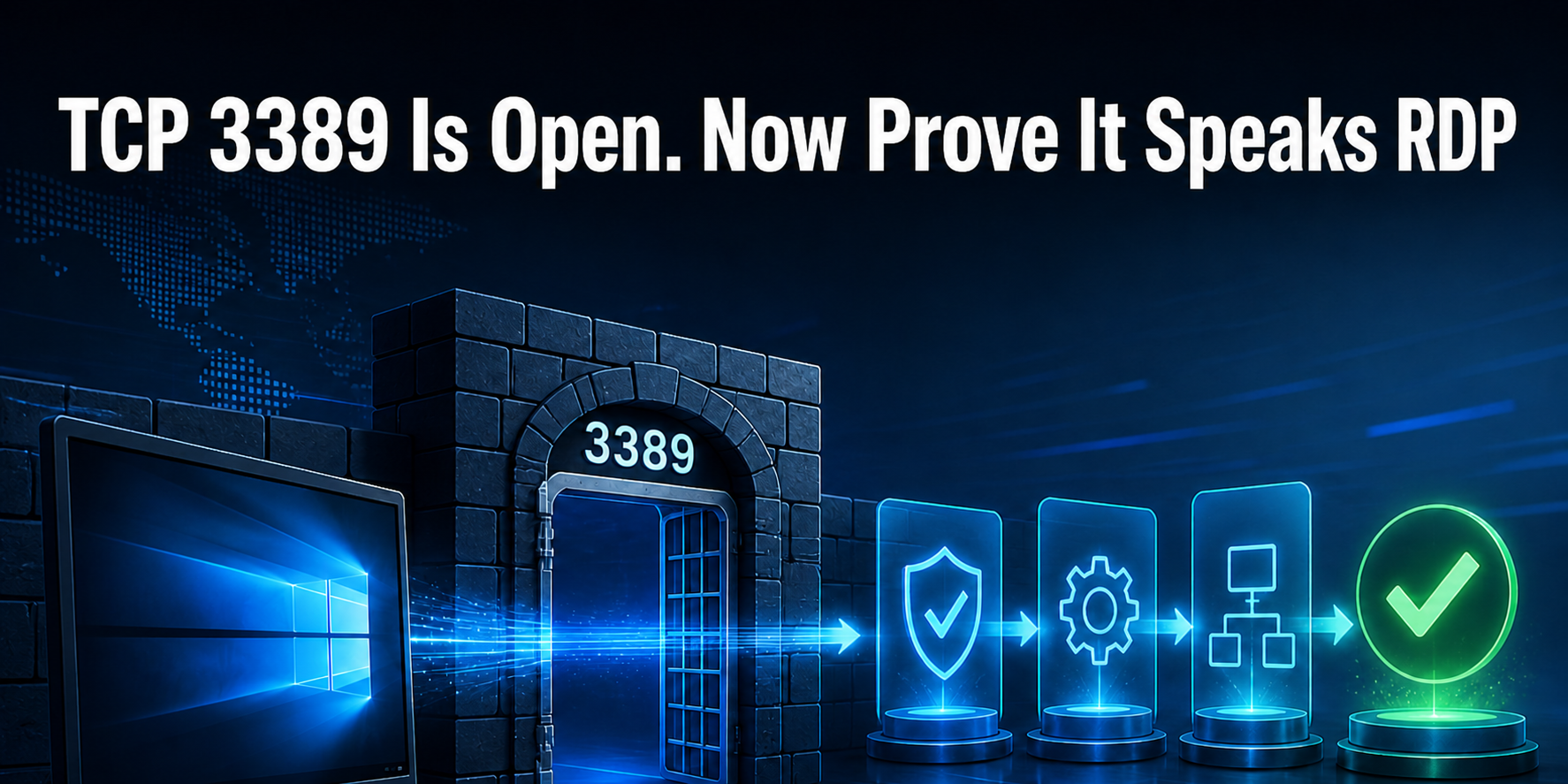
From a separate authorized machine, repeat the TCP test. A failed TCP connection points toward routing, firewall or listener availability. A successful TCP test with failed authentication points toward credentials, NLA, policy, certificate or session-host behavior. That distinction prevents random firewall edits.
Test-NetConnection <server-management-name> -Port 3389 -InformationLevel DetailedThen open a new RDP session through the normal protected route. Verify the expected hostname and user context. Do not count a console session as proof that remote access has returned.
Compare the operating-system evidence
After sign-in, capture the new boot time, build, KB inventory, Remote Desktop services and listener. Keep before/after files together.
Get-CimInstance Win32_OperatingSystem |
  Select-Object Caption,Version,BuildNumber,LastBootUpTime
Get-HotFix | Sort-Object InstalledOn -Descending | Select-Object -First 15
Get-Service TermService,UmRdpService
Get-NetTCPConnection -State Listen -LocalPort 3389
Review System and application-specific event logs for the maintenance interval. A few warnings may be expected during shutdown; the question is whether new recurring errors, service crashes or authentication failures continue after the system stabilizes.
Test the user-facing transaction
Run the acceptance contract written before patching. Test from outside the server when the workload is meant to be public or consumed over a network. A local IIS response does not prove DNS, TLS, firewall and upstream routing. A running Windows service does not prove that its database or dependency is healthy.
Use synthetic data that is safe and recognizable. Record the timestamp, endpoint, result and any application correlation ID without copying customer records or credentials into the ticket. Compare latency and error rate with the baseline, but avoid declaring a regression from one request.
Keep the observation window long enough to include scheduled tasks, backup agents, monitoring check-ins and the first representative user traffic. Patch completion is an application outcome, not a green update-history row.
If RDP does not return, diagnose from the console
Do not immediately uninstall the update. First decide whether the guest failed to boot, the network path is broken, the RDP listener is absent, authentication is failing or only the application is unhealthy.
Start with non-destructive checks
From the provider console, confirm the server reached the sign-in screen and the expected network configuration still exists. Then check service state, listener ownership and recent system events.
Get-Service TermService,UmRdpService
Get-NetTCPConnection -State Listen | Sort-Object LocalPort
Get-NetIPConfiguration
Get-NetConnectionProfile
Get-WinEvent -FilterHashtable @{LogName='System'; StartTime=(Get-Date).AddHours(-2)} |
  Select-Object -First 80 TimeCreated,Id,LevelDisplayName,ProviderName,Message
Microsoft’s general RDP troubleshooting flow separates client, network, service, listener, firewall and registry checks. Follow the branch that matches the evidence. Back up the registry before any registry edit, and do not toggle firewall or NLA settings blindly just to see whether something changes.
If the listener and services are healthy locally, test the management route and firewall boundary. If the listener is missing, inspect Remote Desktop Services errors and the documented listener configuration. If TCP connects but the session fails later, preserve the exact client error and correlate it with the server event log.
Roll back only a named package for a proven reason
Rollback is justified when the approved KB is strongly linked to the failure, the issue is not resolved by a safer documented repair, and the operator has accepted the security and data consequences. Record the package identity before removal.
DISM /Online /Get-Packages /Format:Table
Get-WindowsPackage -Online | Sort-Object InstallTime -Descending |
  Select-Object -First 20 PackageName,PackageState,InstallTime
Microsoft documents Remove-WindowsPackage and DISM /Remove-Package for manual servicing, but the package name must match the installed package and not every update can or should be removed. Treat removal as an approved recovery action, not a generic command. Preserve console access, the backup and the evidence bundle; then use the exact current Microsoft procedure for that KB and operating-system build.
Restoring a snapshot is broader still. It can revert application writes, configuration and logs created after the snapshot. Use it only when the recovery owner understands what will be lost and the application acceptance plan covers the restored state.
FAQ
Should I disable automatic updates on every Windows Server?
Not as a universal rule. Choose an update policy that matches the server role and management system, prevents surprise restarts during critical work, and still installs security updates on an accountable schedule. Domain policy, WSUS, RMM or another control plane may already own that decision.
Does a successful ping prove RDP will work after reboot?
No. Ping can succeed while TCP 3389 is blocked, the RDP listener is absent or authentication fails. Test the actual management port from a separate machine, then open a fresh protected RDP session.
Is a VPS snapshot enough rollback protection for patching?
It may help with whole-machine recovery, but it may not be application-consistent and restoring it can discard writes created after the snapshot. Keep the normal application backup and understand both restore procedures before patching.
Should I uninstall a KB as soon as RDP fails?
No. Use the console to classify boot, network, listener, firewall and authentication state first. Remove only an identified package when evidence and current Microsoft guidance support that recovery, because rollback reopens the vulnerabilities or defects fixed by the update.
Close the window with evidence and ownership
A complete patch record should contain the approved KB/build, before-and-after boot time, console proof, external RDP test, service/listener state, workload transaction result, relevant event-log findings, backup reference and the end of the observation window. Note any known issue that was accepted and the person who owns follow-up.
The host needs enough disk and memory headroom for servicing, plus a protected recovery console and a clear boundary between infrastructure and guest administration. Administrator access does not replace patch ownership, application testing or backups.
Do not close the change because the desktop reappeared. Close it when the ordinary remote path, the hosted workload and the recovery evidence all agree that the server returned to service—and when the next operator can understand exactly what changed without reconstructing the night from screenshots.